A Beginner’s Guide to Building a PC in 2027
By James Thompson · Updated:
Some links in my articles are affiliate links. I may earn a commission when you buy through them.
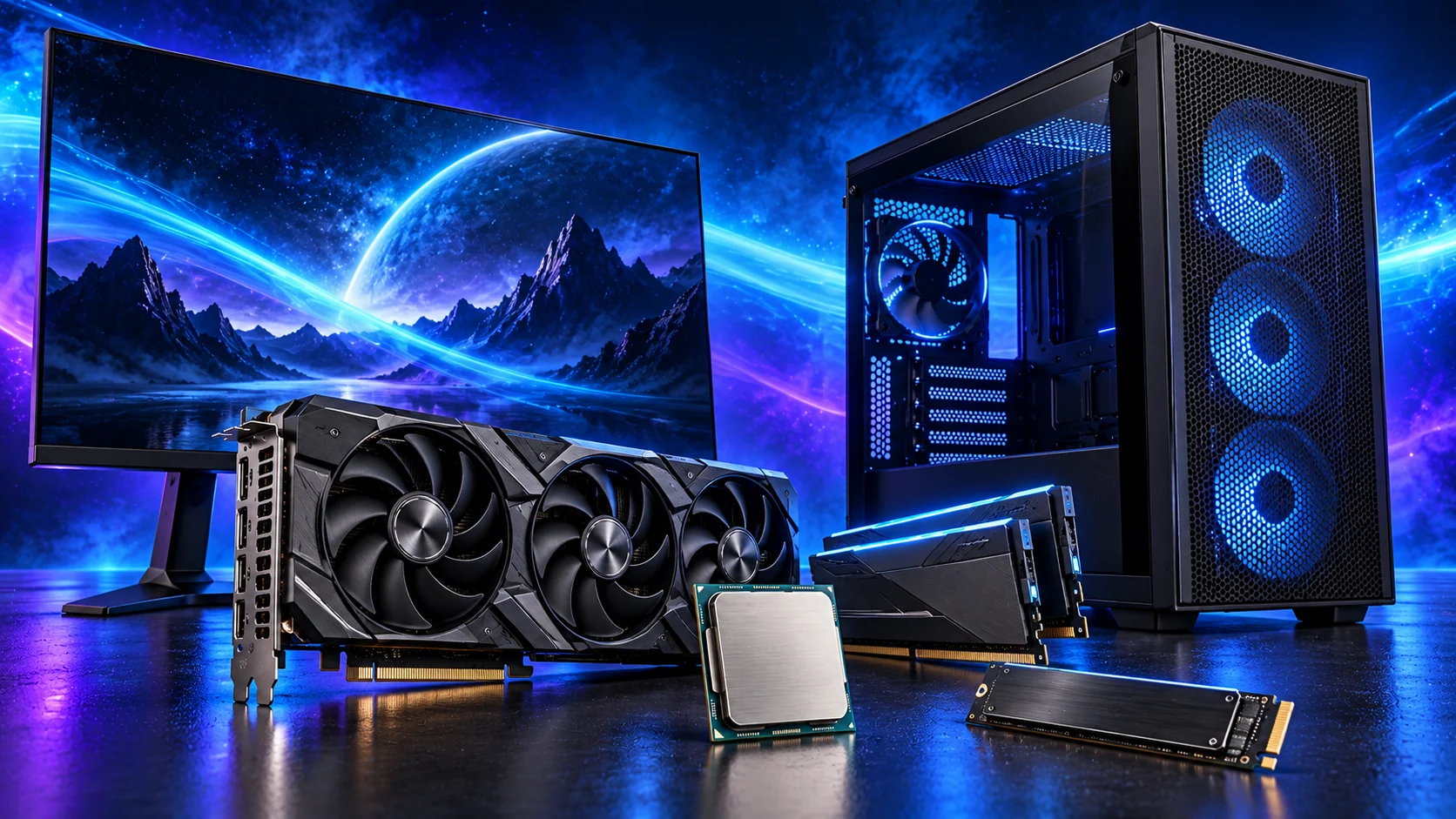
Your first PC starts with eight core parts: a processor, motherboard, memory, storage, power supply, case, CPU cooler and, for gaming or GPU-heavy work, a graphics card. Choose them around what you want to do, then assemble the system in a sensible order. Here’s where I’d spend the money and the parts I’d put on the shortlist.
Table of Contents
ToggleStart with the PC you actually want
Picture the finished setup. Is it a gaming PC with a fast screen, a photo-editing workstation, a machine for video projects, or a quiet computer for work? That answer determines which parts deserve the biggest share of the budget. A graphics card that makes sense for a 4K gaming screen can be an expensive distraction in an office build.
For gaming, go straight to How to Build a PC for Gaming for the budget, balanced and premium routes. If you’re still deciding, the use-case tables below give you a starting point for every core part. They are alternatives: choose one route through the build, rather than buying one item from every row.
Include your monitor, keyboard, mouse and Windows licence in the total if you need them. Our complete setup budget guide helps put those on the same list. For a first build, I’d choose a straightforward mid-tower and air cooling; both leave you room to work.
The complete PC parts checklist
| Part | What it does | Choose it around |
|---|---|---|
| Processor (CPU) | Runs applications, game logic and general work. | Your games or creative software. |
| Graphics (GPU) | Renders games, drives screens and accelerates supported creative tasks. | Screen resolution and software; office PCs can use CPU graphics. |
| Motherboard | Connects the processor, memory, storage and expansion cards. | CPU socket, memory type and useful ports. |
| Memory (RAM) | Keeps active apps and projects close to the processor. | Capacity first, then a suitable kit for the board. |
| SSD | Stores Windows, applications, games and files. | Capacity, drive type and room to add another drive. |
| Power supply (PSU) | Powers the whole system. | Graphics-card requirements and the correct cables. |
| Case | Houses the components and sets the airflow layout. | Board size, graphics-card length and cooler space. |
| CPU cooler | Moves heat away from the processor. | Socket mounting, workload and case clearance. |
You’ll also need a cross-head screwdriver, a clear table and a USB drive for the operating-system installer. Case fans, Wi-Fi and a cooler may already be included with other parts; add them only where your chosen setup needs them.
Keep the exact model names together on one list. “Ryzen 5”, “32GB RAM” and “a 16GB graphics card” are too broad to describe a compatible shopping basket.
Build an AM5 tower in PC Builder to see the PC in 3D, compare planning estimates and save your selected parts. Use the workload and setup advice here to refine the choices.
Choose your processor
The CPU determines the motherboard platform. For most new builds I’d start with AM5: the Ryzen 5 9600X is a good foundation for gaming and general work, while the Ryzen 7 9700X adds cores for a machine that splits its time between games and creative applications.
The Ryzen 5 5600 still has a place when a low-cost AM4 motherboard and DDR4 kit leave significantly more money for graphics. For demanding CPU rendering and long multicore jobs, the Ryzen 9 9950X is the step up I’d consider. Buying sixteen cores for email and web browsing would waste most of that capability.
Read our processor and graphics selection guide and AM4 versus AM5 before settling the platform. For the 9600X, check the motherboard’s CPU support before assembly, then get the machine running at its basic memory settings before enabling a faster profile.
Compare purposes in best processors for building a PC.
New to processors? Start with the CPU guide to compare the specifications and workload routes, then use the motherboard compatibility checklist before buying.
Choose your graphics card
For a gaming PC, the graphics card usually takes the largest share of the parts budget. The screen matters: 1080p, 1440p and 4K place very different demands on it. Creative software changes the choice too. Blender’s GPU renderer and Premiere are good reasons to look closely at Nvidia, even when I’d choose Radeon for a gaming-only build.
For office work, use the 9600X’s integrated graphics and the motherboard’s display outputs. Put the saving into a better screen, useful storage or a quieter setup. A separate GPU earns its place when you need gaming performance, supported acceleration or more display connections.
Use Best Graphics Cards for Building a PC to choose by purpose, or Best Graphics Cards for Gaming PCs to compare gaming tiers. For the ASUS Dual RX 9060 XT, measure usable case space including the power lead, rather than just the card’s length.
Compare purposes in best graphics cards for building a PC.
Use the graphics-card guide to match the screen and games, then compare like-for-like frame-rate results.
Choose your motherboard
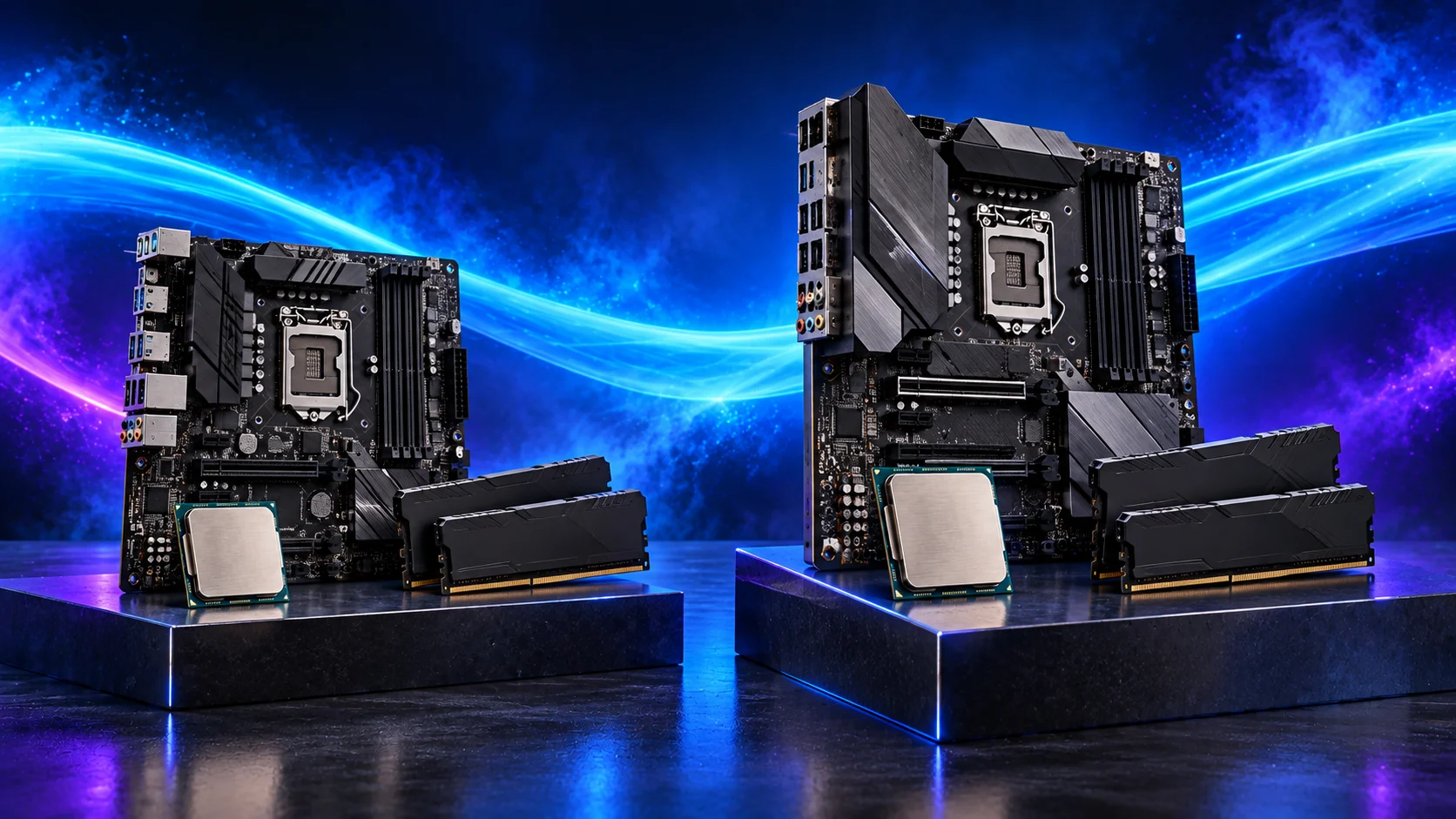
Choose the board after the processor. AM4 and AM5 use different sockets and memory, so keep the platform together: Ryzen 5 5600, B550 and DDR4 belong in one route; Ryzen 9000, B650 and DDR5 belong in the other.
Then buy the connections you’ll use. Wi-Fi, rear USB ports, M.2 slots and a front USB-C header are more useful everyday considerations than an elaborate heatsink or a higher chipset name. A larger ATX board is easy to work around in a mid-tower; compact cases need a board of the size they support.
Our motherboard buying guide explains the ports and expansion features. Match the board revision to its CPU-support list and required BIOS version. For a newer CPU on an older board, BIOS Flashback support can make preparation much easier.
Compare purposes in best motherboards for building a PC.
Read the board/platform guide and check the case’s internal connections. PCIe and M.2 sharing keeps the planned drives and expansion cards usable together.

Choose your memory
I’d start an ordinary gaming or mixed-use PC with a matched 32GB kit, supplied as two 16GB modules. It gives you room for your game or project alongside a browser and other applications. Fit the pair in the slots the motherboard manual recommends.
Photo projects, large video timelines and complex 3D scenes can justify 64GB or more. Buy that as a suitable matched kit when the workload needs it; adding another pair later is less straightforward than choosing the capacity at the start. DDR4 and DDR5 cannot be swapped between these platforms.
See how to choose a RAM kit for capacity, timings and memory profiles. The advertised 6000 speed uses a memory profile; establish a working first boot before enabling it. For heavier creative use, choose capacity around the size of the projects you actually keep open.
Compare purposes in best ram kits for building a PC.
Plan the RAM capacity for the work kept open together and the supported module arrangement. The profile guide covers setup once all memory is working at defaults.
Choose your SSD
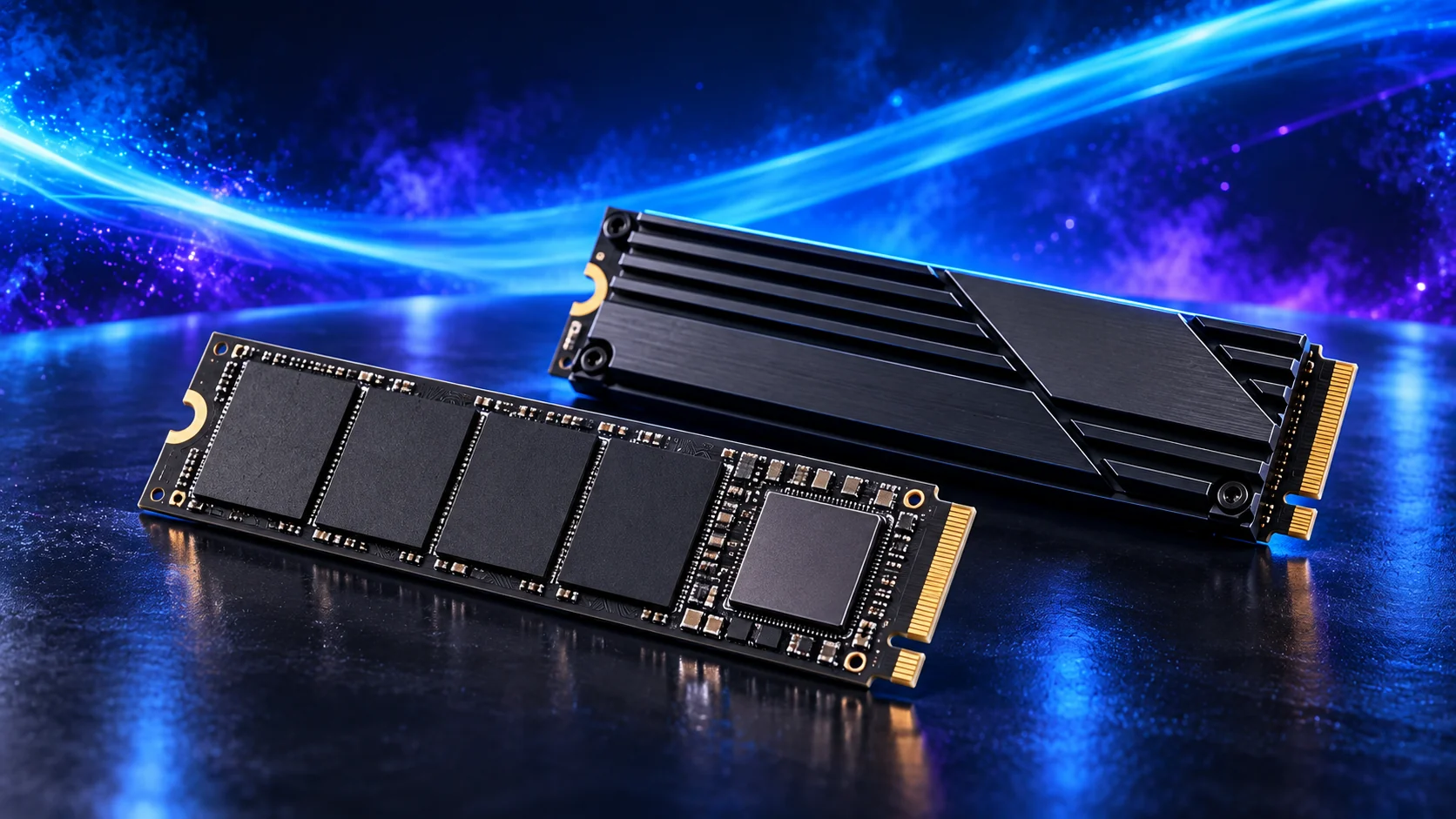
Use an NVMe SSD for Windows, applications and your main games or projects. For a general first build, I’d rather have a useful 2TB drive than a smaller flagship SSD that immediately needs another drive beside it. A 1TB model suits a leaner setup if your library is modest.
Video projects are different: keep room for footage and a separate backup, and add a dedicated project or scratch drive when your workflow benefits from it. A second internal SSD is useful working storage; it is not a backup of the whole computer.
Read our SSD selection guide. The P310 linked here is the full-length M.2 2280 model. That length matters when choosing the board slot and securing the drive.
Compare purposes in best ssds for building a PC.
Choose enough working storage, then check the exact SSD format/interface. The PCIe comparison helps decide whether the speed premium serves this build.
Choose your power supply
Choose the PSU around the graphics card and processor you intend to buy. Wattage is only part of it: the unit must also provide the right connectors, and the case must leave you room to route them. I’d use a modest 650W unit in a budget build and move to an 850W modular supply for the more demanding graphics routes.
Modular cables make a first build tidier because you can leave unused leads out of the case. Keep the cables supplied for that exact PSU with it; modular connectors are not universally interchangeable between units.
Our PSU buying guide covers wattage and connections. The Gigabyte RX 9070 XT here calls for an 850W supply and three 8-pin connectors; the Gigabyte RTX 5080 uses a 16-pin connection. Select the leads around the exact card.
Compare purposes in best power supplies for building a PC.
Match PSU load, connectors and installed space together, then keep the exact compatible cable set with the unit.
Choose your case
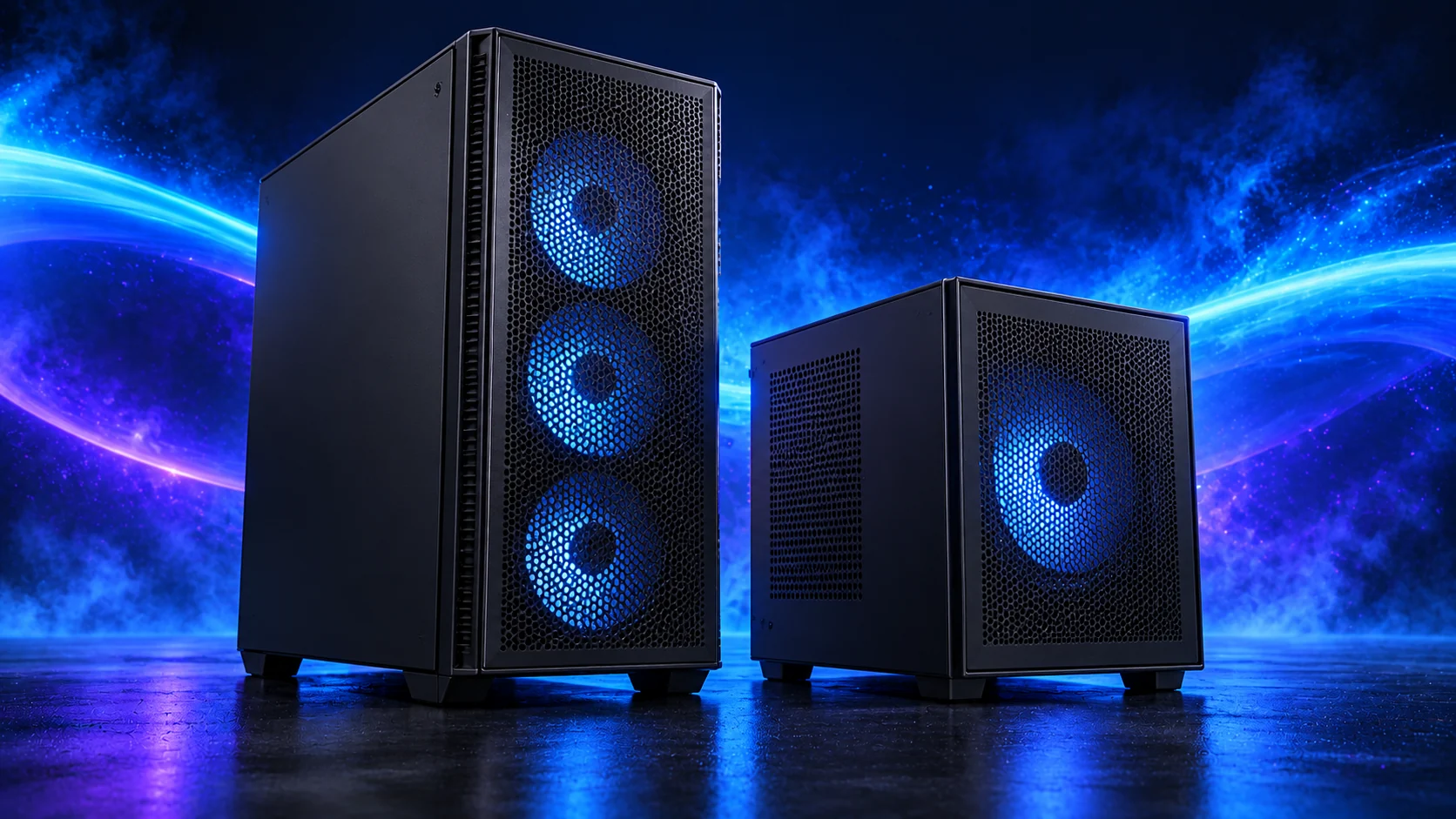
For a first build, I’d choose the H5 Flow. A mesh-front mid-tower keeps the layout accessible and gives the graphics card a direct supply of air. Spending more on the case is worthwhile when it buys space you’ll use, easier cable routing or the appearance you want on your desk.
A compact PC needs more planning. Choose the case early, then work inward through board size, PSU position, cooler height and graphics-card clearance. The A3-mATX is a different layout from a normal ATX mid-tower: use a micro-ATX or Mini-ITX board with it.
See how to choose a PC case and the compact build guide. Both ATX boards in the motherboard table belong in the H5 or H7 route, rather than the A3.
Compare purposes in best pc cases for building a PC.
Use the case-fan shortlist for the usable mounts and PWM/DC setup for the finished layout.
Choose your CPU cooler
A tower air cooler is my first choice for a normal gaming PC. It is straightforward to fit and keeps the build free of pump and radiator placement decisions. A 360mm liquid cooler makes more sense when you’re choosing a high-power processor for sustained production work or deliberately want that cooling layout.
Match the mounting kit to the CPU socket and the cooler to the case. With a large air cooler, account for RAM height and the fan sitting above it. With liquid cooling, include the radiator, fans and motherboard heatsinks in the clearance calculation.
Our air versus liquid cooling guide helps choose the layout. ARCTIC specifies a 38mm radiator on this model, so allow for the fans as well as the radiator itself. For the boxed Ryzen 5 5600 route, its supplied Wraith Stealth is an initial budget option.
Compare purposes in best cpu coolers for building a PC.
Build the PC in a sensible order
Give yourself a clear table and lay out the board manual, screwdriver and small screw containers. Assemble the parts that are easiest to reach while the board is outside the case, then move on to the power leads and graphics card.
Start with the CPU: open the socket, align the marked corner and lower the processor into place without forcing it. Fit the memory in the recommended slots and secure the SSD in its M.2 position. Prepare the cooler mount while the back of the board is accessible.
Set the case standoffs for your motherboard size, fit the board, then install the PSU and route the main power leads. Connect front-panel switches, USB, audio and fans before the graphics card makes the lower headers awkward to reach. Fit the GPU in the main graphics slot, secure its bracket and connect its power leads.
Follow our illustrated assembly guide for the detailed sequence. Before powering up, the parts-fit checklist gives you a useful final pass through mounting, cables and clearances.
Building your first racing cockpit? Use the sim-racing build guide for the component tables and the starter wheel and pedal choices for the controls.
Have a particular job in mind? Start with Flight Simulation builds, Music Production builds, CAD and Engineering builds, Photography and Lightroom builds or Software Development builds for the purpose-specific tables. The home-server hub separates storage, media, virtual machines and game hosting.
First boot, Windows and the finished setup
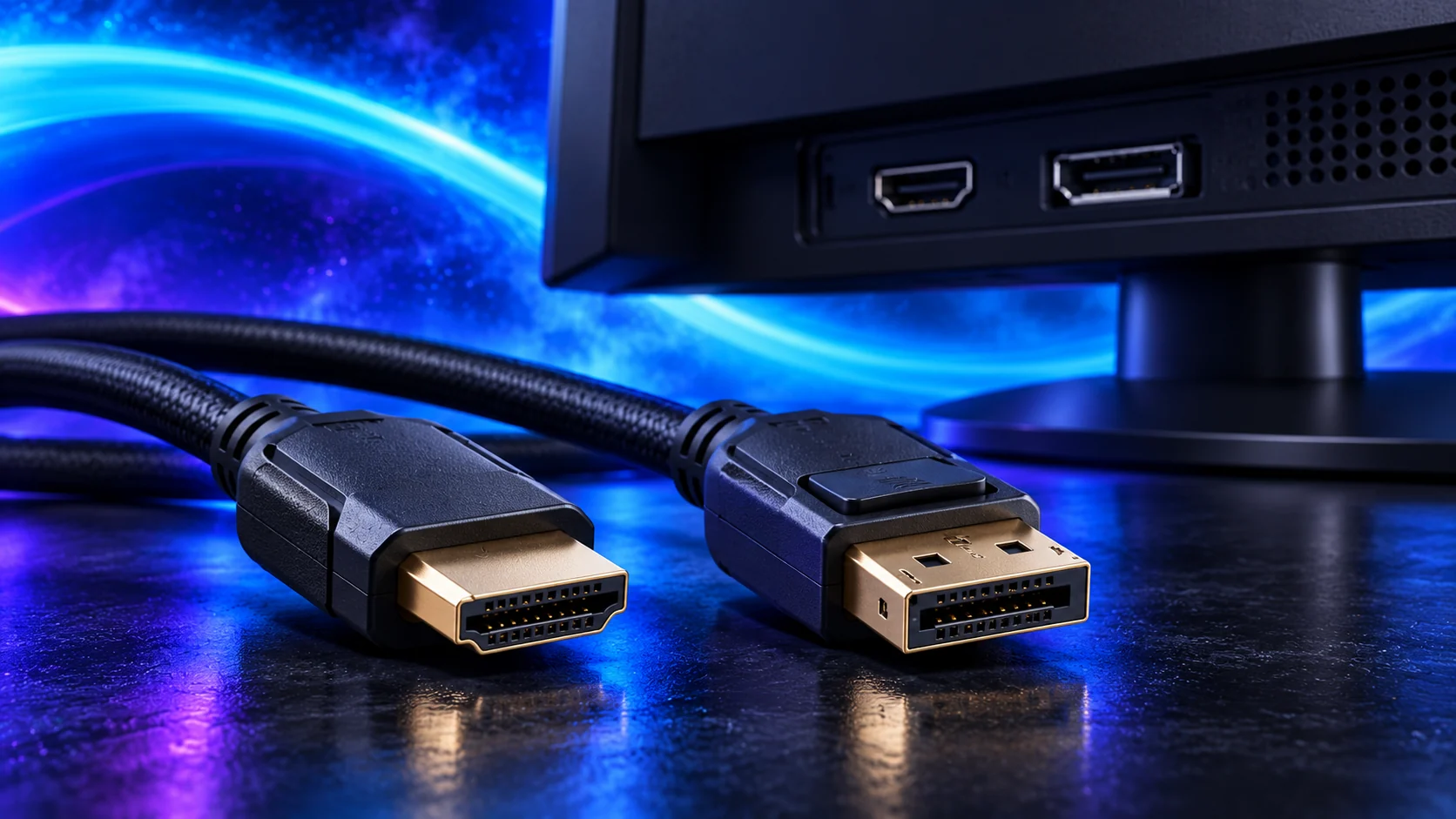
Connect the screen to the graphics card in a gaming build, or to the motherboard when you are using CPU graphics. On the first start, enter the BIOS and confirm that the processor, memory capacity and SSD are detected. A new DDR5 system can spend time training the memory before the display appears.
Install Windows from the USB installer, then install the motherboard chipset, network and graphics drivers. Once the basic setup is working, enable the appropriate memory profile and choose the monitor’s intended resolution and refresh rate in Windows.
Use our first-boot guide for that sequence. If the fans run but the screen stays blank, follow the no-display checks in order.
Ready to choose a gaming basket? Start with the gaming build guide. Choosing between graphics cards for several jobs? Use the graphics-card buying guide to finish that decision.
Finish the desk with the monitor, work mouse and keyboard. Use an external backup routine for the important files.