Best Graphics Cards for Blender and 3D Rendering PCs in 2027
By James Thompson · Updated:
Some links in my articles are affiliate links. I may earn a commission when you buy through them.
Before choosing from this shortlist, check the application’s acceleration route and project VRAM requirements. The GPU specification guide separates capacity from compute and bandwidth.
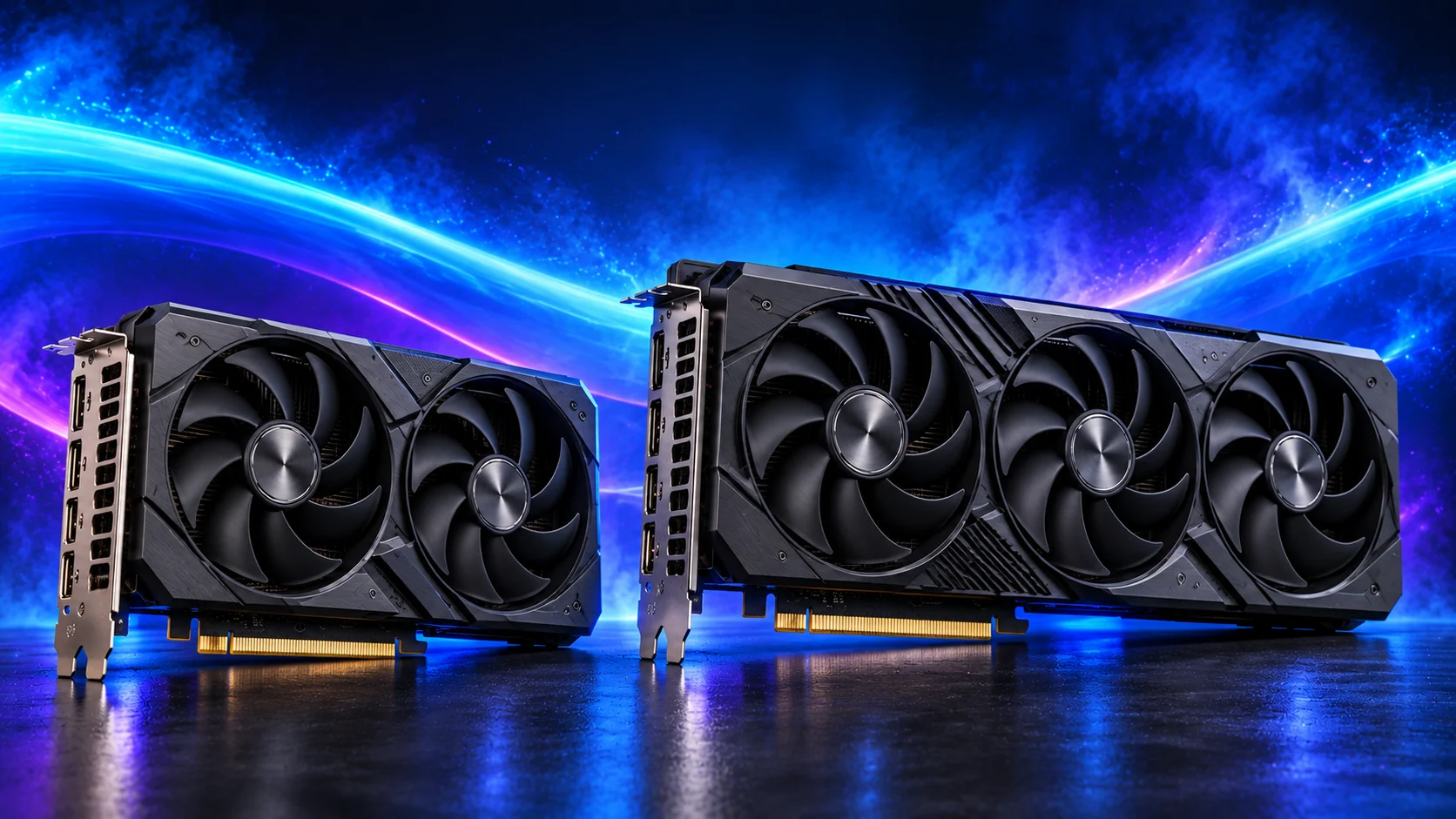
For Blender Cycles, I’d make the RTX 5060 Ti 16GB the first serious GPU shortlist. Its Nvidia render backend and capacity are a useful combination for an approachable workstation. The 8GB RTX 5060 suits smaller learning scenes, but the lower capacity deserves attention as textures and geometry grow. Puget’s Blender recommendations favour Nvidia for rendering through CUDA and OptiX.
Table of Contents
ToggleThe blender and 3d rendering shortlist
For Blender Cycles, I’d make the RTX 5060 Ti 16GB the first serious GPU shortlist. Its Nvidia render backend and capacity are a useful combination for an approachable workstation. The 8GB RTX 5060 suits smaller learning scenes, but the lower capacity deserves attention as textures and geometry grow. Puget’s Blender recommendations favour Nvidia for rendering through CUDA and OptiX.
| Best for | My choice | Why I’d choose it |
|---|---|---|
| Best overall approachable Cycles choice | MSI RTX 5060 Ti 16GB Shadow 2X OC Plus | 16GB plus Nvidia CUDA/OptiX support. |
| Best smaller-scene learning option | ASUS Dual RTX 5060 8GB OC | Lower entry tier when the scene fits 8GB. |
| Best faster 16GB rendering route | Gigabyte RTX 5080 Gaming OC 16GB | More processing power while retaining 16GB capacity. |
Try a catalogue graphics card in PC Builder alongside an AM5 processor, case and PSU. See the 3D tower, estimated total and supported power or fit warnings together.
Best overall approachable Cycles choice: MSI RTX 5060 Ti 16GB Shadow 2X OC Plus
The MSI RTX 5060 Ti 16GB Shadow 2X OC Plus is my approachable Nvidia creative route. It combines 16GB scene capacity with CUDA and OptiX support in a 226mm card. The capacity is the same as the RTX 5080 shortlist, so a faster card is a processing upgrade rather than an increase in scene room. Choose this exact 16GB model, not the 8GB variant.
Why I’d choose it: 16GB plus Nvidia CUDA/OptiX support.
Keep in the build plan: 16GB; 226 × 126 × 41mm; one 8-pin input.
Best smaller-scene learning option: ASUS Dual RTX 5060 8GB OC
The ASUS Dual RTX 5060 8GB is the lower gaming and light-creative tier in this shortlist. It gives an entry Nvidia route without the size of the premium card. The 8GB capacity is the important boundary: for heavier scene data or a longer-term high-detail gaming priority, I’d compare the 16GB options before buying. It is not the large-scene Blender choice.
Why I’d choose it: Lower entry tier when the scene fits 8GB.
Keep in the build plan: 8GB VRAM; entry Nvidia route; assess workload capacity.
Best faster 16GB rendering route: Gigabyte RTX 5080 Gaming OC 16GB
The Gigabyte RTX 5080 Gaming OC 16GB is the premium graphics-processing route for demanding gaming and GPU-heavy work. It belongs with a large enough case, suitable PSU and room for the 16-pin lead. Its 16GB capacity is not larger than the cheaper 5060 Ti’s, so a scene-memory problem needs a different solution from simply moving up to this card.
Why I’d choose it: More processing power while retaining 16GB capacity.
Keep in the build plan: 16GB; 340 × 140 × 70mm; 16-pin input; 850W recommendation.
What matters for this build
Compare actual models as well as GPU families. A compact dual-fan card and a large factory-overclocked card can use the same GPU yet need different space and power connections. Fan-count alone tells you little about installed noise. The shortlist keeps those physical choices visible alongside the performance tier.
VRAM is capacity for textures, scene data and other GPU work; it is not a direct speed rating. The 16GB RTX 5060 Ti and RTX 5080 have the same memory capacity but very different processing performance. When a scene exceeds the capacity, moving to the faster 16GB card does not create more room.
Choose the software route before the brand. Nvidia’s CUDA and OptiX ecosystem is important for many rendering tools. Gaming comparisons depend on the particular titles, resolution and effects. Photo editing can reach the point of diminishing returns on GPU spending much sooner than heavy rendering or grading.
Measure usable space for the ASUS Dual RX 9060 XT with its power lead and neighbouring fans in place. Keep its intake clear and plan the screen connection.
| Decision | Check | Why it matters |
|---|---|---|
| Purpose | Games, design, editing or render backend | Software compatibility can outweigh a gaming benchmark. |
| Capacity | VRAM and scene or texture demand | More VRAM is useful when your workload needs it. |
| Fit | Exact dimensions, leads and PSU | Measure the real layout, including front cooling and cable room. |
Fit and installation checks
The ASUS Dual RX 9060 XT is 202 × 120 × 49mm; the MSI RTX 5060 Ti Shadow 2X OC Plus is 226 × 126 × 41mm. The Gigabyte RX 9070 XT Gaming OC needs three 8-pin connections and its manufacturer recommends an 850W PSU. The Gigabyte RTX 5080 Gaming OC is 340 × 140 × 70mm with a 16-pin input. Choose the PSU and case for the exact card, not a reference design.
Before changing the shortlist, use the parts-fit checklist. If a selected model is unavailable, make the replacement with the substitution checks so the connector, format or capacity does not change unnoticed.
For other GPU-led workflows, compare Photogrammetry and 3D Scanning graphics, Game Development graphics and Local AI and LLMs graphics. Graphics memory and backend support stay part of each purchase.
Set up the part and finish the PC
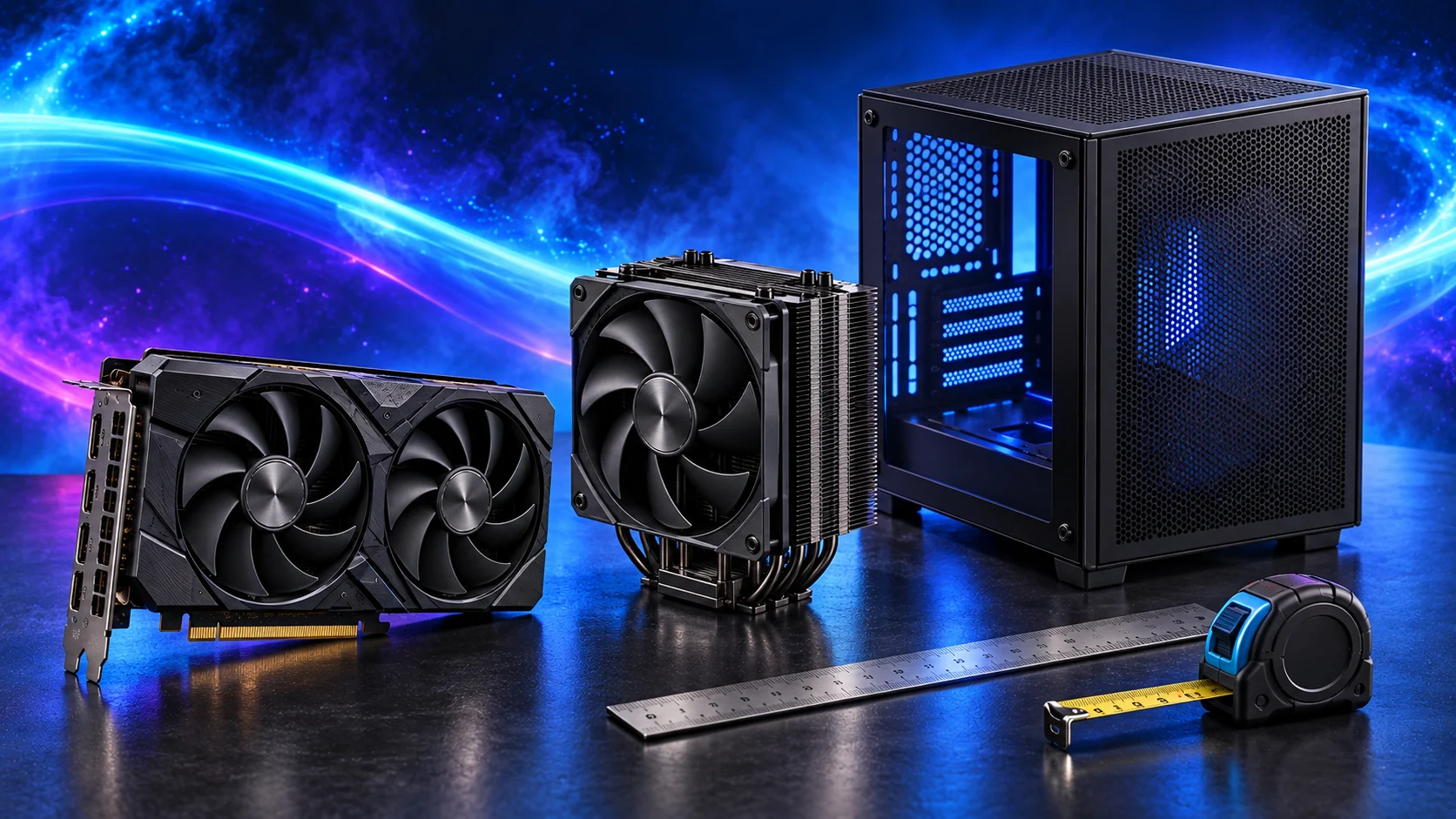
Install the current driver for your application, connect the screen to the intended output and choose the GPU backend inside creative software. Check one familiar game or project first. Change graphics settings in a controlled order so you can judge the benefit of each adjustment.
Finish the complete basket with How to Build a PC for Blender and 3D Rendering. For another purpose, use the full graphics card buying guide.
Choose the matching parts next: power supplies for blender and 3d rendering · pc cases for blender and 3d rendering · processors for blender and 3d rendering. For the installation details, use graphics-card fit and power checklist.
Specifications and relevant testing: RX 9060 XT original testing · Gigabyte RX 9070 XT dimensions and power · Gigabyte RTX 5080 dimensions and power · MSI exact-card specifications.
Application reference: Puget’s Blender hardware testing.