How to back up a PC to an external drive and check recovery
By James Thompson · Updated:
Some links in my articles are affiliate links. I may earn a commission when you buy through them.
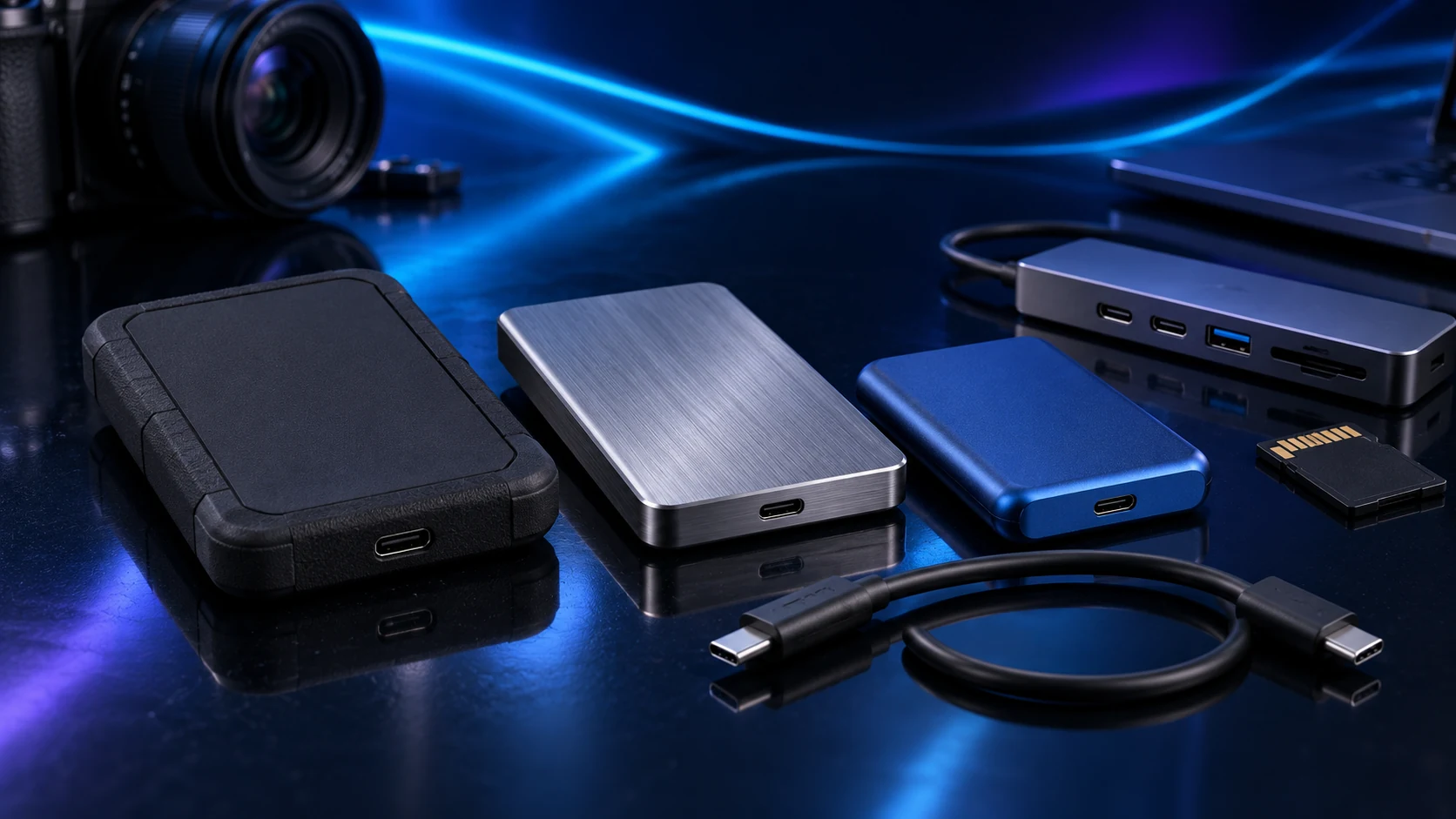
Decide what you need back after a problem, choose an independent destination and test a restore. A useful backup keeps earlier versions and remains recoverable when the working drive or PC is unavailable.
Choose the recovery job
List the folders that would be difficult to replace: documents, photographs, project files and saved application data. Identify anything outside the default user folders so the backup configuration includes it deliberately.
File backup restores selected data. A system-image workflow restores a broader machine state through a different process. Do not assume a file-backup tool includes every application, licence or system setting. Keep a separate record of the setup information you would need to rebuild the PC.

Configure the file backup
Connect an external HDD or an external SSD with enough capacity for the selected files and retained versions. In Windows, open Control Panel’s File History, select the destination and configure the supported library/folder selection and schedule. Use Microsoft’s current instructions for the installed Windows version.
Review the covered locations before relying on the job. Files kept outside the selected libraries need deliberate inclusion or another supported backup arrangement. Run the first backup while the drive is connected and leave it enough time to complete.

Restore a sample before trusting the routine
An ordinary file and an older changed version
To a separate temporary folder
Check the restored content in its application
What is covered and when the job last completed
Use the tool’s restore function rather than assuming that a completed progress bar proves the right files were covered. Keep the original working file in place while checking the restored copy. Repeat a small recovery check after a major configuration change.
Allow capacity for older versions. A destination that fills immediately cannot support the retention plan you thought you bought. Review completion and available space as part of the routine.
Keep an independent copy away from the active PC
Disconnect the external backup safely after the scheduled job when using an offline rotation. Keep another important-data copy off-site or through a suitable independent backup service so one theft, fire or local failure does not remove every copy.
Synchronisation and RAID serve other jobs. A deletion can synchronise, and an array is still one storage system. For a shared server, use the NAS-backup guide and its separate destination/restore checks.
Choose capacity for the retention plan rather than the working folder size alone. The practical finish is a restore that opens correctly and a routine you can keep completing.
Specifications and setup: Microsoft File History · NCSC backup guidance.