
Choose a RAM kit: capacity, profiles and clearance
By James Thompson · Updated:
Some links in my articles are affiliate links. I may earn a commission when you buy through them.
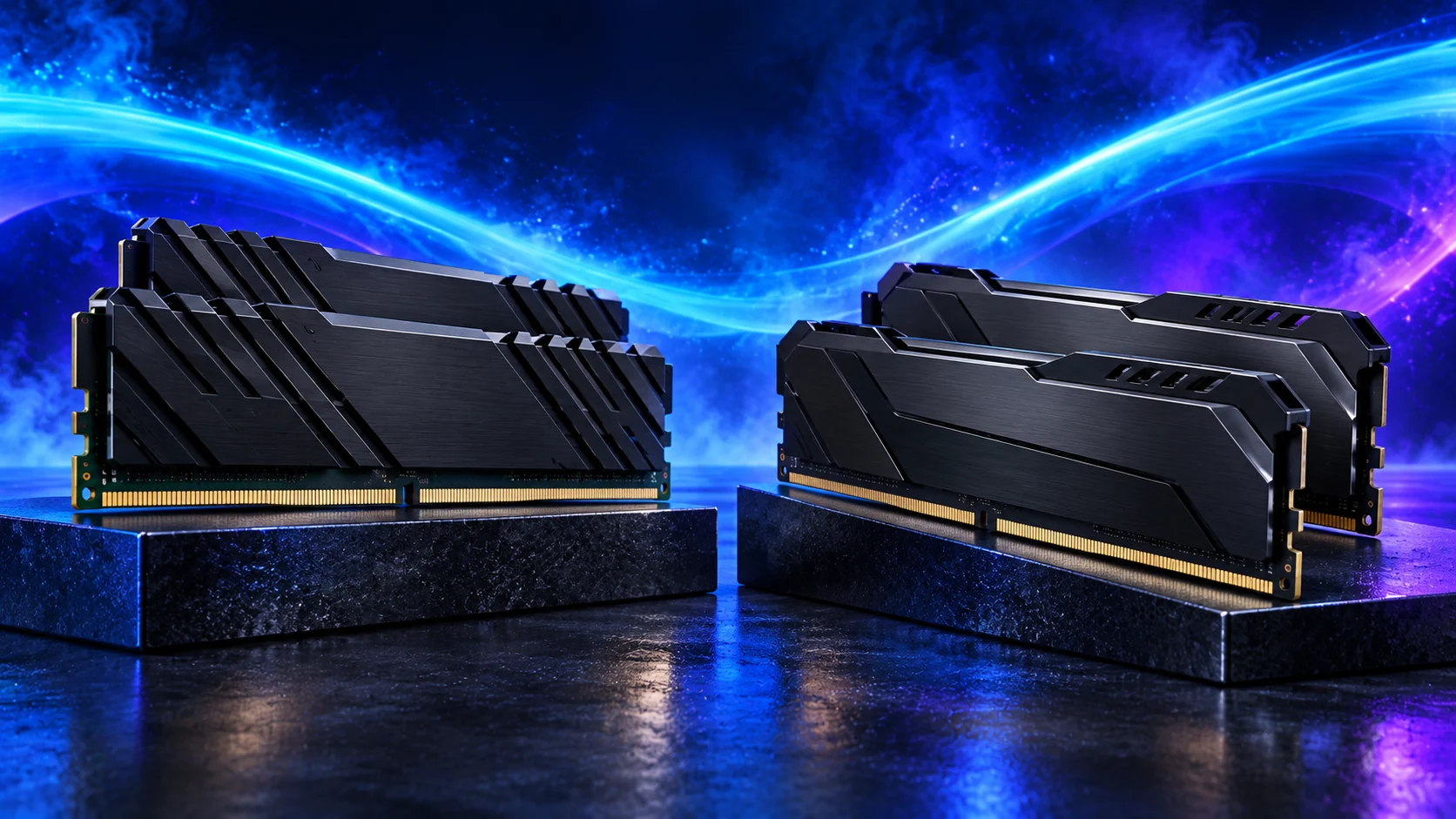
I’d buy one matched RAM kit with enough capacity for the games and applications I keep open. For a new gaming PC, 32GB is a useful starting point; the memory generation, slots and cooler clearance come next.
Choose the matched kits in the RAM buying guide. For project capacity, compare design memory and video-editing memory rather than applying a gaming capacity target to every workstation.
Table of Contents
ToggleGeneration and capacity
DDR4 and DDR5 are different platform requirements; one cannot replace the other in the same slot. Confirm the exact board and processor before buying.
Assess your normal workload with the applications you actually keep open. A 32GB kit gives more capacity than 16GB, but spare capacity alone does not establish a frame-rate improvement. Avoid cutting graphics performance to buy unused memory.
Choose a kit, not a collection of matching-looking sticks
Use the complete kit code and capacity arrangement. Two separate kits with similar labels are not necessarily validated as one set. Four modules can also place different demands on the memory controller from a two-module configuration.
Check the motherboard’s memory support information and notes for the installed CPU and DIMM count. A kit absent from the list may still work; use the board’s memory specifications as well as its tested-kit list.
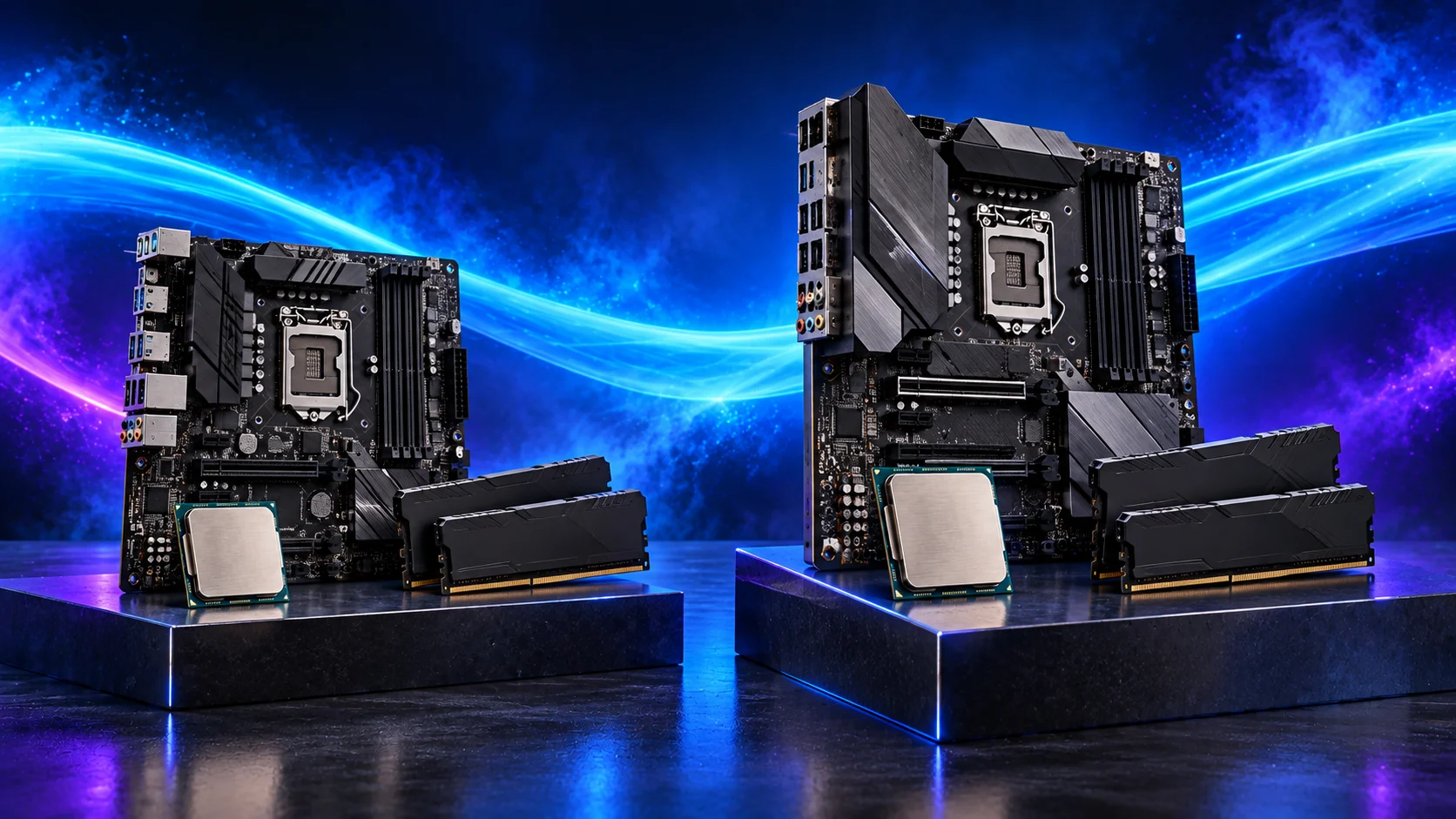
Two platform-specific options
For AM5, compare the Crucial Pro 32GB DDR5-6000 CL36 kit, CP2K16G60C36U5B, only when its current offer is sensible. Crucial’s installation guide explains profile setup.
For the AM4 route, compare the Corsair LPX 32GB DDR4-3200 kit, CMK32GX4M2E3200C16. For AM4, choose DDR4. For AM5, choose DDR5 and use the kit maker’s profile specification.
Install at a stable baseline
Use the manual’s recommended first pair of slots. Seat the modules fully with power disconnected, then confirm detected capacity at default settings. Enable the appropriate supported profile only after the baseline works.
For the Crucial kit, check module height against the air cooler and use the recommended channel positions. Lifting a cooler fan to clear the RAM can increase total cooler height.

If a profile causes trouble
Return to defaults through the documented BIOS procedure and repeat the workload that failed. Check seating, kit identity and support information before increasing settings or buying replacements.
Use the memory diagnostic sequence for missing capacity or low speed.
Price capacity before the profile premium
Start with the workload capacity guide, then compare transfer rate and CAS latency at that capacity. A fast kit that leaves the project paging is a poorer fit than a suitable larger kit.
For a common dual-channel build, compare one matched two-module kit with the alternatives. The channel and mixed-kit guide explains the supported arrangement and why four modules can change the achievable data rate.
| Item | Write down |
|---|---|
| Kit identity | Complete code, capacity and module count. |
| Platform | Exact CPU, board/revision and memory generation. |
| Operating plan | Default baseline, intended XMP/EXPO profile. |
| Installed fit | Module height, cooler/fan and case clearance. |
Use the QVL as a tested configuration record
Search the exact kit code in the board’s memory QVL and read its CPU, BIOS and DIMM-population notes. A similar family name is not the same kit. The list records validated configurations rather than every kit that could work.
Use the profile setup guide once the baseline works and the memory overview for the wider decision. ASUS’s QVL instructions show the exact-model lookup.