Best SSDs for Everyday Work PCs in 2027
By James Thompson · Updated:
Some links in my articles are affiliate links. I may earn a commission when you buy through them.
Use the capacity plan before paying for a PCIe generation premium. The SSD type/compatibility guide checks the exact connection, and the second-SSD guide covers adding a library drive.
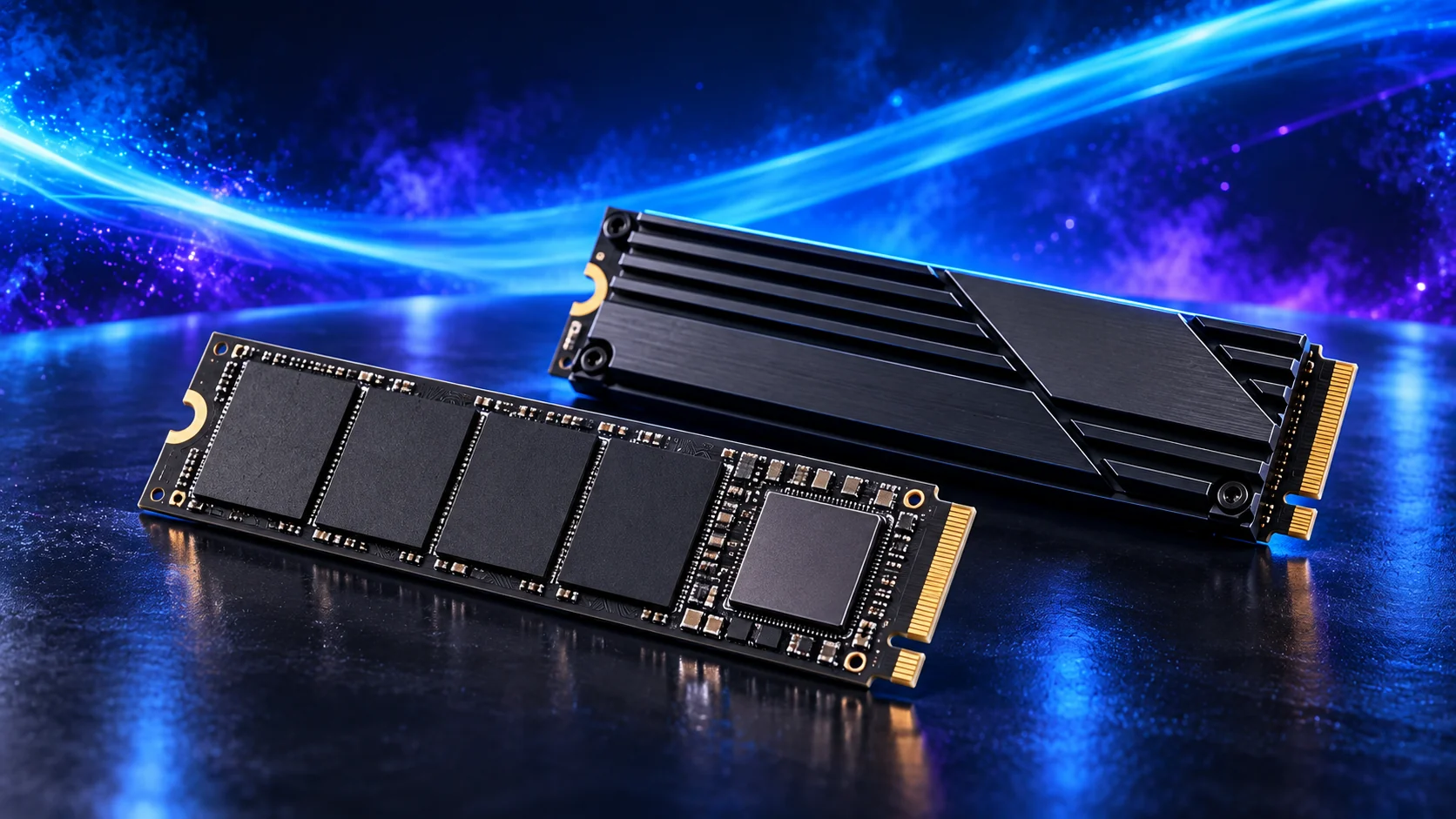
For everyday work I’d choose the amount of storage you will use before a premium speed tier. The P310 2TB gives a new office PC useful room for software and files. A 1TB drive is enough for some desks, particularly with small local documents and an organised external archive. The headline read speed is less useful than knowing where the files will live.
Table of Contents
ToggleThe everyday work shortlist
For everyday work I’d choose the amount of storage you will use before a premium speed tier. The P310 2TB gives a new office PC useful room for software and files. A 1TB drive is enough for some desks, particularly with small local documents and an organised external archive. The headline read speed is less useful than knowing where the files will live.
| Best for | My choice | Why I’d choose it |
|---|---|---|
| Best overall work and file capacity | Crucial P310 2TB M.2 2280 | 2TB for applications and useful local file room. |
| Best smaller system-drive choice | WD_BLACK SN850X 1TB | 1TB when the actual working set is modest. |
| Best heavier local project work | WD_BLACK SN850X 2TB | Performance-oriented 2TB route for frequent large file tasks. |
| Best large active library | WD_BLACK SN850X 4TB | 4TB when substantial local data needs to stay available. |
Put the tower’s SSD choice alongside the other AM5 components in PC Builder. You can compare planning estimates and save the complete parts list.
Best overall work and file capacity: Crucial P310 2TB M.2 2280
The Crucial P310 2TB M.2 2280 is the general capacity-led SSD route. I’d use it for the ordinary gaming or work basket where room for software and files matters more than a premium storage badge. For frequent large project writes or a busy editing cache, compare the SN850X route. Choose the 2280 version in this list, not a shorter handheld-sized variant.
Why I’d choose it: 2TB for applications and useful local file room.
Keep in the build plan: 2TB; M.2 2280 NVMe; general gaming/work route.
Best smaller system-drive choice: WD_BLACK SN850X 1TB
The WD_BLACK SN850X 1TB is the smaller-capacity performance-drive option. It can work as a dedicated system drive or a focused active-work drive when 1TB is enough. I’d choose the 2TB version when the game library or project folder needs more room. Compare capacity-specific specifications, because one family name does not make every version identical.
Why I’d choose it: 1TB when the actual working set is modest.
Keep in the build plan: 1TB; M.2 2280 NVMe; PCIe 4.0.
Best heavier local project work: WD_BLACK SN850X 2TB
The WD_BLACK SN850X 2TB is my active-project shortlist. It combines a useful capacity with a performance-oriented PCIe 4.0 design and works as the main creative drive or a second project drive. Give it the board’s intended heatsink arrangement and free space for working files. A separate backup still belongs outside the active internal-drive layout.
Why I’d choose it: Performance-oriented 2TB route for frequent large file tasks.
Keep in the build plan: 2TB; M.2 2280 NVMe; PCIe 4.0; project-drive route.
Best large active library: WD_BLACK SN850X 4TB
The WD_BLACK SN850X 4TB is the larger active-library choice. It suits footage, texture libraries and projects that would make a smaller drive feel cramped. Choose it for useful capacity, rather than assuming every task becomes faster than on the 2TB version. Check the exact model’s physical fit and capacity-specific sheet, then budget separately for backup storage.
Why I’d choose it: 4TB when substantial local data needs to stay available.
Keep in the build plan: 4TB; M.2 2280 NVMe; larger project-library route.
What matters for this build
Start with the files that need to stay on the PC. Windows and applications are only part of the list: games, active footage, RAW photos, texture libraries and render caches can take far more room. Leave usable free space for updates and working files rather than filling the drive the day you assemble the system.
A short advertised sequential result does not describe every job. Launching an application, loading a level and writing a long media export stress storage differently. For regular large writes, look at the drive design, cache behaviour and capacity-specific endurance information as well as the advertised maximum.
The Crucial P310 is a capacity-led general-use choice. For a video cache or frequent large project writes, I’d choose the SN850X route instead. This is a workload decision, not a claim that a storage upgrade adds GPU frame rates. A system already running comfortably on a suitable SSD may benefit more from another component.
Plan separate roles where they help. A system SSD, a working-project SSD and an external backup can make a creative workstation easier to organise. Two internal drives are still inside the same PC: they do not protect you from theft, damage or an accidental deletion across the machine. Keep a separate backup.
| Decision | Check | Why it matters |
|---|---|---|
| Useful capacity | Installed software plus active files | A larger drive can be more valuable than a higher peak speed. |
| Workload | Game loads, everyday use or long project writes | Choose the project-drive route for sustained creative work. |
| Fit | M.2 2280, interface and heatsink | Match the socket and cooling arrangement. |
Fit and installation checks
Match the M.2 length and NVMe interface to the board socket. Follow the manual for the standoff position and heatsink, and remove the thermal-pad protective film where instructed. Capacity variants can have different performance and endurance ratings: use the sheet for the exact 1TB, 2TB or 4TB model rather than transferring a number from another version.
Before changing the shortlist, use the parts-fit checklist. If a selected model is unavailable, make the replacement with the substitution checks so the connector, format or capacity does not change unnoticed.
Set up the part and finish the PC
Install the OS drive in the intended slot and initialise extra drives carefully, identifying them by capacity and model before formatting. Keep firmware current using the supported manufacturer tool. Set creative cache folders deliberately and test your backup restore route before relying on it for important work.
Finish the complete basket with How to Build a PC for Everyday Work. For another purpose, use the full SSD buying guide.
Choose the matching parts next: motherboards for everyday work · ram kits for everyday work · pc cases for everyday work. For the installation details, use SSD capacity and installation guide.
Specifications and relevant testing: SN850X capacity-specific data sheet · Video project storage layout guidance.