
Understanding Graphics Cards: How to Choose the Right GPU
By James Thompson · Updated:
Some links in my articles are affiliate links. I may earn a commission when you buy through them.
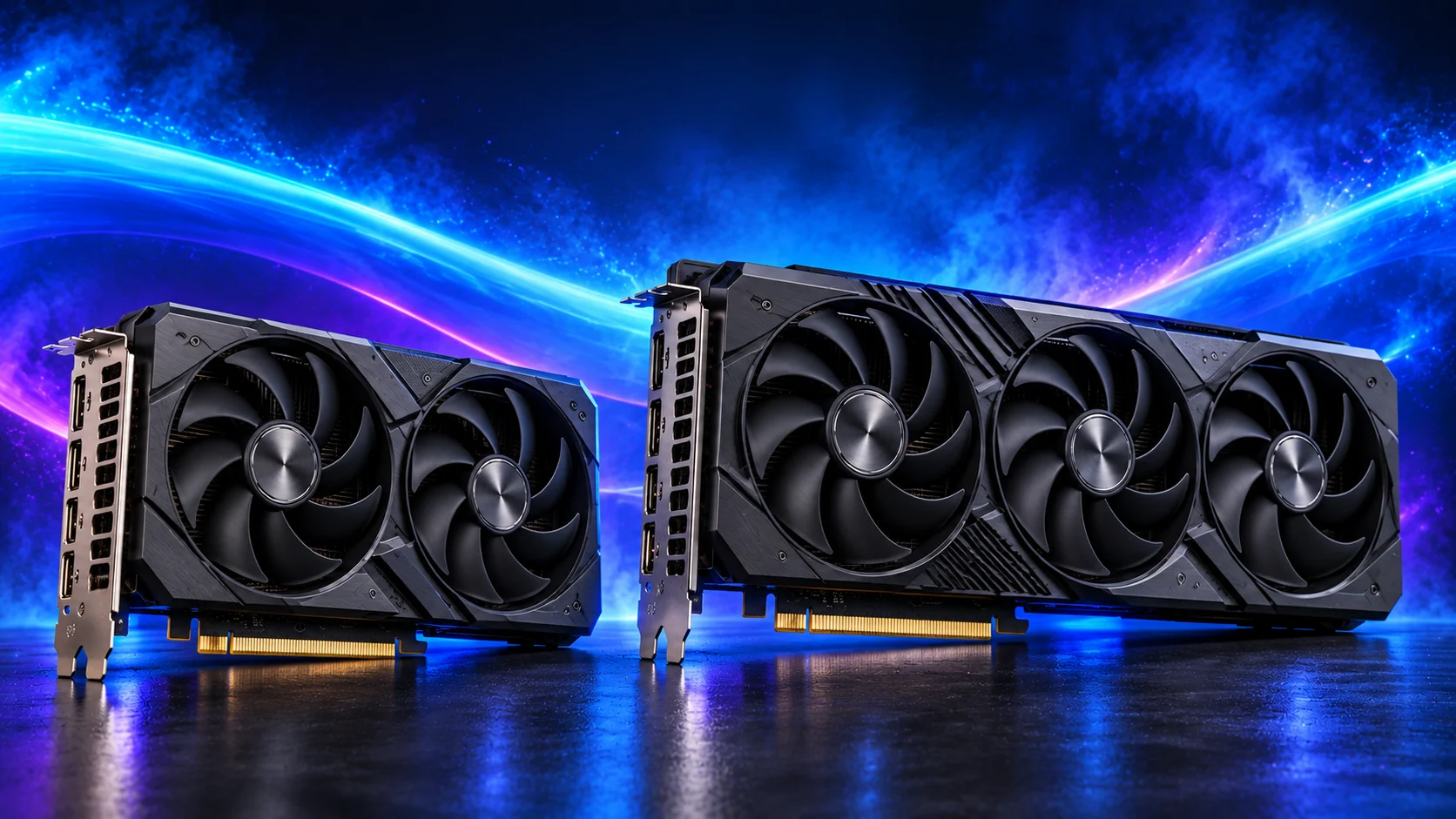
Choose your graphics card around the games or applications you run, the screen you use and the complete upgrade cost. For gaming, start with performance at your intended settings. For creative work, start with software support and the amount of project data the card must hold.
Table of Contents
ToggleWhat a graphics card does
A graphics processor handles work that can be split across many operations at once. Rendering a game is the familiar example: the card calculates geometry, shading and the final image sent to your monitor. Applications can also use it for effects, video processing, rendering or supported AI operations.
The complete graphics card includes the GPU chip, graphics memory, a cooler, power circuitry and display outputs. Two cards carrying the same GPU name can have different dimensions, fan behaviour and connectors. That is why the GPU family identifies the performance shortlist, while the exact partner model finishes the purchase.
A CPU with suitable integrated graphics can provide a display without a separate card. For office work, that may leave money for a better monitor and SSD. Use the integrated-graphics guide when you are deciding whether to buy a card at all.
Games, rendering, editing or an ordinary desktop.
Performance, memory and supported features.
Price, installed space, cooling and power.
For an existing laptop or mini PC, an external graphics setup also depends on the computer’s connection. The eGPU enclosure and dock buying guide compares the enclosed and open-dock routes and helps you budget for the power supply as well as the card.
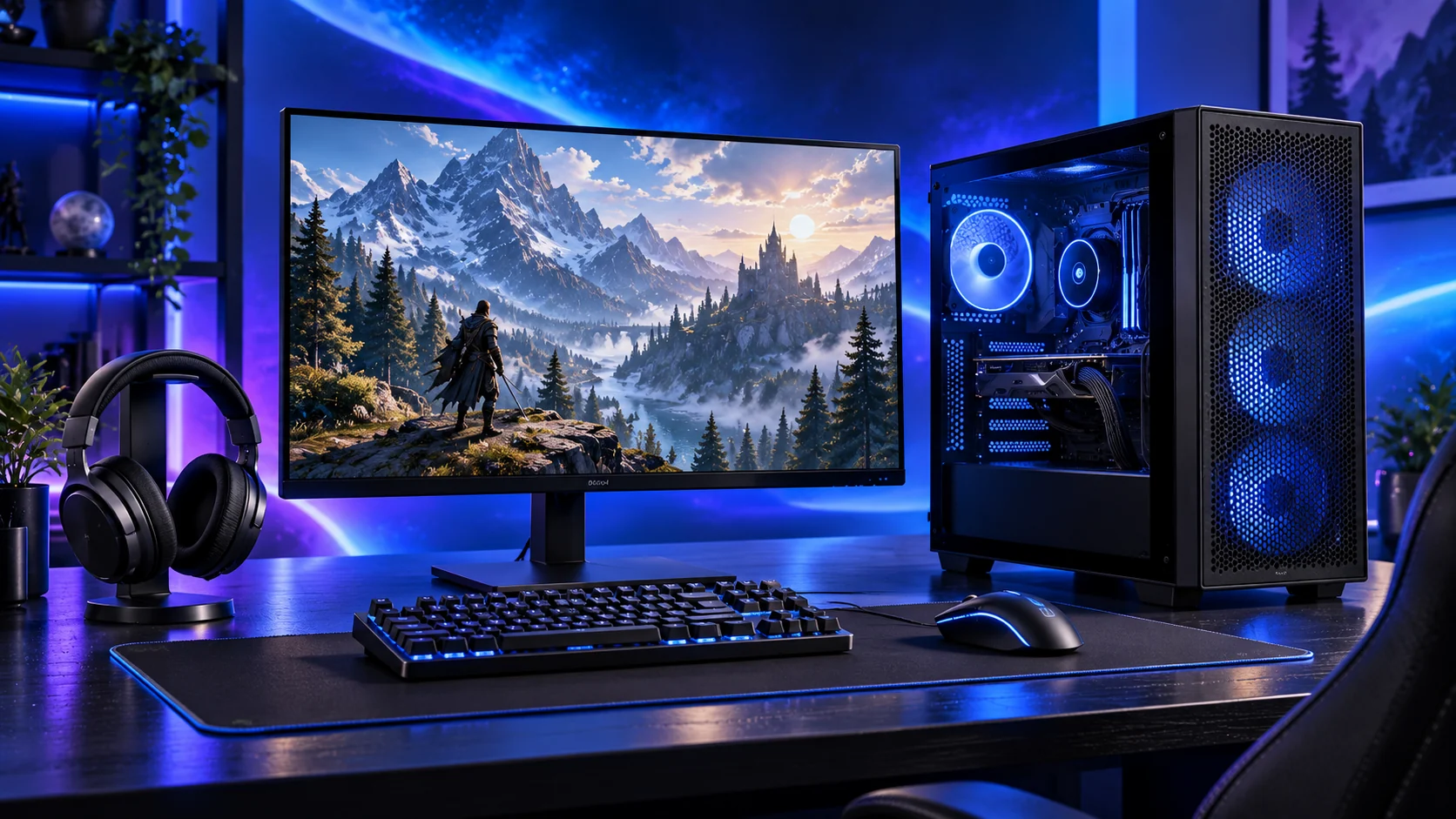
Start with the screen and the games
Write down resolution, refresh rate and the games you spend most time playing. A competitive player using modest settings at a high refresh rate has a different target from someone prioritising rich lighting in a single-player game. A racing setup with three screens adds another graphics workload.
Compare results at those settings, including demanding scenes. Our benchmark guide explains average frame rates, low-percentile results and frame times. For a new build, price the processor and graphics card together; extra GPU spending is less useful if the game is waiting on the CPU.
Use the 1080p/1440p decision guide or the 4K build route to set the budget, then choose from the gaming graphics-card shortlist.
Separate processing speed from memory capacity
VRAM stores resources the GPU needs, including textures and render buffers. Enough capacity matters, but adding memory does not turn a slower chip into a faster one. Compare the exact card and memory variant rather than assuming a 16GB card always beats an 8GB card.
For projects, capacity can determine whether a scene or model fits on the GPU. For games, texture quality, mods and rendering features can change demand. The VRAM guide explains how to judge capacity pressure. The specification guide separates memory size, bandwidth, clock speed and compute figures.
Creative applications need their own shortlist
| Main use | Compare first | Buying route |
|---|---|---|
| Games | Relevant game performance and display target. | Gaming GPUs |
| Editing | Supported effects, codecs and export/preview performance. | Video-editing GPUs |
| 3D rendering | Renderer backend, scene capacity and render results. | Blender/rendering GPUs |
| Design and photography | Acceleration in the tools you use. | Photography GPUs |
| Local AI | Supported software stack and model memory requirement. | Local-AI GPUs |
A card winning a game comparison is not automatically the fastest choice in a renderer. The creative-acceleration guide shows how to separate compute, video encoding and ordinary display output.
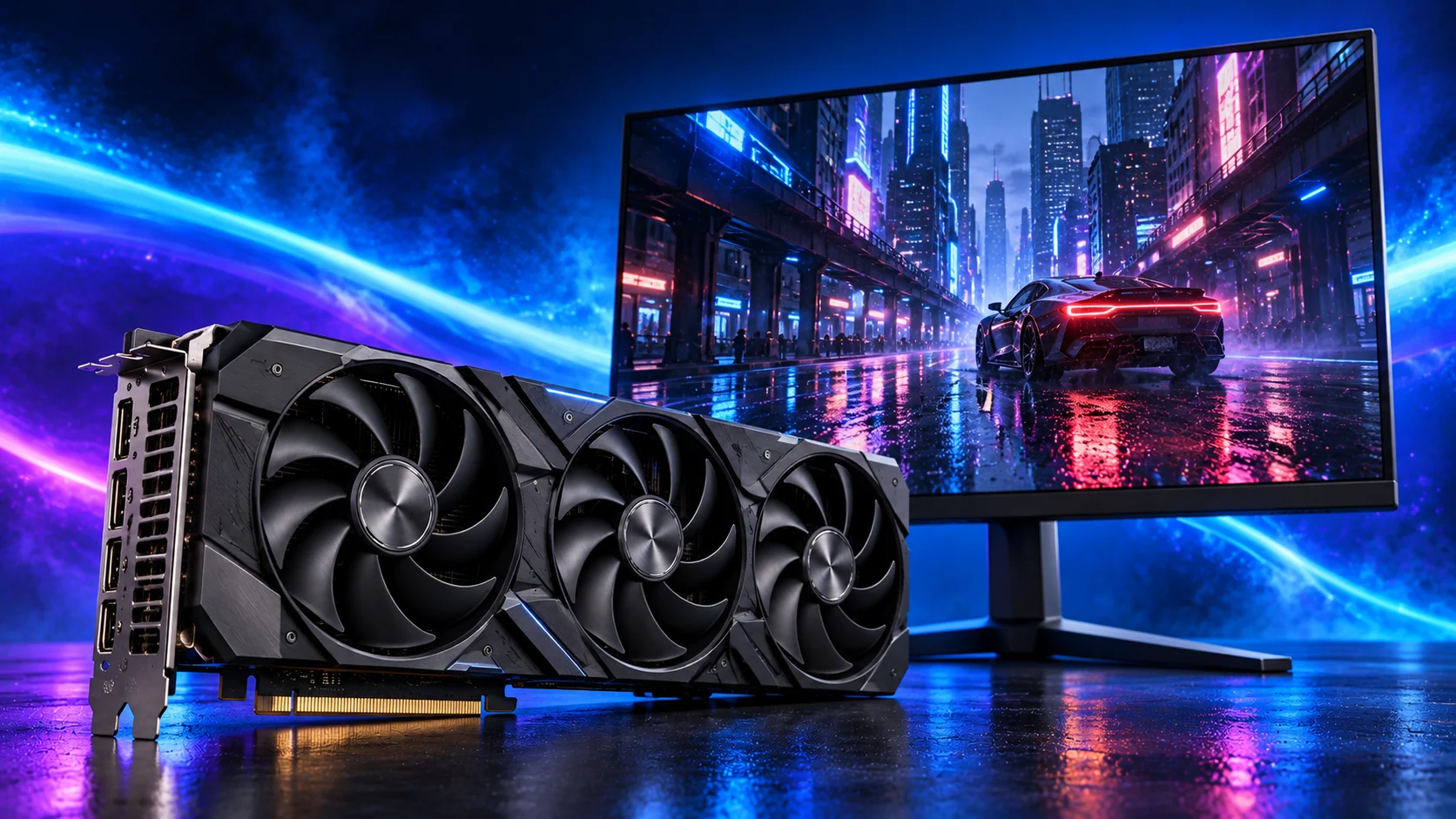
Features and fitting finish the decision
Ray tracing, reconstruction and frame generation can change the experience substantially. Compare the modes you intend to use, keeping native and generated-frame figures separate. The graphics-feature guide covers those choices without treating one brand name as identical support on every card.
Before ordering, use the GPU upgrade checklist for installed dimensions, PSU leads and display connections. Check PCIe and Resizable BAR support when using an older platform. Include a needed PSU or case change in the card’s real upgrade price.
For the final shortlist, our graphics-card buying guide groups the purchase by use. Choose the job first, then the exact model that fits the complete system.
Intel GPU specification categories · Blender rendering backends