
New PC powers on but has no display
By James Thompson · Published 7 October 2026
Some links in my articles are affiliate links. I may earn a commission when you buy through them.
For a dock-connected display, isolate the supported host/video route before replacing graphics hardware. Check the direct GPU output as the baseline.
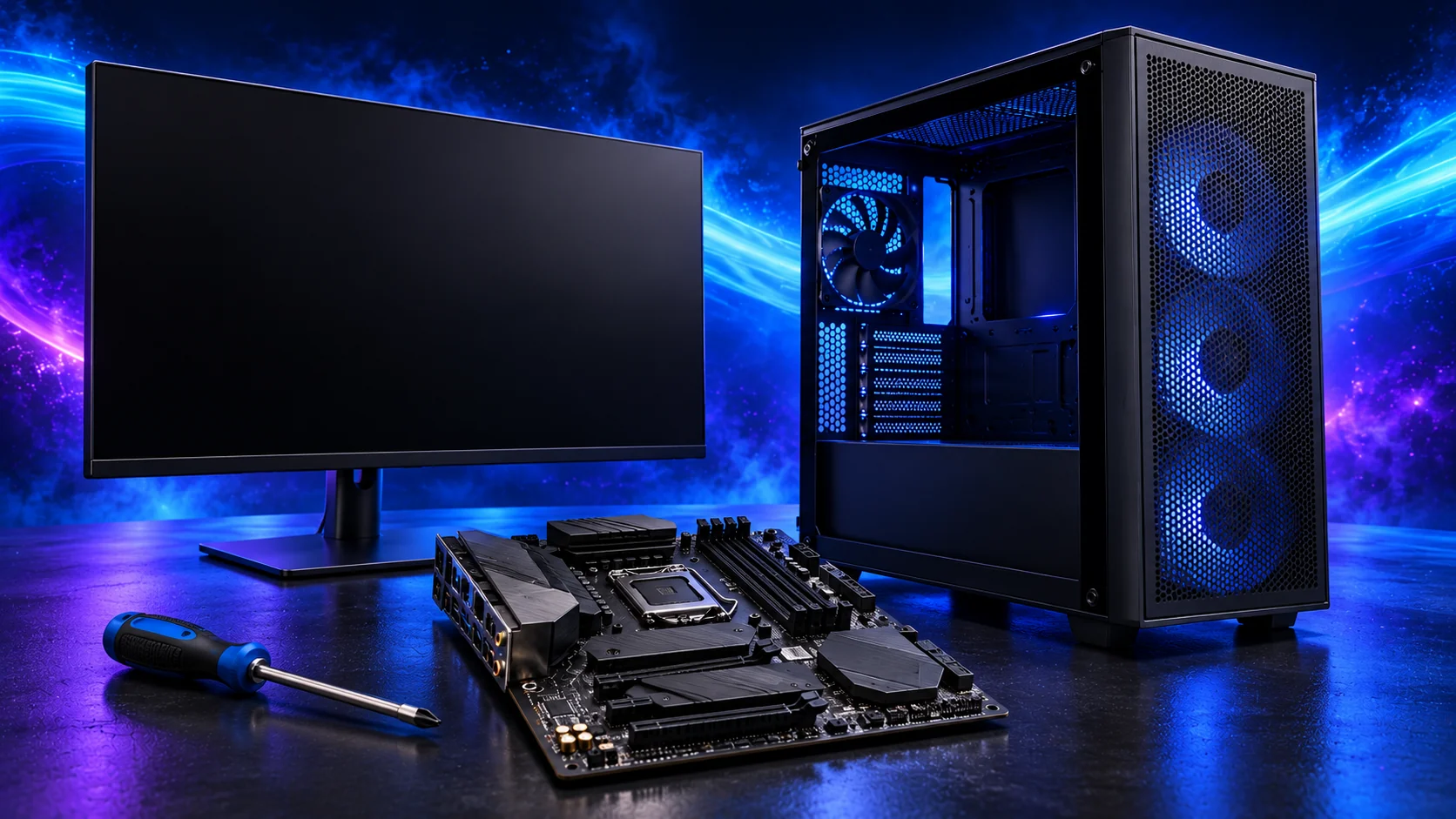
Fans are spinning, the lights are on, but the screen is blank. Start with the display connection, then follow the motherboard’s startup indicators. Working through those in order is much easier than pulling the whole build apart.
If the checks establish that a card or platform change is needed, choose the replacement in graphics cards or motherboards. Complete the diagnosis before treating a buying shortlist as the next action.
Table of Contents
ToggleCheck the screen path first
- Confirm the monitor is powered on and select the input used by the cable.
- Reseat the display cable at both ends; try a known-working cable or screen if available.
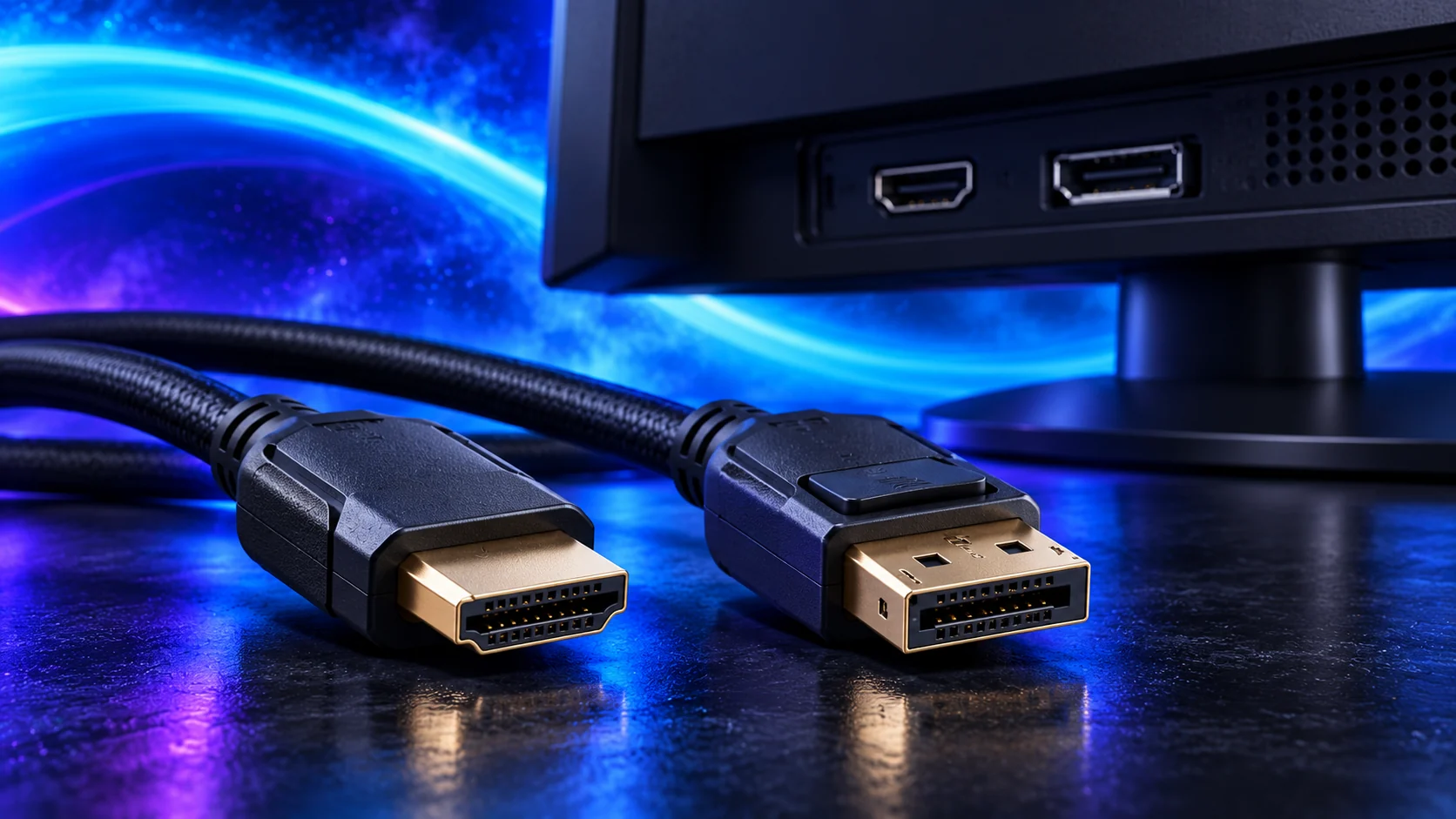
- With a discrete graphics card installed, use its output for the intended gaming setup.
- If testing a motherboard output, confirm the exact CPU provides integrated graphics.
The Ryzen 5 5600 requires a discrete GPU. Moving its display lead to a motherboard HDMI socket cannot create an image. Check the processor specification rather than guessing from the socket.
Read the graphics-slot/platform check if the display failure began after an upgrade. The connector guide separates fan/lighting activity from the front-panel and device connections.
Read the board indicators
Note the diagnostic LED, display code or beep pattern and consult the exact manual. A light names the stage where startup stopped; it is not an automatic verdict that the named part is defective.
Allow the board’s documented memory-training process to finish. Do not repeatedly interrupt a startup that is still following the expected training behaviour.
Disconnect before reseating
Shut down, switch off the PSU and unplug mains power. Check motherboard and CPU power, GPU seating and its required power lead. Reseat memory in the recommended slots. Do not force plugs or work inside with power connected.
Test one memory module in the manual’s recommended position at default settings, then compare the other module in the same position. Record the result; changing both the module and slot at once makes it harder to isolate the cause.
Check CPU support and firmware
Confirm exact board revision, CPU support and required BIOS. A board may physically accept a processor while lacking firmware support for it. Check whether an update without a working CPU is supported and follow the documented procedure.
Do not flash a guessed file or clear settings by shorting unidentified pins. Follow the manual’s documented reset method if returning to defaults is appropriate.
A board’s HDMI socket needs a compatible graphics source. Read which CPUs can provide integrated display output and how to check CPU/BIOS compatibility.

Stop before a speculative replacement purchase
If the simple display checks and a supported baseline still give no picture, use known-good parts or manufacturer support to narrow the fault. Stop using damaged components or anything producing a burning smell.
Once the BIOS is visible, move to first-boot setup. If the power button does nothing at all, follow the no-power route.