
How to Check CPU and Motherboard Compatibility
By James Thompson · Updated:
Some links in my articles are affiliate links. I may earn a commission when you buy through them.
Finish the platform with the board guide, the intended memory arrangement and the expansion/storage layout. The header guide checks the case connections.

Match the exact CPU to the exact motherboard’s support list, then check the required BIOS version and memory type. The socket is the first filter; the board maker’s support page is the buying check that finishes the job.
Table of Contents
ToggleThe five checks before ordering
CPU name, board name and hardware revision.
Listed processor and required BIOS.
RAM, cooling, power and the ports you need.
| Check | What to confirm | Where to look |
|---|---|---|
| Socket | CPU and board use the same socket. | Both specification pages. |
| CPU support | Your exact CPU is listed for the exact board/revision. | Board maker’s CPU support page. |
| BIOS | Installed version supports the CPU, or you have a documented update route. | CPU support list and BIOS/download page. |
| Memory | Correct DDR generation, capacity and module type. | Board/CPU specification and memory support information. |
| Cooling and power | Correct socket mounting, case clearance and CPU power connections. | Cooler, case, board and PSU documentation. |
Why the same socket is not enough
A socket defines a physical and electrical connection, but support also depends on the motherboard design and firmware. A board released before a CPU may need a BIOS update before it recognises that processor. Some socket-sharing processors may not be supported at all.
Start at the manufacturer’s page for the exact board, including any hardware revision printed on it. Find the CPU support table, search for the full processor model, and record the earliest supporting BIOS. A board with a similar name is not a substitute: Wi-Fi, non-Wi-Fi and revised variants can have separate downloads. ASUS’s CPU and memory compatibility instructions show this support-list process.
For a prebuilt, use its system maker’s support documentation when the motherboard is an OEM model. A retail board that looks similar may use different firmware.
Compare the selected AM5 processor and motherboard in PC Builder, where catalogue warnings sit beside your parts. Keep the BIOS and exact-board checks from this guide in the final buying plan.
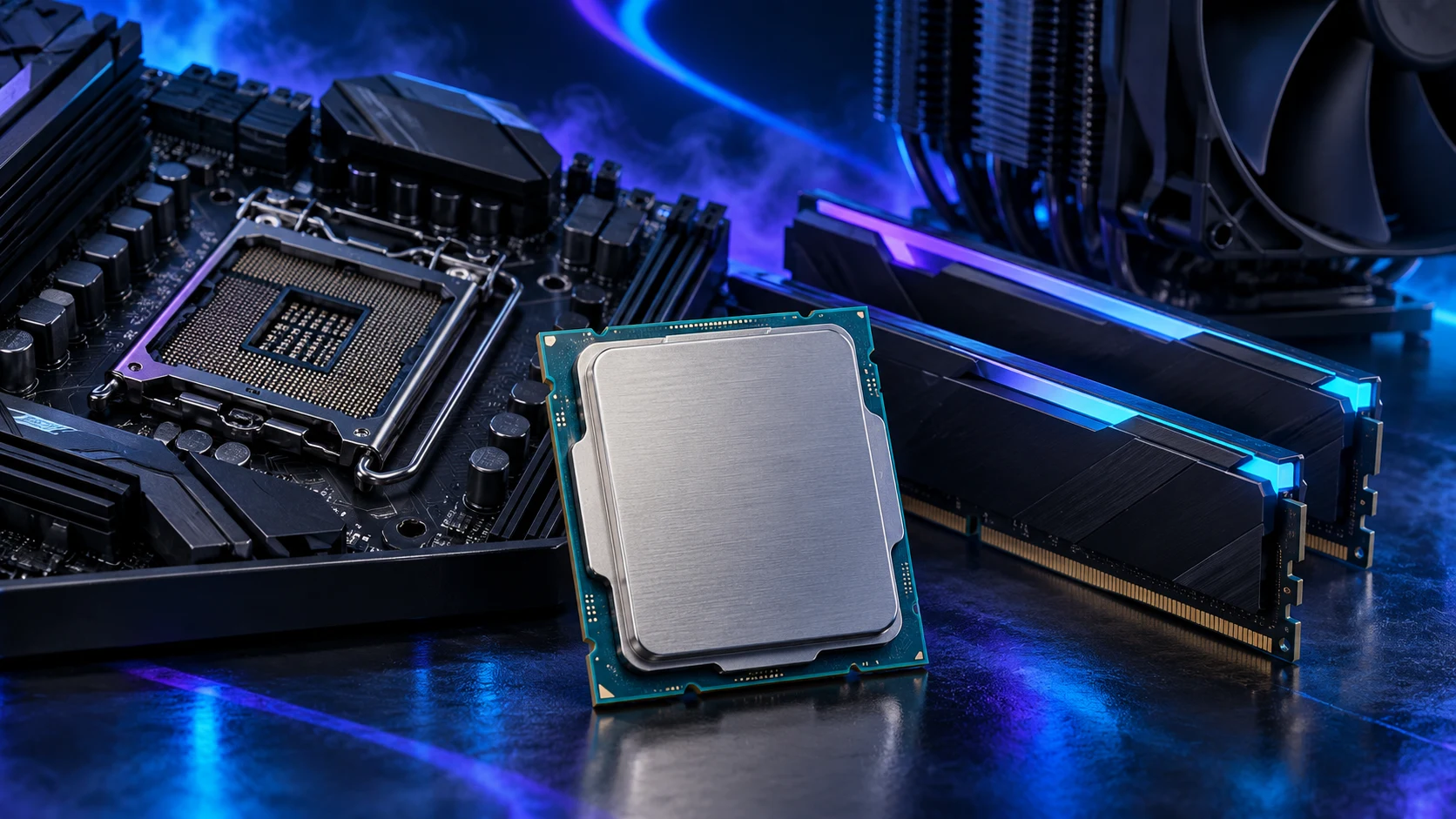
Check how you will update the BIOS
On an existing working PC, check the installed version before removing its current CPU. Windows System Information can show a BIOS version; the firmware setup screen and board documentation help confirm it. Compare that with the support list and any required intermediate update steps.
For a new board, look for a retailer-confirmed BIOS version or a documented way to update it without a working CPU. Some boards provide USB BIOS flashback, but the feature name, port, file-renaming process and procedure vary. MSI’s Flash BIOS Button instructions apply to boards with that feature. They do not mean every MSI board can do it.
Download only the firmware for your exact model and revision, then follow that maker’s procedure. If the board requires a supported installed CPU to update and you do not have one, choose a suitable update service or a board with the required firmware. The first-boot guide covers the next setup steps.
Memory belongs in the same compatibility check
DDR4 and DDR5 desktop memory are different types and are not interchangeable. AM5 uses DDR5. Some other processor families have been offered with boards using different memory generations, but an individual board supports the type it was designed for.
Check capacity, module type and the recommended slots. The qualified memory list identifies kits the board maker has validated under its stated conditions. A kit missing from that list is not automatically incompatible; a listed kit also needs the correct settings and population. High-speed XMP/EXPO profiles are an additional operating choice, not the basic requirement for first boot. Start with a stable default configuration.
Use the motherboard buying guide and the matching memory guide to keep the complete platform in the basket.
For the named Intel desktop families, our DDR4 platform map separates processor memory support from the motherboard you need.
Cooling, graphics and board features
A cooler needs the correct socket mount and enough space around the RAM and case side panel. A liquid cooler also needs room for the radiator, fans and tubes together. CPU power and cooling helps choose the cooler class; the complete fit checklist covers physical checks.
A motherboard HDMI or DisplayPort connector normally relies on graphics in the installed CPU. It is not evidence that every supported processor can drive it. If you choose a processor without integrated graphics, plan a separate graphics card. Our integrated-graphics guide separates display output from gaming capability.
Beyond compatibility, check the features you need: enough USB ports, storage slots, networking and expansion connections. The most expensive chipset is unnecessary if a less costly supported board has your required connections. Which motherboard features matter? helps trim the shortlist.
Save a short platform record
Before buying, save the CPU model, board model/revision, required BIOS, RAM kit and cooler/mount. Keep the manufacturer support links with that list. You can then check a substitution in a few minutes instead of trying to reconstruct the whole build.
For an upgrade, use the CPU-versus-platform comparison. For a complete new machine, the beginner’s build guide keeps the remaining components and purchase tables together.
AMD AM5 platform · ASUS compatibility support · MSI BIOS flashback procedure