How to Build a PC for Video Editing in 2027
By James Thompson · Updated:
Some links in my articles are affiliate links. I may earn a commission when you buy through them.

For a Premiere-focused build working with H.264 and HEVC footage, I’d put the Intel Core Ultra 7 270K Plus on the shortlist, pair it with an Nvidia GPU and start the serious-work route at 64GB of RAM. Give active footage and cache their own SSD space before paying for cosmetic upgrades.
Complete the creative desk with a suitable monitor, the colour workflow and a work mouse. For pen input, compare drawing tablets; for moving projects, choose the portable drive around its host interface.
Table of Contents
TogglePlan the work before the parts
The footage matters as much as its resolution. Long-GOP camera files, intraframe media, RAW footage, GPU effects and colour grading stress different parts. Choose the CPU and GPU for the software and codec you use, then leave enough memory and storage for the complete project.
Note the editing application, codec, bit depth, chroma subsampling, camera resolution and typical number of simultaneous streams. Include After Effects or Resolve if you use them alongside the editor. A simple 1080p cut and a layered 4K commercial need different memory and GPU budgets.
Build an AM5 tower in PC Builder to see the PC in 3D, compare planning estimates and save your selected parts. Use the workload and setup advice here to refine the choices.
Choose a complete build route
The three columns are complete alternative starting points. Choose a column first, then use the component sections to make a deliberate change. CPU, motherboard and memory must stay on the same platform; a compact case also needs the matching board and power-supply layout.
| Part | Learning and light edits | Balanced editing workstation | Heavy projects and effects |
|---|---|---|---|
| Processors | Ryzen 7 9700X | Intel Core Ultra 7 270K Plus | Intel Core Ultra 7 270K Plus |
| Graphics Cards | ASUS Dual RTX 5060 8GB OC | MSI RTX 5060 Ti 16GB Shadow 2X OC Plus | Gigabyte RTX 5080 Gaming OC 16GB |
| Motherboards | Gigabyte B650 Eagle AX | MSI Z890 Gaming Plus WiFi | MSI Z890 Gaming Plus WiFi |
| RAM Kits | Crucial Pro 32GB DDR5-6000 | Crucial Pro 64GB DDR5-5600 | Corsair Vengeance RGB 96GB DDR5-6000 |
| SSDs | WD_BLACK SN850X 2TB | WD_BLACK SN850X 2TB | WD_BLACK SN850X 4TB |
| Power Supplies | Corsair RM850e (2025) | Corsair RM850e (2025) | be quiet! Pure Power 13 M 1000W |
| PC Cases | NZXT H5 Flow (2024) | NZXT H7 Flow | NZXT H7 Flow |
| CPU Coolers | Thermalright Peerless Assassin 120 SE | ARCTIC Liquid Freezer III Pro 360 | ARCTIC Liquid Freezer III Pro 360 |
The balanced route is my usual starting point for video editing. The lower route has a narrower workload; the premium route spends on a defined capacity, performance or layout need. Include Windows, the display, peripherals and backup storage in the complete budget using the build budget calculator.
Choose your processor
For a Premiere PC cutting supported H.264 and HEVC footage, I’d start the comparison with the 270K Plus. Puget identifies its Quick Sync path as a useful advantage for those workflows. Keep integrated graphics available and pair the processor with a compatible LGA1851 board. A different codec, RAW workflow or application can change the ranking, so record the actual footage before committing the CPU budget.
| Best for | My choice | Why I’d choose it |
|---|---|---|
| Best overall for supported Premiere media | Intel Core Ultra 7 270K Plus | Quick Sync route for H.264 and HEVC workflows. |
| Best simpler AM5 learning build | Ryzen 7 9700X | Useful for lighter projects and mixed creative work. |
| Best for editing plus CPU-heavy rendering | Ryzen 9 9950X | Threaded AM5 workstation option where those extra cores have useful work. |
| Best middle AM5 workstation | Ryzen 9 9900X | Twelve-core alternative for a mixed workload and existing AM5 preference. |
A 9700X makes a straightforward AM5 learning-and-mixed-work PC; it is not the same recommendation as a dedicated heavy Premiere workstation. If you also CPU-render or use strongly threaded applications, compare the 9900X and 9950X on those tasks. Memory, proxies and storage layout can improve the editing experience without changing the processor. A GPU-accelerated effect taking time is not proof that the CPU is the part to replace.
Compare the shortlist in best processors for video editing. To compare other purposes, use best processors for building a PC. For practical installation, follow choosing a CPU and GPU together.
For sustained export work, include CPU power and cooling in the platform choice. The integrated-graphics guide explains why codec and application support belong beside display capability.
Choose your graphics card
I’d start a balanced editing PC with the RTX 5060 Ti 16GB, then decide whether the footage and effect stack justify the RTX 5080. The useful comparison includes the editor, codec and other applications, rather than gaming results alone. A plain timeline and an effects-heavy grade can use the same card very differently. Keep the CPU’s supported media engine available where it benefits the application.
| Best for | My choice | Why I’d choose it |
|---|---|---|
| Best overall for balanced editing | MSI RTX 5060 Ti 16GB Shadow 2X OC Plus | 16GB Nvidia route for supported effects and creative software. |
| Best learning and light-project option | ASUS Dual RTX 5060 8GB OC | Entry GPU tier for a modest editing basket. |
| Best premium GPU-heavy editing | Gigabyte RTX 5080 Gaming OC 16GB | More processing for heavy effects and grading, with 16GB capacity. |
The RTX 5060 8GB is the learning-and-light-project route, with a clear capacity limit for heavier work. The premium 5080 has the same 16GB VRAM as the 5060 Ti in this shortlist: it adds processing performance, not more room for a project that already exceeds 16GB. Install the appropriate Studio driver and use a short representative timeline to confirm the acceleration settings before starting a major edit.
Compare the shortlist in best graphics cards for video editing. To compare other purposes, use best graphics cards for building a PC. For practical installation, follow graphics-card fit and power checklist.
For this build, check the application’s GPU acceleration and backend before paying for graphics performance. The VRAM guide separates project capacity from the GPU’s speed.
Choose your motherboard
The dedicated Premiere media basket uses the Z890 Gaming Plus WiFi because the 270K Plus needs the Intel LGA1851 platform. Confirm the Plus processor’s exact BIOS support, and keep DDR5 in the same plan. The AM5 boards are alternatives for the Ryzen basket; they cannot accept the Intel processor.
| Best for | My choice | Why I’d choose it |
|---|---|---|
| Best overall for the Intel editing basket | MSI Z890 Gaming Plus WiFi | Correct LGA1851 platform for the 270K Plus. |
| Best simpler AM5 editing build | Gigabyte B650 Eagle AX | Keep with the 9700X learning route. |
| Best fuller-featured AM5 workstation | Gigabyte B850 Aorus Elite WiFi7 | For a Ryzen editing/rendering route needing the extra layout. |
For editing, map the storage and peripheral connections before comparing board tiers. Active footage, cache, external backups and a capture card can compete for sockets and expansion space. Read the lane-sharing notes for the intended combination. A “video editing motherboard” label is less useful than a diagram showing that the second SSD and capture hardware can operate where you intend to put them.
Compare the shortlist in best motherboards for video editing. To compare other purposes, use best motherboards for building a PC. For practical installation, follow motherboard features worth paying for.
Read the board/platform guide and check the case’s internal connections. PCIe and M.2 sharing keeps the planned drives and expansion cards usable together.

Choose your memory
I’d start the serious editing route at 64GB, and examine 96GB for heavier 4K projects or work shared with After Effects. Puget’s current Premiere recommendations are substantially higher than the old assumption that every 4K editor needs only 32GB. Capacity should follow the timeline, codecs and applications, rather than the resolution printed in a generic parts-list title.
| Best for | My choice | Why I’d choose it |
|---|---|---|
| Best overall serious editing starting point | Crucial Pro 64GB DDR5-5600 | 64GB matched kit for a meaningful editing workstation. |
| Best light-project learning route | Crucial Pro 32GB DDR5-6000 | 32GB for smaller projects, with scope kept modest. |
| Best heavier 4K-project shortlist | Corsair Vengeance RGB 96GB DDR5-6000 | 96GB when the application and timeline need more memory. |
A 32GB basket is a learning-and-light-project option, helped by a modest timeline and a useful proxy workflow. It is not the universal professional 4K recommendation. Check memory use while the editor, browser and motion-graphics tools are all doing their normal jobs. Choose a matched larger kit when needed rather than assuming two independently bought 32GB kits will hold the same settings across four slots.
Compare the shortlist in best ram kits for video editing. To compare other purposes, use best ram kits for building a PC. For practical installation, follow RAM capacity, profiles and clearance guide.
Plan the RAM capacity for the work kept open together and the supported module arrangement. The profile guide covers setup once all memory is working at defaults.
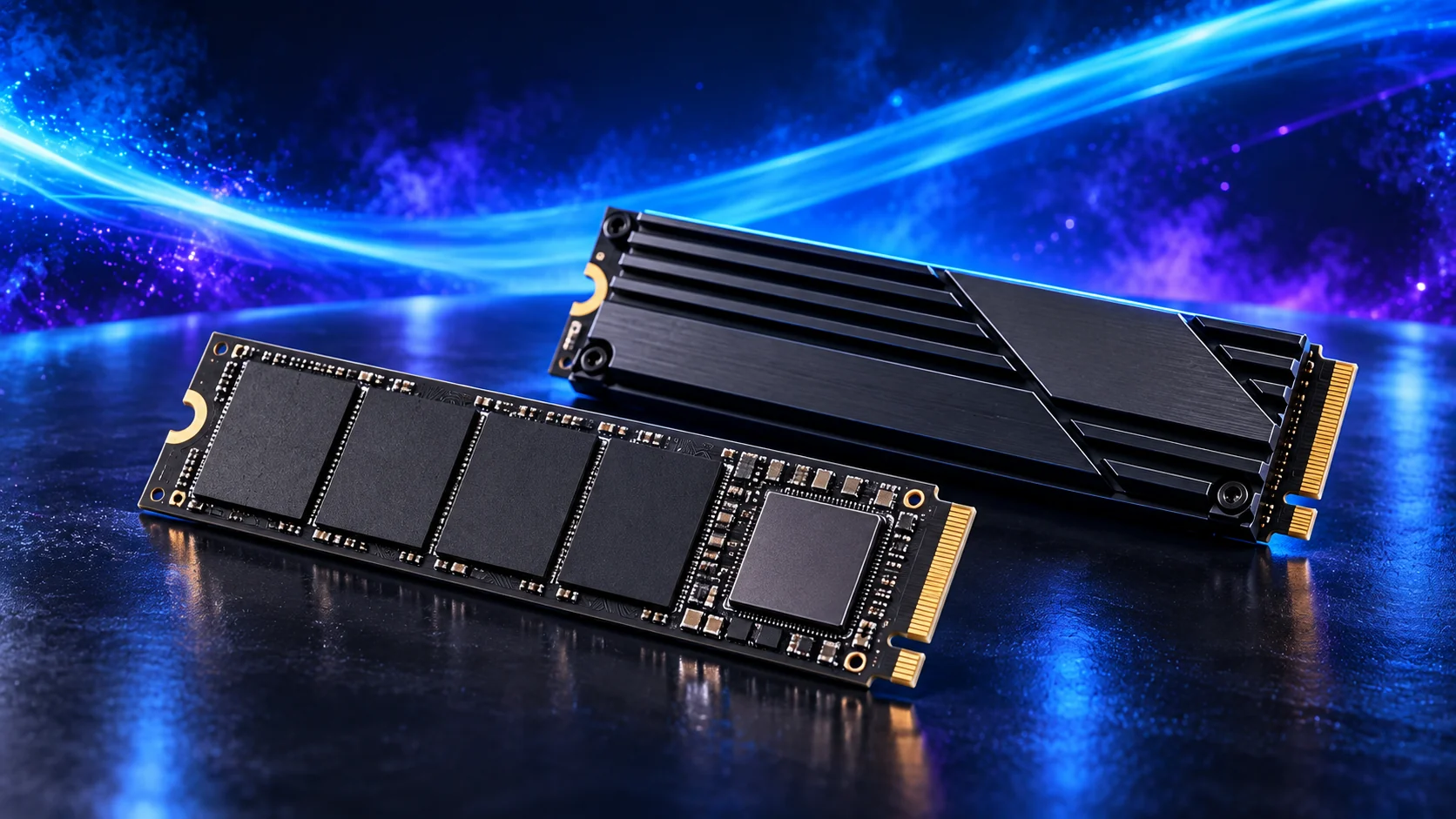
Choose your SSD
For regular editing I’d choose the SN850X project-drive route, then decide whether 2TB or 4TB gives the working project enough room. Active footage, generated proxies, cache and previews can occupy far more space than the final export. A dedicated project drive is useful when it keeps those jobs organised and gives them room, rather than forcing every folder onto an almost-full system SSD.
| Best for | My choice | Why I’d choose it |
|---|---|---|
| Best overall active-project SSD | WD_BLACK SN850X 2TB | 2TB Gen4 project-drive route for frequent media work. |
| Best smaller dedicated system drive | WD_BLACK SN850X 1TB | 1TB for Windows and applications beside the project drive. |
| Best larger footage library | WD_BLACK SN850X 4TB | 4TB for substantial active media and cache room. |
| Best light-project general capacity | Crucial P310 2TB M.2 2280 | 2TB for the modest learning basket rather than heavy sustained writes. |
The 1TB SN850X can be the OS drive beside a larger media drive. The P310 belongs to the lighter general-capacity basket here; I would not choose it first for a heavy write-intensive cache solely because its advertised read number looks strong. Compare the capacity-specific drive information, use a supported heatsink and set cache paths deliberately. Back up source media separately before clearing generated project files.
Compare the shortlist in best ssds for video editing. To compare other purposes, use best ssds for building a PC. For practical installation, follow SSD capacity and installation guide.
Choose enough working storage, then check the exact SSD format/interface. The PCIe comparison helps decide whether the speed premium serves this build.
Choose your power supply
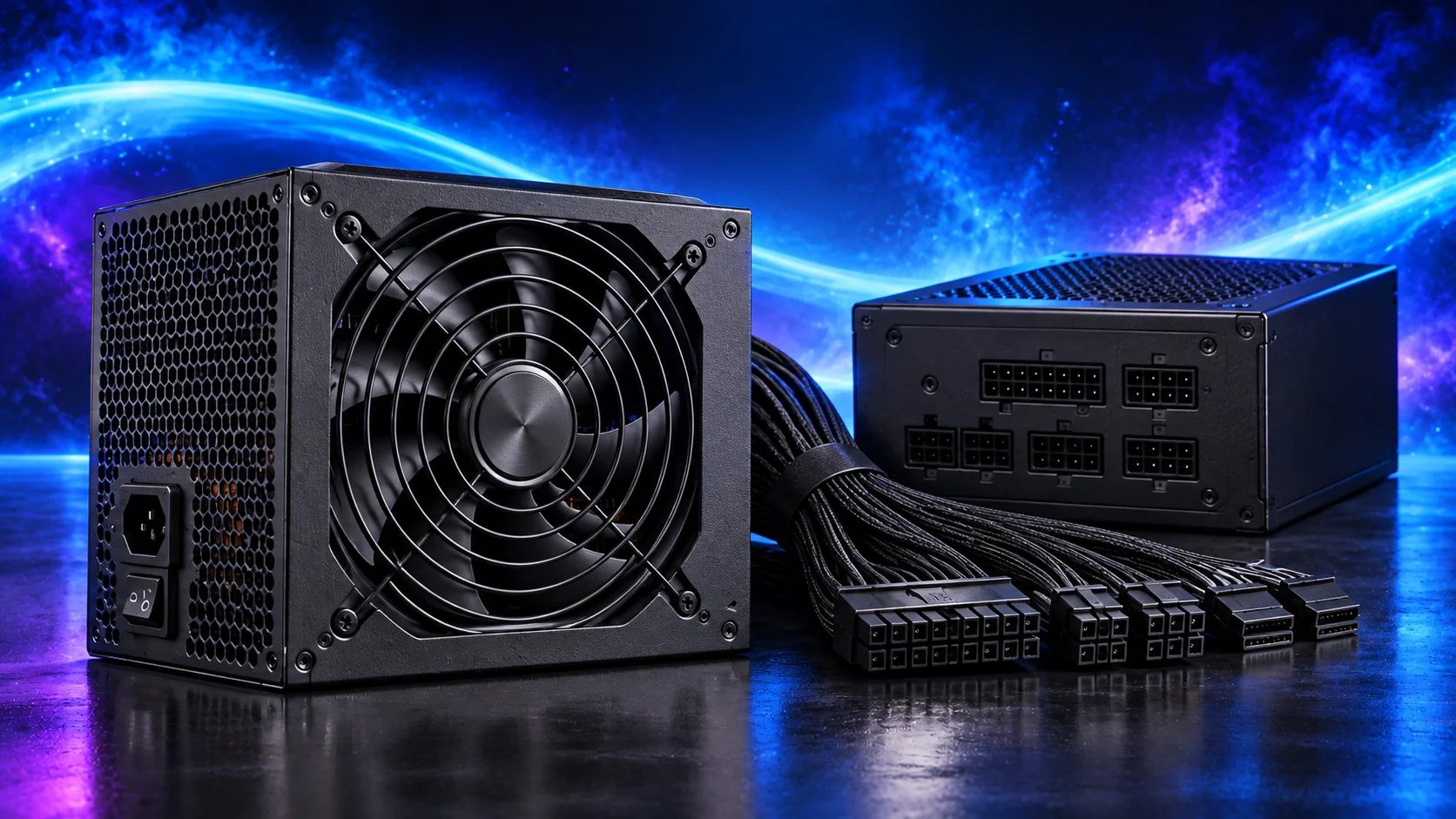
Video workloads can keep both CPU and GPU busy for sustained periods, so I’d plan the PSU around the complete workstation instead of only a nominal GPU wattage. The RM850e is the balanced editing route here. The 1000W Pure Power alternative belongs with the heavier CPU/GPU and expansion plan, where the extra capacity has a defined purpose.
| Best for | My choice | Why I’d choose it |
|---|---|---|
| Best overall balanced editing tower | Corsair RM850e (2025) | 850W modular route for the Intel and midrange Nvidia basket. |
| Best heavier CPU/GPU workstation | be quiet! Pure Power 13 M 1000W | 1000W alternative for the premium configuration. |
| Best compact modest-power editing build | Corsair SF750 (2024) | Use with a smaller-power basket and supported case. |
Keep the modern GPU lead and CPU EPS provision in the same diagram. Modular wiring helps access to project drives and cooling, but the supplied cables need a clear route without strain. The SF750 is a compact alternative for a modest basket, not a substitute for checking the premium workstation’s demand. An efficiency rating alone does not establish how the assembled PC sounds during an export.
Compare the shortlist in best power supplies for video editing. To compare other purposes, use best power supplies for building a PC. For practical installation, follow choosing the right PSU and connectors.
Match PSU load, connectors and installed space together, then keep the exact compatible cable set with the unit.
Choose your case
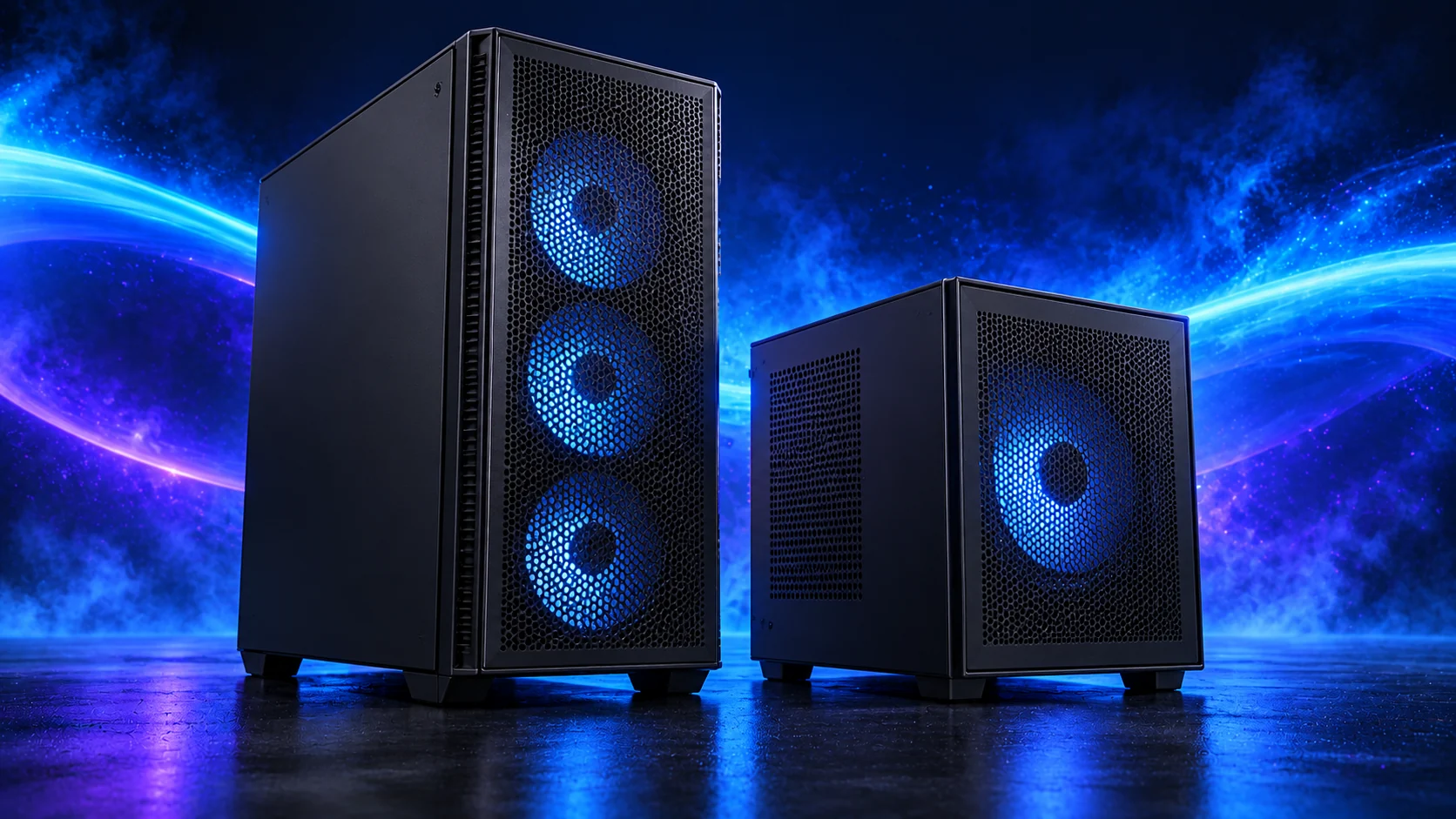
For an editing tower with an AIO and a substantial graphics card, I’d start with the H7 Flow layout. The radiator, GPU, board and cables must work together while leaving storage accessible. The H5 is the simpler air-cooled learning-build choice. A radiator class should lead to a fit drawing, not an assumption that any 360mm cooler clears every board.
| Best for | My choice | Why I’d choose it |
|---|---|---|
| Best overall roomy editing tower | NZXT H7 Flow | Space for cooling, GPU and project-drive access. |
| Best modest learning workstation | NZXT H5 Flow (2024) | Simpler air-cooled editing configuration. |
| Best fan-equipped budget tower | Phanteks XT Pro Ultra | Complete-case option for the restrained basket. |
| Best larger studio finish | Fractal Design North XL | When the cooling layout fits and appearance matters. |
Decide where the tower sits during long exports. Leave ventilation space rather than a sealed desk cabinet, and keep filters reachable. The Phanteks is the fan-equipped restrained-budget alternative; the North XL is the larger studio-style option. Buy around the workload and actual components before paying for a display feature that makes neither task easier.
Compare the shortlist in best pc cases for video editing. To compare other purposes, use best pc cases for building a PC. For practical installation, follow case airflow and fit guide.
Use the case-fan shortlist for the usable mounts and PWM/DC setup for the finished layout.
Choose your CPU cooler
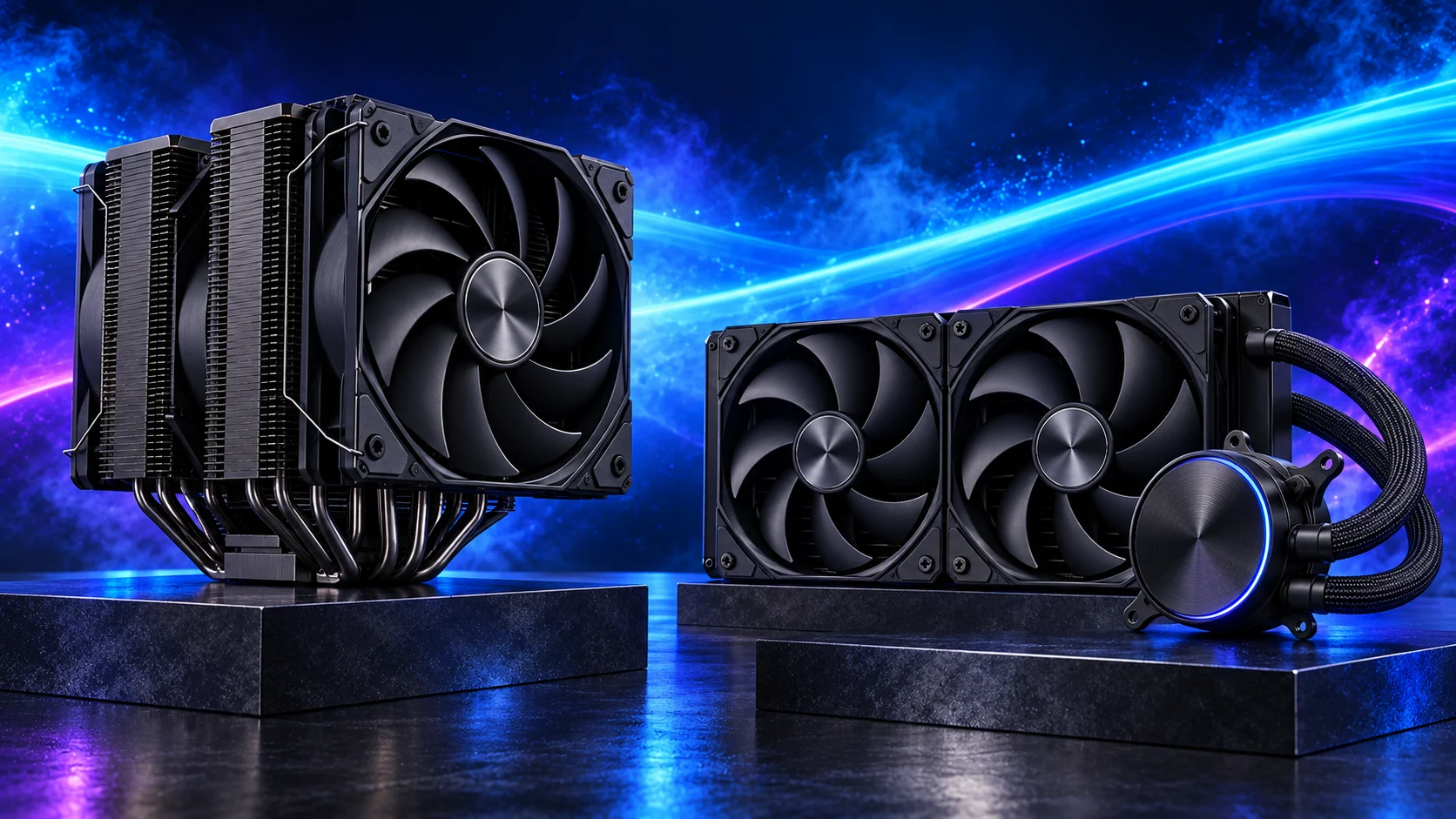
For the sustained Intel editing basket I’d plan the Liquid Freezer 360 with the large tower and supported LGA1851 mounting. Long exports differ from short interactive bursts, so fan response and CPU power settings deserve attention. The 38mm radiator plus fans must clear the board in the selected mounting position.
| Best for | My choice | Why I’d choose it |
|---|---|---|
| Best overall sustained Intel cooling | ARCTIC Liquid Freezer III Pro 360 | 360mm AIO in the roomy 270K Plus tower. |
| Best moderate AM5 editing build | Thermalright Peerless Assassin 120 SE | Air cooling for the lighter Ryzen basket. |
| Best fuller air alternative | Thermalright Phantom Spirit 120 SE Black | Consider power settings and sustained work. |
| Best premium large-air route | Noctua NH-D15 G2 chromax.black | Only with appropriate case and RAM clearance. |
The Peerless Assassin fits the moderate AM5 learning workstation; the Phantom Spirit and large Noctua are air alternatives against the actual load and allowed power. Socket compatibility does not prove behaviour at unrestricted sustained power. Check a representative export and adjust cooling deliberately. Keep the RAM-side fan inside the case limit.
Compare the shortlist in best cpu coolers for video editing. To compare other purposes, use best cpu coolers for building a PC. For practical installation, follow air versus liquid cooling guide.
Check the complete basket
The Intel 270K Plus basket uses the Z890 board; the lighter Ryzen basket uses AM5. Keep those platforms separate. For heavier 4K work, consider the 96GB memory route rather than assuming the 32GB learning basket covers every edit. Allow the selected radiator thickness plus fans in the exact H7 layout.
Use the complete compatibility checklist and the substitution guide before changing a recommended part. Keep one coherent list so a last-minute replacement does not quietly change the platform or physical layout.
Assemble, set up and start working
Prepare the board, CPU, memory and M.2 drive before access becomes tight. Follow the assembly sequence, route power and front-panel connections, then install the graphics card where the build includes one. Connect the display to the intended output and prove a stable boot before enabling faster memory settings.
Enable the application’s supported hardware acceleration, install the appropriate Nvidia Studio driver and test a short representative timeline before a deadline. Put cache and previews on a deliberate drive location, use proxies for difficult footage and keep the original media backed up outside the working PC.
Our first boot and driver guide covers the setup order. If you get power without a picture, use the no-display checks before replacing parts.
For live broadcasts, use Gaming and Streaming builds and Best Capture Cards for a PC Streaming Setup. A home studio has a separate Music Production builds and Best Audio Interfaces for a Home-Studio PC plan.
The upgrade I’d choose next
For complex effects and grading, a faster GPU can be the useful next spend. For memory pressure across the editor and After Effects, increase the matched RAM kit. A CPU change should follow a codec-specific bottleneck; a slow export does not automatically mean every component needs replacing.
Compare the gaming build, design build, video-editing build, Blender build, everyday work build and quiet/compact build if the PC’s main job changes. For your first assembly, keep the beginner guide alongside the parts list.
Workload and hardware reference: Puget’s Premiere Pro hardware recommendations.