
GPU upgrade checklist: power, space and display
By James Thompson · Updated:
Some links in my articles are affiliate links. I may earn a commission when you buy through them.
Complete the power/cable-space plan and the modular-lead compatibility check alongside this upgrade. The display shortlist helps when the upgrade is tied to a new screen.
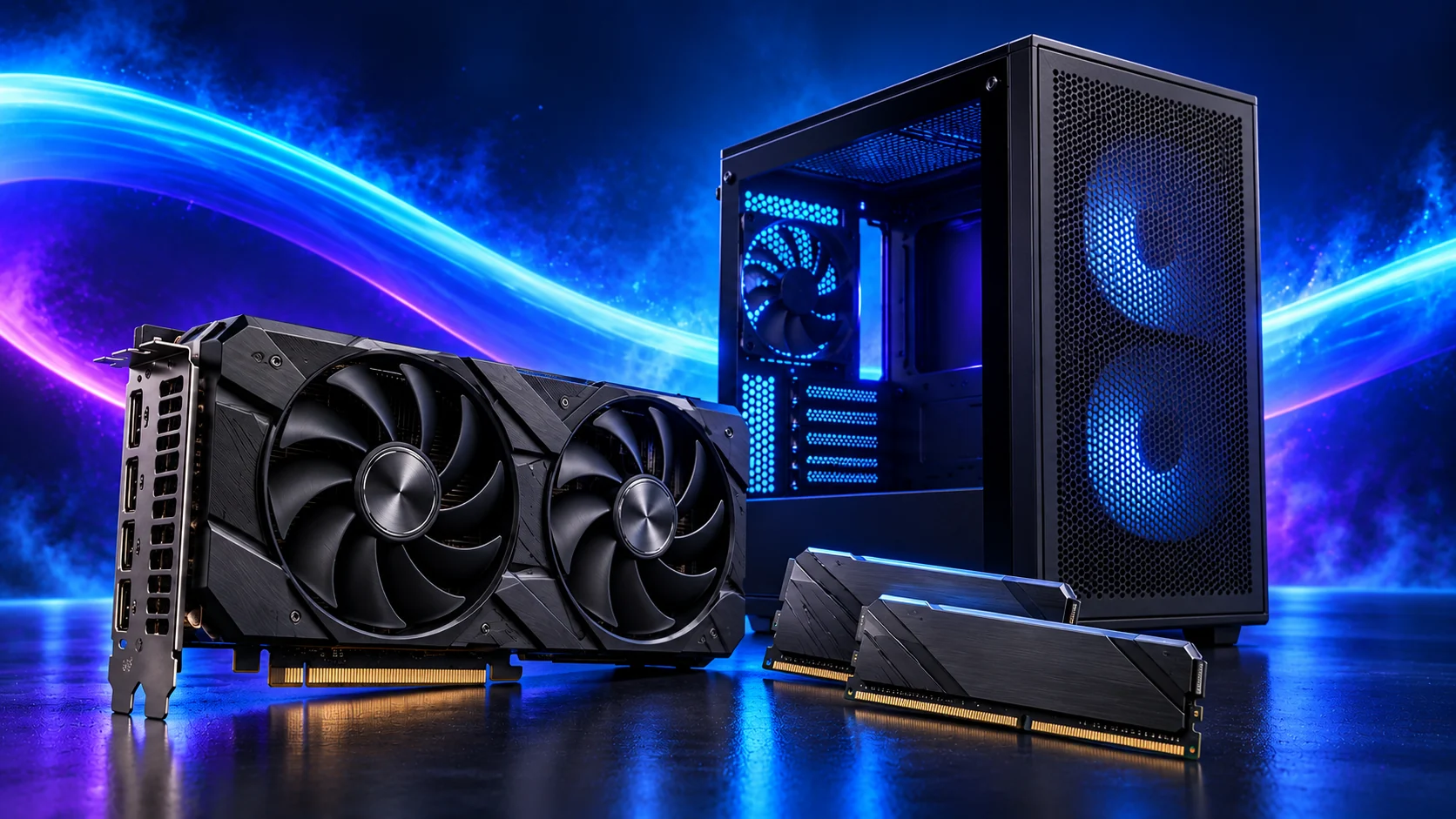
A graphics upgrade can be the most rewarding change to a gaming PC. I’d work through the power leads, installed space and monitor connection before choosing the card, so the upgrade stays a simple job.
Table of Contents
ToggleEstablish what the upgrade must improve
Record games, resolution, settings and the current result. Use the performance checks to confirm that graphics performance is a useful target.
Compare current tests under relevant settings. Decide whether memory capacity, ray tracing or particular software features affect the choice. Do not buy a larger card to solve a frame cap.
For an AM5 tower using catalogue parts, PC Builder lets you compare a graphics swap with the selected case and PSU. Keep the existing-PC measurements from this checklist beside that comparison.
Measure the installed space
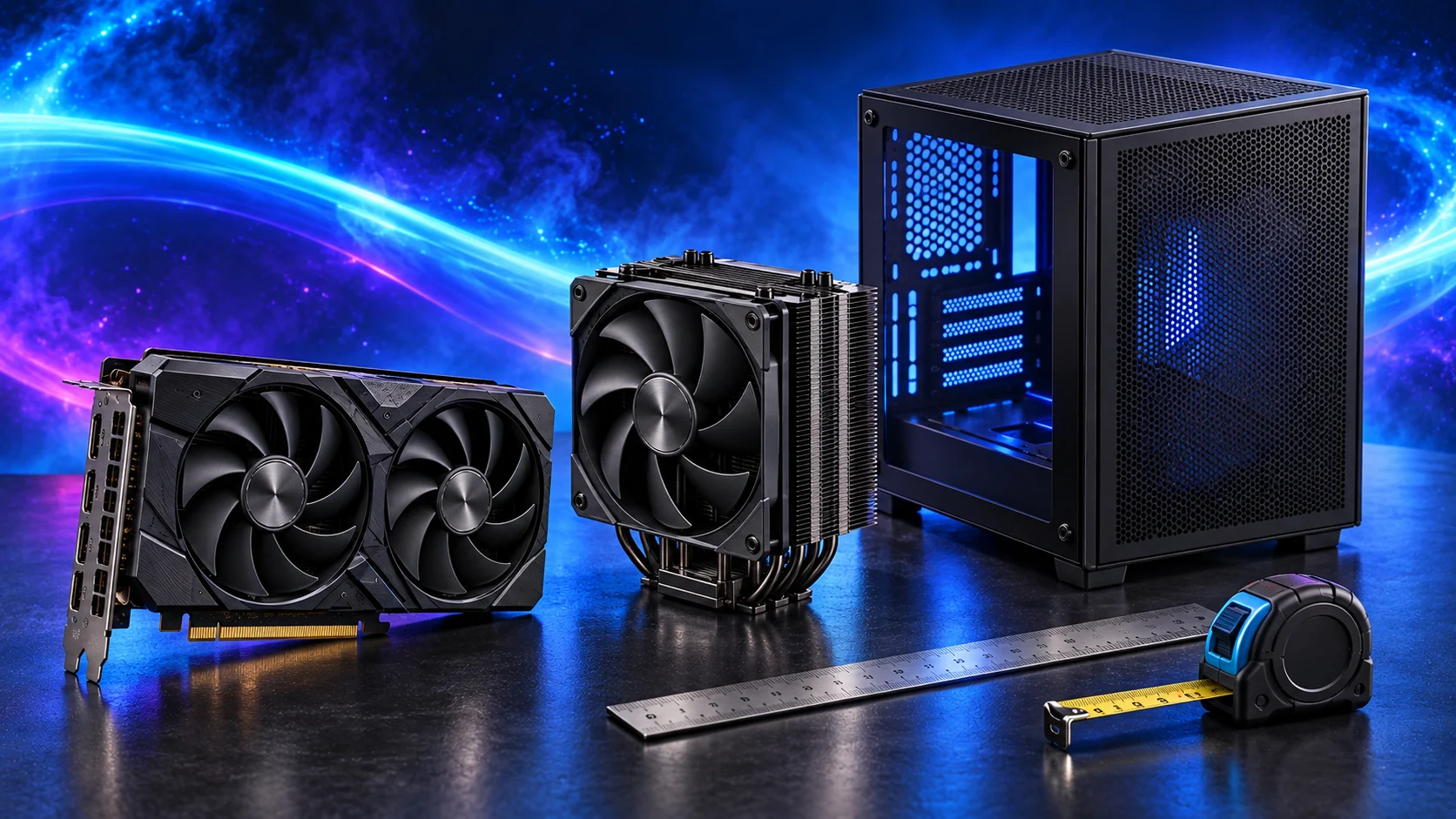
Record card length, thickness and height with front cooling, PSU brackets and bottom fans present. Allow room for the power lead and a support bracket. A larger partner model can fail a fit check that a smaller card passes.
Allow room for the ASUS Dual card’s power lead and keep its intake clear. Measure with the fans and other hardware in place.
Verify the power path
- Exact PSU model, generation and condition.
- GPU maker’s recommendation for the selected card.
- Required plug count and approved lead arrangement.
- Fully seated connections with documented bend space.
- No modular cables borrowed from an unrelated PSU.
Use the PSU guide. Add a required PSU change to the graphics upgrade total.
Choose the replacement model in the gaming graphics-card guide, then apply this upgrade checklist. The gaming PSU shortlist helps when the new card changes power provision.
Plan software and the screen
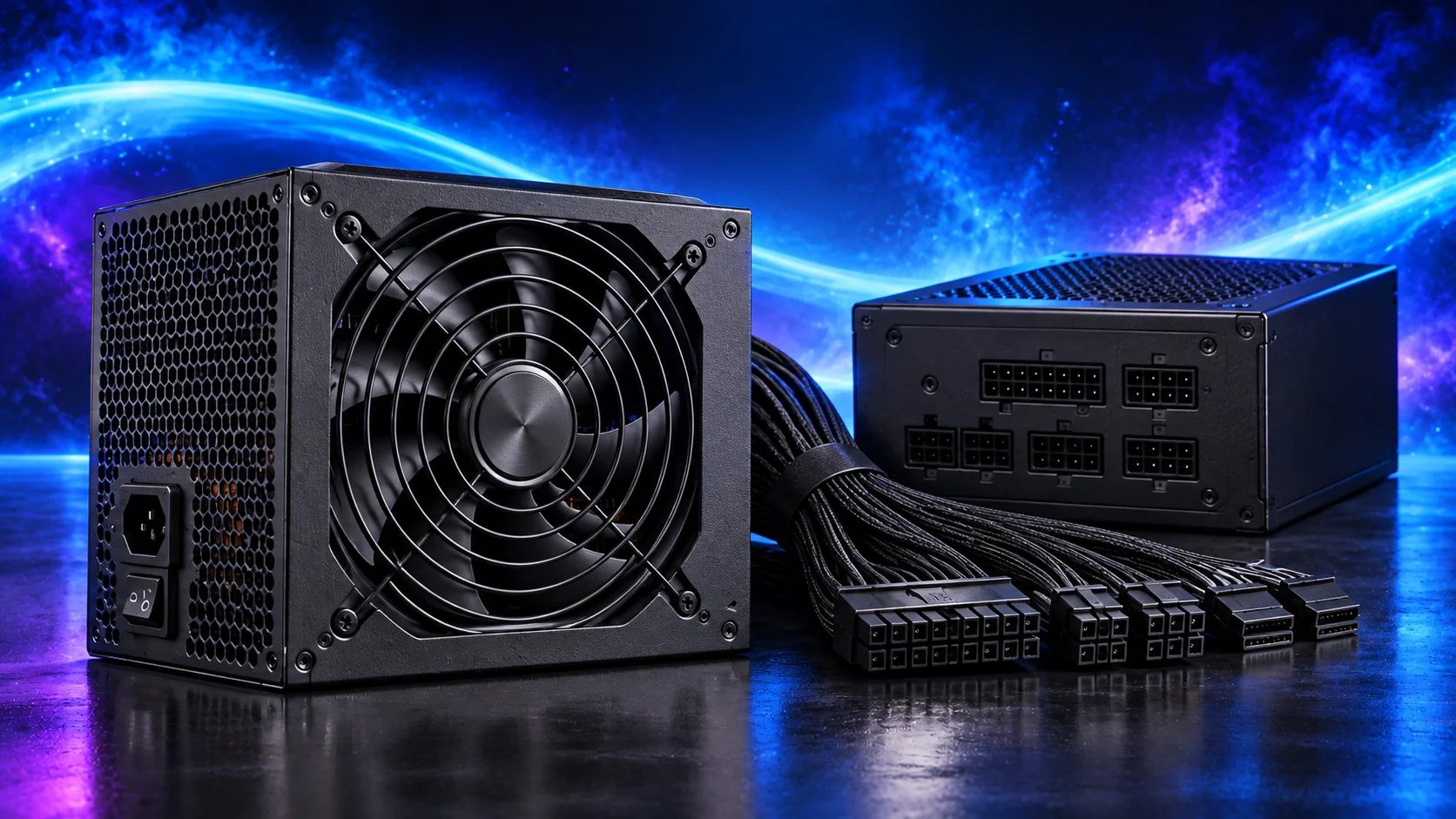
Download the correct manufacturer driver and follow its documented changeover process when replacing the card. Connect the display to the intended graphics output and select its resolution and refresh mode.
Check monitor input capabilities and the cable, particularly if the new card changes your available output type. The display setup guide covers this.
Compare before and after fairly
Repeat the same game scene and settings. Record the result that motivated the purchase before changing resolution, memory profiles or several software settings.
Keep the previous card and packaging until the new setup works. Use display diagnosis if there is no picture after the change.
Check the slot and platform features before fitting
Find the recommended graphics slot, its electrical lane count and its connection for your installed CPU. PCIe and Resizable BAR explained covers generation negotiation and the supported firmware/driver route. Read shared-resource notes if the PC already has several M.2 drives or expansion cards.
Record the exact card’s length, height and thickness with the case’s front cooling in place. Include power-lead routing and any card support. The dimensions of another model using the same GPU chip are not your fit measurement.
Correct slot and useful firmware features.
Installed clearance plus power-lead space.
Repeat the same workload after installation.

Record a fair before-and-after comparison
Save the old settings, rendered performance and problem scene before removal. After installation, repeat them before changing resolution or adding generated frames. The benchmark guide explains the useful measures.
If the intended gain is a rendering or editing task, compare that task rather than a game alone. The application-acceleration guide helps check the required backend and capacity. The GPU guide keeps the next purchase tied to the job.