
How to calibrate a PC monitor for photography and design
By James Thompson · Updated:
Some links in my articles are affiliate links. I may earn a commission when you buy through them.
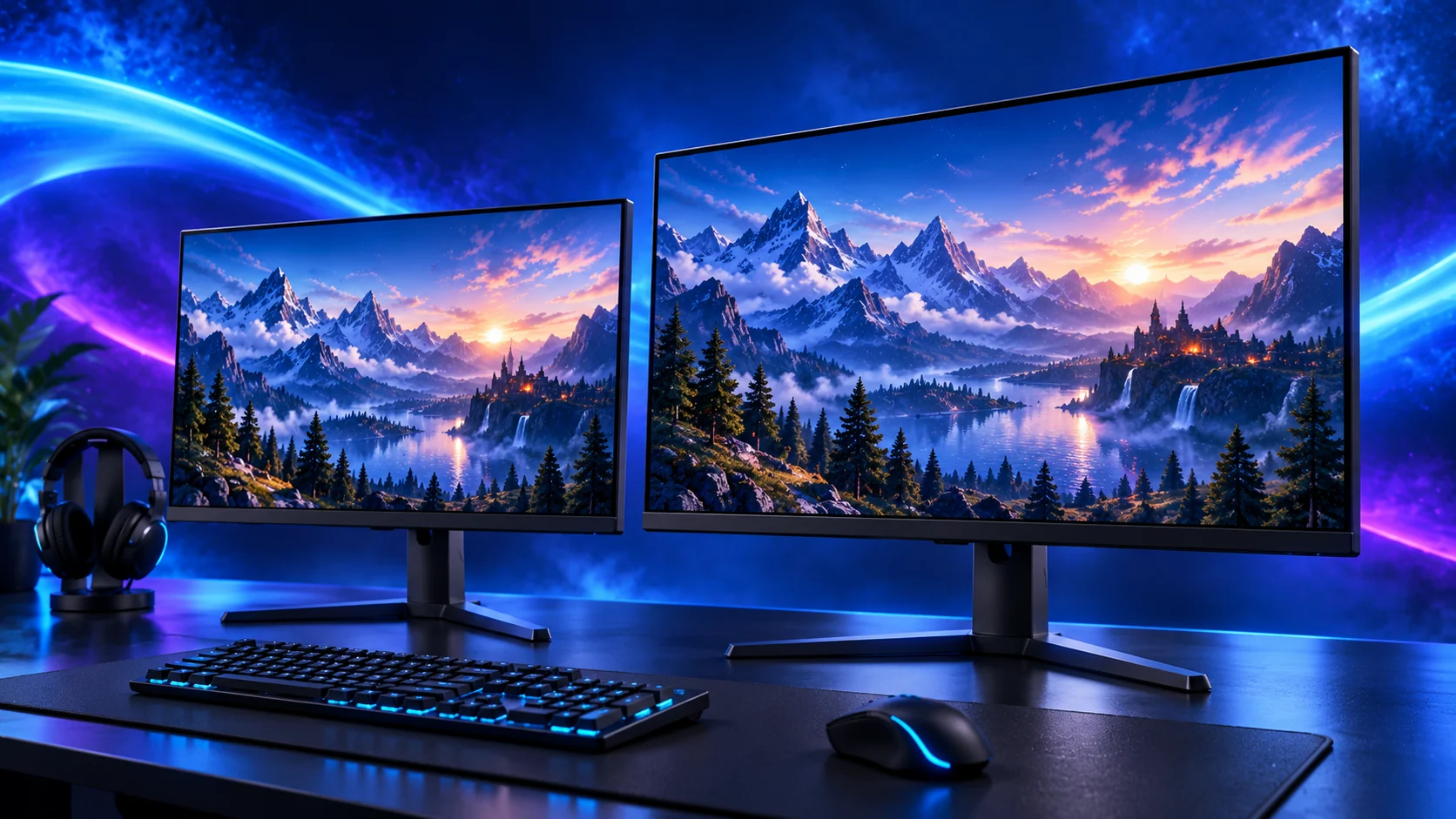
Set a stable room and screen configuration first, then measure and profile the monitor. A repeatable colour workflow comes from the complete setup: display settings, measurement, profile assignment and the application used to view the image.
Prepare the room and monitor
Keep direct glare off the display and use consistent room lighting for editing. Select the monitor mode you intend to work in and let the panel stabilise according to its instructions. Disable temporary changes such as Night light while measuring and working with the calibrated configuration.
Choose brightness and white-point targets for the actual output and viewing environment. A bright retail-style screen is a poor reference for a print viewed under modest light. For a specific client/video workflow, follow its agreed targets rather than a universal internet preset.

Measure and create the profile
Use a sensor suited to the display technology and its supported software. Select the correct display, place the sensor as instructed and follow the guided measurement. Keep light from entering behind a sensor that should sit against the screen.
Calibration adjusts the working setup; profiling describes its colour behaviour for colour-managed use. Some displays support hardware calibration, while others use a software/GPU route. Follow the display/software combination rather than assuming every monitor writes the adjustments into its internal controls.
Assign and verify the result
Display, preset and measurement date
The intended monitor in Windows colour management
The software’s supported verification process
Colour-managed applications and the same screen settings
In Windows, check the selected display and default colour profile. Use the profile appropriate to the measured mode. An ICC profile made for another unit may not describe yours, even when the model number matches.
Compare familiar photographs in a colour-managed application and investigate a large mismatch before editing around it. Two monitors can have different capabilities; forcing every image to look identical on every screen is not the same as establishing a sound reference.
Keep SDR, HDR and print tasks distinct
Windows HDR Calibration configures the HDR display experience with its own process. It is separate from using a colourimeter for a measured photography/design profile. Decide which mode the work requires and use the relevant setup.
Revisit the profile when you change display mode, brightness, screen or viewing conditions materially. For prints, use the appropriate printer/paper profile and consistent print-viewing light. The creative-monitor guide helps choose the screen; the pen-input guide completes the editing controls.
Specifications and setup: Windows colour settings · Calibrite setup · HDR Calibration.