
GPU Acceleration for Creative Software: Rendering, Editing and AI
By James Thompson · Updated:
Some links in my articles are affiliate links. I may earn a commission when you buy through them.
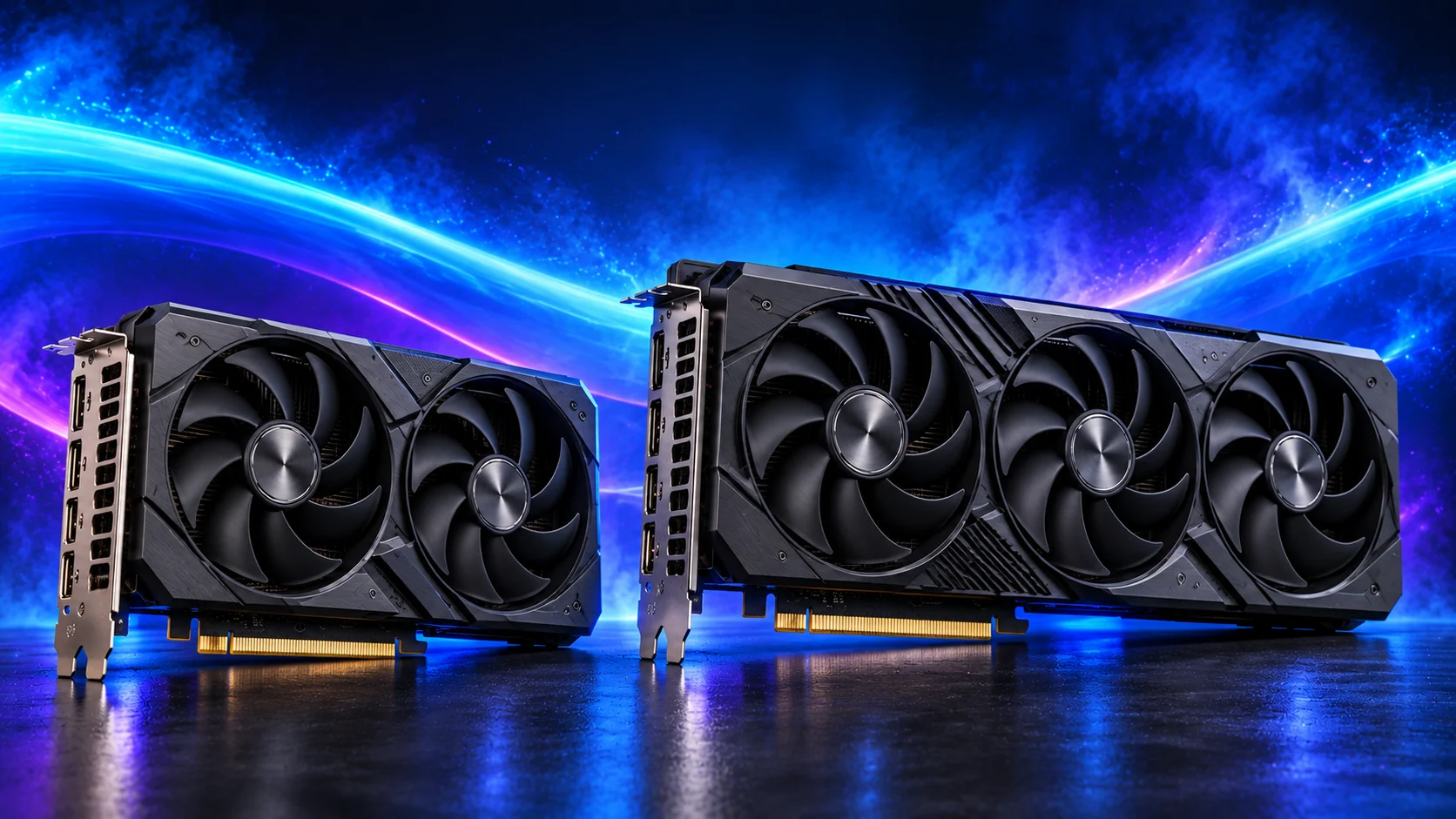
Choose the GPU for the application and operation you need to accelerate. Displaying a desktop, decoding video, rendering a 3D scene and running a local model are different jobs. Software support and memory capacity can matter more than a gaming ranking.
Table of Contents
ToggleIdentify the operation that makes you wait
Write down the application, version and slow operation. Is it playback, an effect, an export, a viewport or a final render? An application can use the GPU for one operation while another remains CPU-led. “GPU accelerated” on a feature list does not mean every action becomes faster.
Use the application’s current requirements and acceleration settings to find the supported hardware/API. Then compare tests of that operation with useful project sizes. A export benchmark using one codec may tell you little about playback of a different camera format.
For a mixed workstation, the GPU buying guide separates design, video, rendering and AI routes. Protect enough system RAM and appropriate project storage alongside the card.

3D rendering depends on the backend
A renderer uses a software backend to reach the GPU. Blender Cycles offers options including CUDA, OptiX, HIP and oneAPI on supported devices. The choice depends on the renderer version, operating system and GPU. Check the supported feature list as well as whether the device appears in preferences.
Use Blender’s rendering overview and its version-specific manual for the configuration. A card that cannot use your preferred renderer is the wrong purchase even if it has an excellent gaming result.
Scene memory matters too. Geometry, textures and other working data need space. Some supported rendering paths can fall back to system memory, but that changes performance and is not equivalent to having a larger local allocation. The VRAM guide explains the capacity decision, and the Blender GPU shortlist turns it into a purchase.
Video processing has several acceleration paths
| Operation | What to investigate | Useful route |
|---|---|---|
| Decode source footage | Codec, bit depth and chroma support in software and hardware. | Exact editor/codec documentation. |
| Effects and colour | Which effects use GPU compute and their project-memory needs. | Editing GPU guide |
| Encode output | Supported hardware encoder and export settings. | Complete editing build |
| Store media/cache | Read/write needs, capacity and project organisation. | Editing SSD guide |
Hardware decoding and encoding are specialised engines; their support does not follow directly from gaming shader performance. A processor’s integrated media engine can also be useful when the editor supports it. The integrated-graphics guide keeps that option in view.
A smooth small preview does not establish that a complex timeline or high-resolution export will fit the same budget. Compare project complexity and settings rather than treating a GPU badge as the answer.
Local AI starts with software and memory
Check the model, framework and operating-system route you intend to use. GPU backends and supported operations vary; buying the largest memory figure without checking that software stack can leave you with an awkward installation.
Model weights are only part of the working allocation. Context, intermediate data and the specific execution method add requirements. Lower precision or quantisation can reduce demand, but the useful trade-off depends on the model and task. Start with the framework/model documentation and a known supported configuration.
System RAM and GPU VRAM are separate capacities. Some tools can split work across CPU and GPU memory, but that is a different performance route from keeping the workload on the GPU. Use the local-AI GPU guide and the complete local-AI build together.
Design, photography and professional CAD
An image editor may accelerate selected adjustments and display tasks without needing a top-end gaming card. For photography, match support to the edits you perform, monitor resolution and file sizes. The photography shortlist avoids paying for unrelated rendering capacity.
Professional CAD can add certified-driver and hardware requirements. Check the application’s supported configuration rather than assuming a gaming card’s raw performance guarantees support. The CAD GPU guide separates that decision from ordinary games.
Before ordering any workstation card, record the supported backend, project capacity, useful performance evidence and complete system cost. The GPU specification guide helps interpret the datasheet; the fitting checklist finishes the physical installation.
Blender 4.5 GPU-rendering documentation · Blender rendering features