
Best Capture Cards for a PC Streaming Setup in 2027
By James Thompson · Updated:
Some links in my articles are affiliate links. I may earn a commission when you buy through them.
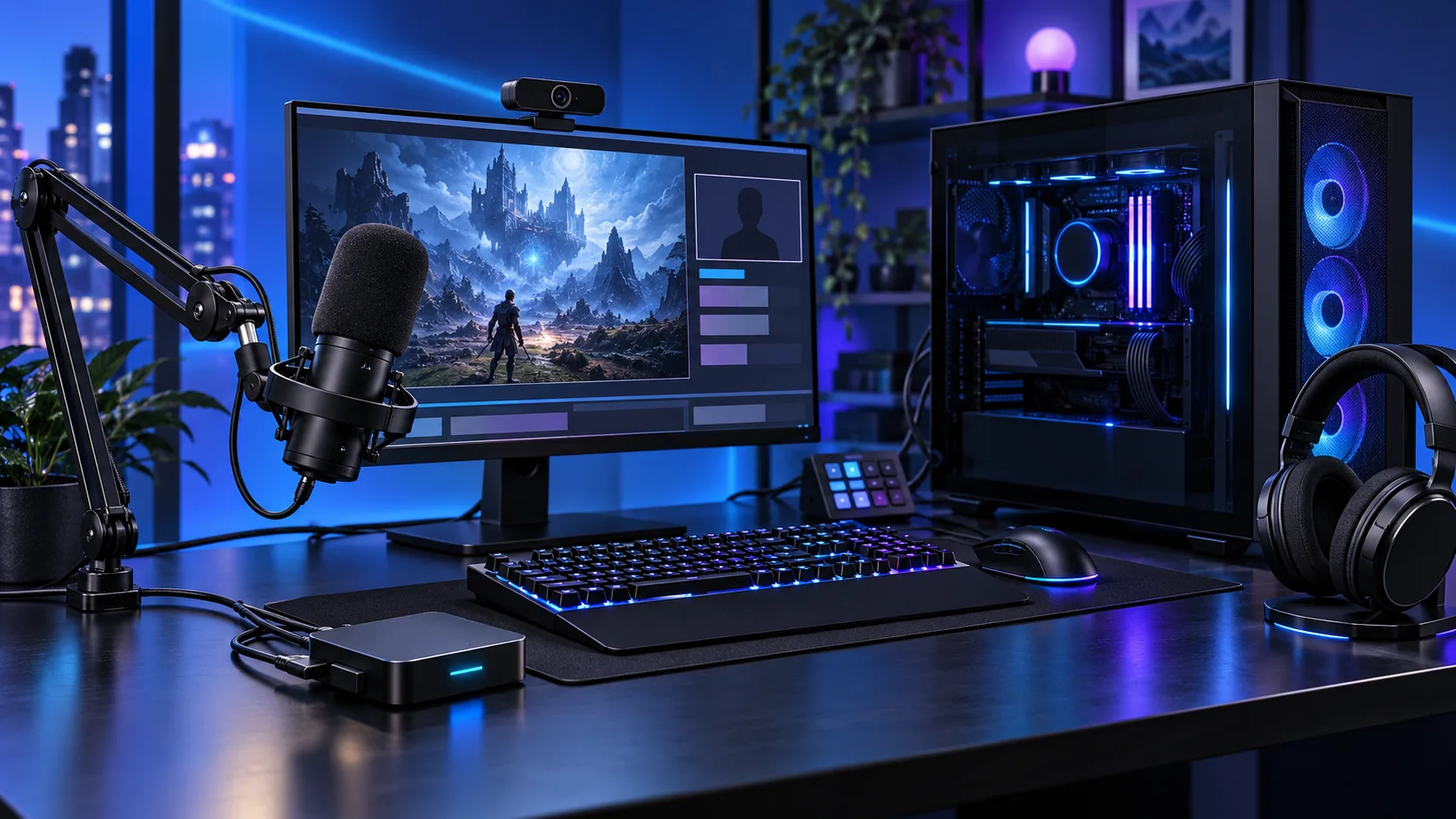
Buy a capture card for a compatible external video source: a console or another PC. If the game and OBS run on the same machine, start with OBS Game Capture and spend the money elsewhere unless a separate input requirement exists. Here is the shortlist I would use, with the lower-cost and more capable routes kept alongside the complete gaming and streaming setup.
Table of Contents
ToggleChoose the right option for your build
| Best for | My choice | Why it fits |
|---|---|---|
| Best lower-cost external route | Elgato HD60 X | The HD60 X suits a supported capture mode without paying for unused HDMI 2.1 capability. |
| Best more demanding HDMI route | Elgato 4K X | The 4K X is the step up when its capture/passthrough modes and host bandwidth serve the setup. |
Start with the shortlist below, then use the complete build guide to match your choice to the rest of the setup.
Complete the desk with a compatible monitor arm and the keyboard layout. For a recording setup, use the microphone and webcam buying routes.
Best lower-cost external route: Elgato HD60 X
The HD60 X suits a supported capture mode without paying for unused HDMI 2.1 capability.
The Elgato HD60 X is the lower-spend external capture route for a compatible console or second PC. I would choose it when the required recording format is within its supported modes and the more expensive device adds no useful capture capability.
Passthrough and capture are different modes. Compare the monitor signal you want to play with the actual recording resolution and frame rate; a 4K passthrough label alone does not mean 4K60 capture.
Best more demanding HDMI route: Elgato 4K X
The 4K X is the step up when its capture/passthrough modes and host bandwidth serve the setup.
The Elgato 4K X is the HDMI 2.1 external capture route for a more demanding source and display arrangement. I would pay for it when its supported modes solve a specific limitation of the lower-cost option.
Provide the required USB link: supported modes vary with host bandwidth, and the full route uses USB 3.2 Gen 2 at 10Gbps. Include the HDMI path, cables and host port in the purchase.
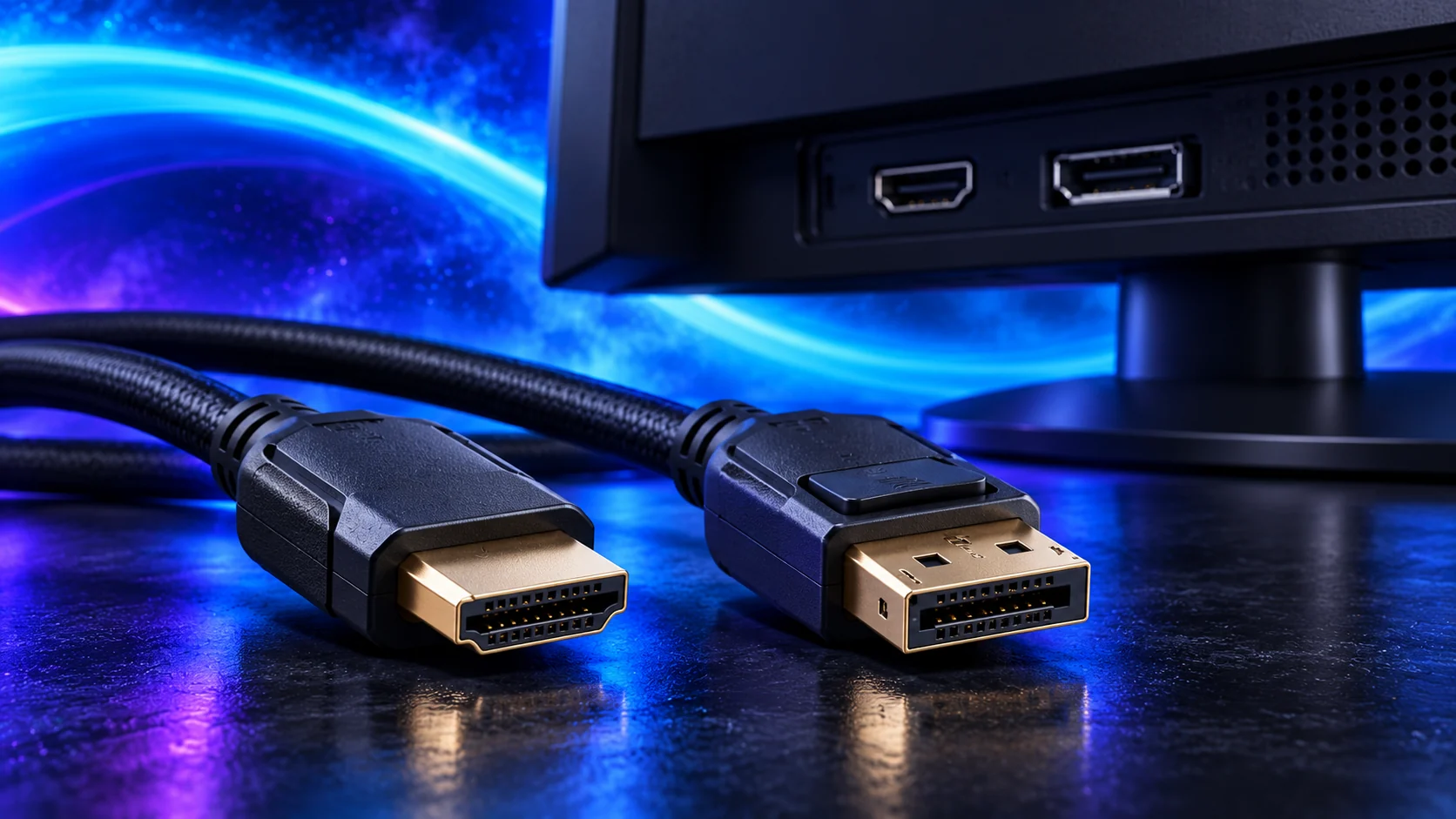
How I would choose between these routes
List the source signal, the display signal and the recording format separately. The card may pass a mode to the monitor that it captures at a different resolution or frame rate. Read the device’s mode table for that combination, including HDR and VRR, rather than buy by the largest number on the packaging.
Trace the whole connection: console or source PC to capture input, capture passthrough to the gaming display, and USB to the streaming PC. The 4K X needs the appropriate host bandwidth for its demanding modes. Put audio monitoring and source sound in the same plan, then test a short recording before adding overlays and cameras.
Include the rest of the setup
Choose the stream you intend to produce: the game, monitor, streaming platform, camera and microphone. A single-PC broadcast captures the game in software, while a console or a second-PC setup may need a capture device. That distinction comes before the shopping list. Put the microphone and a stable internet connection in the budget alongside the tower.
Install OBS and the supported graphics driver, then start with one game source and the microphone. Set the game, monitor and outgoing stream formats separately. Make a local recording to establish audio balance before adding a complicated scene collection.

The supporting parts I would put beside it
Keep games and applications on a spacious NVMe drive, then allow separate space for local recordings. High-quality footage can grow quickly. Keep finished recordings and project files in a recoverable archive rather than let the gaming drive fill until an update or recording fails.
| Role | Suggested route | Why I include it |
|---|---|---|
| Memory | Crucial Pro 32GB DDR5-6000 | Choose capacity for the active work and surrounding desktop. |
| Working drive | WD_BLACK SN850X 2TB | Keep active files and useful free space on the NVMe drive. |
| Case | NZXT H5 Flow (2024) | Use the complete layout rather than an isolated component maximum. |
Complete the purchase plan
Use wired Ethernet where practical and judge upload reliability for the chosen platform. Cap or reduce the game workload if OBS needs rendering headroom. A clean microphone signal and a stable broadcast are useful first upgrades; a capture card belongs in the basket when there is an external source to capture.
Compare the complete basket for the chosen route and keep the exact variant in the order. Use the wider capture cards guide for the underlying choice, or return to the complete gaming and streaming build for the supporting purchases.
Build a gaming and streaming PC
Technical references: OBS hardware encoding · OBS performance troubleshooting · Elgato 4K X mode table.