
How to Build a PC for Photogrammetry and 3D Scanning in 2027
By James Thompson · Updated:
Some links in my articles are affiliate links. I may earn a commission when you buy through them.
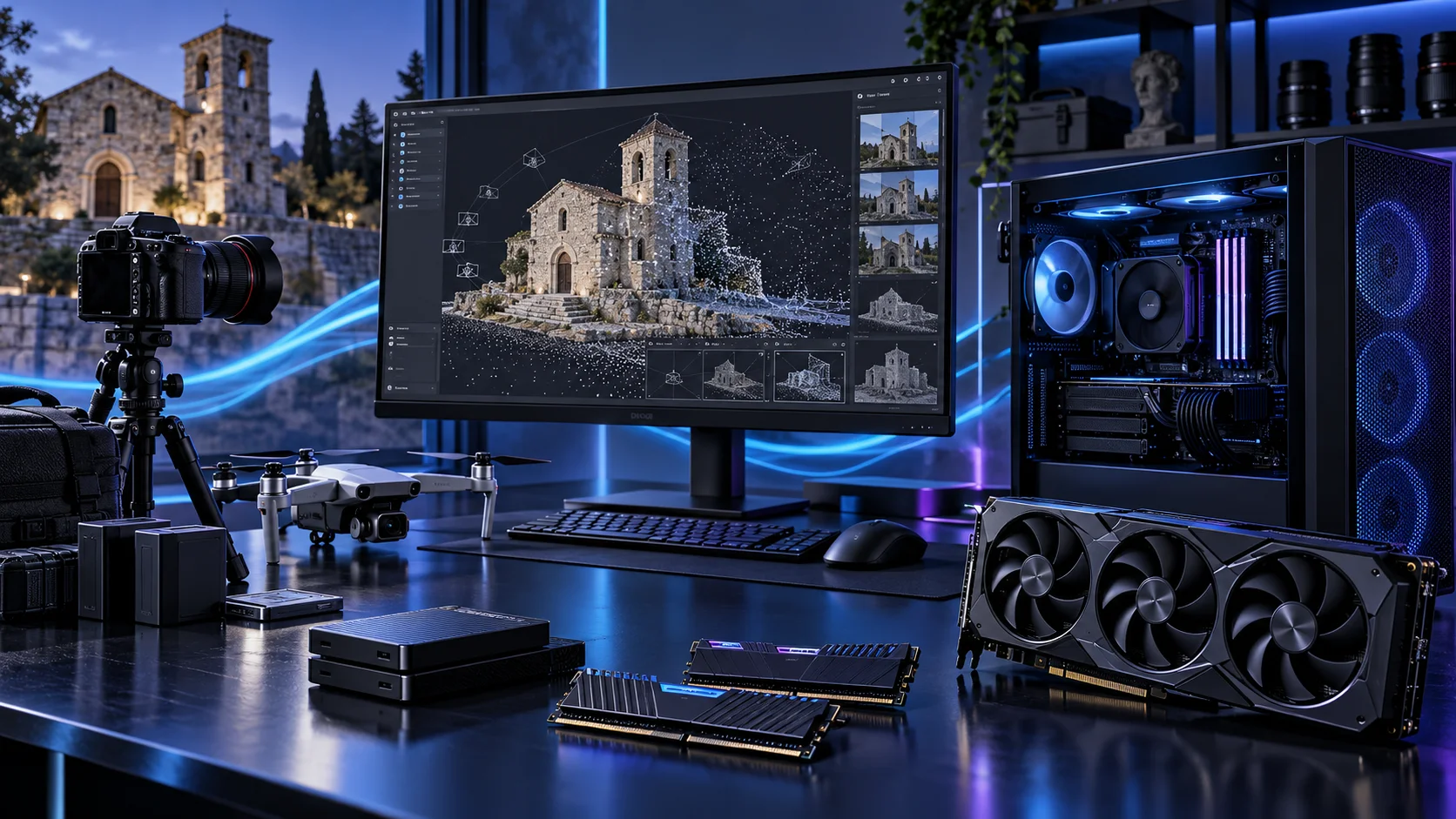
A photogrammetry PC should fit the image set in memory, run the supported processing stages and keep source images and scratch work organised. I would size the workstation for the projects you capture, then choose CPU and GPU spending according to the software’s actual processing path.
Complete the creative desk with a suitable monitor, the colour workflow and a work mouse. For pen input, compare drawing tablets; for moving projects, choose the portable drive around its host interface.
Table of Contents
ToggleStart with the work the PC will do
Write down the software, image count, image resolution and the sort of output you create. A small object scan and a large drone survey are different workloads. Alignment, depth maps, meshes and textures can make different demands, so a single headline score is a weak foundation for the complete purchase. Start with a representative project rather than a universal rule based only on the number of photographs.
Keep capture quality and processing hardware separate. More computer does not repair a poorly covered scene or unsuitable source images. I would build a balanced processing workstation, keep the originals backed up and leave enough working storage for intermediate data and exports. When a stage repeatedly fills memory, capacity deserves the upgrade before buying a faster part that still cannot hold the project.
| Build priority | What I would buy | Next guide |
|---|---|---|
| Best balanced processing workstation | Twelve cores provide a useful mixed processing foundation beside the GPU and memory. | Processor choices |
| Best balanced NVIDIA processing route | A higher-tier 16GB NVIDIA route for supported GPU stages in substantial projects. | Graphics choices |
| Best balanced project capacity | 64GB is my roomy starting route for a substantial self-built processing workstation. | Best RAM for Photogrammetry PCs |
Choose the processor
Choose the CPU around the processing stages you repeat. My balanced route is the 9900X, with more memory and the GPU already funded. Move to the 9950X for substantial CPU-side throughput; do not assume the most expensive processor accelerates a stage that is waiting on GPU memory or storage.
The Ryzen 9 9900X is the step up when the PC regularly has useful work for more cores. It belongs on a workstation shortlist for parallel jobs and a busy desktop; it is harder to justify when almost all the time is spent waiting on one task.
Include cooling and the complete AM5 platform in the cost. More cores do not replace sufficient RAM, and a fast processor still waits for a storage device that is full or overloaded.
| Best for | My choice | Why it fits |
|---|---|---|
| Best balanced processing workstation | Ryzen 9 9900X | Twelve cores provide a useful mixed processing foundation beside the GPU and memory. |
| Best smaller-project start | Ryzen 7 9700X | Eight cores preserve budget for RAM and the supported graphics route. |
| Best heavier CPU-stage workload | Ryzen 9 9950X | Use sixteen cores when recurring CPU-led stages justify the throughput purchase. |
Compare processors for this build · Understand the wider processor choices
Build an AM5 tower in PC Builder to see the PC in 3D, compare planning estimates and save your selected parts. Use the workload and setup advice here to refine the choices.
Choose the graphics route
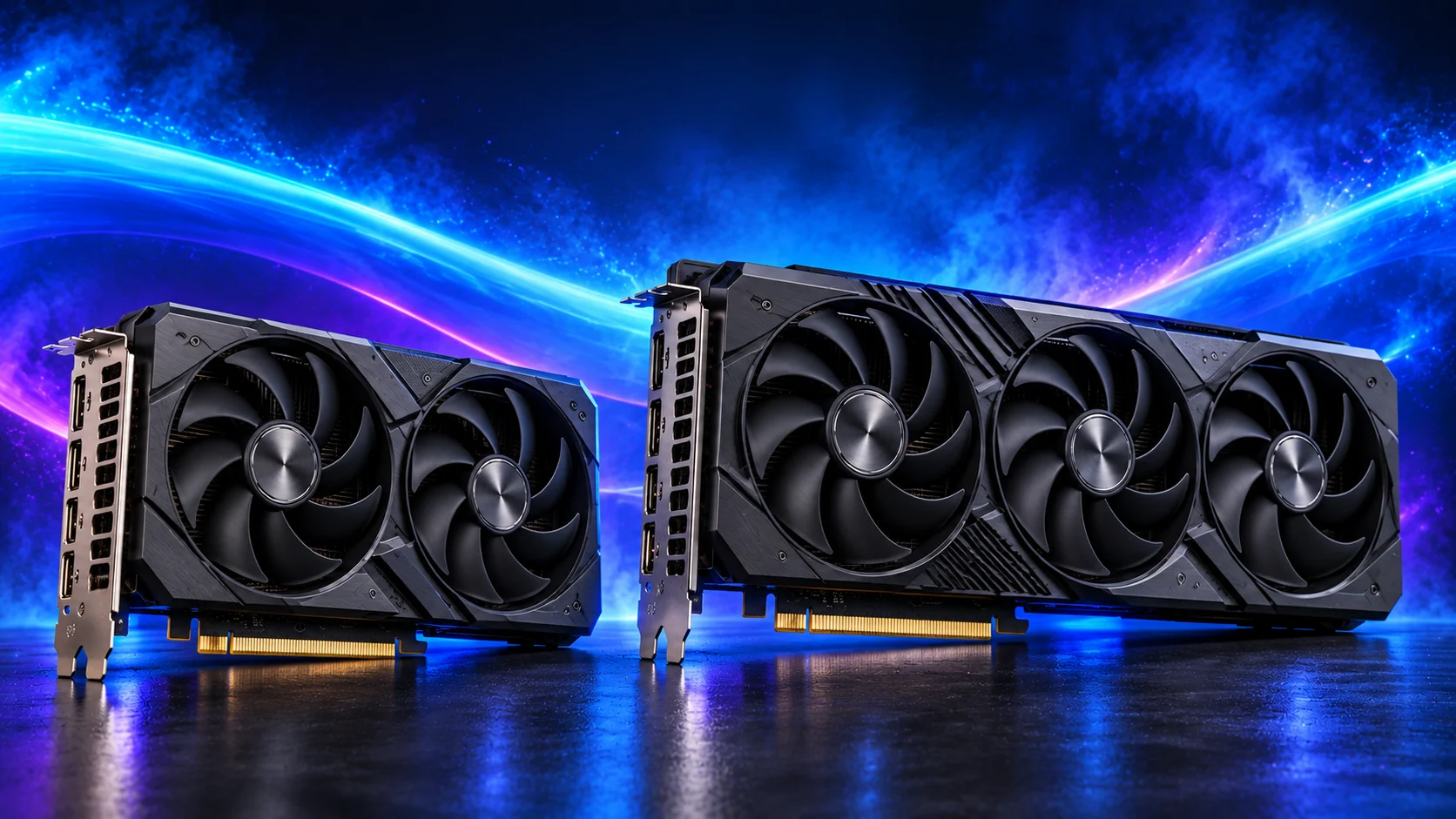
Use the software’s supported GPU path. I would start with a 16GB NVIDIA route for this workstation, then change tier according to the stage that matters. The 5090 changes graphics-memory capacity as well as the power and case plan; it belongs to a defined large workload, not every object scan.
The MSI RTX 5070 Ti 16GB Ventus 3X OC is my higher-performance 16GB NVIDIA route. It is attractive when the software ecosystem stays the same but the graphics workload is becoming more demanding. It keeps the decision focused on usable rendering headroom rather than only the memory number.
This is a substantial card. Include length, slot thickness, power-cable space and the PSU in the purchase plan. A 16GB card remains a 16GB card even when its processing tier is higher.
| Best for | My choice | Why it fits |
|---|---|---|
| Best balanced NVIDIA processing route | MSI RTX 5070 Ti 16G Ventus 3X OC | A higher-tier 16GB NVIDIA route for supported GPU stages in substantial projects. |
| Best accessible 16GB start | MSI RTX 5060 Ti 16GB Shadow 2X OC Plus | Start here when supported GPU processing and memory capacity matter more than premium speed. |
| Best larger graphics-memory route | Gigabyte RTX 5090 Gaming OC 32GB | 32GB is a deliberate capacity choice for a workload that needs it and can use the card. |
Compare graphics choices for this build
For this build, check the application’s GPU acceleration and backend before paying for graphics performance. The VRAM guide separates project capacity from the GPU’s speed.
Choose memory capacity
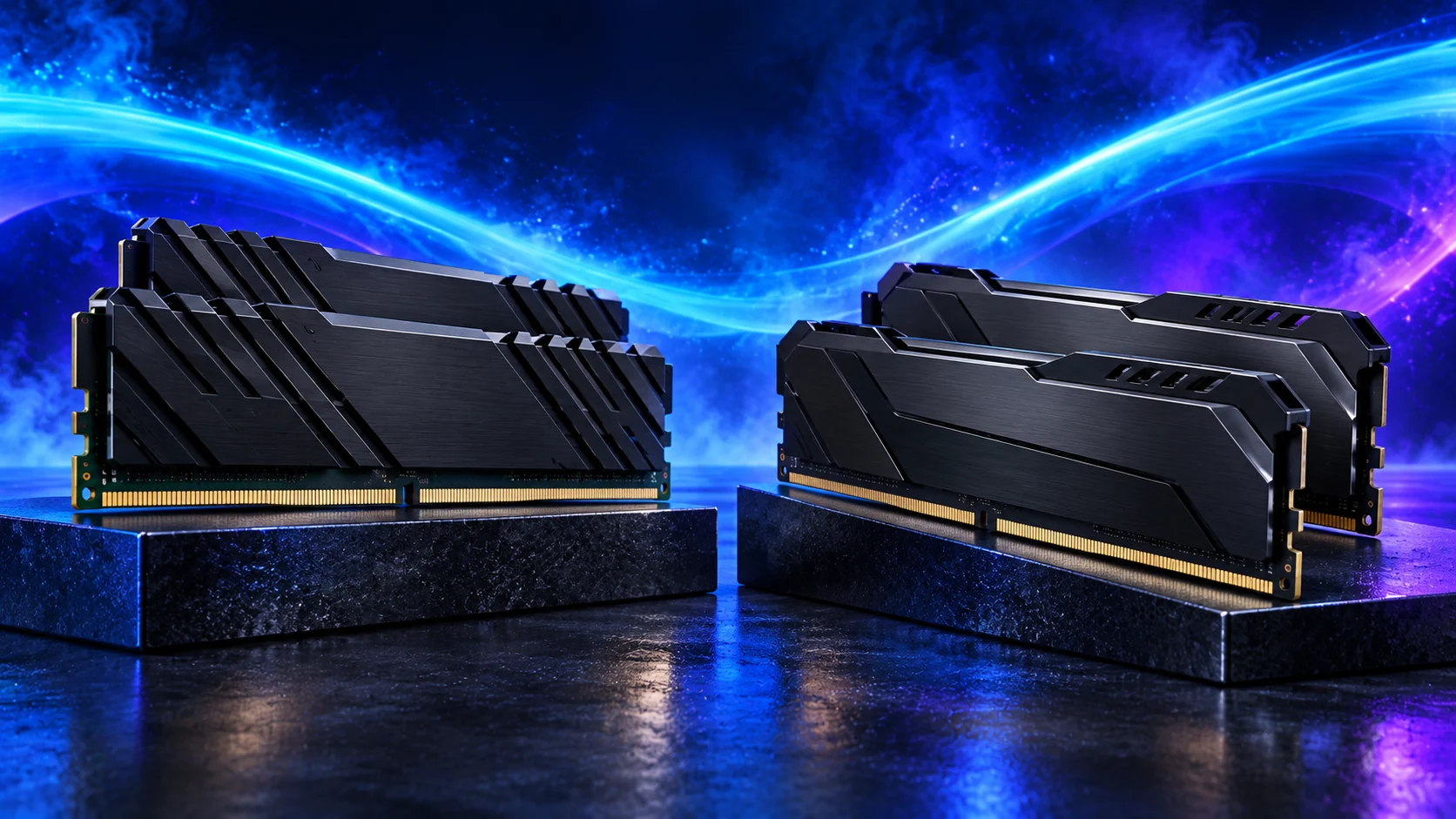
64GB is the balanced route; the larger starting basket here uses 96GB for a defined substantial dataset. Confirm the exact 48GB-module kit on the chosen board. Larger projects may need a different platform rather than endless tuning of a consumer tower.
Corsair Vengeance 96GB DDR5-6000 is the high-capacity two-stick option for a defined workload. I would buy it when a measured memory requirement has moved beyond 64GB, rather than treating spare RAM as an automatic speed improvement.
Confirm support for 48GB modules and the exact kit before ordering. Run the system at a stable setting first; the advertised profile is not a universal guarantee across every processor and motherboard combination.
| Best for | My choice | Why it fits |
|---|---|---|
| Focused lower-cost route | Crucial Pro 32GB DDR5-6000 | 32GB keeps a restrained first build affordable. |
| Roomier working desktop | Crucial Pro 64GB DDR5-5600 | 64GB supports a defined larger active workload. |
| Larger supported-capacity route | Corsair Vengeance RGB 96GB DDR5-6000 | 96GB is for a known need and a board that supports the exact kit. |
Choose the memory kit for this workload
Plan the RAM capacity for the work kept open together and the supported module arrangement. The profile guide covers setup once all memory is working at defaults.
Choose active storage and backup
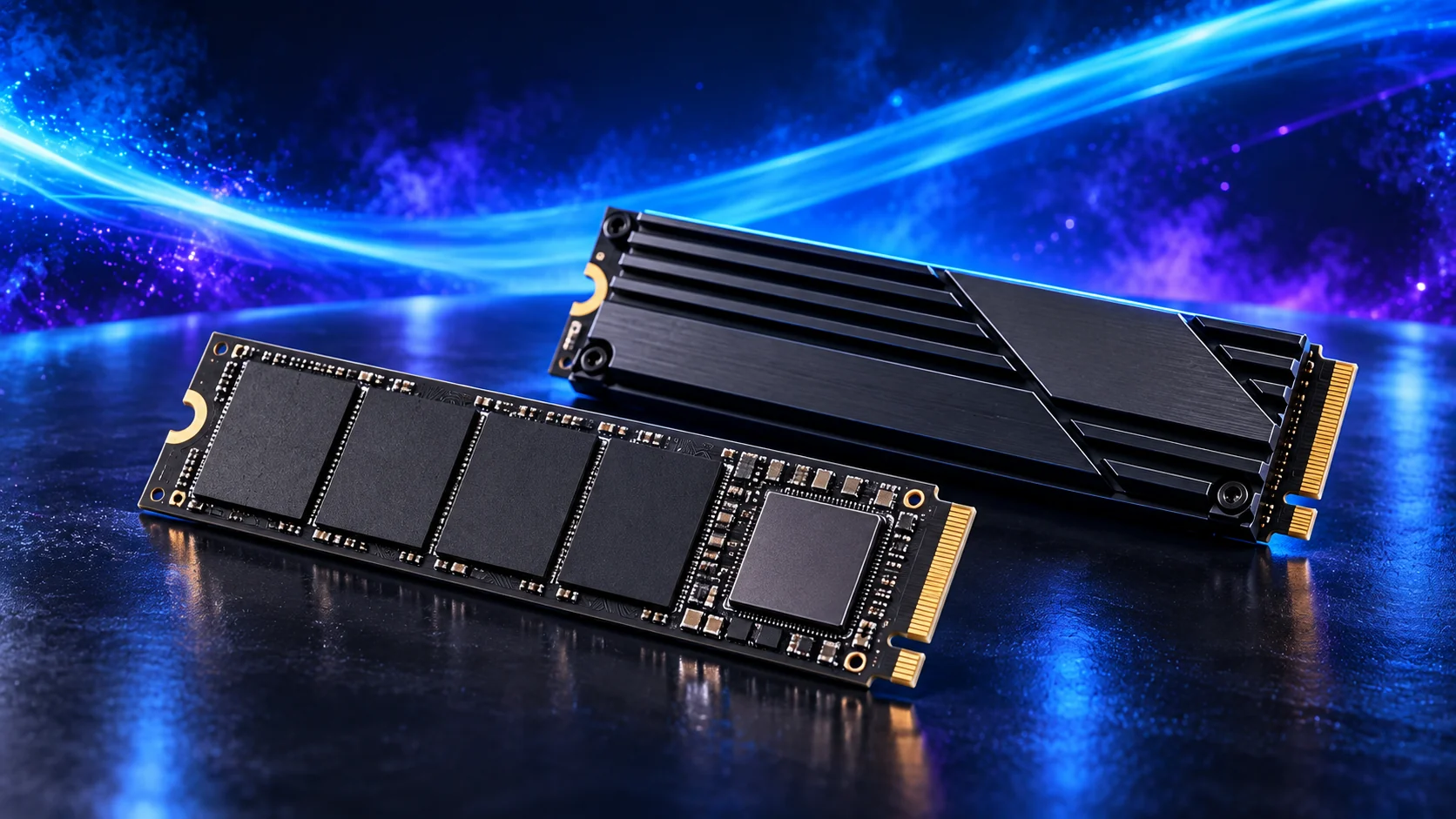
Allow NVMe room for source images, intermediate data and exported meshes or textures. Keep original captures independently backed up before processing. Separating active work from the archive makes it easier to clear replaceable intermediates without deleting the source data.
The WD Black SN850X 4TB is the larger active-storage route. I would buy it when a 2TB drive leaves too little working room for the library, projects or multiple guests that need quick access.
More capacity is useful only if it stays organised. Keep source files, scratch work and backup destinations distinguishable; buying one large drive does not remove the need to recover deleted or damaged data.
| Best for | My choice | Why it fits |
|---|---|---|
| Budget active-drive route | Crucial P310 2TB M.2 2280 | 2TB capacity for a restrained first tower. |
| Balanced active-project route | WD_BLACK SN850X 2TB | 2TB working space for applications and active files. |
| Larger working footprint | WD_BLACK SN850X 4TB | 4TB when the real library and working data justify it. |
Compare storage for this build · Distinguish memory and storage upgrades
Choose enough working storage, then check the exact SSD format/interface. The PCIe comparison helps decide whether the speed premium serves this build.
Choose the motherboard and connections
The Gigabyte B650 Eagle AX is the standard AM5 starting board. I would buy it when its storage, networking and USB layout cover the job, then keep the rest of the budget for the processor, memory and active project drive.
Confirm CPU support on the installed BIOS and map the M.2 slots and expansion cards before adding devices. More expensive chipset branding is useful only if the extra connections have a job.
Map the devices you actually plan to connect: displays, USB equipment, storage and expansion cards. Make the CPU, board and memory a matched platform before choosing optional accessories. A thick graphics card can cover a slot that otherwise looks available.
| Best for | My choice | Why it fits |
|---|---|---|
| Starting platform | Gigabyte B650 Eagle AX | The board used in this guide’s complete configuration. |
Choose the board and useful features · Understand the connections worth buying
Read the board/platform guide and check the case’s internal connections. PCIe and M.2 sharing keeps the planned drives and expansion cards usable together.

Choose the case and cooling together
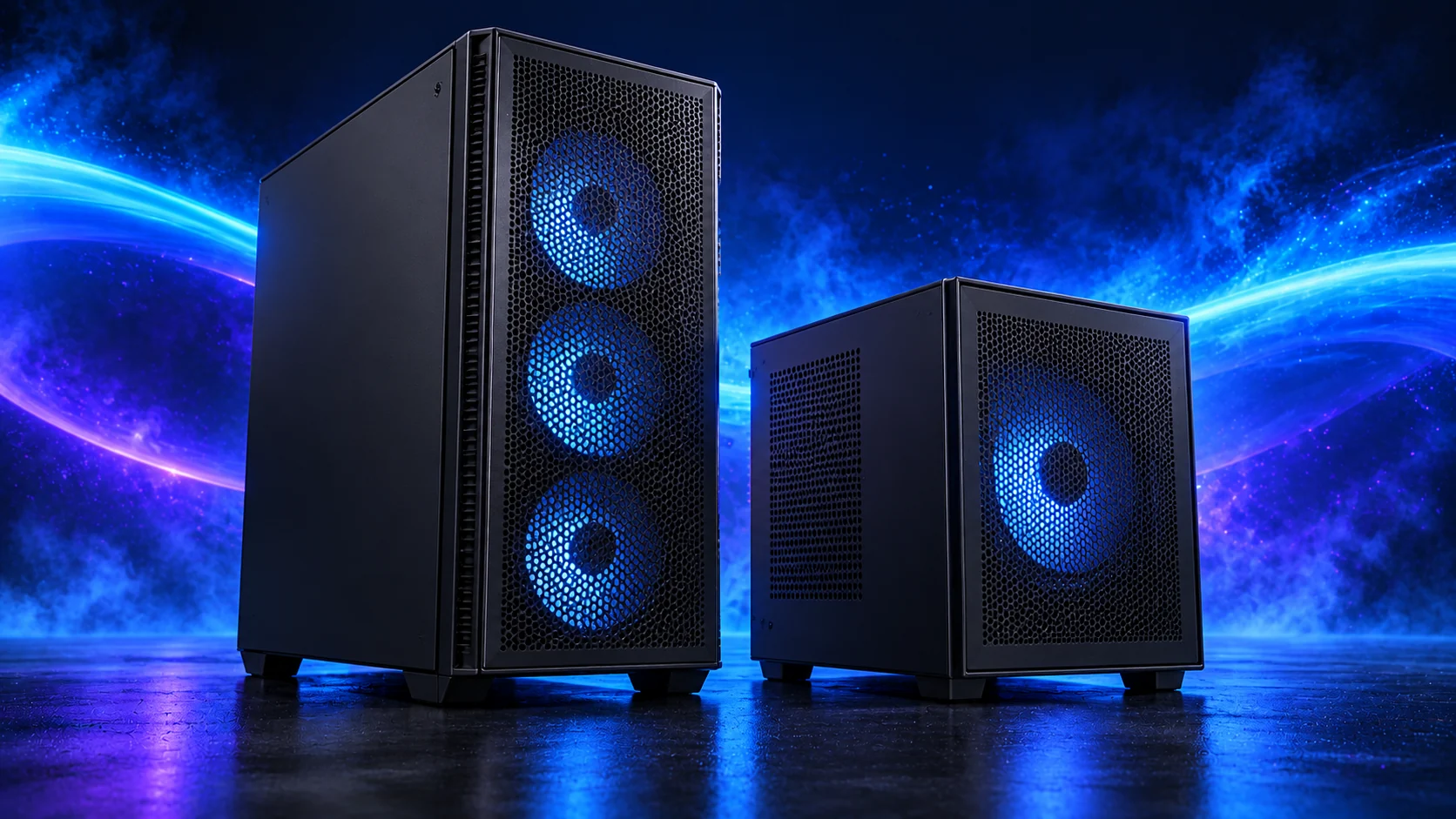
The NZXT H7 Flow is the roomier tower choice for a demanding workstation or substantial graphics card. I would pay for its space when it makes cooling, wiring and future component changes easier.
Use that space deliberately. A larger case is not automatically quieter: sensible fan speeds and an unobstructed intake do more than filling every possible fan mount.
The Thermalright Phantom Spirit 120 SE is the other sensible twin-tower route here. I would choose between it and the Peerless Assassin using the actual basket price and fit, then set a fan curve suited to the room.
For long processing sessions, establish temperatures and fan behaviour under the application you use. A quiet idle desktop does not describe the PC while all cores are occupied.
| Best for | My choice | Why it fits |
|---|---|---|
| Starting enclosure | NZXT H7 Flow | Match the case to the whole layout and room. |
| Starting cooler | Thermalright Phantom Spirit 120 SE Black | Use the correct socket mount and installed clearance. |
Compare suitable case routes · Choose the cooler for the socket and space
Use the case-fan shortlist for the usable mounts and PWM/DC setup for the finished layout.
Choose the power supply
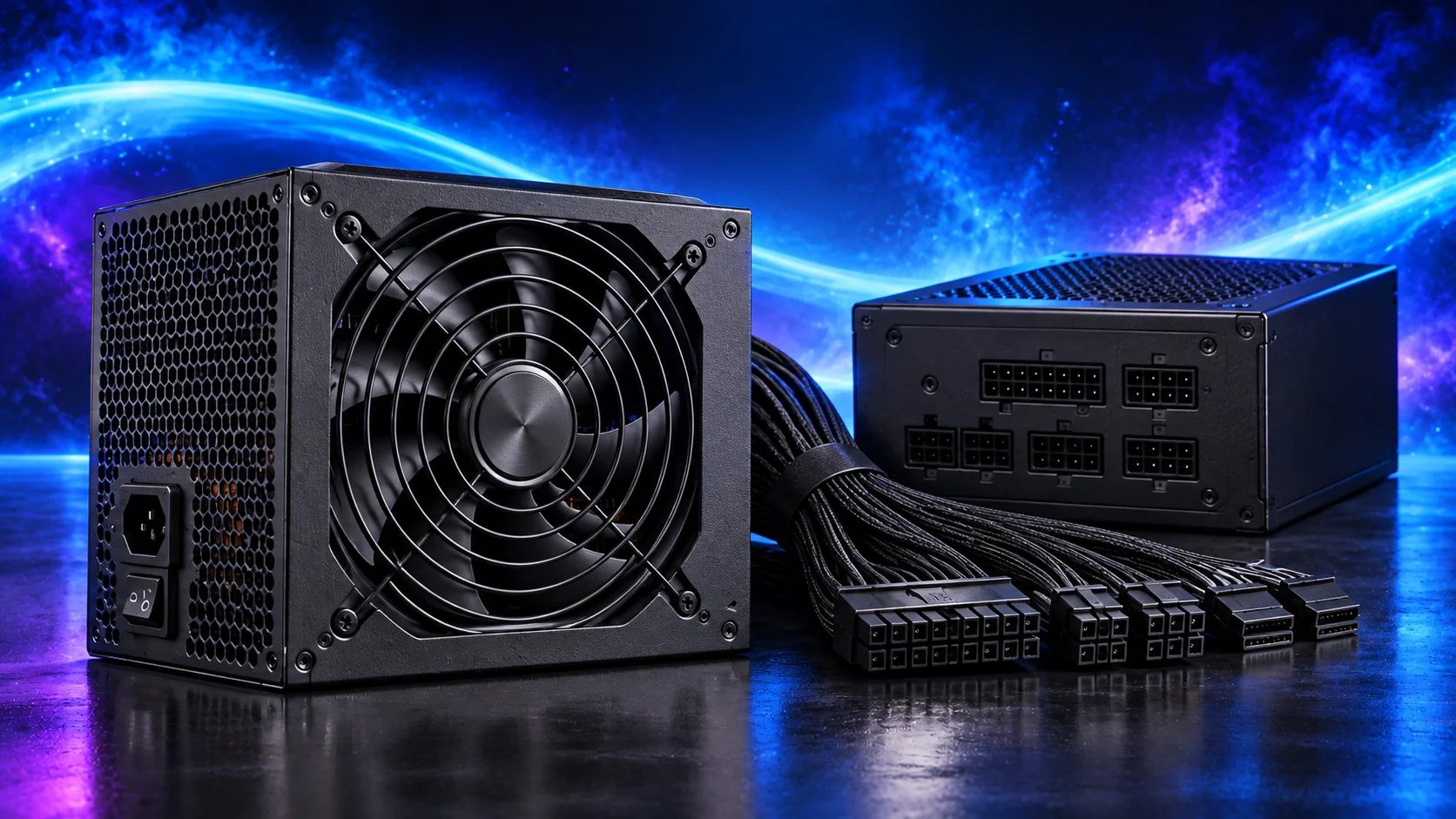
The Corsair RM850e 2025 is my conventional modular PSU route for a capable tower. Its role is a sensible power and cable foundation, rather than using the wattage label as a reason to spend without considering the components.
Use only the modular leads supplied for that PSU. Confirm the exact GPU recommendation and connector, and leave room for the power lead at the case panel.
| Best for | My choice | Why it fits |
|---|---|---|
| Starting configuration | Corsair RM850e (2025) | The supply used for this guide’s restrained or balanced parts basket. |
| Larger high-power tower route | be quiet! Pure Power 13 M 1000W | Choose this only when the final component power requirement and case layout need the larger supply. |
Compare the PSU routes · Understand connectors and cable fit
Match PSU load, connectors and installed space together, then keep the exact compatible cable set with the unit.
The complete starting parts list
| Component | My choice | Why it belongs here |
|---|---|---|
| Processor | Ryzen 9 9900X | The starting CPU matched to this workload. |
| Graphics | MSI RTX 5070 Ti 16G Ventus 3X OC | The starting dedicated card for the planned graphics workload. |
| Motherboard | Gigabyte B650 Eagle AX | Match the socket, memory type and useful connections. |
| Memory | Corsair Vengeance RGB 96GB DDR5-6000 | Choose capacity as one supported matched kit. |
| Active SSD | WD_BLACK SN850X 4TB | Working room for the OS, applications and active data. |
| Power supply | Corsair RM850e (2025) | Use the correct form factor and component power plan. |
| Case | NZXT H7 Flow | The complete layout’s enclosure. |
| CPU cooler | Thermalright Phantom Spirit 120 SE Black | Correct mount and fit for the chosen case. |
This is the starting basket for the route described here. Choose the alternative parts as a complete matched configuration, keeping the board, memory, cooling and power changes together. The monitor, operating system and any equipment you already own should be counted in the total purchase plan.
For the other decisions in this cluster, use the processor shortlist, the graphics shortlist and the specialist buying guide.
Assemble and set up the PC
Install the supported software and graphics driver, configure the allowed GPU-processing route and begin with a smaller project. Keep source files and output locations clear, then run a representative larger capture through the stages you normally use.
Record the stage that occupies the time or fills memory. Upgrade for that actual limit rather than assume CPU, GPU and RAM all need replacing together. Keep the originals and final deliverables backed up independently of the working SSD.
Follow the beginner assembly guide · Check the complete parts fit
Technical references: Agisoft Metashape system requirements · Metashape processing guidance.