
Upgrade RAM or storage: choose the change you will notice
By James Thompson · Updated:
Some links in my articles are affiliate links. I may earn a commission when you buy through them.
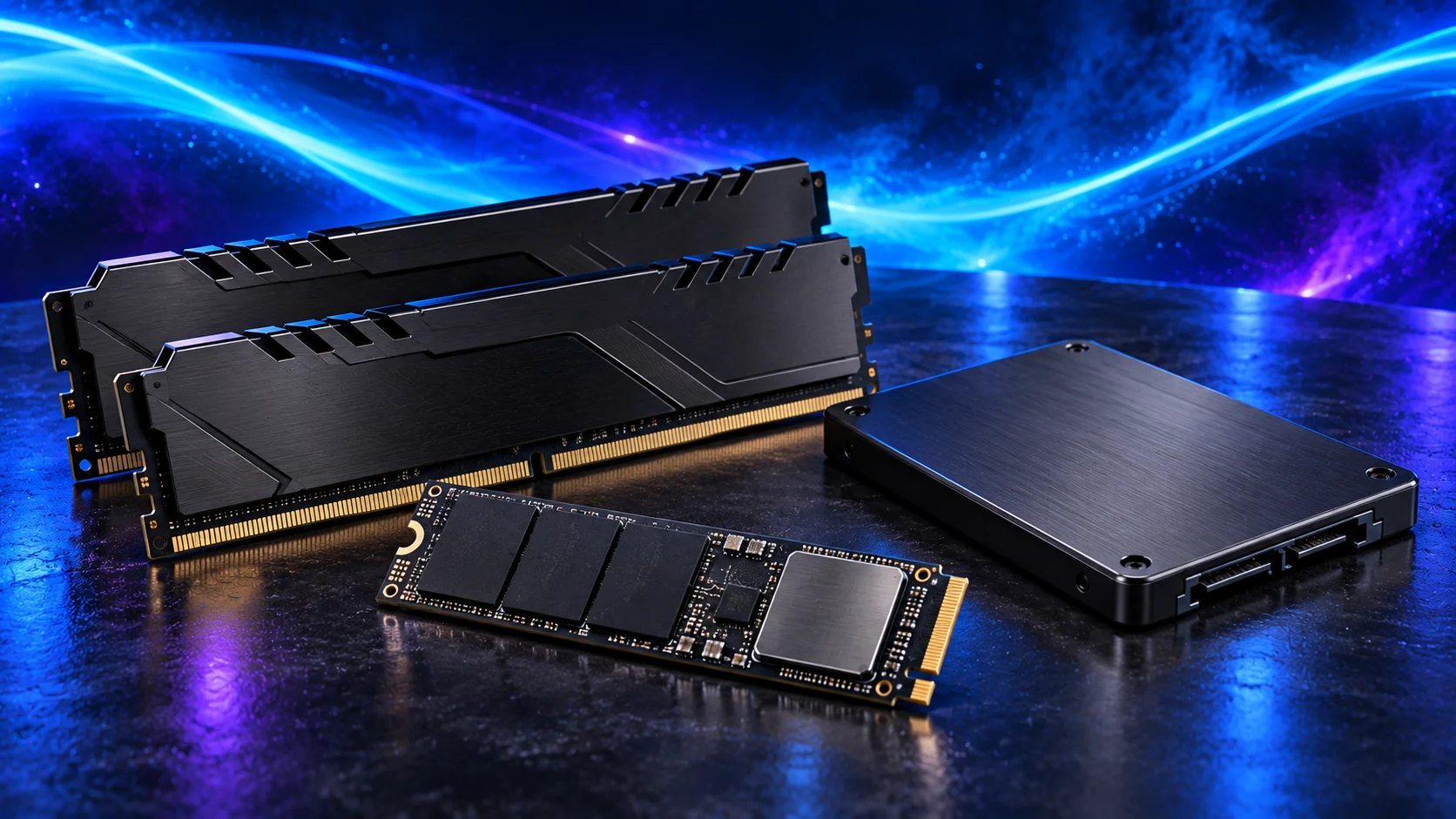
RAM helps when the PC runs short of working memory; storage helps when capacity or drive activity is holding you up. Look at the slowdown you’re seeing before spending, and choose the upgrade that addresses it.
Choose the exact kit in the RAM buying guide or the drive in the SSD buying guide. The creative specialists distinguish project capacity from a gaming speed upgrade.
Table of Contents
ToggleObserve the task that bothers you
Open the applications you normally use and repeat the slow task. Check memory pressure, paging behaviour, drive capacity and storage activity alongside the actual pauses.
Close unnecessary applications and compare. Do not infer a need for more RAM only because Windows uses available memory for caching, or buy an SSD because one game renders slowly.
When more RAM is useful
A workload that repeatedly exceeds available memory can benefit from suitable capacity. Check platform generation, exact kit arrangement and support before ordering.
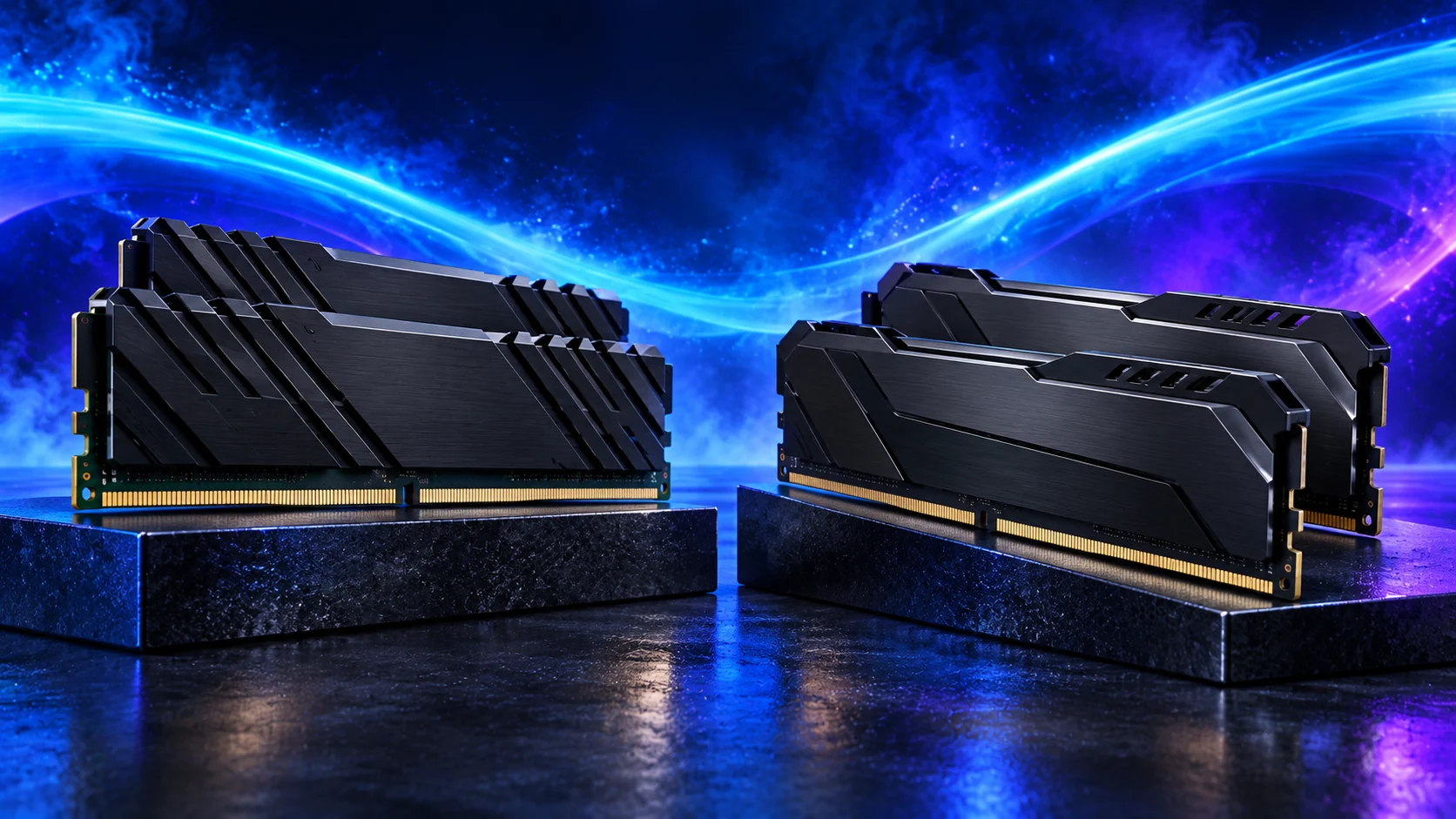
Replacing a small kit with one matched larger kit can be simpler to validate than mixing several sets. More modules can change the achievable profile. Follow the kit-selection guide.
On a ready-made small computer, establish whether memory is socketed before applying a desktop kit plan. The mini-PC RAM and SSD upgrade guide explains the supported formats, access and fixed-platform limits.
When storage is the useful change
If you keep deleting games to install updates, more capacity may be the answer. If an older storage device is a relevant loading limit, compare appropriate SSD tests for that workload.
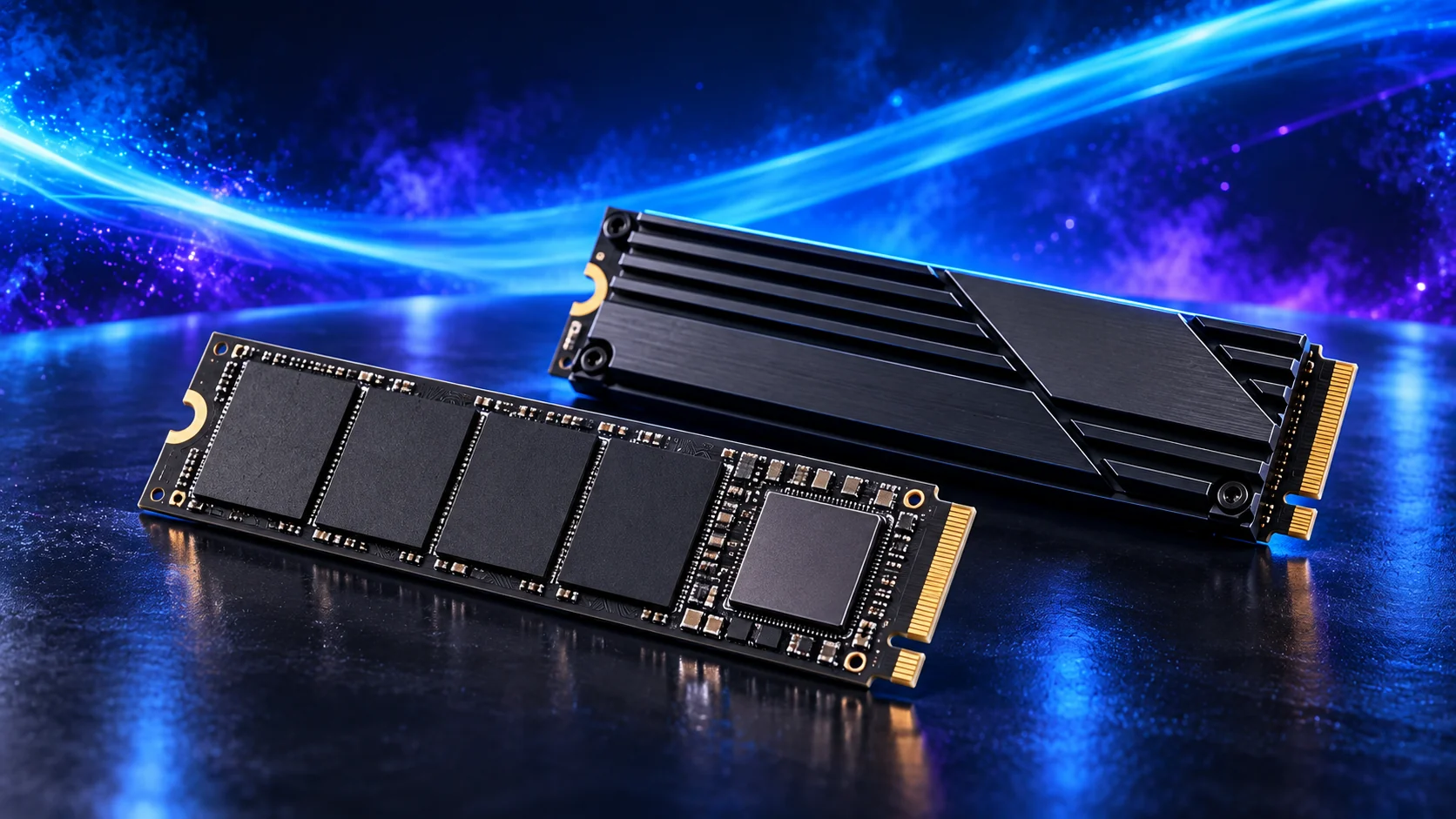
Check a spare slot’s interface and length and any shared connections. An additional game drive is a different task from replacing and migrating the operating-system drive. Choose the drive and installation route.
Do not buy capacity for an unrelated fault
Crashes, missing RAM or a drive disappearing require diagnosis. Confirm the existing installation and settings before treating a replacement as the cure.
Follow memory checks for undetected modules or boot diagnosis when the system cannot start normally.
Plan the change and compare costs
Back up important data before migration or formatting. Verify the installation target and retain a working recovery route.
Use the wider performance checks if neither memory pressure nor storage explains the problem.
Workstation memory has its own workload decisions: Best RAM for Software-Development PCs, Best RAM for CAD and Engineering PCs and Best RAM for Photogrammetry PCs. For shared archives, start with Home NAS Storage builds.
Use the slowdown to choose the next check
| Symptom | Check first | Detailed route |
|---|---|---|
| Pauses with several large applications open | Memory pressure and repeatable paging behaviour. | RAM capacity planning |
| Repeatedly deleting files to install updates | Installed workload and temporary space. | SSD capacity planning |
| Long transfers or sustained project writes | Source/destination path and post-cache behaviour. | SSD cache and endurance |
| A game renders slowly at demanding settings | GPU/CPU limit and frame cap. | Performance-limit diagnosis |
Use the task that bothers you as the test. Close an unnecessary application or change one workload condition, then repeat it. Buying memory because a cached-memory reading is high, or an SSD because the average game frame rate is low, skips the useful diagnosis.
Price the complete upgrade route
For RAM, compare adding modules with one larger matched kit and check the resulting profile configuration. For storage, distinguish adding a data drive from replacing and migrating Windows.
Choose the exact supported kit in the RAM guide or drive in the SSD guide. The memory overview and the storage overview explain the two roles when both changes are under consideration.