
Best RAM for Photogrammetry PCs in 2027
By James Thompson · Updated:
Some links in my articles are affiliate links. I may earn a commission when you buy through them.
Plan the working-memory capacity before the speed premium. The DIMM/matched-kit guide explains the arrangement, and the XMP/EXPO guide covers setup after a stable baseline.
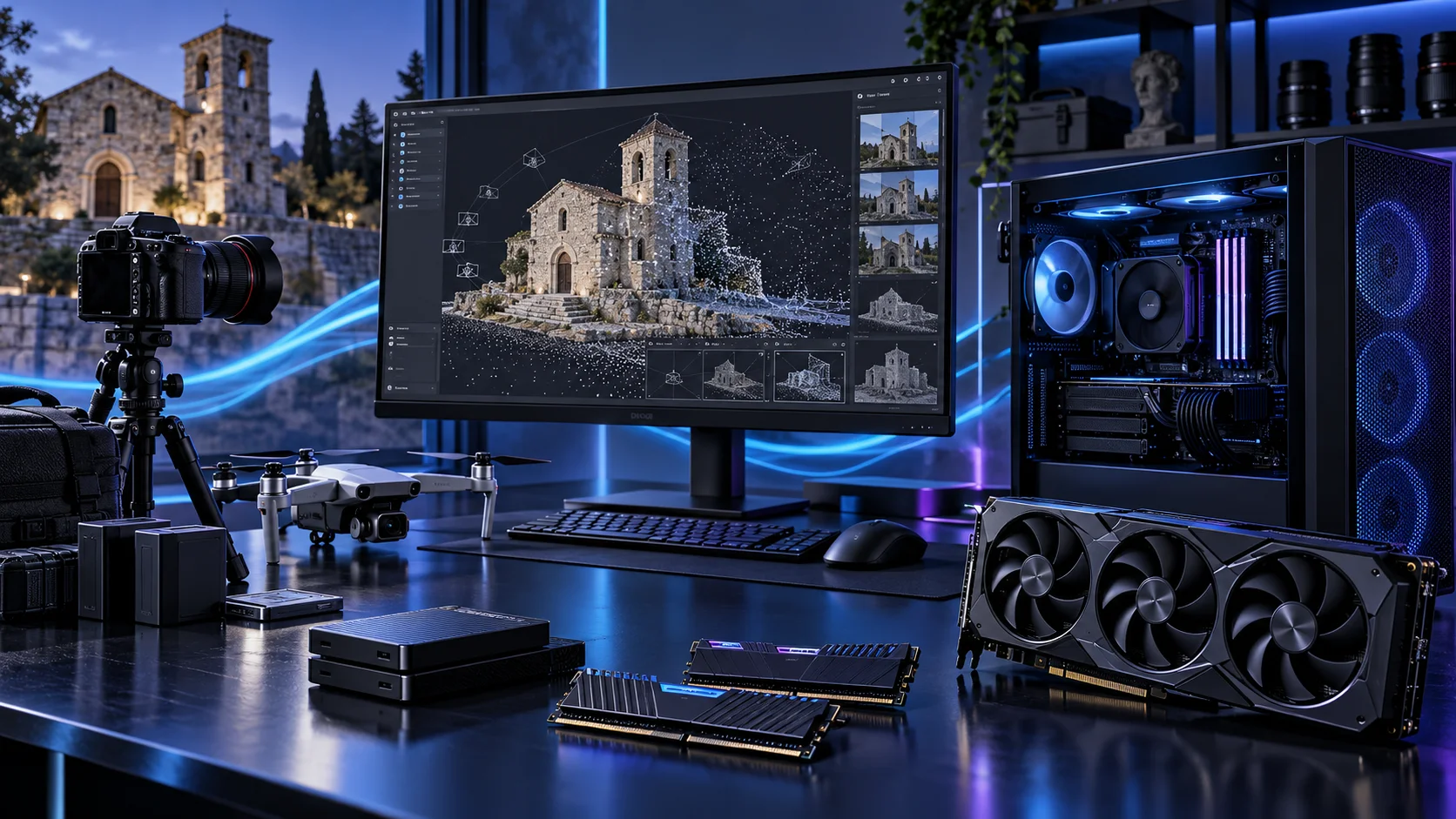
Choose memory around the project and processing stage rather than an image-count slogan. A larger supported kit is useful when it keeps the working data in memory; unused capacity is not a speed boost by itself. Here is the shortlist I would use, with the lower-cost and more capable routes kept alongside the complete photogrammetry and 3d scanning setup.
Table of Contents
ToggleChoose the right option for your build
| Best for | My choice | Why it fits |
|---|---|---|
| Best balanced project capacity | Crucial Pro 64GB DDR5-5600 | 64GB is my roomy starting route for a substantial self-built processing workstation. |
| Best smaller-project capacity | Crucial Pro 32GB DDR5-6000 | 32GB suits a restrained project plan while preserving processor and GPU spending. |
| Best larger consumer-platform route | Corsair Vengeance RGB 96GB DDR5-6000 | 96GB is the step up for a known larger project and supported kit. |
Start with the shortlist below, then use the complete build guide to match your choice to the rest of the setup.
Add a catalogue DDR5 kit to an AM5 tower in PC Builder and compare the estimated complete-build cost alongside the capacity advice here.
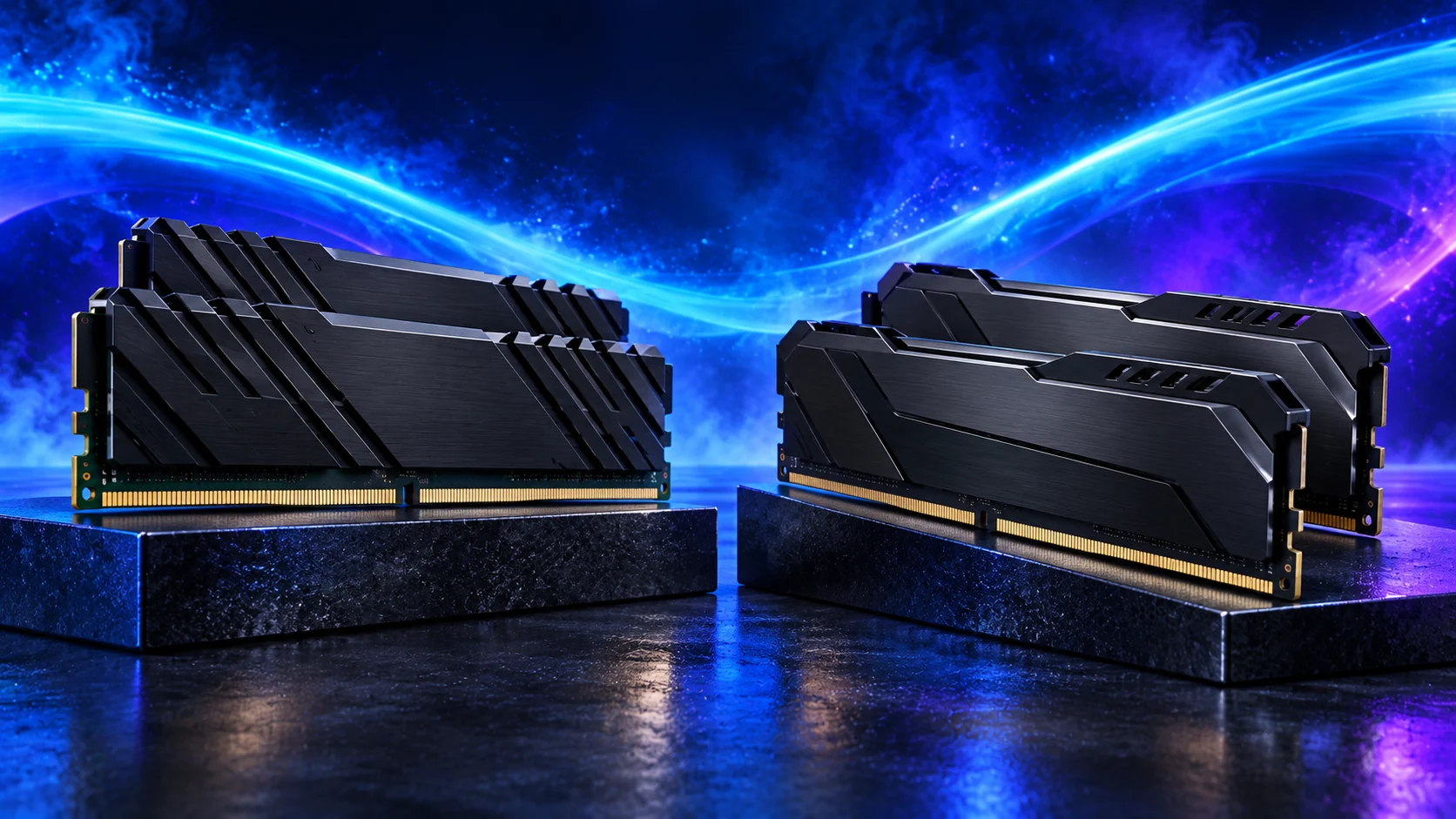
Best balanced project capacity: Crucial Pro 64GB DDR5-5600
64GB is my roomy starting route for a substantial self-built processing workstation.
Crucial Pro 64GB DDR5-5600 is the roomy two-stick workstation route. The purchase makes sense when several applications, sizeable projects or virtual machines need space at the same time.
Use the board’s memory support list and the processor’s memory guidance for the exact kit. A lower advertised transfer rate can be a reasonable trade for the capacity needed to keep work in memory.
Best smaller-project capacity: Crucial Pro 32GB DDR5-6000
32GB suits a restrained project plan while preserving processor and GPU spending.
Crucial Pro 32GB DDR5-6000 is my straightforward two-stick AM5 starting kit. It leaves the PC with useful everyday capacity without buying workstation-sized memory for a project that never fills it.
Choose capacity first, then the profile. Install the kit in the motherboard’s recommended paired slots and establish a stable baseline before enabling its faster memory setting. Keep DDR5 out of a DDR4-only board.

Best larger consumer-platform route: Corsair Vengeance RGB 96GB DDR5-6000
96GB is the step up for a known larger project and supported kit.
Corsair Vengeance 96GB DDR5-6000 is the high-capacity two-stick option for a defined workload. I would buy it when a measured memory requirement has moved beyond 64GB, rather than treating spare RAM as an automatic speed improvement.
Confirm support for 48GB modules and the exact kit before ordering. Run the system at a stable setting first; the advertised profile is not a universal guarantee across every processor and motherboard combination.

How I would choose between these routes
Use a representative capture set and note which stage reaches the memory peak. Image resolution, processing settings and output complexity can change the footprint, so two projects with the same image count need not have the same requirement. Leave room for other applications you keep open while processing.
When the project consistently needs more than the supported consumer route can supply, compare a workstation platform rather than force every setting into a small desktop. Keep a two-stick kit as the straightforward starting choice, verify module support and treat a stable memory setting as more useful than an ambitious profile that interrupts long jobs.
Match the purchase to the actual workload
Keep capture quality and processing hardware separate. More computer does not repair a poorly covered scene or unsuitable source images. I would build a balanced processing workstation, keep the originals backed up and leave enough working storage for intermediate data and exports. When a stage repeatedly fills memory, capacity deserves the upgrade before buying a faster part that still cannot hold the project.
The supporting parts I would put beside it
Choose the CPU around the processing stages you repeat. My balanced route is the 9900X, with more memory and the GPU already funded. Move to the 9950X for substantial CPU-side throughput; do not assume the most expensive processor accelerates a stage that is waiting on GPU memory or storage.
| Role | Suggested route | Why I include it |
|---|---|---|
| Processor | Ryzen 9 9900X | Match the active workload to the platform. |
| Working drive | WD_BLACK SN850X 4TB | Keep active files and useful free space on the NVMe drive. |
| Case | NZXT H7 Flow | Use the complete layout rather than an isolated component maximum. |
Complete the purchase plan
Record the stage that occupies the time or fills memory. Upgrade for that actual limit rather than assume CPU, GPU and RAM all need replacing together. Keep the originals and final deliverables backed up independently of the working SSD.
Compare the complete basket for the chosen route and keep the exact variant in the order. Use the wider ram guide for the underlying choice, or return to the complete photogrammetry and 3d scanning build for the supporting purchases.
Build a photogrammetry and 3d scanning PC
Technical references: Agisoft Metashape system requirements · Metashape processing guidance.