
How to Build a PC for CAD and Engineering in 2027
By James Thompson · Updated:
Some links in my articles are affiliate links. I may earn a commission when you buy through them.
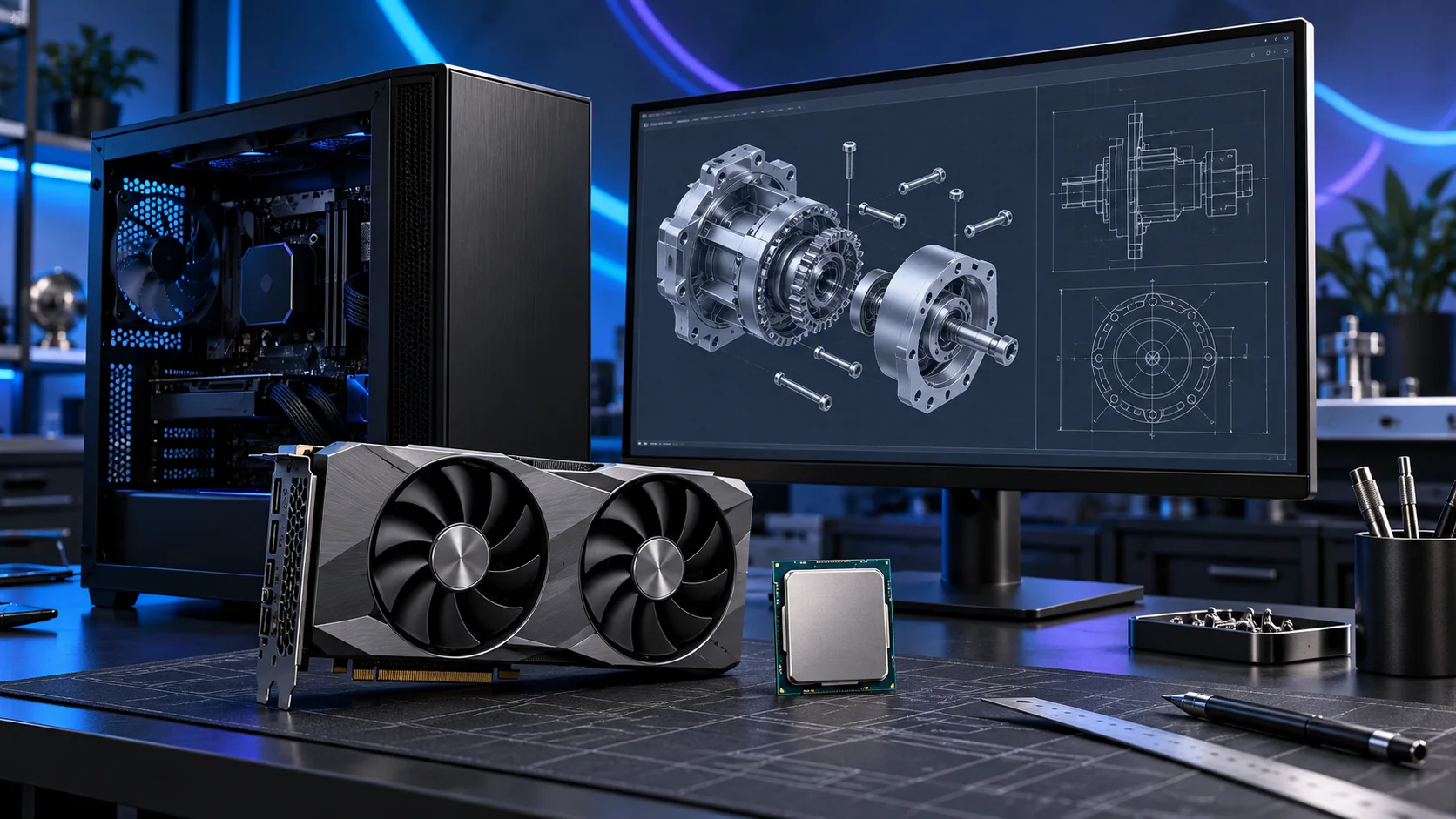
A CAD workstation needs to feel responsive while modelling and have enough room for the assemblies you actually open. I would choose the software route first, then buy the processor, memory and graphics combination around it. AutoCAD, SOLIDWORKS and Revit deserve different parts decisions.
Complete the creative desk with a suitable monitor, the colour workflow and a work mouse. For pen input, compare drawing tablets; for moving projects, choose the portable drive around its host interface.
Table of Contents
ToggleStart with the work the PC will do
Start by naming the application and project. Predominantly 2D drafting in AutoCAD is a different purchase from a large SOLIDWORKS assembly, a Revit building model or a separate rendering job. Write down what slows your current work: opening files, editing a feature, navigating a view, running a solver or producing renders. Each answer moves the spending towards a different component.
For business-critical SOLIDWORKS work, decide whether a vendor-supported workstation is a requirement before building. The certification list identifies exact combinations rather than declaring every professional graphics card suitable for every version. For a self-build, use that list to choose the card and driver, and understand the support arrangement you need. The dedicated AutoCAD and Revit guides below narrow the parts plan further.
| Build priority | What I would buy | Next guide |
|---|---|---|
| Best balanced modelling route | A capable eight-core AM5 desktop keeps interactive work and everyday multitasking balanced. | Processor choices |
| Best professional graphics route | Consider the professional 16GB card after matching the exact application and driver certification. | Graphics choices |
| Best balanced workstation capacity | 64GB is my roomy starting route for larger models and a busy engineering desktop. | Best RAM for CAD and Engineering PCs |
Choose the processor
Fast interactive work is a better reason to buy a modelling CPU than the largest core count printed on a box. I would start with the 9700X and move to the 9950X when CPU rendering or parallel processing earns its place. Solver and rendering choices should be treated as named applications, not assumed extensions of every CAD model.
The Ryzen 7 9700X is my middle route: eight cores without making a flagship processor the centre of the whole purchase. I would choose it for a machine that needs to stay useful while several applications are open, and put the remaining money into the parts that hold the actual project.
Use a matched two-stick DDR5 kit. If the PC spends its day on sustained processing, give the cooler a sensible fan curve and keep the case intake clear rather than relying on short boost specifications.
| Best for | My choice | Why it fits |
|---|---|---|
| Best balanced modelling route | Ryzen 7 9700X | A capable eight-core AM5 desktop keeps interactive work and everyday multitasking balanced. |
| Best affordable drafting route | Ryzen 5 9600X | Choose the six-core route when modest drafting should leave money for display and memory. |
| Best mixed modelling and CPU rendering | Ryzen 9 9950X | Pay for the 16-core route when substantial parallel work is genuinely part of the workstation day. |
Compare processors for this build · Understand the wider processor choices
Build an AM5 tower in PC Builder to see the PC in 3D, compare planning estimates and save your selected parts. Use the workload and setup advice here to refine the choices.
Choose the graphics route
For SOLIDWORKS, use the exact certification database before the final order. For AutoCAD and Revit, choose graphics for the view, model and features you actually use. A GeForce card can be the appropriate supported creative route without becoming a certified professional workstation by association.
The RTX PRO 2000 Blackwell offers 16GB of professional graphics memory in a low-profile, dual-slot card. I would consider it when a professional graphics route, compact installation and application support matter more than buying a gaming flagship.
SOLIDWORKS certification is an exact card, driver and software-version check. Professional branding does not certify a complete self-built PC. Allow for its mini-DisplayPort connections when choosing monitor cables.
| Best for | My choice | Why it fits |
|---|---|---|
| Best professional graphics route | NVIDIA RTX PRO 2000 Blackwell 16GB | Consider the professional 16GB card after matching the exact application and driver certification. |
| Best lower-cost visual creation route | MSI RTX 5060 Ti 16GB Shadow 2X OC Plus | A 16GB GeForce route for supported graphics workloads where workstation certification is not required. |
| Best heavier GPU rendering route | MSI RTX 5070 Ti 16G Ventus 3X OC | More NVIDIA rendering headroom for an explicitly supported renderer or visualisation workflow. |
Compare graphics choices for this build
For this build, check the application’s GPU acceleration and backend before paying for graphics performance. The VRAM guide separates project capacity from the GPU’s speed.
Choose memory capacity
64GB is the roomy starting point for this mixed CAD tower, while 32GB is the lower-cost drafting route. Large projects can justify 96GB or a different workstation platform. Keep model complexity and the applications open together ahead of a universal file-size rule.
Crucial Pro 64GB DDR5-5600 is the roomy two-stick workstation route. The purchase makes sense when several applications, sizeable projects or virtual machines need space at the same time.
Use the board’s memory support list and the processor’s memory guidance for the exact kit. A lower advertised transfer rate can be a reasonable trade for the capacity needed to keep work in memory.
| Best for | My choice | Why it fits |
|---|---|---|
| Focused lower-cost route | Crucial Pro 32GB DDR5-6000 | 32GB keeps a restrained first build affordable. |
| Roomier working desktop | Crucial Pro 64GB DDR5-5600 | 64GB supports a defined larger active workload. |
| Larger supported-capacity route | Corsair Vengeance RGB 96GB DDR5-6000 | 96GB is for a known need and a board that supports the exact kit. |
Choose the memory kit for this workload
Plan the RAM capacity for the work kept open together and the supported module arrangement. The profile guide covers setup once all memory is working at defaults.
Choose active storage and backup
Put the OS, applications and active projects on the NVMe drive, with versioned copies elsewhere. Shared project data can live on a properly managed network destination, but a network archive and a fast local working drive have different roles. Confirm the software’s supported project-sharing workflow before relocating active files.
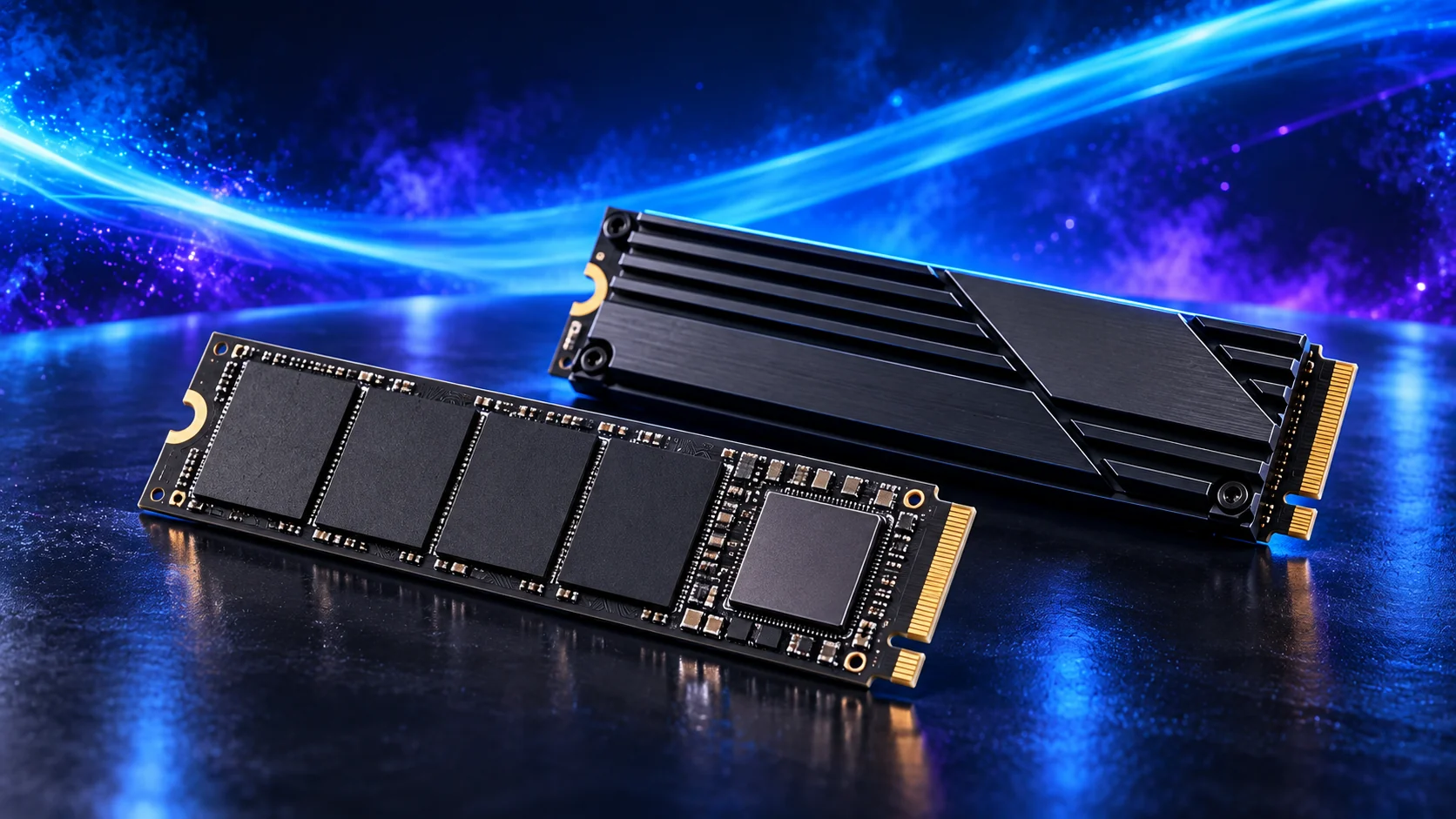
The WD Black SN850X 2TB is my active-project drive choice. Its role is to hold the files the PC reads and writes during work, rather than use an expensive SSD as the only home for every finished project.
A motherboard heatsink helps the drive manage sustained work. Check the slot arrangement before installing several M.2 drives, since lane sharing and disabled ports vary by board.
| Best for | My choice | Why it fits |
|---|---|---|
| Budget active-drive route | Crucial P310 2TB M.2 2280 | 2TB capacity for a restrained first tower. |
| Balanced active-project route | WD_BLACK SN850X 2TB | 2TB working space for applications and active files. |
| Larger working footprint | WD_BLACK SN850X 4TB | 4TB when the real library and working data justify it. |
Compare storage for this build · Distinguish memory and storage upgrades
Choose enough working storage, then check the exact SSD format/interface. The PCIe comparison helps decide whether the speed premium serves this build.
Choose the motherboard and connections
The Gigabyte B650 Eagle AX is the standard AM5 starting board. I would buy it when its storage, networking and USB layout cover the job, then keep the rest of the budget for the processor, memory and active project drive.
Confirm CPU support on the installed BIOS and map the M.2 slots and expansion cards before adding devices. More expensive chipset branding is useful only if the extra connections have a job.
Map the devices you actually plan to connect: displays, USB equipment, storage and expansion cards. Make the CPU, board and memory a matched platform before choosing optional accessories. A thick graphics card can cover a slot that otherwise looks available.
| Best for | My choice | Why it fits |
|---|---|---|
| Starting platform | Gigabyte B650 Eagle AX | The board used in this guide’s complete configuration. |
Choose the board and useful features · Understand the connections worth buying
Read the board/platform guide and check the case’s internal connections. PCIe and M.2 sharing keeps the planned drives and expansion cards usable together.

Choose the case and cooling together
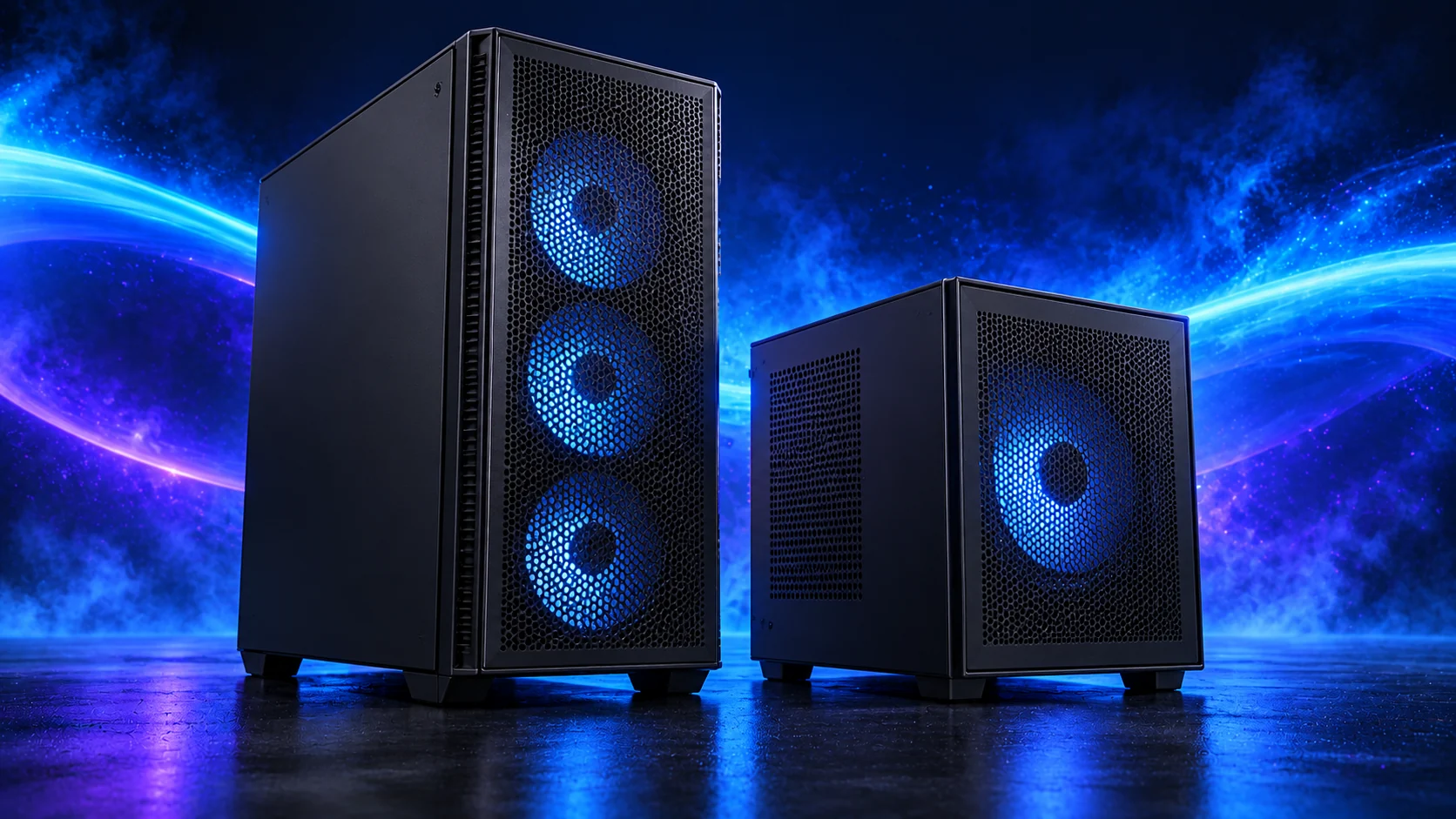
The NZXT H5 Flow 2024 is the conventional airflow-tower starting point. I would use it when straightforward assembly, accessible components and a clean desk appearance matter more than squeezing the machine into the smallest possible space.
Choose the final graphics card and cooler before signing off the layout. The case’s maximum dimensions and an installed front radiator are not independent allowances.
The Thermalright Phantom Spirit 120 SE is the other sensible twin-tower route here. I would choose between it and the Peerless Assassin using the actual basket price and fit, then set a fan curve suited to the room.
For long processing sessions, establish temperatures and fan behaviour under the application you use. A quiet idle desktop does not describe the PC while all cores are occupied.
| Best for | My choice | Why it fits |
|---|---|---|
| Starting enclosure | NZXT H5 Flow (2024) | Match the case to the whole layout and room. |
| Starting cooler | Thermalright Phantom Spirit 120 SE Black | Use the correct socket mount and installed clearance. |
Compare suitable case routes · Choose the cooler for the socket and space
Use the case-fan shortlist for the usable mounts and PWM/DC setup for the finished layout.
Choose the power supply
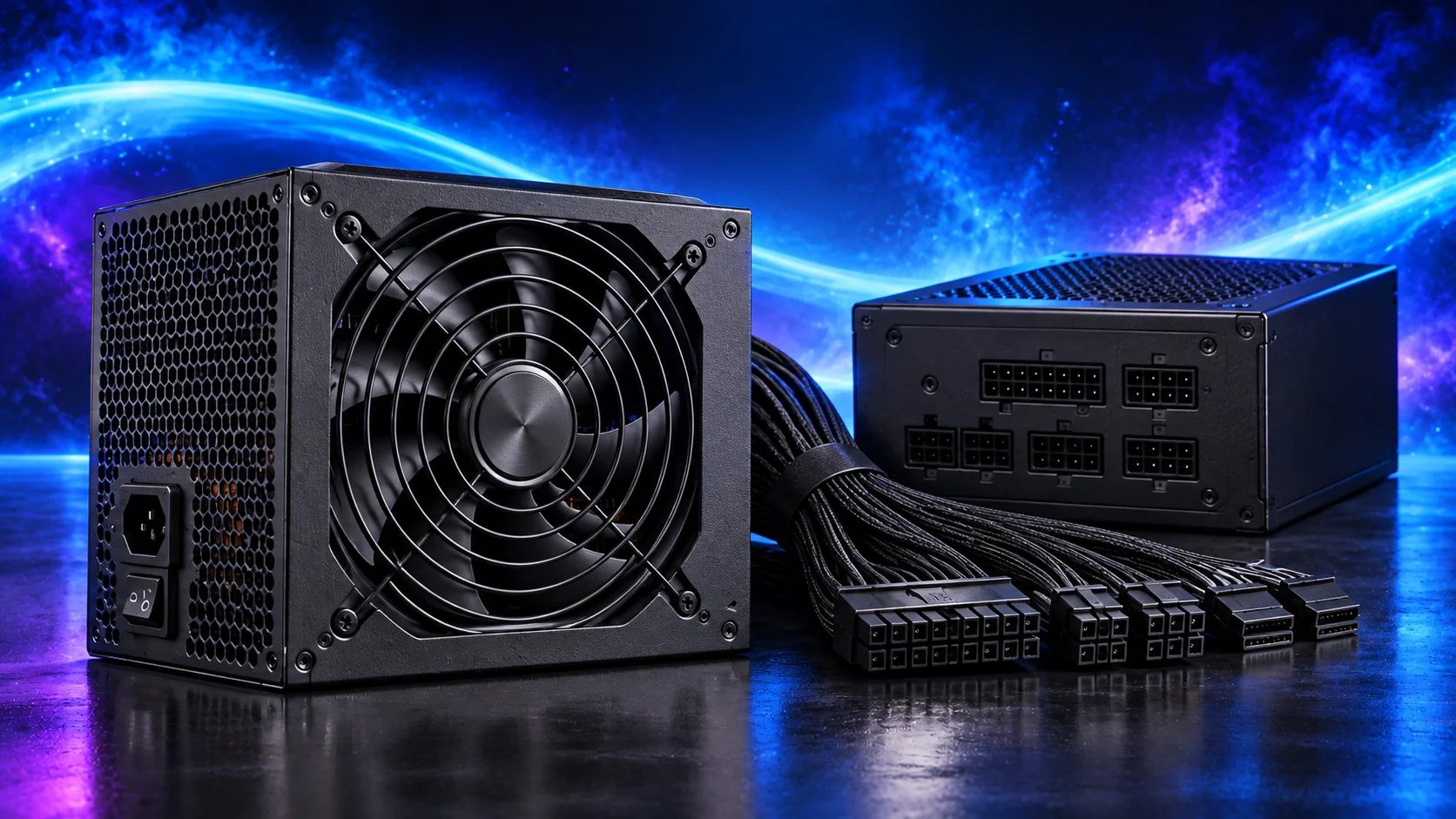
The Corsair RM850e 2025 is my conventional modular PSU route for a capable tower. Its role is a sensible power and cable foundation, rather than using the wattage label as a reason to spend without considering the components.
Use only the modular leads supplied for that PSU. Confirm the exact GPU recommendation and connector, and leave room for the power lead at the case panel.
| Best for | My choice | Why it fits |
|---|---|---|
| Starting configuration | Corsair RM850e (2025) | The supply used for this guide’s restrained or balanced parts basket. |
| Larger high-power tower route | be quiet! Pure Power 13 M 1000W | Choose this only when the final component power requirement and case layout need the larger supply. |
Compare the PSU routes · Understand connectors and cable fit
Match PSU load, connectors and installed space together, then keep the exact compatible cable set with the unit.
The complete starting parts list
| Component | My choice | Why it belongs here |
|---|---|---|
| Processor | Ryzen 7 9700X | The starting CPU matched to this workload. |
| Graphics | NVIDIA RTX PRO 2000 Blackwell 16GB | The starting dedicated card for the planned graphics workload. |
| Motherboard | Gigabyte B650 Eagle AX | Match the socket, memory type and useful connections. |
| Memory | Crucial Pro 64GB DDR5-5600 | Choose capacity as one supported matched kit. |
| Active SSD | WD_BLACK SN850X 2TB | Working room for the OS, applications and active data. |
| Power supply | Corsair RM850e (2025) | Use the correct form factor and component power plan. |
| Case | NZXT H5 Flow (2024) | The complete layout’s enclosure. |
| CPU cooler | Thermalright Phantom Spirit 120 SE Black | Correct mount and fit for the chosen case. |
This is the starting basket for the route described here. Choose the alternative parts as a complete matched configuration, keeping the board, memory, cooling and power changes together. The monitor, operating system and any equipment you already own should be counted in the total purchase plan.
For the other decisions in this cluster, use the processor shortlist, the graphics shortlist and the specialist buying guide.
Assemble and set up the PC
Install the application-supported graphics driver and establish a stable baseline before importing custom workspaces and plugins. Open a representative model, navigate it, regenerate or update it, then run the processing stage that matters in your workflow. Record the useful bottleneck rather than replacing parts by guesswork.
Use the AutoCAD guide for drafting-led systems and the Revit guide for building models. For a SOLIDWORKS-led build, keep the certification check with the graphics order and choose memory around the assembly. Rendering can justify a separate CPU or GPU tier without forcing that spend on every designer.
Follow the beginner assembly guide · Check the complete parts fit
Technical references: SOLIDWORKS requirements · SOLIDWORKS certification database.