
Best Processors for CAD and Engineering in 2027
By James Thompson · Updated:
Some links in my articles are affiliate links. I may earn a commission when you buy through them.
For the specification behind these choices, read cores, clock speed and cache. Include sustained power and cooling and CPU/board compatibility in the complete platform comparison.
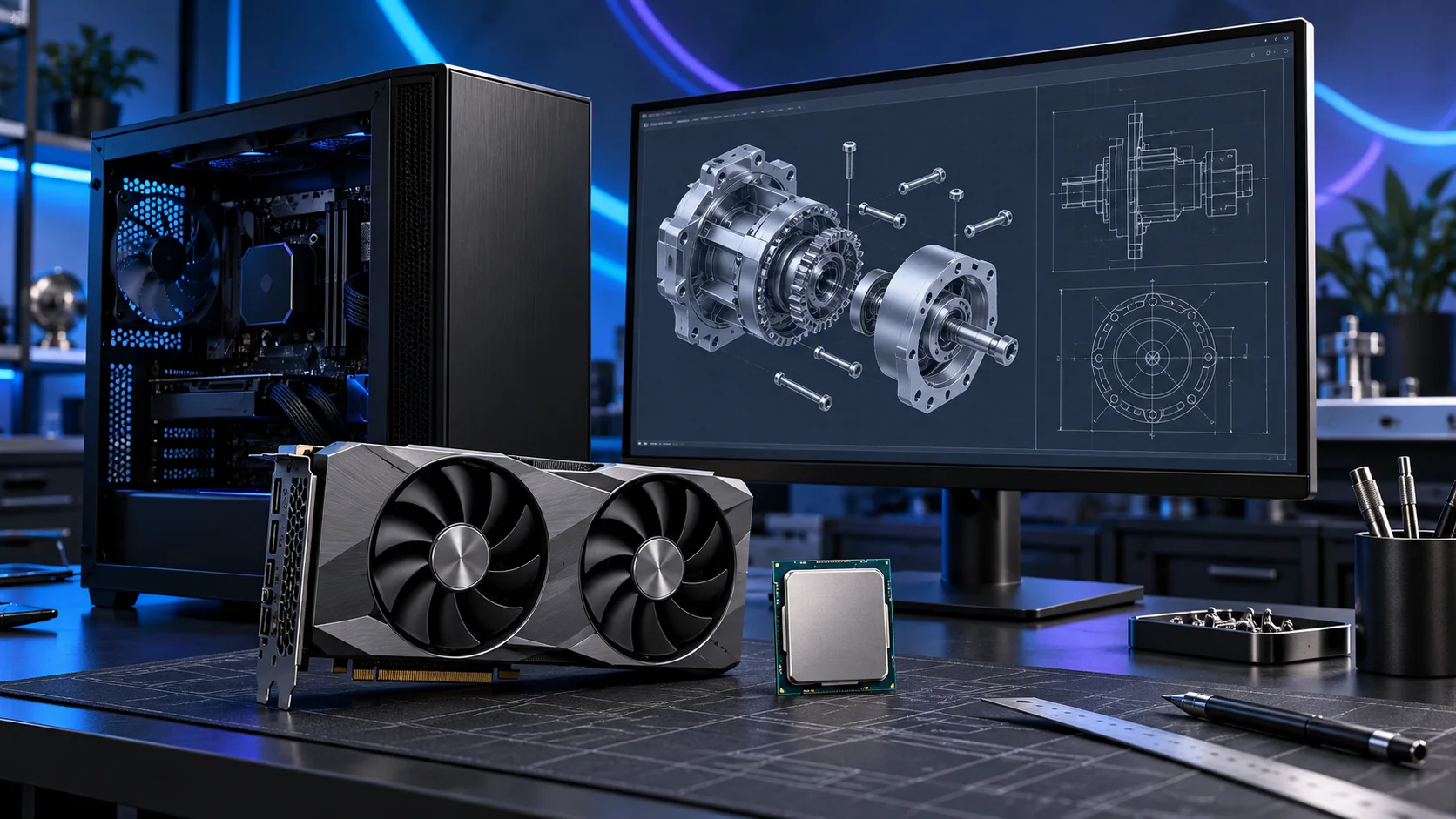
Fast interactive work is a better reason to buy a modelling CPU than the largest core count printed on a box. I would start with the 9700X and move to the 9950X when CPU rendering or parallel processing earns its place. Solver and rendering choices should be treated as named applications, not assumed extensions of every CAD model. Here is the shortlist I would use, with the lower-cost and more capable routes kept alongside the complete cad and engineering setup.
Table of Contents
ToggleChoose the right option for your build
| Best for | My choice | Why it fits |
|---|---|---|
| Best balanced modelling route | Ryzen 7 9700X | A capable eight-core AM5 desktop keeps interactive work and everyday multitasking balanced. |
| Best affordable drafting route | Ryzen 5 9600X | Choose the six-core route when modest drafting should leave money for display and memory. |
| Best mixed modelling and CPU rendering | Ryzen 9 9950X | Pay for the 16-core route when substantial parallel work is genuinely part of the workstation day. |
Start with the shortlist below, then use the complete build guide to match your choice to the rest of the setup.
Compare an AM5 processor with its motherboard and the rest of the tower in PC Builder. The whole-build estimate helps you balance CPU spending against graphics and storage.
Best balanced modelling route: Ryzen 7 9700X
A capable eight-core AM5 desktop keeps interactive work and everyday multitasking balanced.
The Ryzen 7 9700X is my middle route: eight cores without making a flagship processor the centre of the whole purchase. I would choose it for a machine that needs to stay useful while several applications are open, and put the remaining money into the parts that hold the actual project.
Use a matched two-stick DDR5 kit. If the PC spends its day on sustained processing, give the cooler a sensible fan curve and keep the case intake clear rather than relying on short boost specifications.
Best affordable drafting route: Ryzen 5 9600X
Choose the six-core route when modest drafting should leave money for display and memory.
The Ryzen 5 9600X is the AM5 route I would start with when the graphics card, storage or specialist equipment deserves more of the budget. Its six-core layout is a sensible foundation for a focused desktop rather than a machine bought to run every heavy task at once.
Pair it with DDR5 and an AM5 board with the right BIOS. An inexpensive tower cooler makes sense in a normal case; a tiny enclosure needs a separate cooler and power plan.
Best mixed modelling and CPU rendering: Ryzen 9 9950X
Pay for the 16-core route when substantial parallel work is genuinely part of the workstation day.
The Ryzen 9 9950X is the throughput purchase. I would pay for it when compilation, processing or other jobs occupy many cores repeatedly, because shortening a recurring wait is a useful reason to upgrade. It is an extravagant answer to a machine that spends most of its day on light interactive work.
Build around a cooler and case that can handle sustained CPU load. A supported two-stick high-capacity memory kit is a better first step than filling every memory slot and assuming the same profile will remain stable.
How I would choose between these routes
Keep interactive responsiveness and repeated parallel jobs separate in the decision. More cores are worth buying when useful work can occupy them; they are a weak reason to make the processor the most expensive part of a lightly loaded desktop. Choose the complete platform, then give memory, graphics and storage enough of the budget to support it.
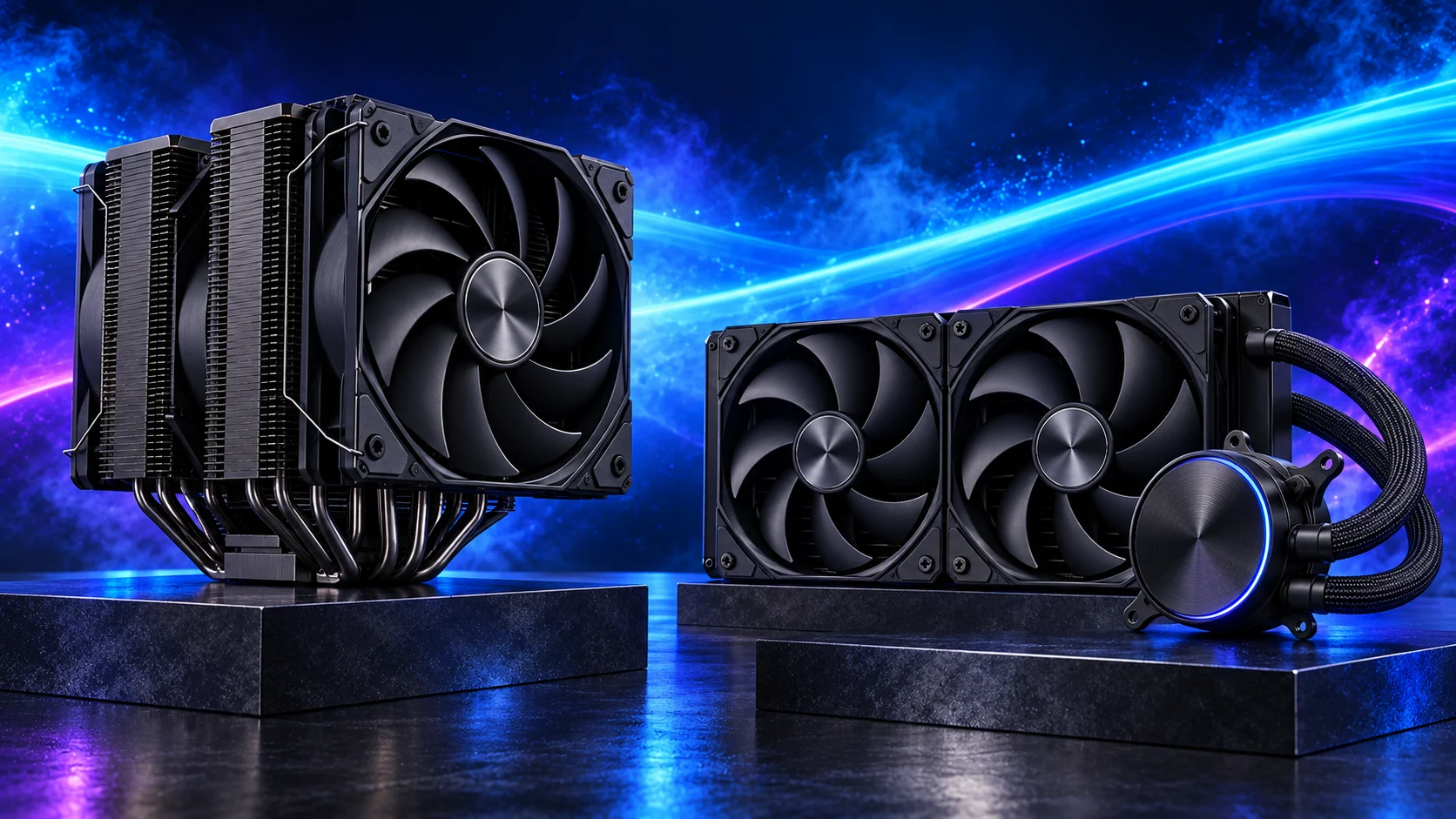
The suggested Ryzen choices use AM5 and DDR5. Compare the complete platform, including the board, memory, cooler and useful connections. Keep those supporting parts together when changing the processor route.
Match the purchase to the actual workload
Start by naming the application and project. Predominantly 2D drafting in AutoCAD is a different purchase from a large SOLIDWORKS assembly, a Revit building model or a separate rendering job. Write down what slows your current work: opening files, editing a feature, navigating a view, running a solver or producing renders. Each answer moves the spending towards a different component.
The supporting parts I would put beside it
64GB is the roomy starting point for this mixed CAD tower, while 32GB is the lower-cost drafting route. Large projects can justify 96GB or a different workstation platform. Keep model complexity and the applications open together ahead of a universal file-size rule.
| Role | Suggested route | Why I include it |
|---|---|---|
| Memory | Crucial Pro 64GB DDR5-5600 | Choose capacity for the active work and surrounding desktop. |
| Working drive | WD_BLACK SN850X 2TB | Keep active files and useful free space on the NVMe drive. |
| Case | NZXT H5 Flow (2024) | Use the complete layout rather than an isolated component maximum. |
Complete the purchase plan
Use the AutoCAD guide for drafting-led systems and the Revit guide for building models. For a SOLIDWORKS-led build, keep the certification check with the graphics order and choose memory around the assembly. Rendering can justify a separate CPU or GPU tier without forcing that spend on every designer.
Compare the complete basket for the chosen route and keep the exact variant in the order. Use the wider processors guide for the underlying choice, or return to the complete cad and engineering build for the supporting purchases.
Build a cad and engineering PC
Technical references: SOLIDWORKS requirements · SOLIDWORKS certification database.