
Understanding PC Storage: SSDs, Hard Drives and the Right Drive Plan
By James Thompson · Updated:
Some links in my articles are affiliate links. I may earn a commission when you buy through them.
For directly attached storage, compare external SSDs and external HDDs by their working/backup job. Use the PC recovery steps or the server-backup plan.
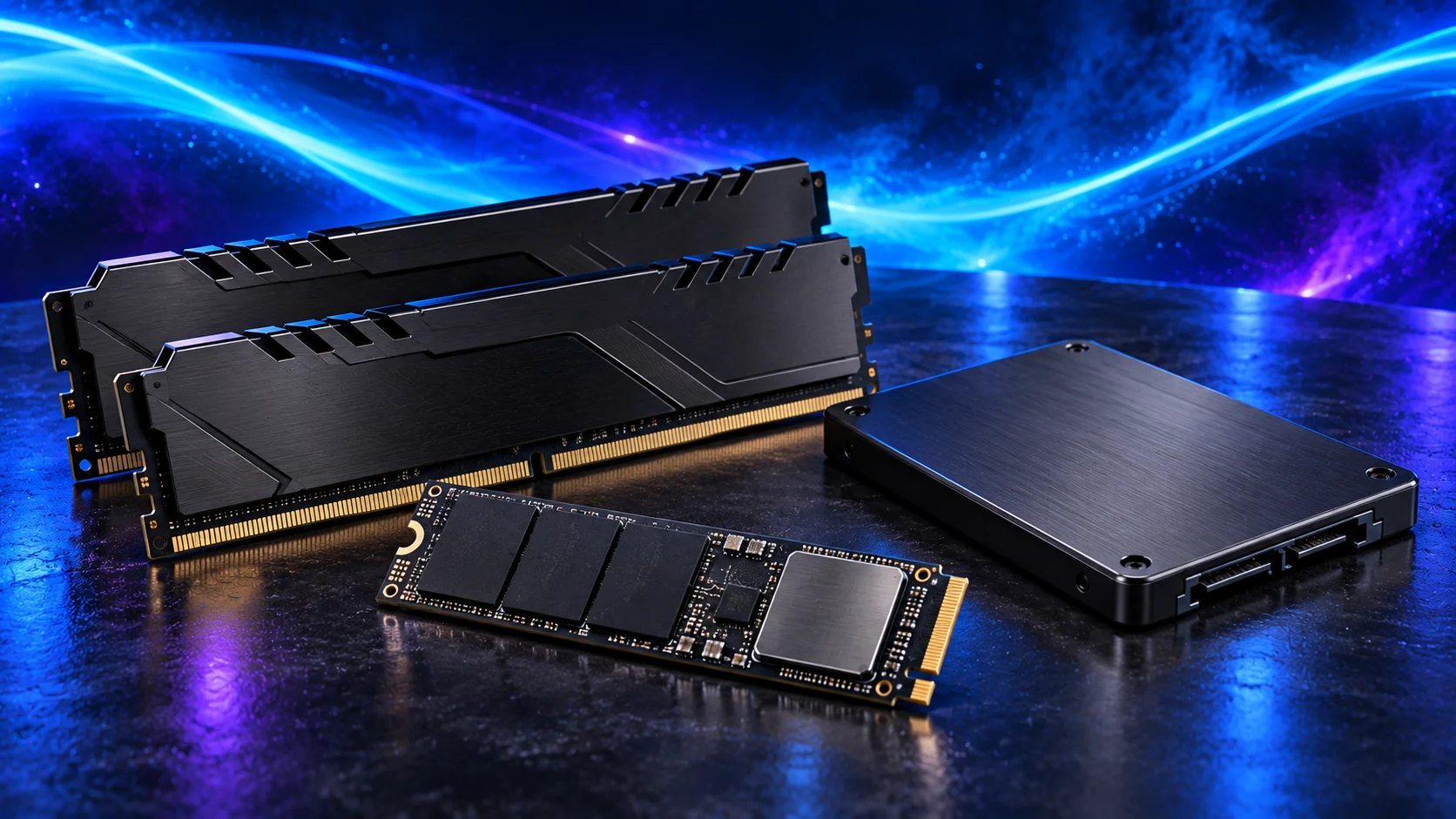
Use an SSD for Windows, applications and active work; choose capacity around the files and games you keep installed. A hard drive can still suit a large archive. Plan an independent backup for important files before deciding how many drives belong inside the PC.
Table of Contents
ToggleStorage and working memory solve different problems
Storage retains installations and files when the PC is switched off. RAM holds active working data. A larger SSD makes room for more files, but it does not give the processor more working memory. The RAM-or-storage guide helps when the symptom is a pause rather than a full drive.
An SSD stores data in flash memory and has no spinning mechanism. A hard drive uses magnetic platters. An SSD is a sensible starting point for an ordinary PC’s operating system and active applications, while a hard drive can provide substantial capacity for archives at an appropriate price.
Choose by the task: an operating-system drive, a game library, a video project and a shared home archive need not use the same storage arrangement. The SSD buying guide and the NAS hard-drive guide serve those separate purchases.
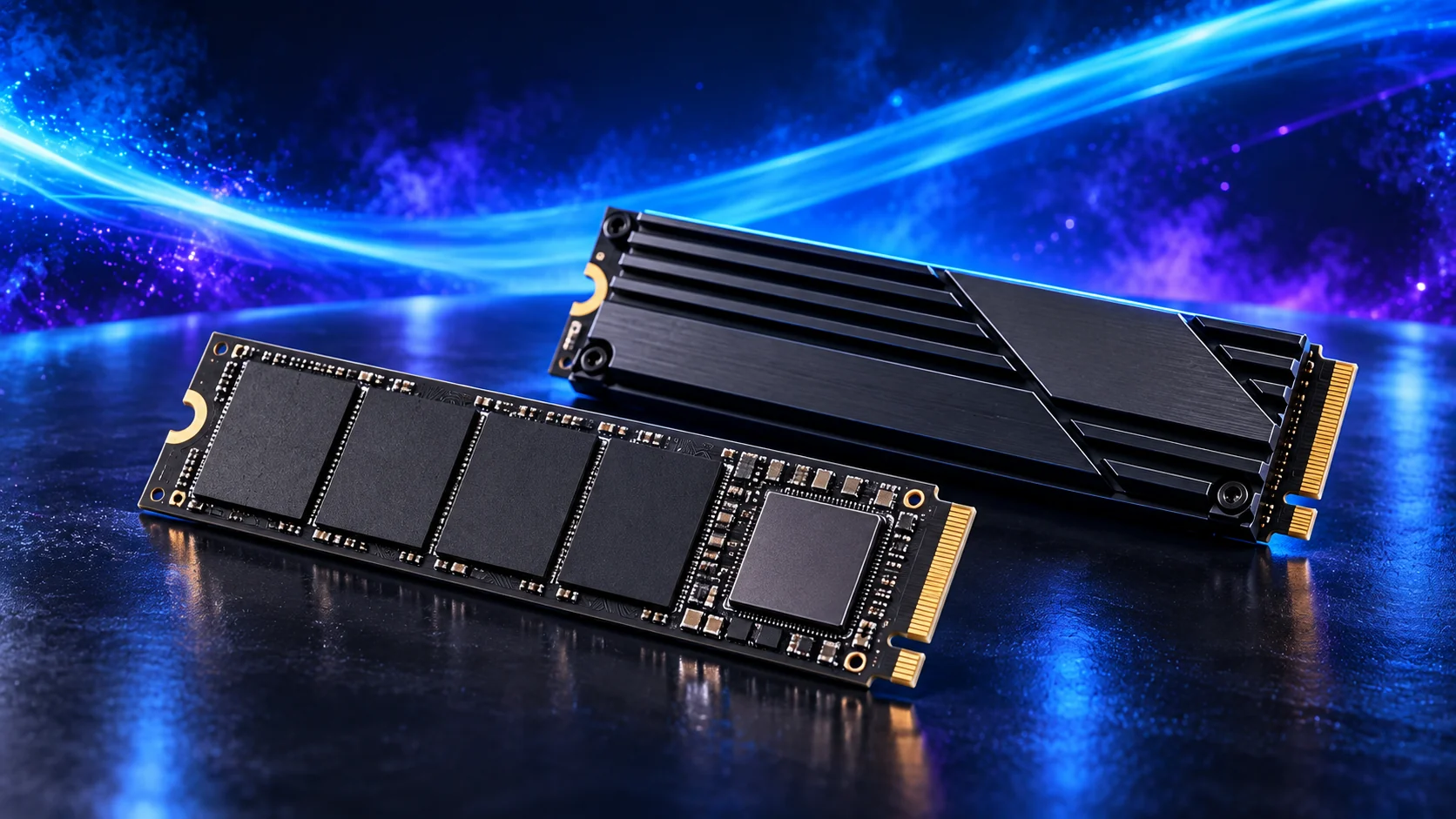
A drive plan that matches the workload
| Job | Storage priority | Relevant buying route |
|---|---|---|
| Windows and applications | Responsive supported SSD with enough capacity. | Everyday-work SSDs |
| Games | Installed library size and useful loading performance. | Gaming SSDs |
| Editing projects | Capacity and sustained workload behaviour. | Editing SSDs |
| Virtual machines / lab | Concurrent workload, capacity and write behaviour. | Home-lab SSDs |
| Large media archive | Capacity, intended operating environment and backup. | Media-server drives |
For a simple new PC, one suitable SSD can keep the build straightforward. Separate drives can help organise projects or provide additional capacity; they do not automatically double speed or replace backup. Price the useful arrangement rather than buying a drive for every folder.
Format, interface and protocol
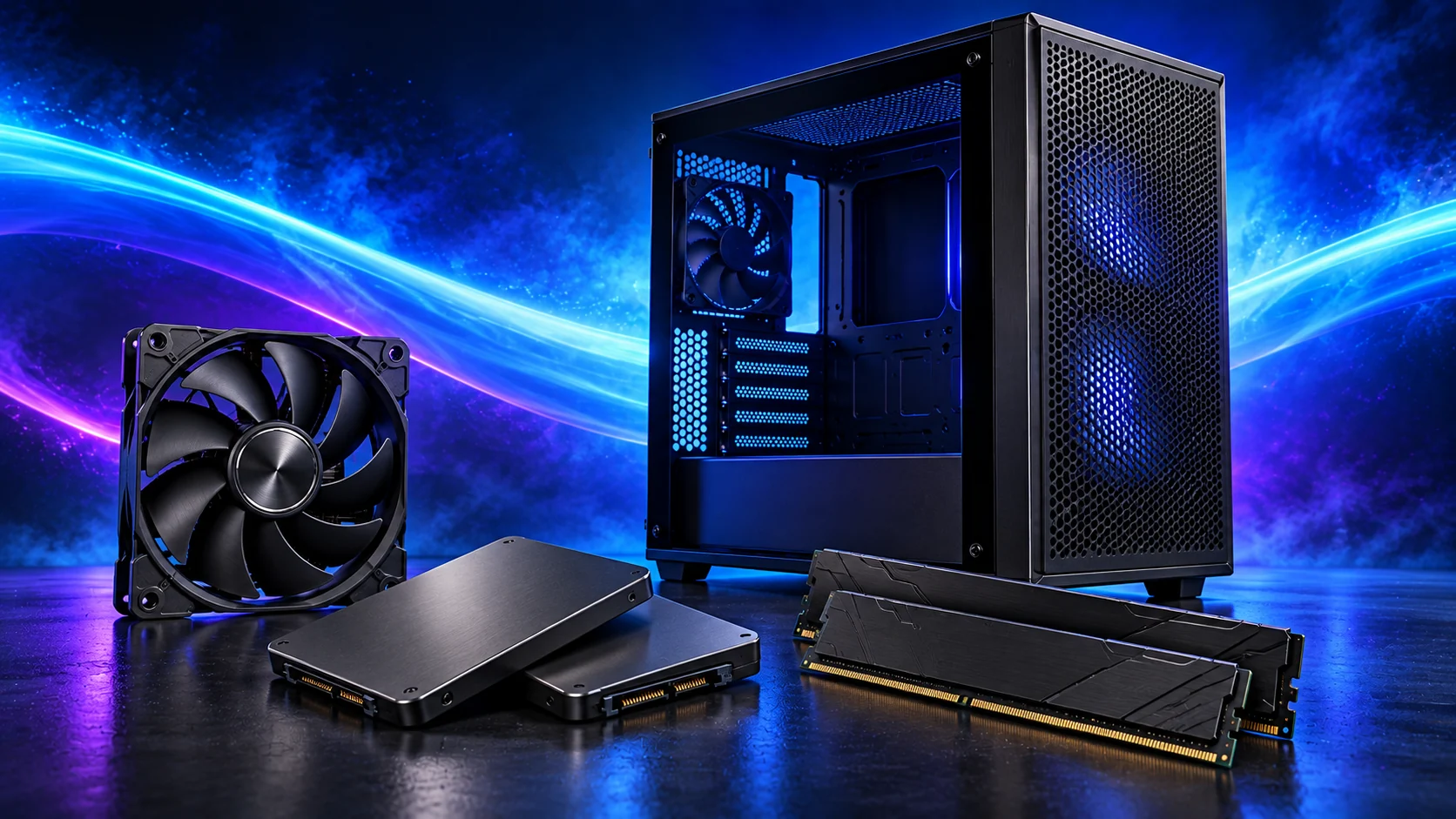
M.2 is a physical format. SATA and PCIe describe connection technologies, while NVMe is a storage protocol commonly used by PCIe SSDs. An M.2-shaped drive is not automatically compatible with every M.2 socket.
Read the board’s supported protocol, length and mounting position. Then read any shared-resource notes. M.2, SATA and NVMe explained covers the format distinction, and the motherboard sharing guide checks what happens when more slots are populated.
A 2.5-inch SATA SSD needs an appropriate bay/mount and its power/data connections. A supported M.2 SSD mounts directly to the board. The neater cable arrangement is useful, but the socket’s compatibility comes first.
Choose capacity before a speed premium
List the games, applications and projects you want available together. Include temporary downloads, updates and working files. The capacity-planning guide includes a simple calculation rather than prescribing one size to every PC.
A premium sequential-read figure describes a particular test. Everyday responsiveness, loading and sustained writes can make different demands. PCIe 4.0 versus 5.0 explains when interface bandwidth earns its price, and the NAND/cache/endurance guide covers the behaviour behind the headline.
For a game library, I would usually compare enough suitable capacity before a small loading-time premium. For long media transfers or sustained project writes, look more closely at that workload’s performance.

Backup belongs outside the same failure
A second partition on the same SSD still depends on the same physical device. Another drive inside the PC can provide an additional copy, but both can remain exposed to theft, electrical problems or accidental deletion. Keep a separate recovery plan for files you cannot recreate.
Before replacing the Windows drive, distinguish cloning from a fresh installation and adding a data drive. The second-SSD guide covers the additional-drive route. Back up independently before any operation that writes a new partition layout or migrates data.
For the final basket, use the SSD shortlist and the compatibility checklist. An archive/server plan can instead start with the home-server routes.
SSD interfaces and protocols · Windows drives, volumes and formatting