
Best external hard drives for PC backups and large libraries in 2027
By James Thompson · Updated:
Some links in my articles are affiliate links. I may earn a commission when you buy through them.
A portable HDD fits a simple backup rotation; a desktop HDD gives a larger stationary capacity route. Start with WD Elements Portable for a bus-powered drive, Seagate Expansion Desktop for a powered archive, or WD My Book when its supported security and backup tools serve the workflow.
Table of Contents
ToggleThe shortlist: choose for your setup
| Use | My choice | Why choose it | Choose another when |
|---|---|---|---|
| Portable backup rotation | WD Elements Portable | A USB-powered HDD that is easy to connect for a scheduled file backup. | You need desktop-sized capacity or active-project SSD responsiveness. |
| Large stationary library | Seagate Expansion Desktop | An externally powered desktop HDD for a larger capacity job at one location. | You need the drive to run from USB power in a travel bag. |
| Desktop security/software workflow | WD My Book | A desktop-drive route with supported hardware encryption and backup-tool options. | You only need a plain portable copy or do not want the security/software workflow. |
Choose around capacity, portability, power and software needs. This is not a reliability ranking; the backup design matters more than assuming one drive can never fail.
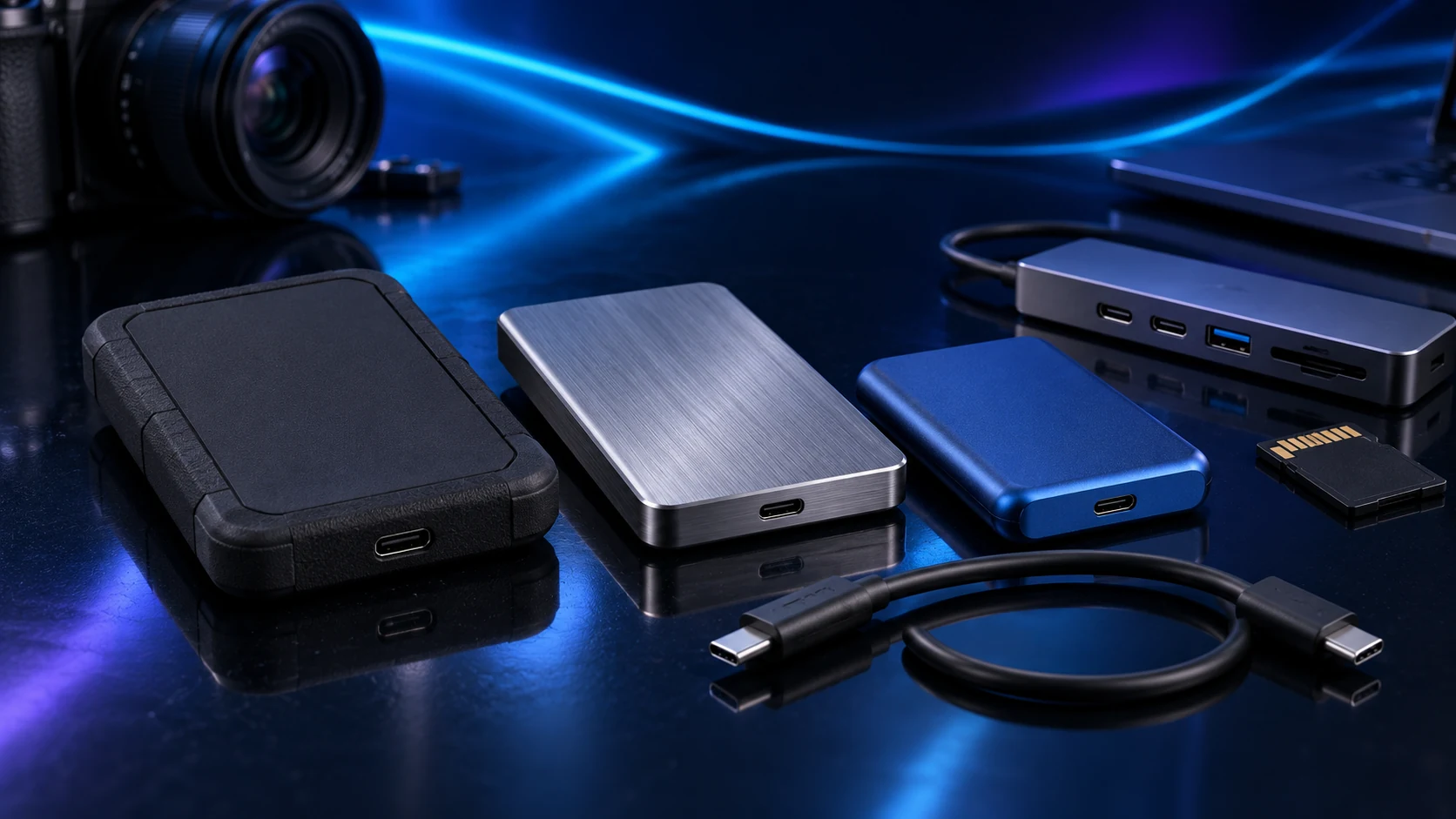
Portable backup rotation: WD Elements Portable
Elements Portable is a straightforward choice for an external copy that you can disconnect after the backup. Measure the data selected for protection and allow for retained versions rather than buying a drive that only fits today’s files.
Keep it stable during transfers and eject it before disconnecting. For work that needs frequent movement while active, an external SSD has a more suitable physical role; a portable HDD is most compelling for capacity and a planned backup routine.

Large stationary library: Seagate Expansion Desktop
Choose Expansion Desktop when the drive will live beside the PC and capacity is the priority. It needs its power adapter as well as USB, so include an accessible socket and a ventilated stable position in the desk plan.
An archive moved from the PC onto this drive is still one copy. Keep another independent copy of irreplaceable material. A desktop external drive is a useful destination, not a substitute for deciding how recovery works.
Desktop security/software workflow: WD My Book
My Book is worth comparing when the supported password/security and backup tools are part of the job. Check the exact model’s current software compatibility and plan how the password or recovery information will remain available.
Encryption protects access to data; it does not replace another copy. Keep recovery information separate from the only device that might fail, and verify that the backup can be restored through the process you intend to use.
Size for recovery and retained versions
Add the folders you want protected, estimate growth and include version history. If 600 GB of working files changes frequently, a drive sized just above 600 GB gives little room for older versions. The amount needed depends on how much changes and how long you keep it.
For an always-on shared library, compare NAS drives and a home-server build. The external-drive shortlist serves a directly attached job.
Finish the setup
Choose the destination, run the first backup and restore a sample into a different folder. Use the external-backup guide or the NAS-backup plan for the complete recovery arrangement.
Specifications and setup: Elements Portable · Expansion Desktop · My Book backup/security options.