
Best Graphics Cards for Photography and Lightroom in 2027
By James Thompson · Updated:
Some links in my articles are affiliate links. I may earn a commission when you buy through them.
Before choosing from this shortlist, check the application’s acceleration route and project VRAM requirements. The GPU specification guide separates capacity from compute and bandwidth.
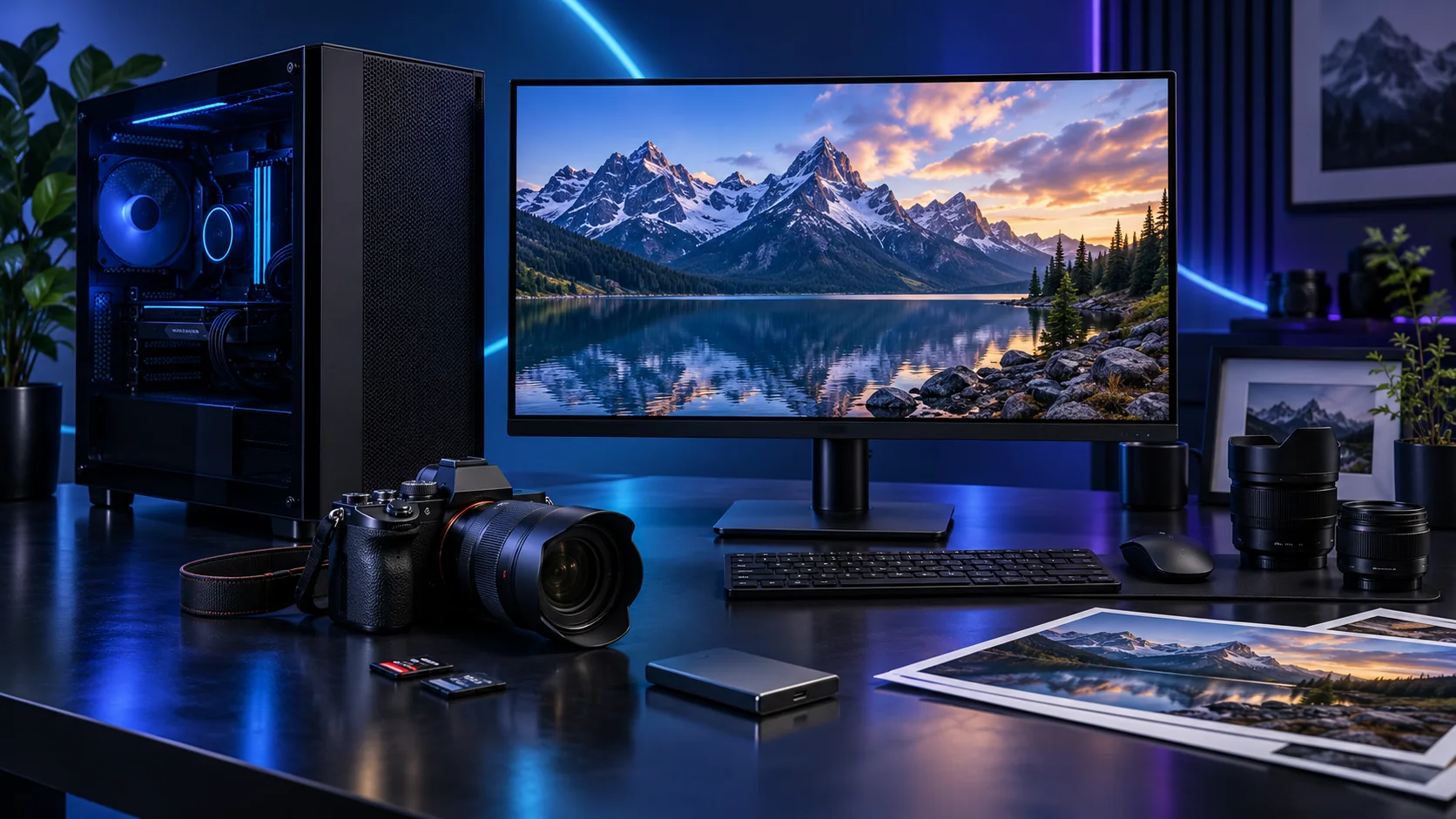
Lightroom features place different demands on the GPU. Choose a supported card around your editing, display and AI workflow, with the 16GB NVIDIA route as a comfortable mixed-use starting point. A more expensive graphics tier is useful only if the tasks you repeat can use it. Here is the shortlist I would use, with the lower-cost and more capable routes kept alongside the complete photography and lightroom setup.
Table of Contents
ToggleChoose the right option for your build
| Best for | My choice | Why it fits |
|---|---|---|
| Best accessible AI-feature route | MSI RTX 5060 Ti 16GB Shadow 2X OC Plus | A 16GB NVIDIA route for supported Lightroom features and a mixed creative desktop. |
| Best lower-cost dedicated route | ASUS Dual RTX 5060 8GB OC | Choose a modest card when the active workload does not justify a larger graphics purchase. |
| Best heavier GPU-led creative route | MSI RTX 5070 Ti 16G Ventus 3X OC | More rendering headroom for a workload that regularly uses the GPU. |
Start with the shortlist below, then use the complete build guide to match your choice to the rest of the setup.
Try a catalogue graphics card in PC Builder alongside an AM5 processor, case and PSU. See the 3D tower, estimated total and supported power or fit warnings together.
Best accessible AI-feature route: MSI RTX 5060 Ti 16GB Shadow 2X OC Plus
A 16GB NVIDIA route for supported Lightroom features and a mixed creative desktop.
The MSI RTX 5060 Ti 16GB Shadow 2X OC Plus is the accessible 16GB NVIDIA route. I would buy it when graphics-memory capacity and NVIDIA application support matter more than jumping straight to a much more expensive card. It is also a useful place to start a compact parts plan.
Keep the exact 16GB variant in the basket. The model name, dimensions and power connection belong in the fit check, particularly when a riser cable and a small case are involved.
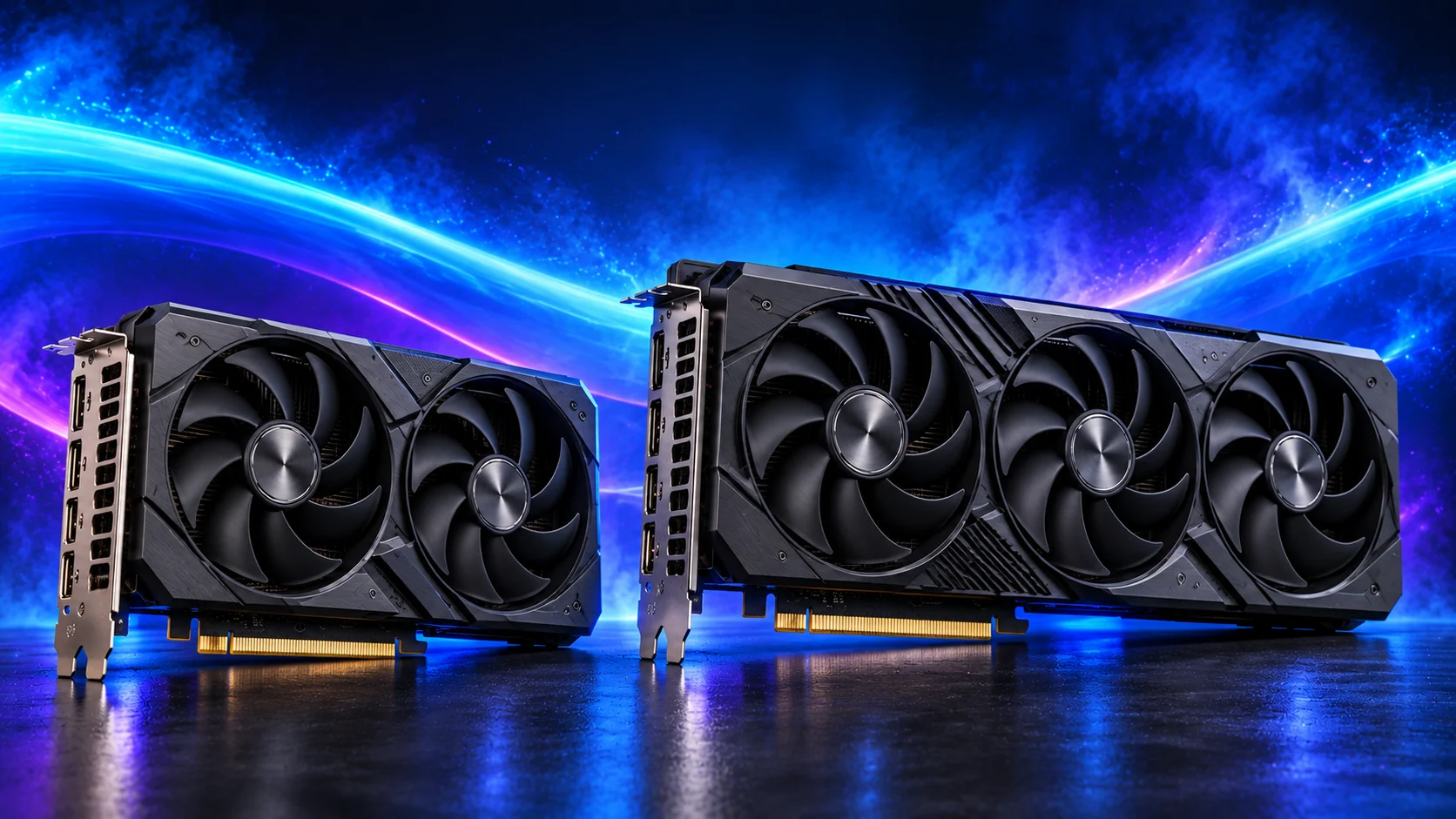
Best lower-cost dedicated route: ASUS Dual RTX 5060 8GB OC
Choose a modest card when the active workload does not justify a larger graphics purchase.
The ASUS Dual RTX 5060 8GB is the lower-spend dedicated-graphics route. It buys into the NVIDIA software ecosystem without allocating the budget of a much larger card. I would choose it for a deliberately modest workload and keep the rest of the tower balanced.
Its 8GB capacity is part of the decision. Choose the 16GB route when the project or model needs more graphics memory; increasing system RAM does not turn this into a 16GB graphics card.
Best heavier GPU-led creative route: MSI RTX 5070 Ti 16G Ventus 3X OC
More rendering headroom for a workload that regularly uses the GPU.
The MSI RTX 5070 Ti 16GB Ventus 3X OC is my higher-performance 16GB NVIDIA route. It is attractive when the software ecosystem stays the same but the graphics workload is becoming more demanding. It keeps the decision focused on usable rendering headroom rather than only the memory number.
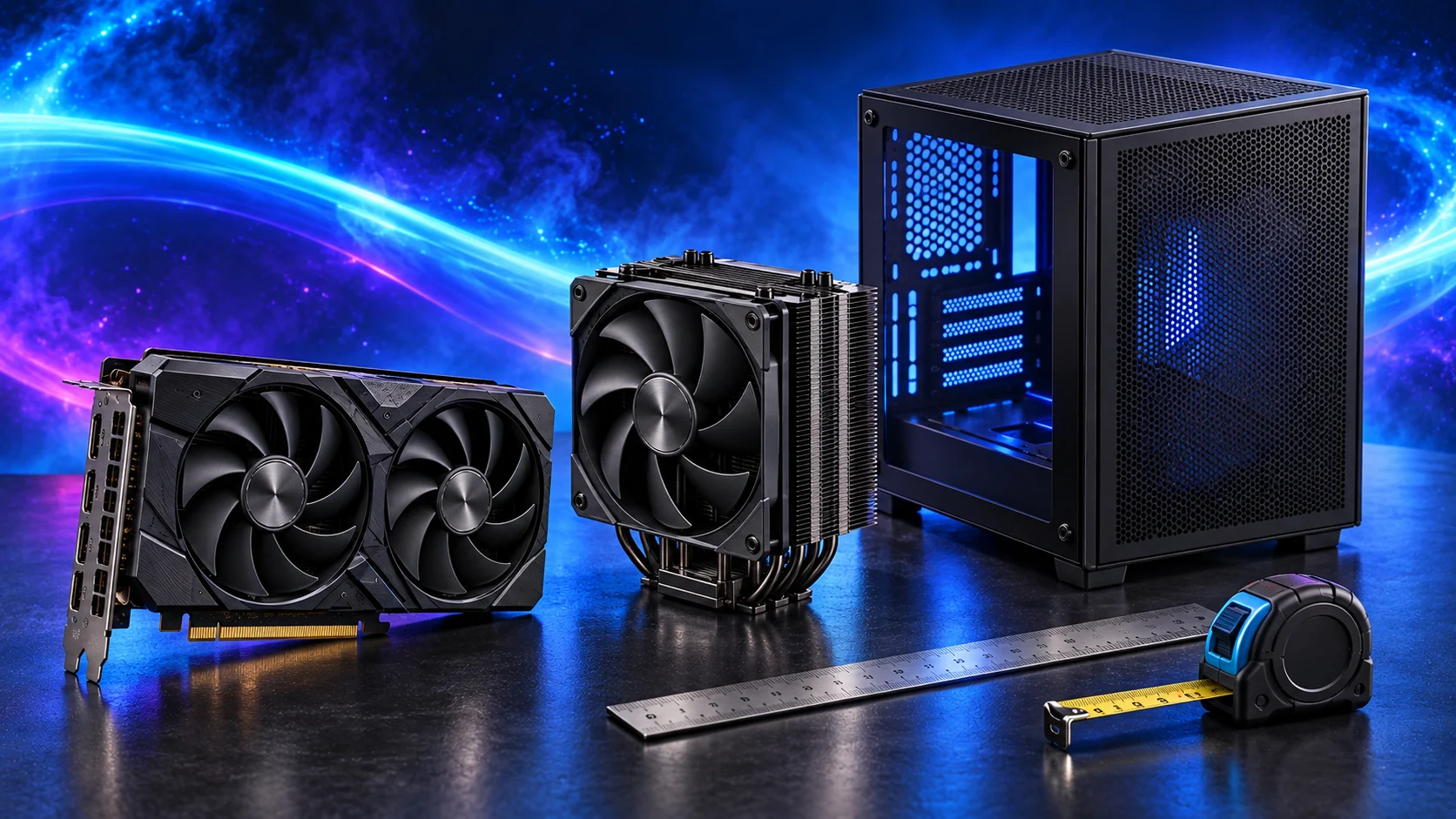
This is a substantial card. Include length, slot thickness, power-cable space and the PSU in the purchase plan. A 16GB card remains a 16GB card even when its processing tier is higher.
How I would choose between these routes
Start with the required feature or workload, then select memory capacity and processing tier. A larger graphics-memory allocation and a faster card are different upgrades. Two cards can both have 16GB while offering different rendering headroom; neither becomes a larger-memory card because the model number is higher.
The exact board-partner model matters at purchase time. Include length, height, thickness, PSU recommendation, connector type and power-cable space in the layout. A premium graphics purchase may need a larger case and PSU, making the complete upgrade more expensive than the card alone.
Match the purchase to the actual workload
Include the monitor and backup from the beginning. A fast tower is a poor complete purchase if the only image copy lives on one internal drive or the display makes colour decisions difficult. I would choose a balanced workstation and a sensible sRGB-oriented display for ordinary web delivery, then make a separate monitor decision if wide-gamut print work is part of the job.
The supporting parts I would put beside it
Put the catalogue, previews and active work on a fast drive, with the original-image archive organised separately as needed. Back up catalogue information and original files; one does not replace the other. Keep a second copy outside the editing tower and practise restoring a small set.
| Role | Suggested route | Why I include it |
|---|---|---|
| Memory | Crucial Pro 64GB DDR5-5600 | Choose capacity for the active work and surrounding desktop. |
| Working drive | WD_BLACK SN850X 2TB | Keep active files and useful free space on the NVMe drive. |
| Case | NZXT H5 Flow (2024) | Use the complete layout rather than an isolated component maximum. |
Complete the purchase plan
Import a representative shoot, cull it, edit it and export a small set to establish the actual routine. Back up the catalogue and originals to an independent destination. Use the GPU settings appropriate to the supported application and investigate a recurring slow stage before assuming every delay needs a larger card.
Compare the complete basket for the chosen route and keep the exact variant in the order. Use the wider graphics cards guide for the underlying choice, or return to the complete photography and lightroom build for the supporting purchases.
Build a photography and lightroom PC
Technical references: Lightroom Classic requirements · ProArt PA279CV specification.