
Find what is limiting your PC before upgrading
By James Thompson · Updated:
Some links in my articles are affiliate links. I may earn a commission when you buy through them.
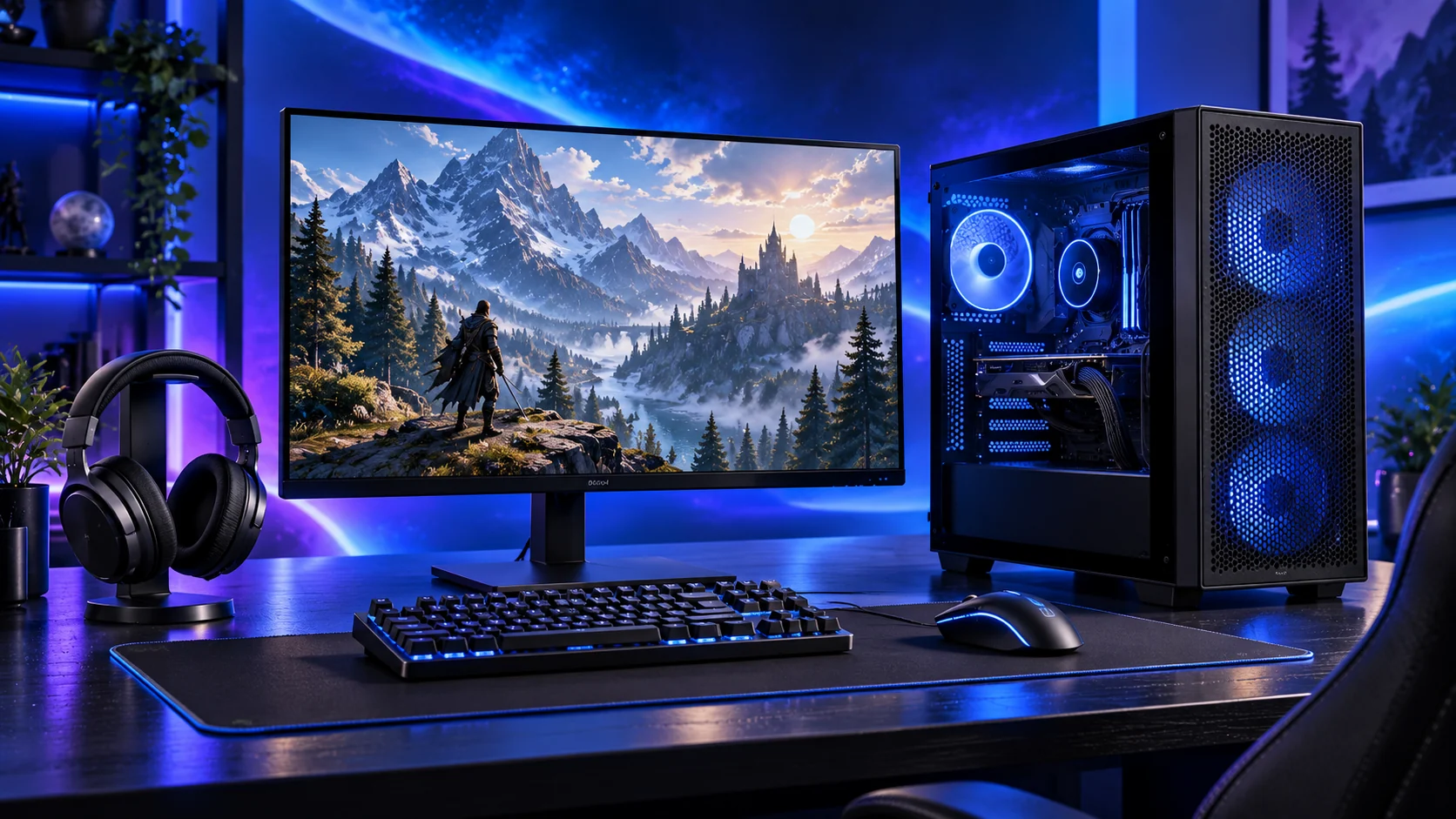
Before an upgrade, I want to know what’s causing the slowdown. Use the same game scene and change one setting at a time. It’s a useful way to separate a graphics limit from a processor, temperature or memory problem.
Once the limiting part is identified, use processors or graphics cards to choose a suitable change. For a rebuilt system, the complete gaming guide keeps the other parts in balance.
Table of Contents
ToggleDescribe the problem precisely
Separate low average frame rate, short pauses, slow loading, application switching and crashes. They do not necessarily have the same cause. Note the game, scene, resolution, settings and what happened just before the symptom.
Record CPU, GPU, board, memory layout, drives, PSU and monitor. Save the normal settings so a later comparison uses the same workload.
Establish a clean baseline
Confirm appropriate drivers and intended display settings. Check background work, available drive capacity and whether the game has an intentional frame cap. Do not disable security software or make a collection of untracked tweaks.
Observe temperatures and clocks during the task, not just at idle. An unstable or overheating system needs fault diagnosis before an upgrade comparison.
Test a graphics-limit suspicion
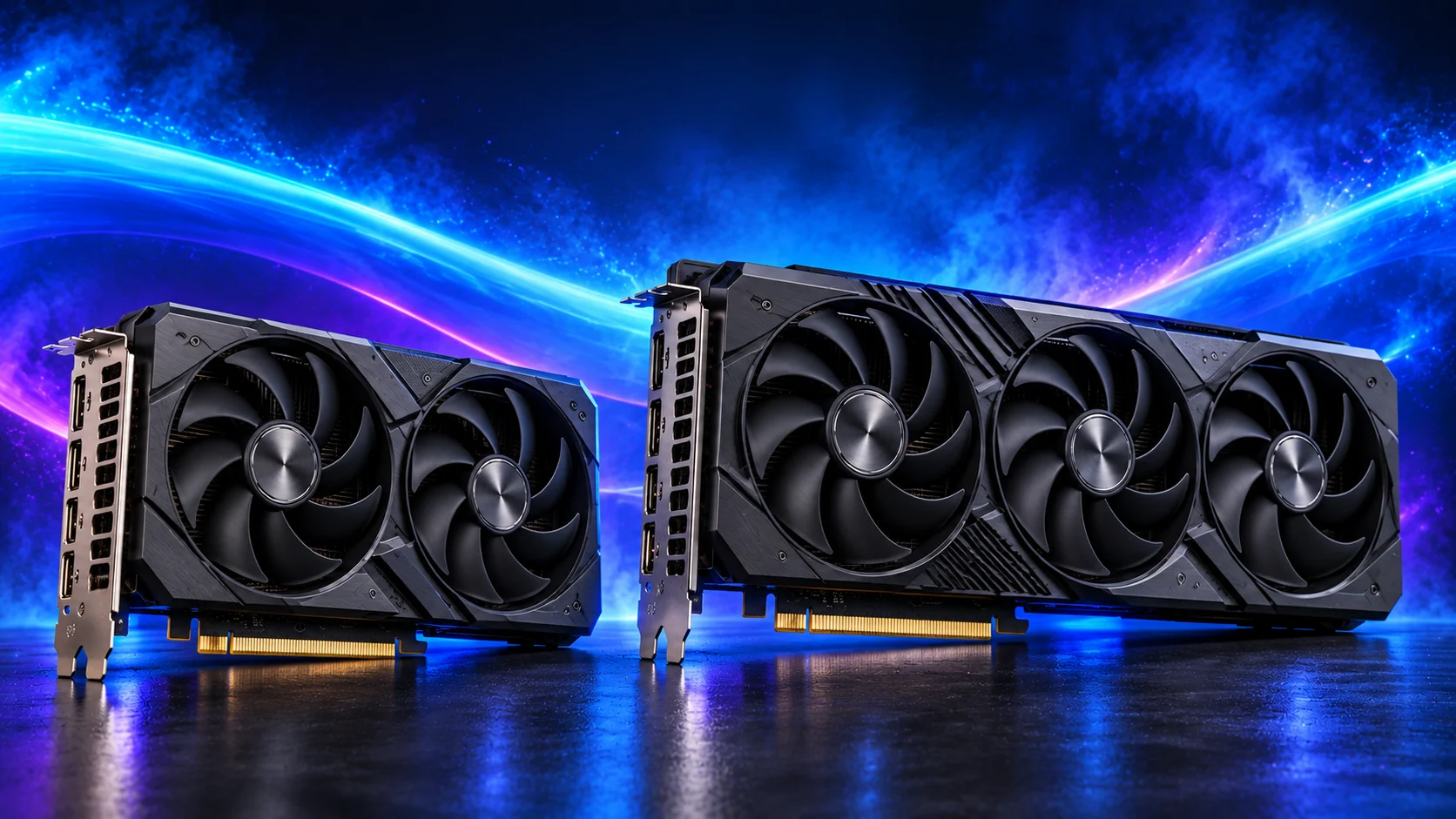
Repeat the same scene at a lower rendering resolution or less demanding graphics setting. If performance improves substantially, investigate the GPU workload and the original settings.
If it barely changes, check CPU/game limits, caps and other constraints. Low GPU use is a clue, not proof that a new CPU is the answer. A total CPU percentage can hide a heavily loaded thread.
For the next graphics comparison, use the frame-time and benchmark guide. If the pause points towards active data, compare RAM capacity and SSD sustained-work behaviour before ordering.
Check capacity and pauses
Observe memory pressure with your normal applications open. Close unnecessary applications and repeat the task. Check whether storage activity accompanies loading or pauses, and whether the drive is nearly full.
Allocated graphics memory alone does not prove insufficient VRAM. Use documented game tests and the actual texture or frame-delivery behaviour before reaching that conclusion.
Choose the next investigation
- GPU upgrade when the intended rendering workload exceeds the card.
- CPU or platform change when relevant evidence supports a CPU limit.
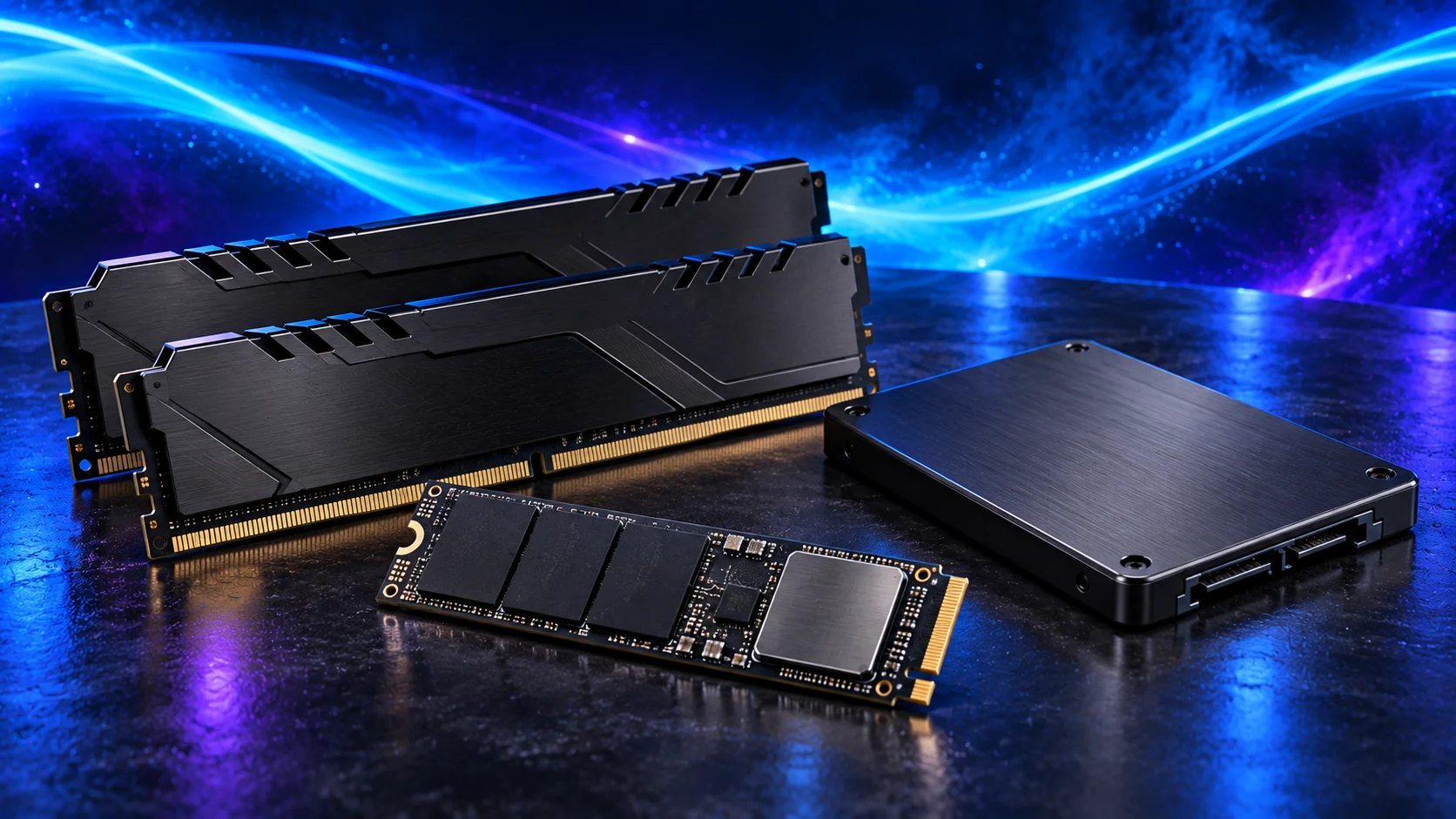
- RAM or storage for capacity or loading problems.
- Cooling diagnosis when behaviour worsens during sustained use.
A repeatable ten-minute gaming check
Use a saved game, benchmark sequence or repeatable scene. Let background downloads and installs finish, record the normal settings, then run the same route several times. Keep a frame cap, V-sync and dynamic-resolution setting visible in your notes: each can change how you interpret GPU activity.
For the second pass, lower the rendering resolution while keeping the same scene and simulation settings. For the third, restore resolution and change one CPU-relevant game setting, such as simulation detail or crowd density, if the game provides it. Changing everything at once produces a faster run without explaining which change helped.
Record frames, pauses, clocks and temperatures.
Keep the simulation and route the same.
Restore rendering settings; alter one relevant game setting.
Read the clues together
| Observation | Possible explanation | Next useful check |
|---|---|---|
| Lower rendering resolution helps substantially | The original rendering workload may be GPU-limited. | Compare GPU activity and frame delivery in the same scene. |
| Resolution barely changes performance | CPU/engine limits, a frame cap or another constraint may dominate. | Check caps, per-thread activity and a relevant simulation setting. |
| CPU total looks low but the game is slow | A busy important thread or data dependency can hide in the total. | Look at individual logical-processor activity and relevant game tests. |
| Performance worsens after several minutes | Heat, power behaviour or growing workload may be involved. | Record temperature, clocks and power throughout the run. |
| Pauses accompany heavy memory/storage activity | Capacity pressure, loading or background work may be involved. | Repeat after closing unnecessary applications and check drive activity. |
A high GPU-use reading is useful context, but a single percentage is not a complete diagnosis. CPU totals average across the available execution resources, so they can hide the thread that is holding up the game. The CPU specification guide explains why more cores alone may not resolve it.
Treat bottleneck-calculator percentages as unsuitable evidence for a purchase. Limits change with the game scene, display settings, frame cap and applications running alongside it.
Record the upgrade goal before buying
Write down the result you want: improve a busy city simulation, raise the uncapped competitive frame rate, remove heat-related slowdowns or shorten a CPU render. Save the baseline so the same task can be repeated after the change.
For gaming, core count and X3D cache help narrow the CPU choice once a CPU-sensitive workload is established. For clocks falling during sustained work, use the power and cooling guide. The main processor guide connects those checks to the relevant buying pages.