
Can You Upgrade a Mini PC? RAM, SSD and Graphics Limits Explained
By James Thompson · Updated:
Some links in my articles are affiliate links. I may earn a commission when you buy through them.
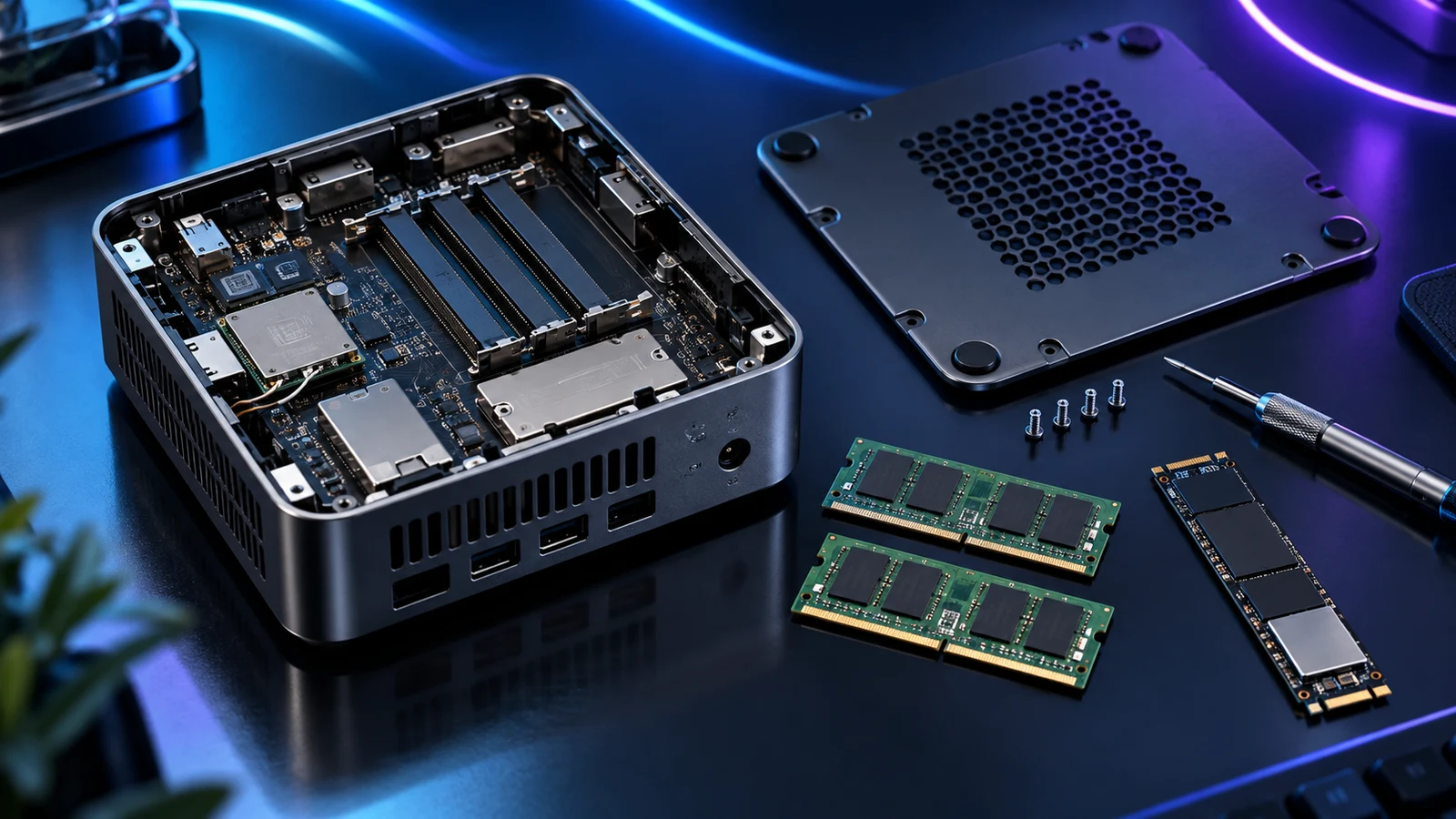
RAM and SSD upgrades can make a mini PC more useful, but the exact machine decides what is possible. Look for socketed memory and documented storage positions when you buy. Treat the processor and integrated graphics as fixed unless the manufacturer explicitly provides a different service route.
The GEEKOM A6 and Beelink SER8 8745HS are useful examples of mini PCs with memory and storage access. I would still buy a suitable starting configuration: a service cover is valuable for a planned upgrade, not a reason to buy too little capacity on day one.
Table of Contents
ToggleWhat is normally worth planning
| Part | What can be possible | Evidence needed before buying |
|---|---|---|
| RAM | Replace or add modules where sockets are provided | Exact DDR generation, SO-DIMM format, slot layout and supported capacity. |
| SSD | Replace a drive or populate a documented spare position | Length, interface, clearance, retained cooling and how existing data will move. |
| CPU and integrated graphics | Often part of a fixed mobile-style platform | Explicit manufacturer service/support documentation; not a generic desktop upgrade assumption. |
| External storage | Add usable capacity through an appropriate USB connection | Port speed, drive requirements and whether it is working storage or an independent backup. |
| Discrete graphics | Not an ordinary internal mini-PC addition | A specifically supported external graphics route, plus its full cost and limitations. |
Choose the upgrade that fixes a real problem. A nearly full SSD and insufficient working memory are different jobs, and neither is fixed simply by selecting the fastest-looking part.
RAM: socketed and soldered are different purchases
SO-DIMM modules are the shorter removable memory used in many mini PCs. Soldered memory is attached to the board and cannot be changed like a module. DDR4 and DDR5 are different standards; a spare slot does not make them interchangeable.
GEEKOM’s A6 page documents DDR5 expansion, while Beelink describes two DDR5 SO-DIMM positions for the SER8 8745HS. A supplied 32GB SER8 configuration already occupies two positions with two 16GB modules. Moving to a larger matched capacity can mean replacing both rather than adding another pair.
Maximum-capacity claims can differ between regional pages, older manuals and current listings. Use the exact hardware revision and a current supported configuration before ordering a large kit. The linked A6 listing and UK page currently disagree on the advertised maximum, so this guide does not promise the larger number. The RAM capacity guide helps decide whether more memory has a useful job in the first place.
SSDs: check format, interface and spare space
M.2 is a physical format, not a guarantee that every M.2 drive works. Check the supported length and whether the position accepts PCIe/NVMe, SATA or a specific alternative. Also establish whether a second advertised position is accessible in the actual enclosure.
Beelink lists two M.2 2280 PCIe storage positions on the SER8 8745HS. That can make adding a project drive more straightforward than replacing the operating-system drive. The A6’s documented primary M.2 2280 route is useful, but I would not infer that every advertised secondary-storage option applies to every chassis revision.
Use the M.2, SATA and NVMe explanation before selecting a drive. Keep any thermal pad or cover arrangement required by the service instructions; a tall desktop heatsink is not automatically suitable inside a small computer.
Back up before opening the cover
Make an independent backup of important files and retain any recovery information needed for encrypted storage. The backup-before-upgrade guide covers the preparation. If replacing the system SSD, decide between supported cloning and a clean install before removing the working drive.
Shut down fully, disconnect power and follow the exact manufacturer service steps. Some covers have clips, hidden screws or attached cables; forcing a familiar-looking panel is not a useful shortcut. Keep removed screws in order and handle modules by their edges.
After the change, confirm recognised memory or storage capacity in firmware and the operating system. Then restore or migrate files deliberately and run the actual applications that made the upgrade worthwhile. Keep the original drive intact until the replacement setup and backup are proven.
If the upgrade is part of turning the mini PC into a learning server, follow the Proxmox pre-installation checklist for the firmware, wired-controller and installation-disk checks.
When expansion means choosing a desktop
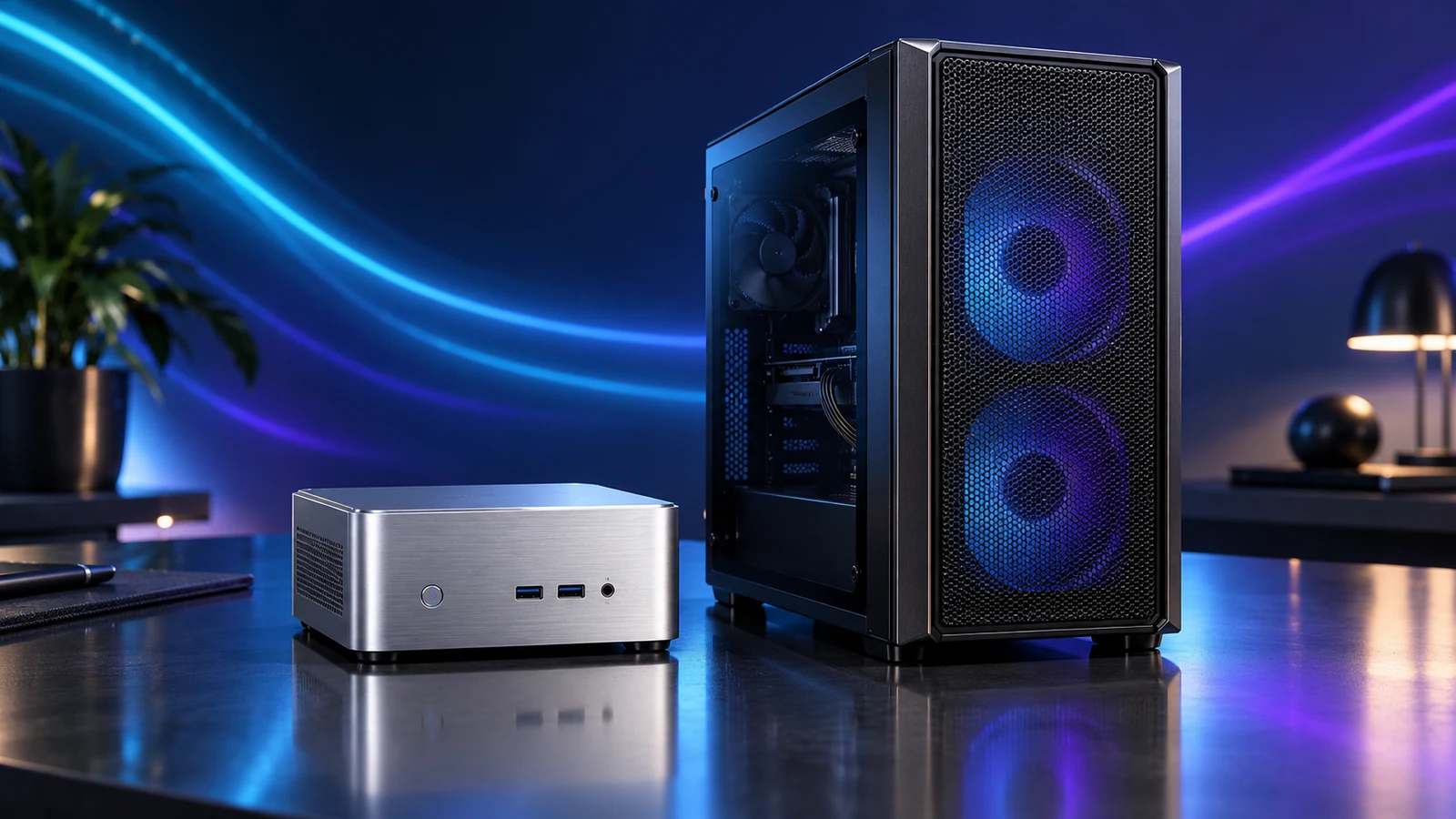
A mini PC with integrated graphics generally does not have a standard internal slot for a full-size desktop graphics card. An external enclosure adds another purchase, more space and connection-specific requirements. USB-C shape alone does not establish a suitable external-graphics path.
If a future discrete GPU is central to the plan, I would choose a DIY desktop route now. Case clearance, power and cooling can then be planned around that card, with the parts-fit checklist and a suitable build guide.
For more local files without internal work, compare external SSD choices. An external working drive remains part of the same working setup; keep a separate backup rather than treating expansion as protection.
If you want to keep an existing mini PC and add external graphics, start with the eGPU compatibility checklist. Once the host connection is confirmed, the eGPU enclosure and dock guide compares enclosed Thunderbolt/USB4 and open OCuLink setups, including the separate power supply.
Buy the capacity you need, keep useful access
For a new purchase, the home-office buying guide separates a basic budget machine, the GEEKOM A6 everyday configuration and the 32GB Beelink SER8 8745HS multitasking route. I would choose capacity for the work I already have, then value access for a clear next step.
Keep the mini PC’s model and revision beside the supported memory or storage format in your shopping list. Check both before ordering an upgrade.
Serviceability references: GEEKOM A6 specifications · Beelink SER8 specifications.