
Best eGPU Enclosures and Docks in 2027: Match Your PC
By James Thompson · Updated:
Some links in my articles are affiliate links. I may earn a commission when you buy through them.
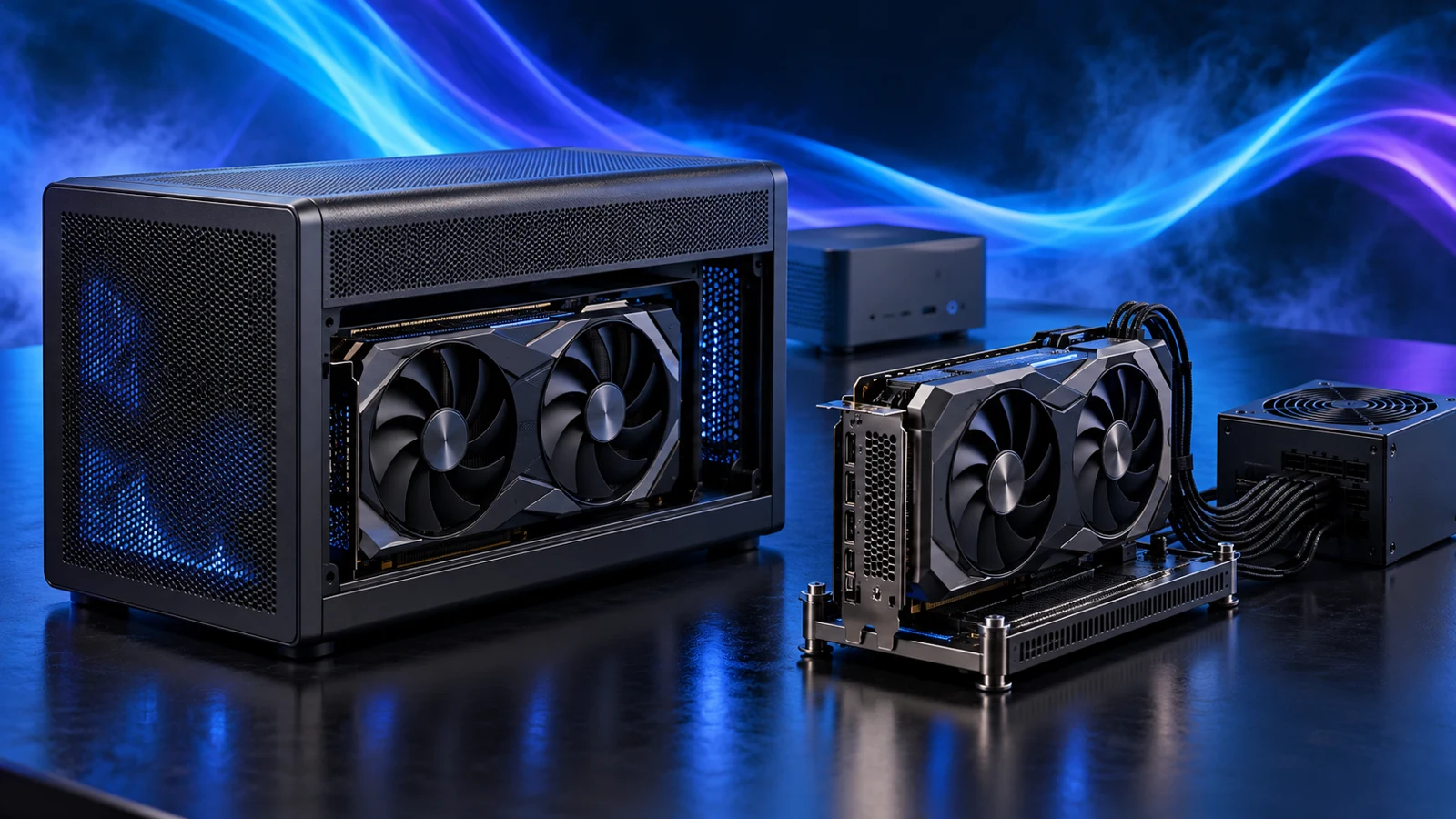
For a compatible Windows laptop or mini PC, choose the Razer Core X V2 when you want the graphics card inside an enclosure and have a supported Thunderbolt or USB4 eGPU connection. Choose the MINISFORUM DEG1 for a documented OCuLink host when you are happy with an open dock and a separate PSU. Both are empty graphics expansion products: add the card and power supply to your shopping list.
Start with the connection your computer actually supports. The eGPU compatibility checklist takes you through the exact host, graphics card, cable and operating-system checks. Once that route is settled, the choice below is about the hardware you want to keep and how you will use the desk.
Table of Contents
ToggleChoose the route that matches your computer
| Best for | My pick | Complete purchase |
|---|---|---|
| An enclosed setup on a supported Windows Thunderbolt/USB4 host | Razer Core X V2 | Core X V2 enclosure, compatible GPU, suitable standard ATX PSU and its correct cables. Razer includes a Thunderbolt 5 cable. |
| Reusing a GPU and PSU with a documented OCuLink host | MINISFORUM DEG1 | DEG1 dock, compatible GPU and ATX/SFX PSU with its cables. The manufacturer manual includes an OCuLink cable in the package. |
| Building a gaming setup from scratch | Compare a desktop first | Price the complete computer and graphics card against buying a host, external dock/enclosure and PSU. |
The Razer is the tidier choice for a regular desk where you want the GPU covered. The DEG1 is the practical enthusiast route when the host already has OCuLink and you want access to the card and power supply. Its open construction needs a protected place away from spills, pets and loose objects.
A USB-C socket does not give an OCuLink dock somewhere to plug in, and an ordinary USB display dock does not replace an eGPU enclosure.
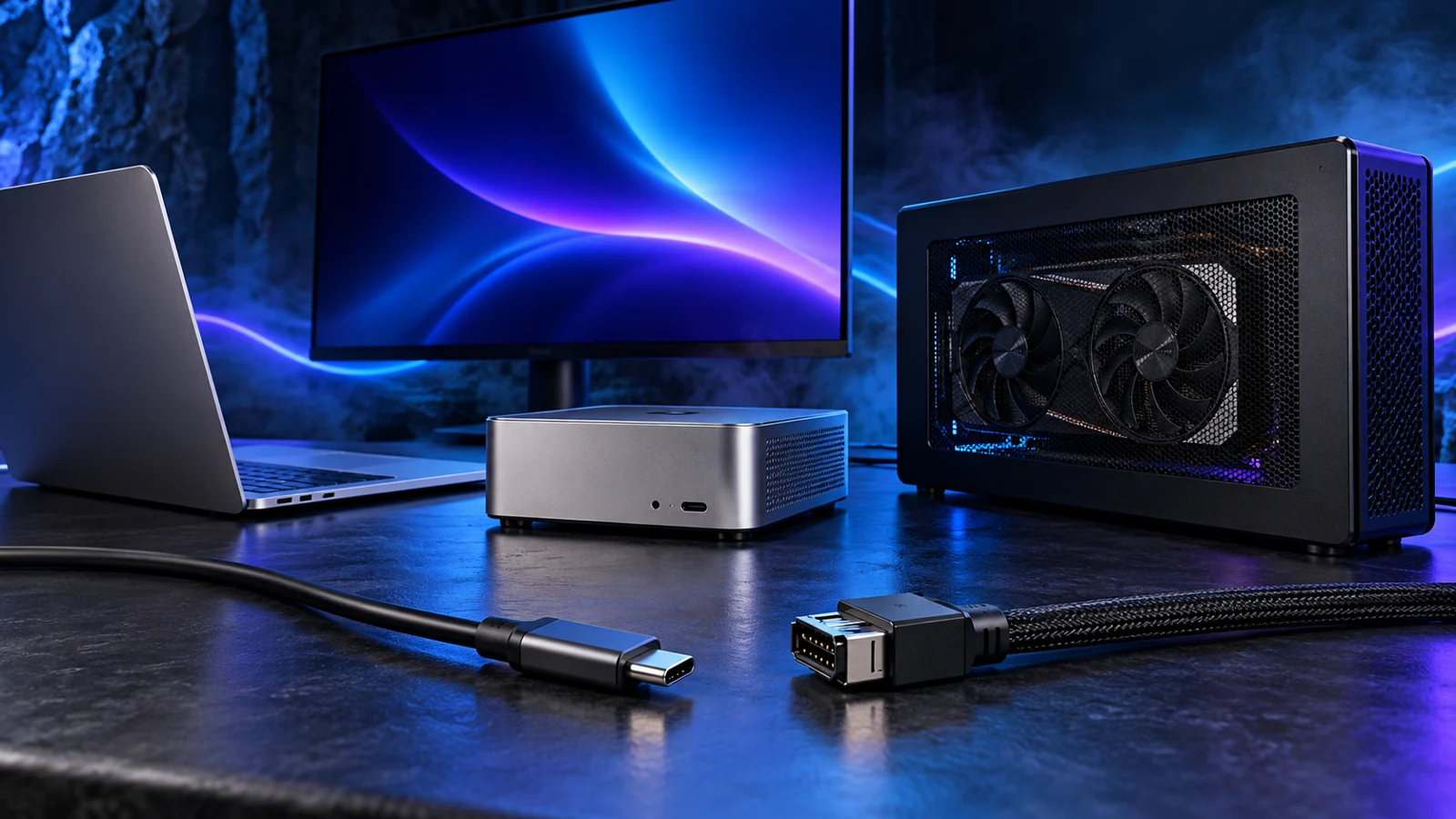
Best enclosed route: Razer Core X V2
The Razer Core X V2 suits someone keeping a capable portable computer and adding a permanent graphics setup at home. It uses a vented steel chassis with active cooling and accepts a separately purchased desktop GPU and standard ATX PSU.
Choose the PSU around the GPU and the enclosure together. Razer specifies an additional 230W of PSU capacity above the graphics card’s requirement. For example, a card requirement of 300W gives 530W before selecting an appropriate PSU rating and connectors. Follow the enclosure guidance rather than treating the GPU’s connector count as the whole power plan.
Use Razer’s supported GPU list for the card family, then check the exact card manufacturer’s dimensions, connector position and cable clearance. Compare the complete card with the current enclosure requirements, including space for the power cable.
The included Thunderbolt 5 cable makes the initial connection simpler. The host still needs the documented eGPU support Razer requires for Thunderbolt 4, Thunderbolt 5 or USB4. A faster enclosure will not upgrade an older host’s connection.
Best open-dock route: MINISFORUM DEG1
Choose the MINISFORUM DEG1 when your computer has a supported OCuLink connection and you already own, or deliberately want to choose, a desktop GPU and PSU. It is an open mounting platform with a physical PCIe x16 slot carried over a PCIe 4.0 x4 link. The upstream connection sets the available link, even though the full-size card fits the slot.
The DEG1 accepts ATX or SFX power supplies. Its manufacturer installation guide supplies the mounting sequence and lists the parts you provide separately, including the GPU, PSU, mains lead and PSU cables. Include those items when comparing it with an enclosure or an all-in-one external GPU.
OCuLink on this dock is a shutdown-and-connect arrangement. MINISFORUM warns against hot-plugging or forcibly cutting power. Shut down the host and follow the documented power sequence before changing the connection. The automatic follow-start feature also has host and cable conditions; use the exact manual for your configuration.
A laptop with only USB-C or Thunderbolt cannot use this OCuLink-only dock through a passive cable. If the host has no documented OCuLink route, choose a suitable Thunderbolt/USB4 enclosure or revisit the desktop alternative.
Work out the full cost before choosing the card
Make two lists: what you already own and what the external setup will make you buy. The strongest eGPU case is often a computer you want to keep, a suitable graphics card already on hand and a clear job for the extra GPU. Buying the host and every external part from scratch deserves a direct comparison with a desktop.
For the external route, add the dock or enclosure, GPU, PSU, any missing cables and an external monitor if needed. For the desktop route, add the processor, board, RAM, storage, case, PSU and cooling, then the same GPU. Count only items you would actually need to buy for each option.
£250 illustrative allowance
£100 illustrative allowance
£350 before any additional display or accessories
Those are budget allowances, not retailer prices. If the same complete desktop platform would cost £500 before the graphics card, keeping the existing host would save £150 in that example. If you also need to replace the host or buy an expensive adapter arrangement, redo the comparison before committing.
For a new gaming machine, use the gaming PC build guide to create the desktop list. For choosing the graphics card itself, compare the gaming GPU options against the games, resolution and refresh rate you want.
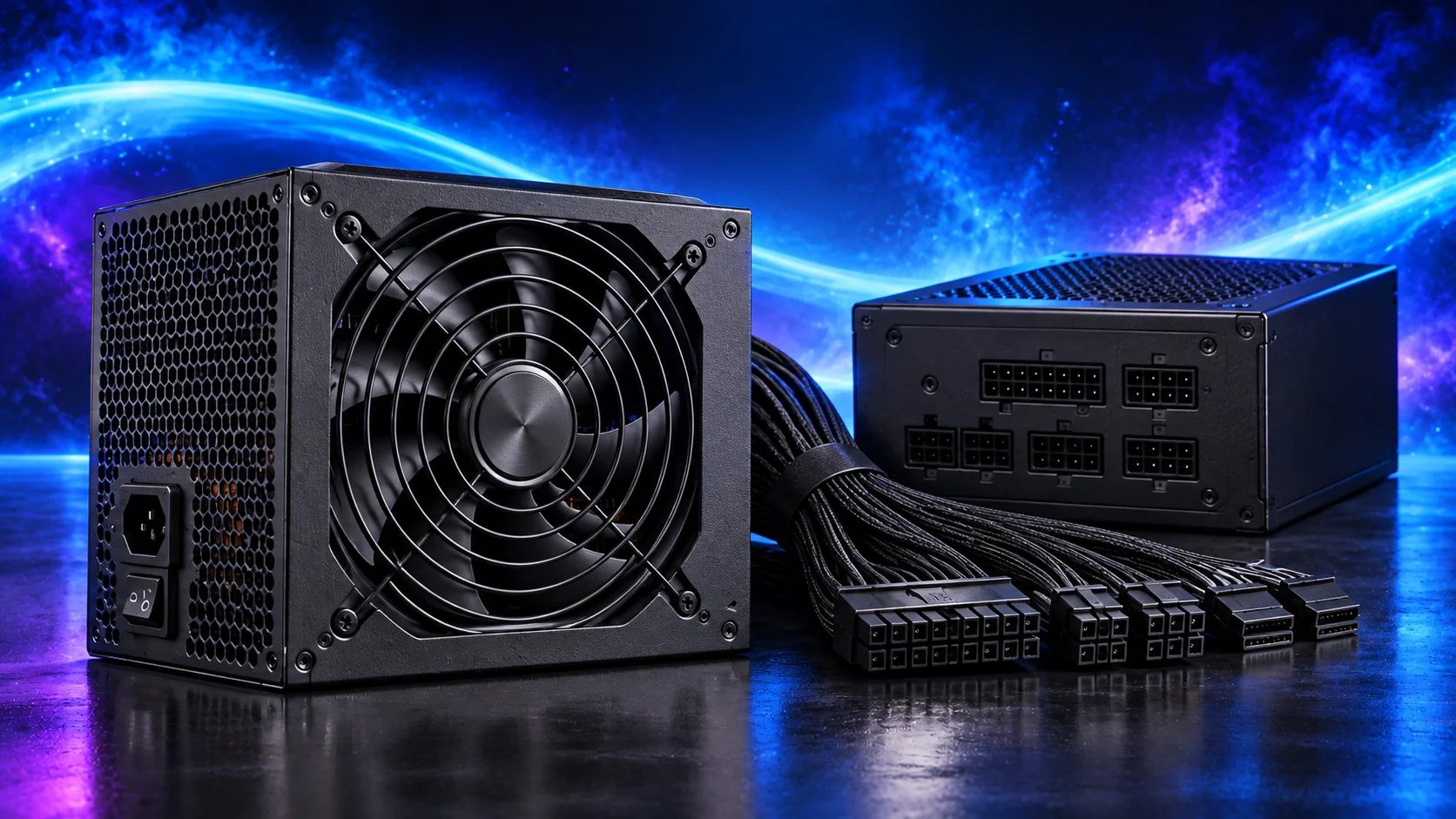
Plan the display and the space on the desk
For a straightforward external-monitor setup, connect the monitor to the graphics card’s HDMI or DisplayPort output. Keep the host-to-enclosure cable separate from that display connection. The monitor should be receiving the output of the GPU you bought.
Using a laptop’s built-in screen depends on the host, application and external-graphics route. Check that arrangement specifically if you will not use a separate monitor. Do not translate a cable’s advertised bandwidth into a promised frame rate: the host CPU, connection, application and display route all affect the result.
Measure the complete arrangement with the card, PSU, plugs and cable bends in place. An enclosure beside a mini PC can take more desk space than a small tower. For an open dock, leave the card’s fans clear and keep the assembly stable. The GPU specification guide explains power, memory and bandwidth without treating them as interchangeable performance scores.
Finish the purchase around the exact host
Complete the host, card and power checklist with your exact computer and graphics card, then price the remaining parts as one setup.
For an Intel Mac, follow Apple’s supported eGPU configurations rather than this Windows shortlist. Apple’s standard eGPU support requires an Intel Mac; an Apple-silicon Mac is not covered by that route.
Specifications and exact UK merchant variants checked on 17 October 2026. Primary references: Razer Core X V2 requirements, supported GPU list, MINISFORUM DEG1 specifications and DEG1 installation manual.