
Home network setup guide in 2027: better Wi-Fi and wired PCs
By James Thompson · Updated:
Some links in my articles are affiliate links. I may earn a commission when you buy through them.
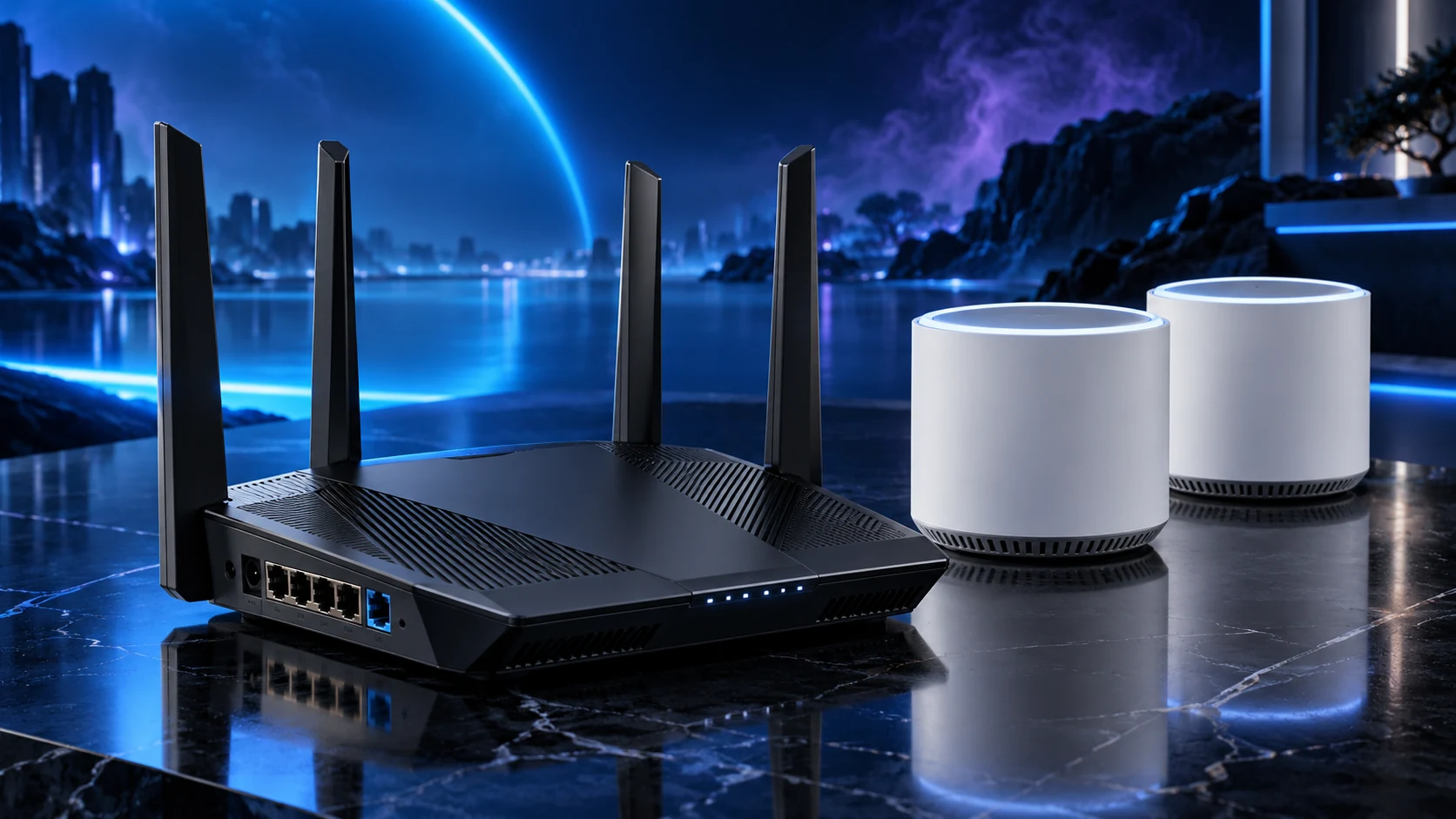
Build the network around where the computers work. Wire the fixed PC and server where practical, place Wi-Fi where it can serve the rooms, and choose the router, switch and access points around that layout. Faster hardware earns its place when it improves the actual path you use.
Table of Contents
ToggleStart with the connection problem
Separate an internet problem from a home-network problem. Compare the PC close to the router with the same task in the weak room, then compare a supported wired connection. If the connection is poor beside the router too, a remote mesh node is unlikely to solve the underlying broadband problem.
Mark fixed desks, the NAS, televisions and the rooms that need mobile coverage on a simple floor plan. Note existing Ethernet sockets and practical cable routes. That sketch tells you whether the useful purchase is a switch, a better-positioned access point or a mesh system.
Choose the router and operating mode
Your UK broadband equipment may combine a modem, router and phone service. Confirm the provider’s supported connection requirements before replacing it. An Ethernet router is not automatically a DSL modem, and provider phone services may still depend on the supplied hub.
Keep one intended router handling the home network. When retaining the provider router, use the new Wi-Fi equipment’s supported access-point mode where appropriate. Two routing layers can complicate gaming, port forwarding and remote access. The router shortlist covers the hardware choice; the mesh/AP guide covers the layout.
Choose Wi-Fi for the rooms
| Job | Starting choice | Why it fits |
|---|---|---|
| Single-area gigabit Wi-Fi | Archer AX55 | A dual-band Wi-Fi6 router for a supported Ethernet broadband route |
| Multi-room mesh | Deco X50 mesh kit | A manageable Wi-Fi6 route with supported Ethernet backhaul |
| Cabled ceiling/wall coverage | Omada EAP610 | A wired access-point route with a separate power plan |
| Local 2.5Gb/s devices | TL-SG108-M2 | A switch for a compatible PC/server path |
Place mesh nodes while they still have a useful connection back to the network. A node hidden in the dead spot must still reach upstream. Where cable is practical, wired access points or wired mesh backhaul give that upstream connection a clearer route.
The number on a Wi-Fi box often adds maximum rates across bands. It is not the internet speed one laptop will receive. Match the Wi-Fi generation and bands to the client devices and layout.
Choose the wired desk and server route
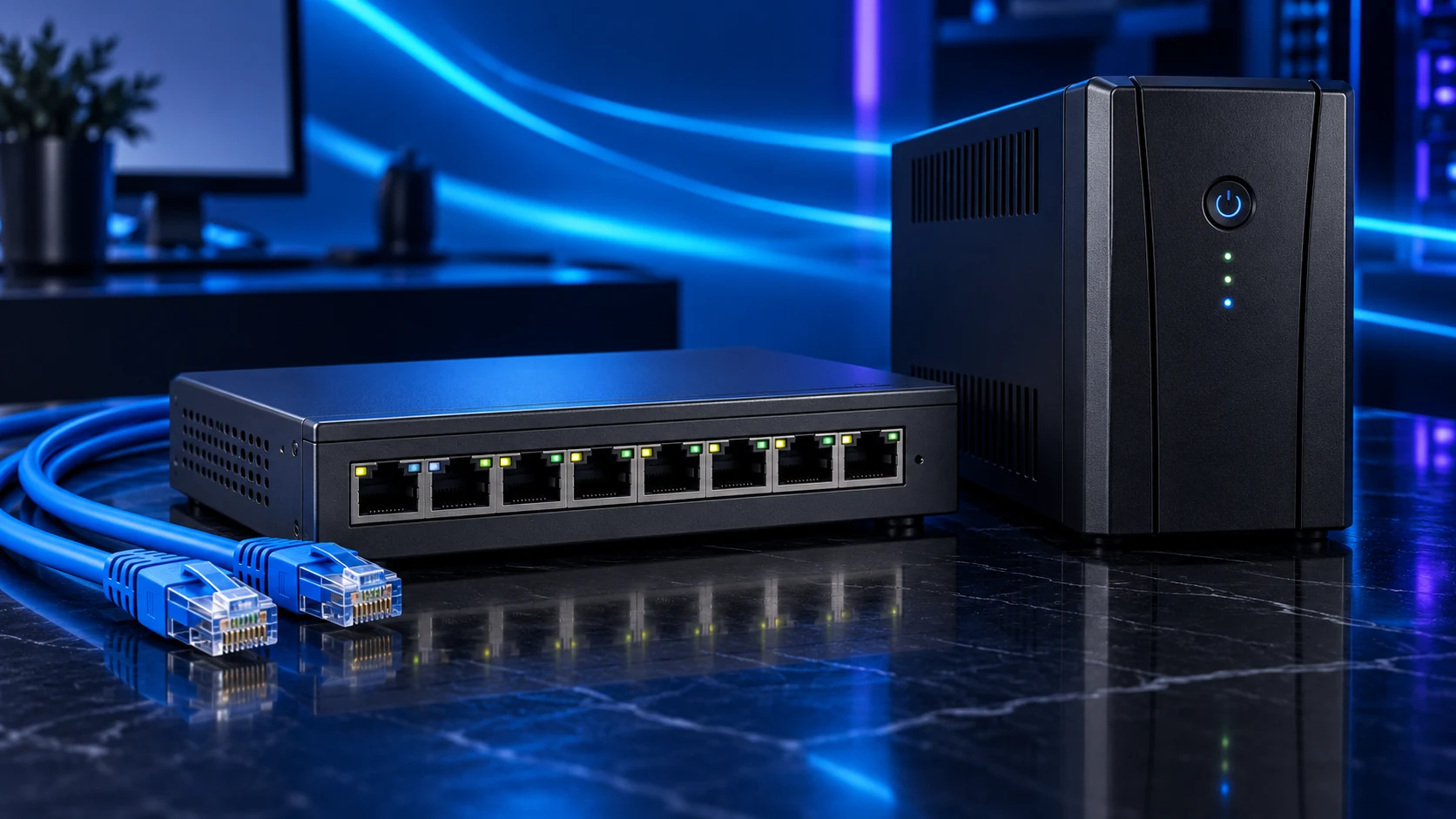
Connect a fixed gaming or work PC through Ethernet when a sensible route is available. Add a network switch when there are more wired devices than usable router ports. Count the uplink too: an eight-port switch using one port to the router leaves seven for other connections.
For large NAS transfers, a complete 2.5Gb/s path can be useful even when the internet package is slower. Both endpoints and every intervening switch port must support it. The adapter guide covers adding the PC connection; the cable guide covers the physical route.
Plan the installation and power
Provider handoff and one intended router
Ethernet to PC, NAS and TV where practical
Placed mesh or wired access points
Independent backup and supported UPS shutdown
Use accessible cable routes and label both ends. For permanent house wiring, plan the installation before buying a reel of cable. Match PoE devices to the power source and budget rather than assuming any Ethernet socket supplies power.
For a NAS, a suitable UPS gives time for a controlled shutdown. It does not create another data copy: use the NAS-backup plan as a separate part of the design.
Configure and check the complete setup
Apply current supported firmware, use a unique administrator password and the supported Wi-Fi security mode. Keep a record of the equipment and cable labels without storing passwords in a public document. Use guest-device isolation only when the chosen equipment supports the separation you want.
Check internet access, local server access and the same real task in each important room. Record the client device, location and connection for a useful comparison. Change one node position or setting at a time.
For weak-room results, follow the placement guide. For a slow server copy, check the wired link and storage path before replacing the router.
Specifications and setup: Access-point mode · Ethernet backhaul · Router connection · Node placement.