How to upgrade a home network to 2.5Gb/s for PC and NAS transfers
By James Thompson · Updated:
Some links in my articles are affiliate links. I may earn a commission when you buy through them.
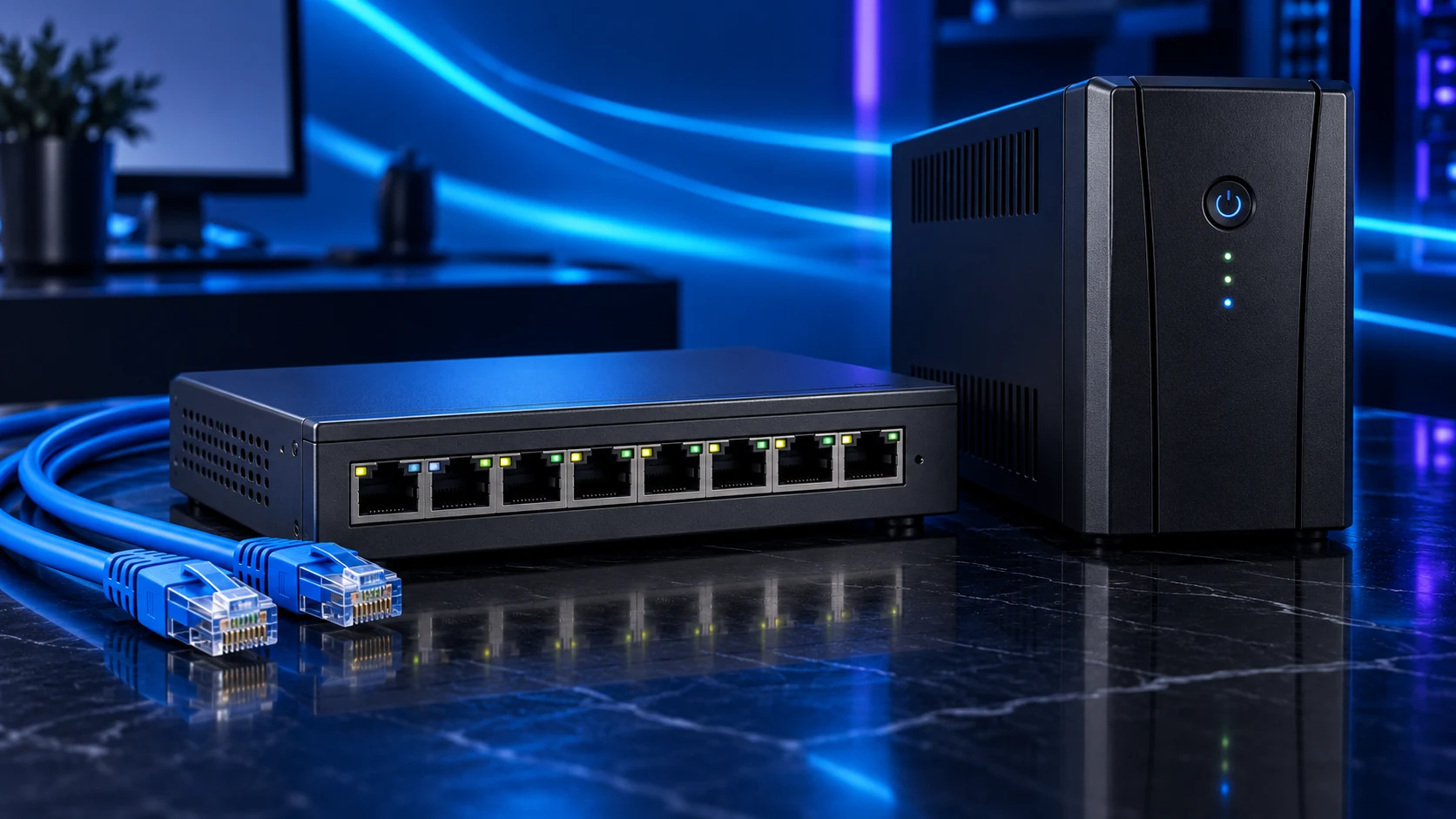
Upgrade the complete path between the devices that exchange large files. The PC interface, server interface, switch ports and cable must support the link; the source and destination storage must also make the extra network capacity useful.
Identify the transfer worth improving
Choose a repeatable job such as copying a large project from the NAS to the PC. Record the endpoints, file set and normal arrangement before changing equipment. The local network can be upgraded independently of a slower broadband package.
Check whether storage or application behaviour is the earlier limit. A slow HDD or a large collection of tiny files can hold the task back even when the network is available. The storage-role guide helps separate the working drive from the archive.
Upgrade every part of the intended path
| Part | Check |
|---|---|
| PC | Supported 2.5Gb/s built-in, PCIe or USB interface |
| Server/NAS | Supported 2.5Gb/s interface and driver |
| Switch | Every port in that path supports 2.5Gb/s |
| Cable/channel | Suitable installation and negotiated link |
| Storage/application | Source and destination can use the extra network capacity |
Use the adapter shortlist when the PC needs a new interface. For a NAS, check the server software’s explicit support; a USB adapter that works on Windows is not automatically supported by the NAS operating system.
Choose a 2.5Gb/s switch for that local path. The router may remain connected at gigabit while the PC and NAS exchange data on faster switch ports. That arrangement does not make the broadband service faster.

Check negotiation and a realistic transfer
PC and server show the intended negotiated speed
No intervening gigabit port
Same representative files and endpoints
Storage, CPU and application if the job remains slow
A 2.5Gb/s line rate corresponds to a theoretical 312.5MB/s before protocol overhead. Actual file-copy speed also depends on storage and the selected files. The useful comparison is the repeated task before and after the change.
If the link negotiates at gigabit, check both endpoints and the switch, then the cable. Keep automatic negotiation unless the device documentation requires a specific change. Avoid changing jumbo-frame settings across an unknown mixed network as a first troubleshooting step.
Finish the useful upgrade
Keep the old baseline and label the faster ports. For a USB adapter, preserve the host port/cable arrangement that produced the useful result. For a permanent cable fault, use appropriate installation checks rather than buying a higher category label blindly.
A faster transfer still needs a recoverable backup. For wireless clients, mesh or AP uplinks are a separate path with their own client and backhaul requirements.
Specifications and setup: 2.5Gb/s switch · PCIe interface · USB interface · Copper cable.