
Display cables and refresh-rate setup: connect your PC properly
By James Thompson · Published 7 October 2026
Some links in my articles are affiliate links. I may earn a commission when you buy through them.
For USB-C connections, use the host/video compatibility guide and the dock shortlist. The monitor guide separates gaming and working-screen routes.
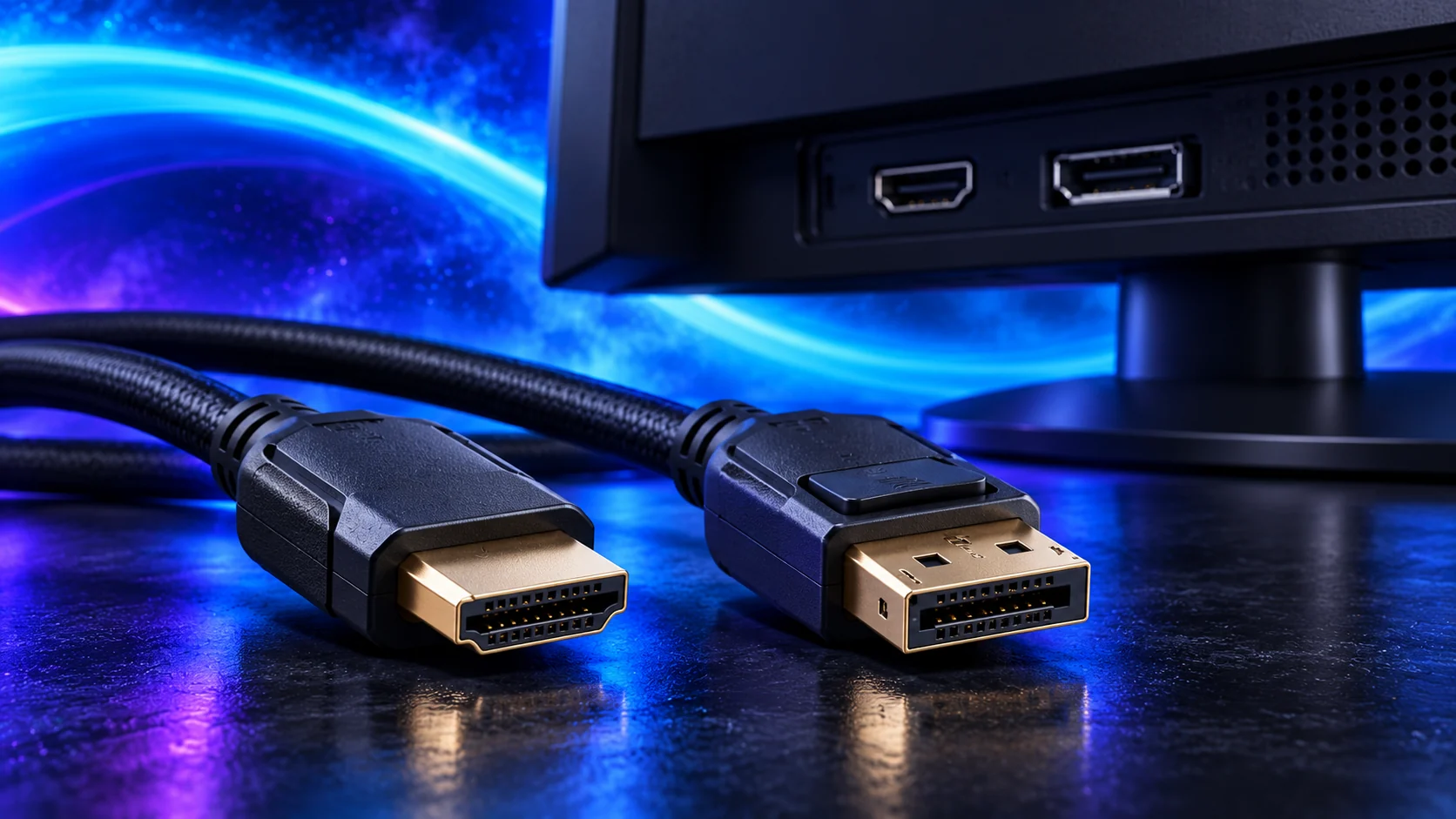
Use a direct connection from the graphics card to the monitor, then select the screen’s intended resolution and refresh rate in Windows. That last setting is easy to overlook when you’re keen to start a game.
Table of Contents
ToggleCheck the mode on the exact input
Read the monitor’s supported-mode table for HDMI, DisplayPort or USB-C as applicable. Inputs on the same screen can support different combinations of resolution, refresh and features.
Check the GPU output and cable capability too. A matching plug shape is necessary, but does not establish that an adapter, cable or USB-C port supports the required video mode.
For the hardware behind the screen, use the gaming GPU shortlist or the integrated-graphics work motherboard guide. Match the actual output to the display mode you want.
For the card behind the screen, read the GPU specification and output checks. The frame-delivery guide separates a display target from the frames the PC actually produces.
Connect the intended graphics path
For a gaming PC with a discrete graphics card, use the card’s output. A motherboard socket depends on the processor’s graphics provision and configuration.
Avoid an unnecessary adapter when a suitable direct connection is available. Check cable length and routing so the lead is not pulled sideways or sharply strained behind the desk.
Select the mode after driver setup
If the intended mode is missing
- Confirm the correct input is selected and its documented supported modes.
- Check the graphics driver and intended GPU output.
- Check cable specification and any adapter/dock limitations.
- Compare a known suitable direct cable if available.
- Return to a supported mode before experimenting with custom settings.
Validate in normal use
Check text, motion and the games you normally run. Select the intended refresh setting explicitly and adjust the response controls for that mode.
Use the display pairing guide if the available mode does not match the intended build target.