PC headset and audio connections:3.5mm, USB and wireless
By James Thompson · Updated:
Some links in my articles are affiliate links. I may earn a commission when you buy through them.
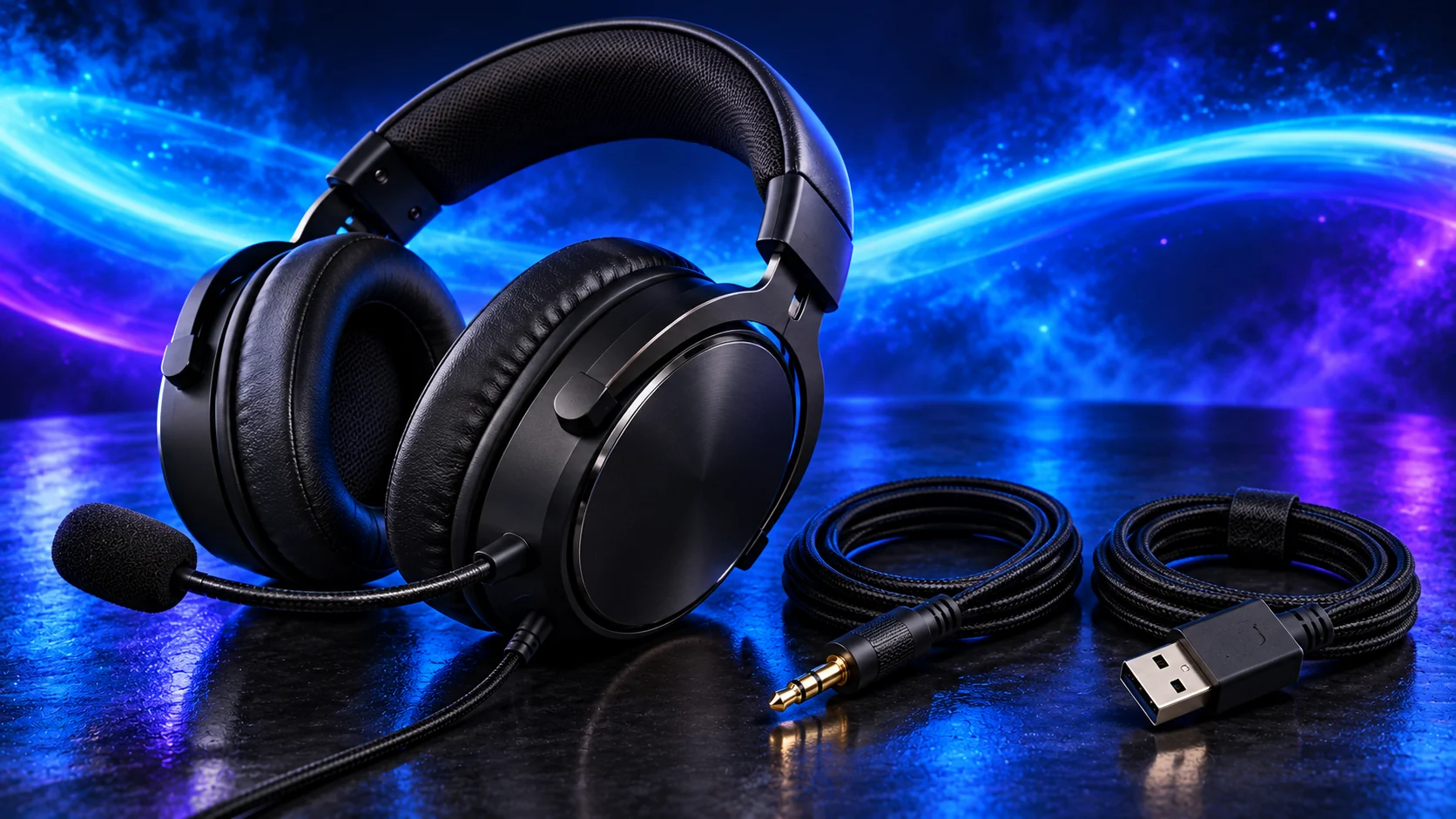
Match audio output and microphone input separately. A combined3.5 mm headset jack, two desktop sockets, USB audio and a wireless receiver are different routes. Choose the intended path, then select it in Windows and the app.
Combined sockets and separate sockets
A four-contact TRRS headset plug can carry headphones and microphone through a compatible combined socket. A desktop may instead provide separate headphone/line-out and microphone sockets. That needs the appropriate headset splitter, which differs from a simple stereo sharing cable.
The socket symbols and motherboard manual identify the job. A plug fitting physically does not establish microphone wiring compatibility. Front-panel connections also depend on the case’s HD Audio lead being attached correctly; the header guide covers the internal connection.
| Connection | Output/input arrangement |
|---|---|
| Combined headset socket | One compatible TRRS connection for both |
| Separate desktop sockets | Headphone and microphone paths connected independently |
| USB headset/microphone | A separate digital audio device |
| Dedicated wireless receiver | The supported receiver carries the device’s audio route |
USB is not always USB audio
Some speakers use USB only for power and receive sound through3.5 mm. A USB-audio speaker carries audio over the data connection as well. Likewise, a headset’s USB cable may charge a wireless model without providing a wired listening mode. Read the exact device’s supported modes.
Start with a direct rear USB connection while diagnosing an intermittent audio path. Once it works, test the intended hub with the same device. Charge-only cables and power-only sockets cannot carry a USB audio stream.
Wireless routes and application devices
A dedicated2.4GHz receiver and Bluetooth are distinct modes. Some Bluetooth arrangements change the available playback quality when a microphone path is active; behaviour depends on the device, operating system and supported audio profile. Choose the advertised PC receiver path when that is the headset’s gaming route.
In Windows and in the game/call app, select the intended playback and recording devices. A webcam microphone, monitor HDMI audio and USB headset can all appear at once. Set the devices by name so connecting a display does not accidentally become the new listening route.
Game, call or recording app
Named headset, speakers or display
Named boom mic, USB mic or webcam
One deliberate direct/app listening route
Choose the device after the connection
Use the headset shortlist for private listening/chat, PC speakers for desk listening and a USB mic for a separate voice route. The existing headset-or-speaker guide helps decide when each belongs in the setup.
For silent microphone input, check the selected device, physical mute, app access and splitter direction before replacing hardware. For a noisy recording, use the position/gain checklist.
Specifications and setup: CloudIII wired modes · Wireless model modes · USB audio vs power inputs.