Best gaming headsets for PC: analogue, USB and wireless in 2027
By James Thompson · Updated:
Some links in my articles are affiliate links. I may earn a commission when you buy through them.
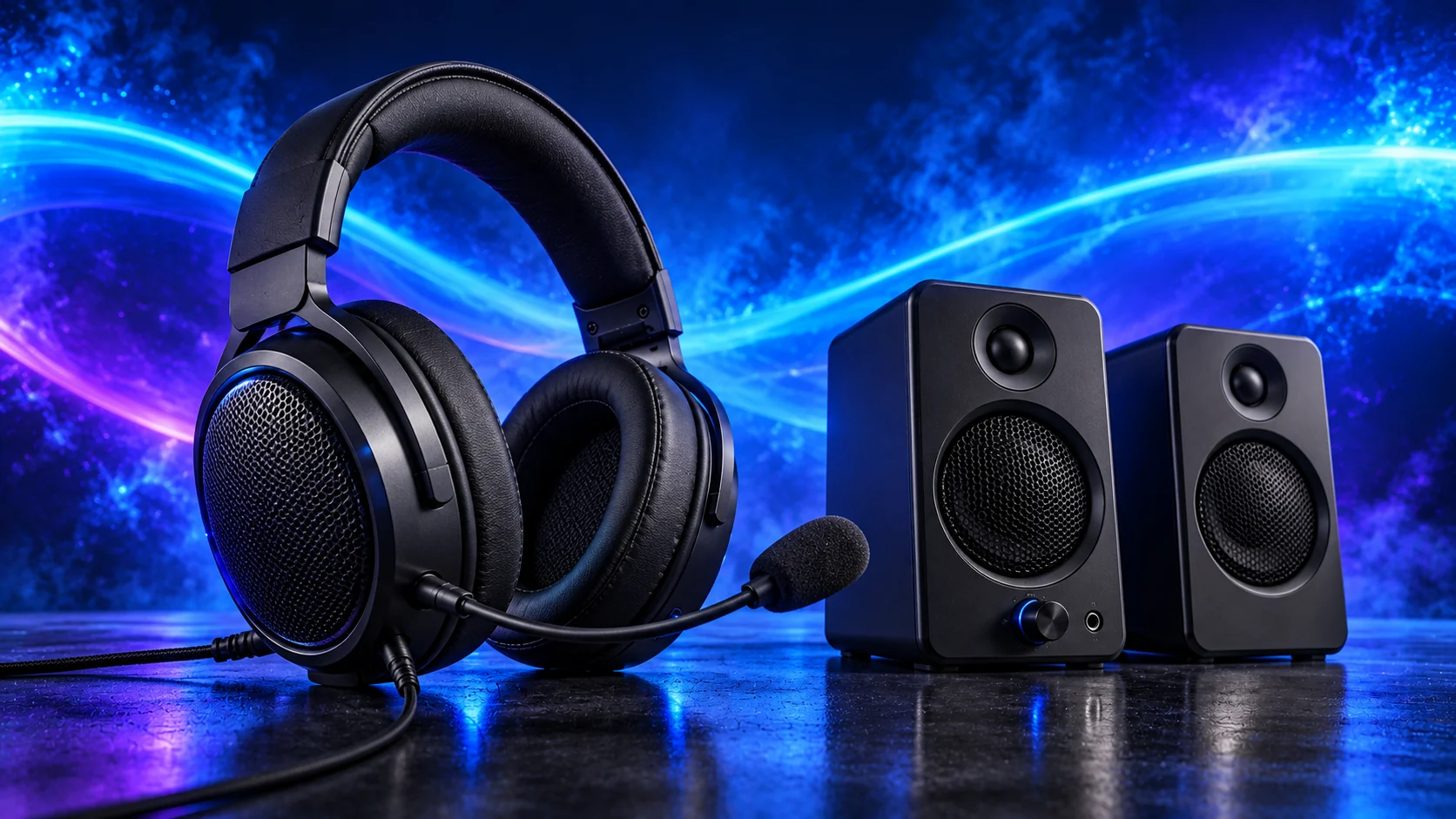
Choose the connection and wearing routine first. Arctis Nova1 is the simple analogue route, CloudIII wired gives USB and analogue options, and CloudIII Wireless removes the cable for a PC using its dedicated receiver.
Table of Contents
ToggleThe shortlist: choose for your setup
| Use | My choice | Why choose it | Choose another when |
|---|---|---|---|
| Budget analogue setup | SteelSeries Arctis Nova 1 | A3.5 mm route for a PC or compatible controller with a microphone connection. | You need wireless or a USB audio device to bypass the PC’s analogue connection. |
| USB and analogue flexibility | HyperX Cloud III wired | USB-C/USB-A and 3.5 mm routes let the intended device determine the connection. | Your main requirement is freedom from a headset cable. |
| Cable-free PC gaming | HyperX Cloud III Wireless | A dedicated2.4GHz receiver connection for the compatible PC setup. | You specifically need Bluetooth or wired3.5 mm fallback. |
The shortlist compares connection, microphone arrangement and ownership routine. It does not turn driver diameter or virtual surround branding into a measured sound-quality ranking.
Budget analogue setup: SteelSeries Arctis Nova 1
Nova1 suits the straightforward wired setup: plug in the analogue audio route, position the microphone and set the input level. Check whether the PC has a combined headset socket or separate headphone and microphone sockets; that determines the splitter arrangement.
Choose it for the simple connection and controls. Desktop processing such as SteelSeries Sonar is a separate software layer, not a feature that every connected console or controller reproduces. Start with clear stereo and a familiar volume before adding processing.
USB and analogue flexibility: HyperX Cloud III wired
The wired CloudIII makes sense when the headset moves between a desktop and another compatible device. USB gives the PC a separate audio path; analogue uses the connected device’s output/input arrangement. Choose the route you will actually use, then configure that input and output in the game or call app.
James’s CloudIII account describes adjusting the fit before a long session, placing the mic consistently and checking its input level. Those controls earn attention before surround effects. Keep mute and volume reachable, and avoid stacking several virtual-surround systems on top of one another.
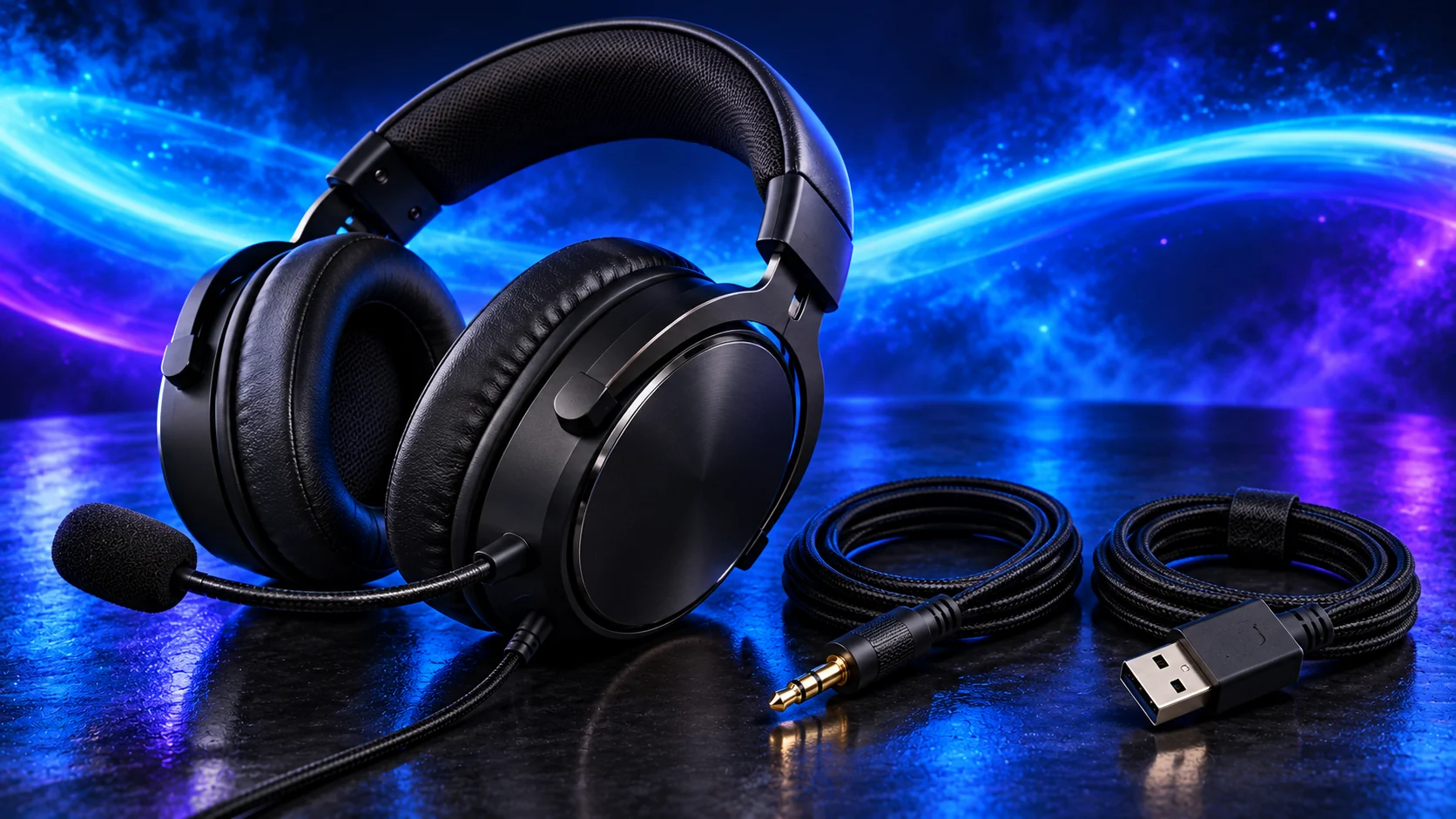
Cable-free PC gaming: HyperX Cloud III Wireless
CloudIII Wireless belongs on the list when the headset lead is the inconvenience you want to remove. Its dedicated receiver and charging routine are different from the wired CloudIII’s USB/analogue flexibility. Do not assume the similar name means the same modes.
Keep the receiver position and supported platform in the setup plan. Charge where the lead can reach without being pulled tight and store the headset without twisting the band. Manufacturer battery figures describe test conditions; the reason to choose this version is the wireless routine, not an invented measured runtime.
The session matters more than the badge
Glasses, headband adjustment and ear-cup fit affect how the complete session feels. If a model presses in the wrong place, a larger driver or more sound presets does not solve that physical mismatch.
For game chat, keep the microphone close and consistent. A headset boom can be a more useful solution than a distant desktop mic in a noisy room. Reduce the source noise and input gain before buying another audio device.
Use the exact supported input/output route
Adjust the headband and microphone position
Choose the device in Windows and the app
Start with stereo and a clear voice level
Finish the setup
For listening without wearing a headset, compare PC speakers. For recording rather than routine game chat, see USB microphone choices.
Specifications and setup: Nova1 · CloudIII wired · CloudIII Wireless data.