
Best Monitors for an Esports PC in 2027
By James Thompson · Updated:
Some links in my articles are affiliate links. I may earn a commission when you buy through them.
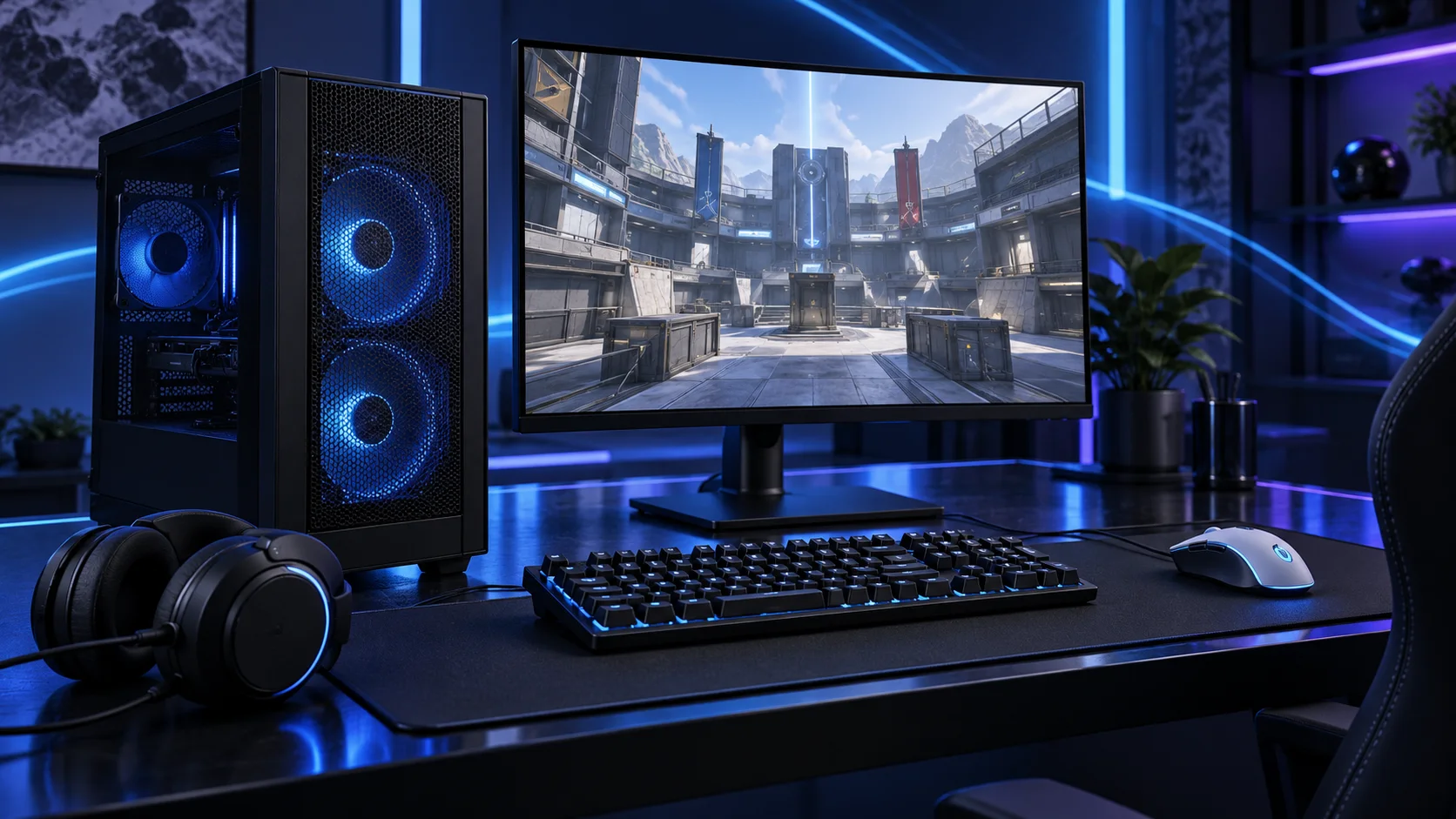
Choose the screen’s resolution and refresh plan alongside the GPU. These routes distinguish a compact 1080p desk and a sharper mixed-use 1440p desk; neither becomes a tournament-grade recommendation just because a refresh number is printed on the box. Here is the shortlist I would use, with the lower-cost and more capable routes kept alongside the complete competitive esports setup.
Table of Contents
ToggleChoose the right option for your build
| Best for | My choice | Why it fits |
|---|---|---|
| Best lower-cost focused desk | AOC 24G4XED | A smaller 1080p screen keeps the display workload and total setup manageable. |
| Best mixed gaming and desktop route | MSI G272QPF E2 27-inch | A 27-inch 1440p display balances a useful workspace with gaming. |
Start with the shortlist below, then use the complete build guide to match your choice to the rest of the setup.
Complete the desk with a compatible monitor arm and the keyboard layout. For a recording setup, use the microphone and webcam buying routes.
Best lower-cost focused desk: AOC 24G4XED
A smaller 1080p screen keeps the display workload and total setup manageable.
The AOC 24G4XED is the smaller 1080p gaming route. I would choose it for a budget gaming desk or a focused competitive setup that values the display workload staying manageable.
Use the exact model’s supported refresh modes. Similar AOC names can refer to different stands, panels and connection options, so do not treat every 24G4 variant as one product.
Best mixed gaming and desktop route: MSI G272QPF E2 27-inch
A 27-inch 1440p display balances a useful workspace with gaming.
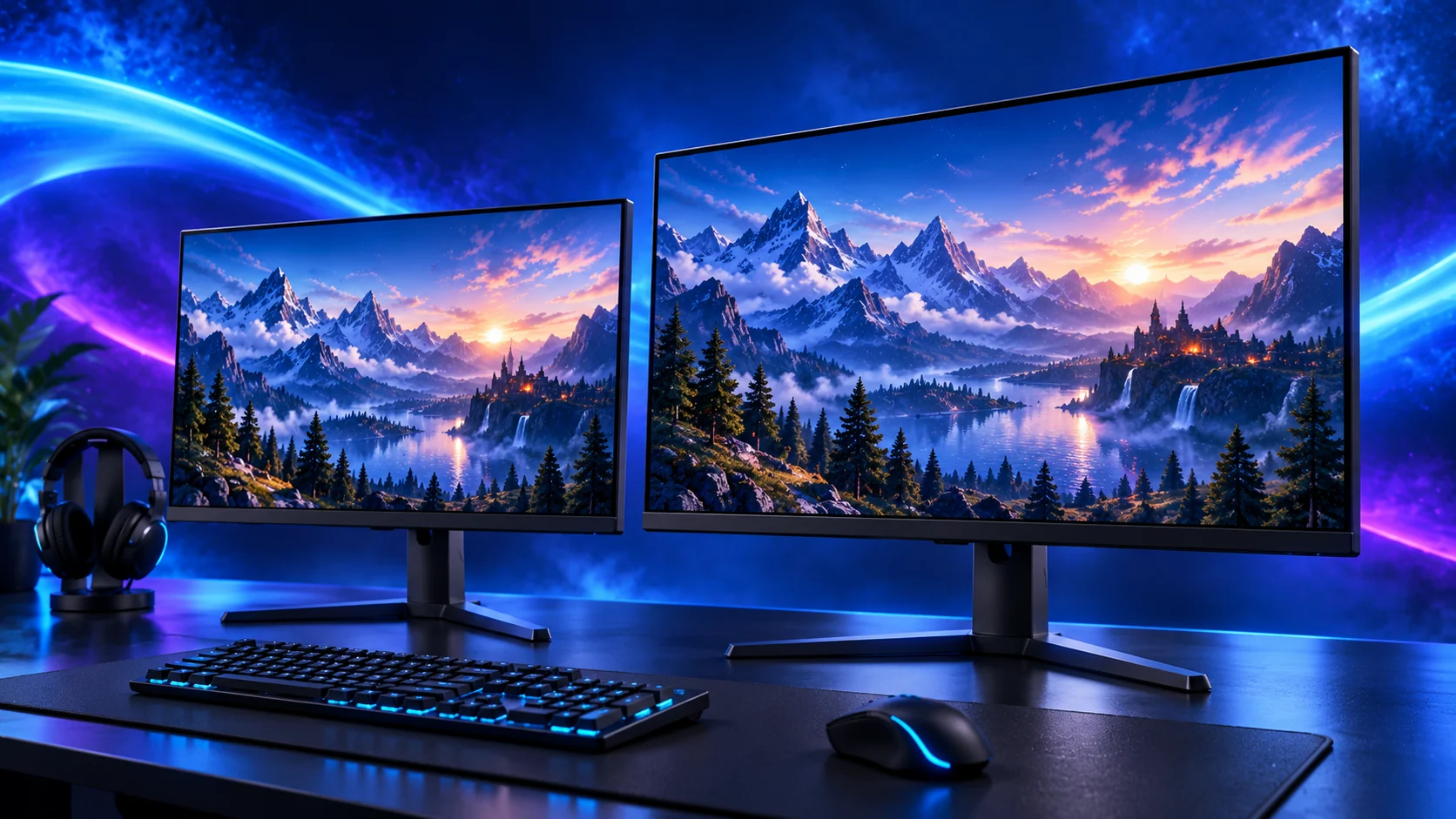
The MSI G272QPF E2 is the 27-inch 1440p gaming route. I would choose this kind of display when resolution, desk size and a useful refresh rate need to sit together without turning the entire setup into a premium display purchase.
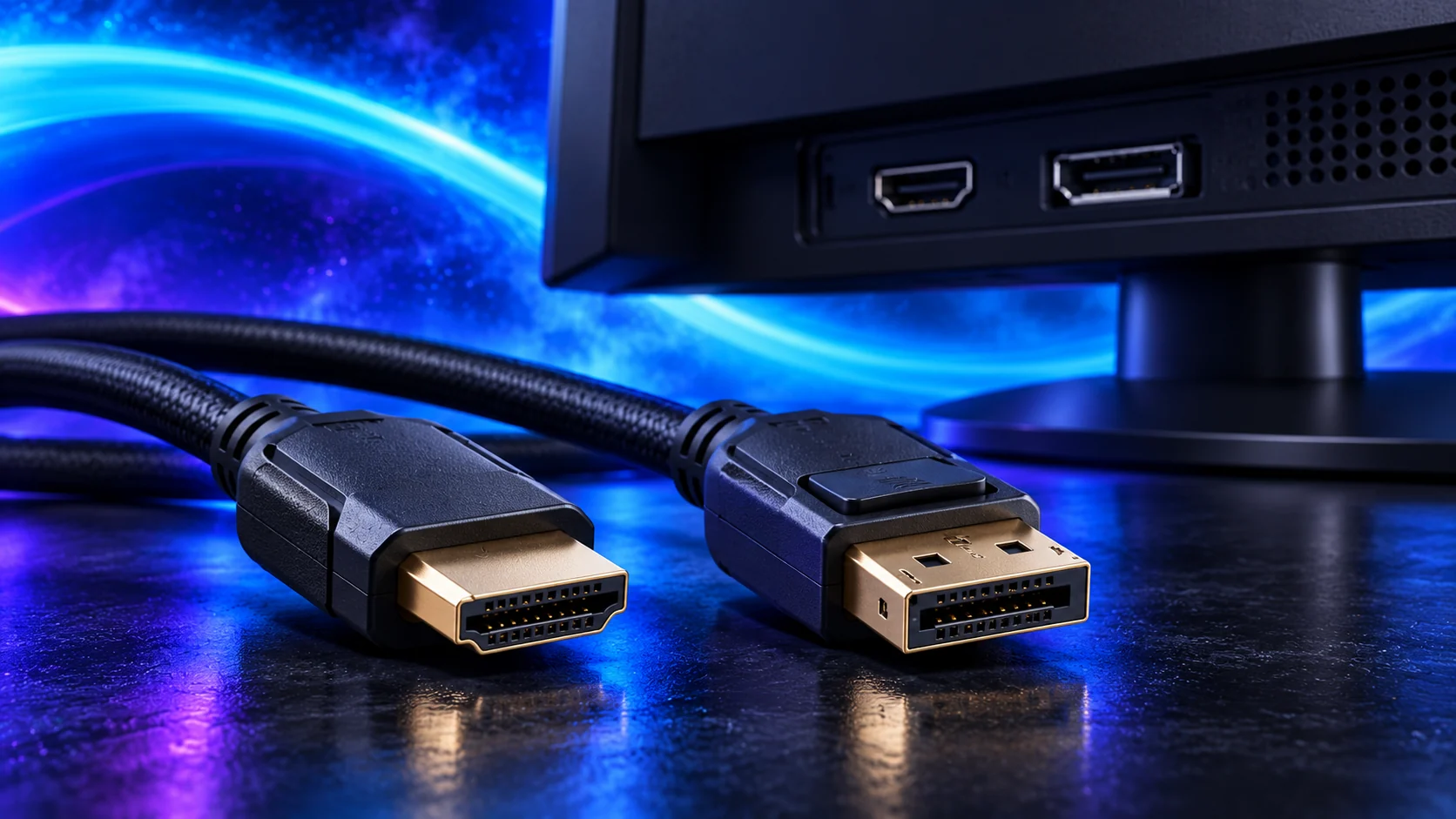
Connect through a supported input and select the intended refresh rate in the operating system. A faster panel is useful only when the PC, game and connection are set up to use it.

How I would choose between these routes
Set resolution, refresh rate and supported adaptive-sync settings after connecting the monitor through the appropriate input. Choose comfortable scaling and viewing distance. A high-refresh monitor left at the default operating-system setting does not use the mode you paid for.
For a serious competitive monitor upgrade, compare measured response behaviour, overshoot and input lag at the mode you intend to use. Refresh alone does not provide that evidence. Start with the affordable shortlist if the budget is limited, then make a specialist premium-panel purchase using testing of the exact model.
If you want to move from these LCD options to OLED, compare the OLED gaming shortlist and keep the monitor and GPU inside the same setup budget.
Include the rest of the setup
Name the competitive game, display resolution and the settings you prefer. A focused 1080p esports desk is a different purchase from playing demanding new games at 4K. Keep the mouse, keyboard, network and monitor in the total budget. Those are the parts you interact with every round, so a premium tower with an awkward desk is a poor complete upgrade.
Set the monitor’s intended refresh mode and establish a stable game baseline before adding recording or overlay tools. Use wired Ethernet where practical, choose consistent input settings and keep the desk arranged so the mouse has enough room.
The supporting parts I would put beside it
Use a roomy NVMe drive for the titles you play and leave space for patches and recordings. Fast storage improves convenience around loading and updates; it is not a substitute for the CPU, graphics and display path during a match.
| Role | Suggested route | Why I include it |
|---|---|---|
| Memory | Corsair Vengeance 32GB DDR5-6000 CL30 | Choose capacity for the active work and surrounding desktop. |
| Working drive | Crucial P310 2TB M.2 2280 | Keep active files and useful free space on the NVMe drive. |
| Case | NZXT H5 Flow (2024) | Use the complete layout rather than an isolated component maximum. |
Complete the purchase plan
When upgrading, identify the limit in the actual title and settings. Keep frame generation separate from native responsiveness decisions. A stable configuration and comfortable display are a useful first goal before chasing a headline number without an exact benchmark to support it.
Compare the complete basket for the chosen route and keep the exact variant in the order. Use the wider monitors guide for the underlying choice, or return to the complete competitive esports build for the supporting purchases.
Build a competitive esports PC
Technical references: NVIDIA Reflex and latency guidance.