
Mini PC Proxmox Checklist: What to Check Before You Install
By James Thompson · Updated:
Some links in my articles are affiliate links. I may earn a commission when you buy through them.
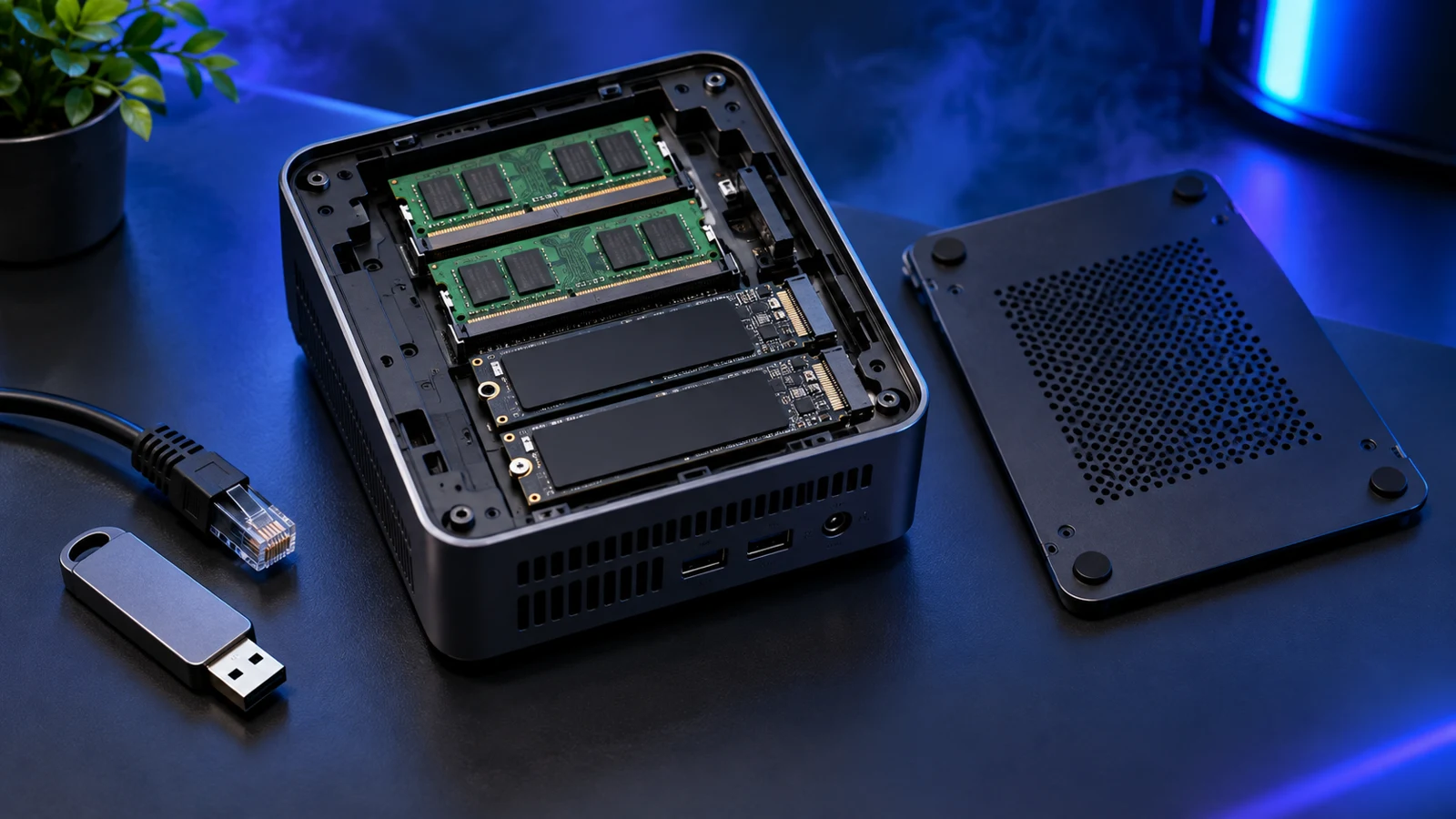
Before erasing a mini PC for Proxmox, confirm its virtualisation settings, installed memory, storage devices and wired network controller. Save the original system recovery route and identify the installation disk by model and capacity. These checks are easiest while the original operating system still works.
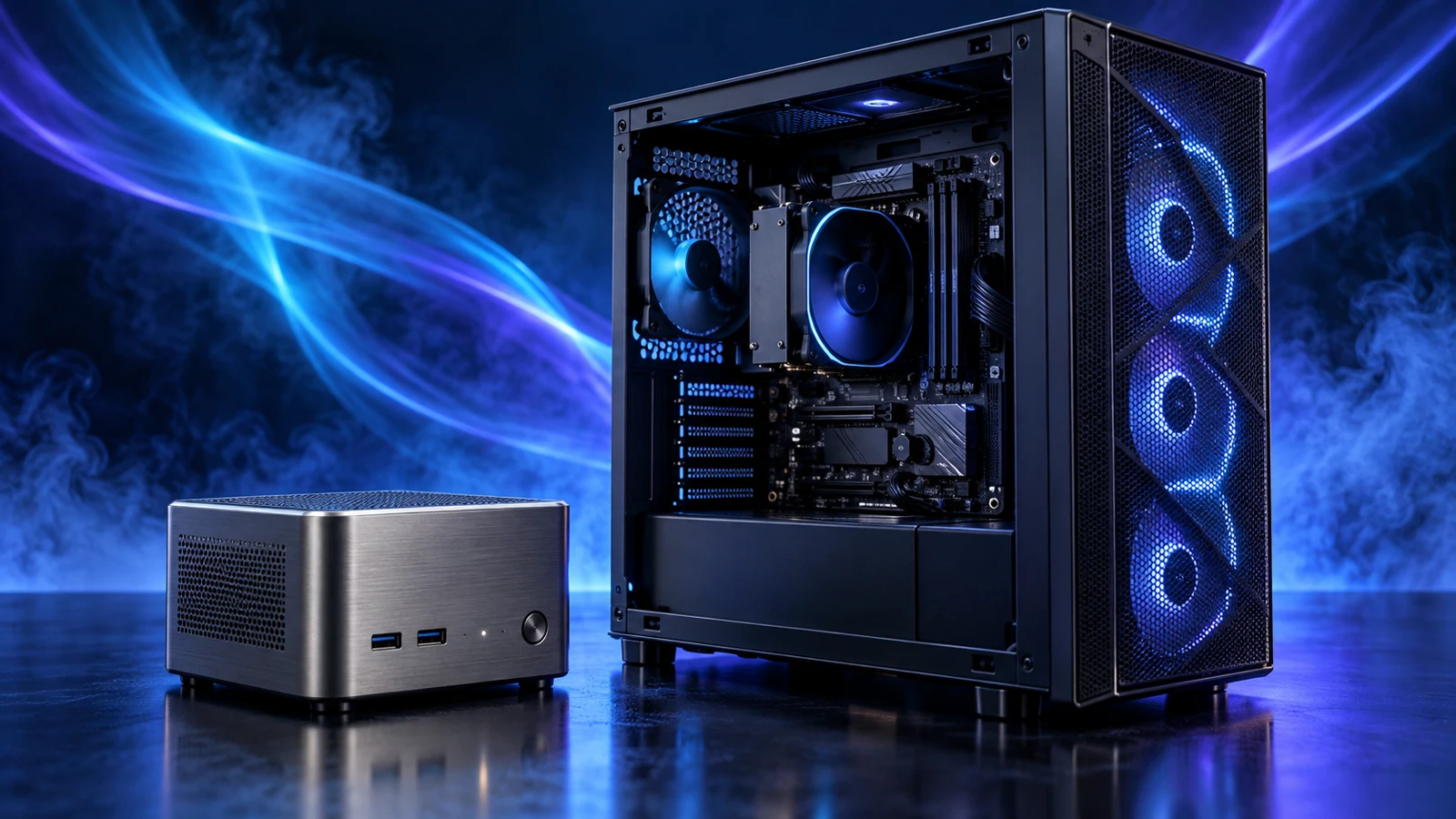
Already choosing between machines? Start with mini PC versus tower for a home lab. This checklist is for the next step: turning an exact machine into a usable learning host without losing your recovery route.
Table of Contents
ToggleRecord the machine and keep a way back
- Write down the exact model, CPU, installed RAM, SSD models and firmware version. Similar product names can hide different boards or controllers.
- Save the manufacturer’s service manual and recovery instructions on another computer. Retain encryption recovery information if the existing installation uses it.
- Copy any files you need and check that the copies open from a separate device.
- Label the drive you intend to erase. Disconnect removable backup drives before running an installer.
The Proxmox installer removes existing data from the selected target drives. Do not choose a disk by its position in a list: compare its model and capacity with your record. If you want to preserve the supplied system intact, a separate compatible SSD can be a useful installation target. Follow the machine’s service instructions before opening it.
A mini PC sold with Windows has been configured for that operating system. For Proxmox, you need the exact wired controller and storage devices to work with the intended Proxmox release. A working Windows connection does not confirm the Linux driver path.
Enable virtualisation; separate out passthrough
On an x86 host, check the firmware manual for Intel VT-x or AMD-V/SVM and enable the supported CPU virtualisation setting. Proxmox needs a capable CPU and motherboard for KVM hardware-assisted virtual machines. Record the setting so that a later firmware reset is easy to spot.
PCIe passthrough adds another requirement. The CPU and board need IOMMU support—Intel VT-d or AMD-Vi—and the device needs suitable isolation. The Proxmox passthrough guide explains the checks. Make the first installation work with ordinary virtual devices before adding passthrough.
A GPU or network controller assigned directly to one guest becomes unavailable to the host and other guests. Plan the host’s display and management connection before assigning either. With only one wired NIC, keeping it with the host and using a bridge for guests is usually the simpler first-lab arrangement.
Does the CPU and firmware expose VT-x or AMD-V/SVM?
Does the complete platform provide IOMMU support and suitable device isolation?
Check the RAM and SSDs you can actually use
Compare installed memory with the guests that will run together. For example, guest allocations of 8GB + 4GB + 4GB + 2GB total 18GB, before the host and storage services. A 32GB configuration leaves 14GB for the host, storage services and growth in that example. CPU and storage demand still depend on what those guests are doing.
Check whether the mini PC uses removable SO-DIMMs or soldered memory, the supported DDR generation and the manufacturer’s validated capacities. Desktop DIMMs from a tower build do not fit a SO-DIMM slot. The mini-PC upgrade guide explains the formats.
For storage, note each populated and spare position, its supported interface and drive length. An M.2 slot may support NVMe, SATA or a particular subset; the physical connector does not settle compatibility. Choose the target layout before buying a second SSD.
Keep the first lab’s storage easy to understand. Name the host disk, the guest storage and the separate backup destination. If you choose ZFS, include its additional memory needs and use the supported disk arrangement; Proxmox does not support putting ZFS on top of hardware RAID. Production storage has higher requirements, including the official recommendation for power-loss-protected SSDs.
Plan a reachable wired management connection
| Item | Your intended record | Why it helps |
|---|---|---|
| Wired NIC | Controller model and physical port | Identify which connection the host will use. |
| Host address | A planned address appropriate to your LAN | Avoid losing the management page after a restart or network change. |
| Gateway and DNS | Your actual network values | The host needs a working route and name resolution for updates. |
| Management device | A second computer on the same intended network | Use it to reach the host after installation. |
| Recovery access | Local display/keyboard and recorded settings | Recover a failed network change without relying on the broken connection. |
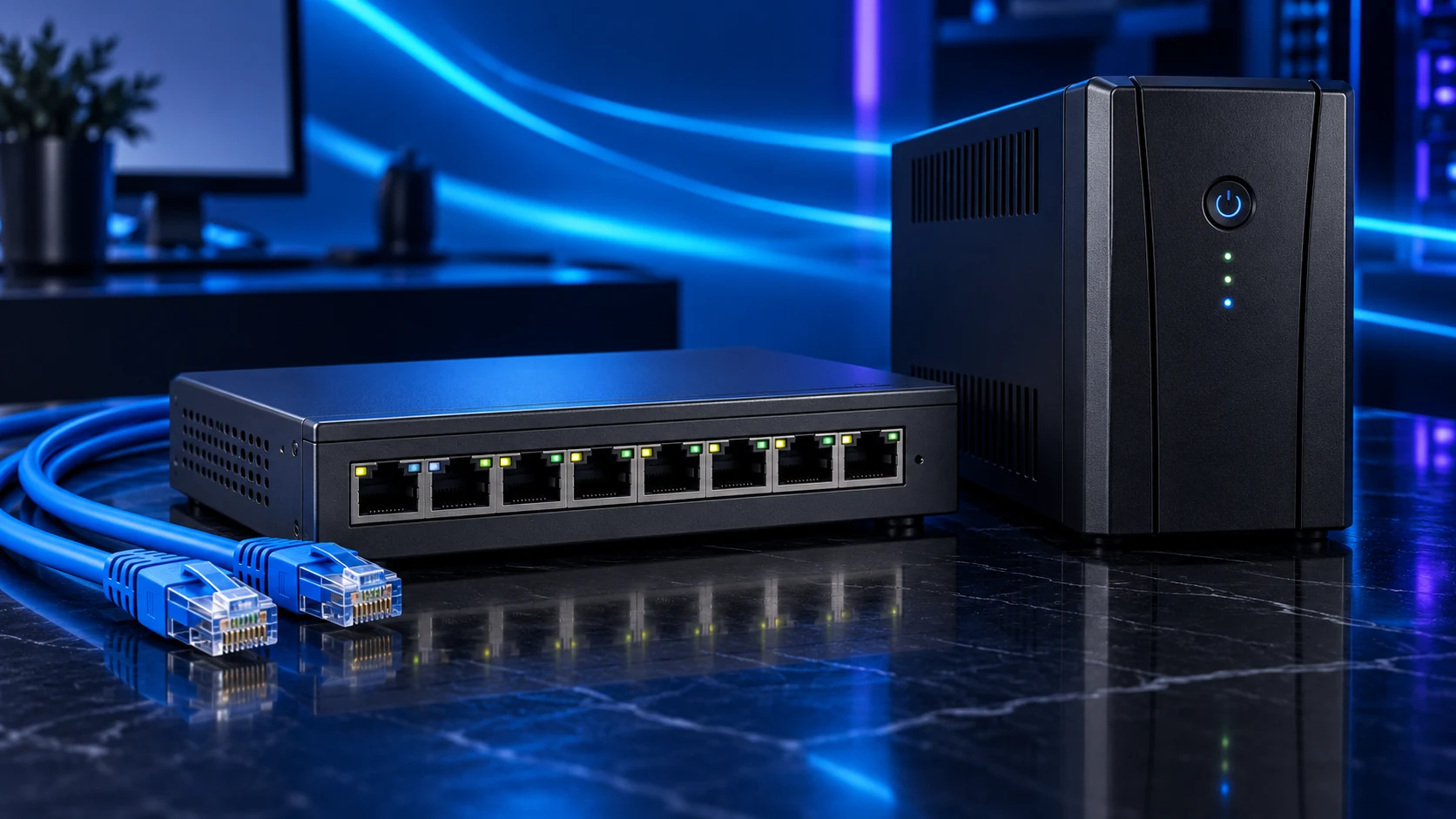
Use a wired port for the first installation and keep the management network simple. After installation, Proxmox provides its web interface at the host’s address on port 8006. Check that the page opens from the second computer before creating several guests.
If you want VLANs or a router VM, add them once the basic host is reachable. Keep a record of which cable and physical port carry management traffic. A network experiment is much easier to undo when you have local console access.
For faster transfers to an existing NAS, the 2.5Gb home-network guide explains the complete path. A 2.5Gb host port alone will not make a gigabit switch or NAS connection run faster.
Use a staged first boot and guest test
- Download the intended installer from the official Proxmox site and prepare the USB medium using the documented installation-media method.
- Boot the installer and confirm it can see the intended wired NIC and storage. Resolve missing devices before selecting any disk for installation.
- Install only after confirming the target disk and recovery copy. Record the chosen hostname, management address and network settings.
- After reboot, reach the management interface from the second computer. Follow the current documentation for the appropriate update repository and install updates before adding important services.
- Create one disposable guest. Check its virtual disk, network access, shutdown and restart before cloning a larger set.
- Configure guest backups to a separate destination, run a backup and restore it as a separate test guest. Keep its network isolated if duplicating the original service could create conflicting addresses or identities.
Use the first guest to find hardware and networking problems while there is little to move. Then add the remaining services one at a time, keeping an eye on memory and storage use. Only introduce a passed-through device after the plain virtual configuration works.
Check recovery, backups and the final shopping list
For an unattended host, find the manufacturer’s documented power-loss restart setting. “Wake on LAN” and “restart after AC power returns” are different features. Test the intended restart behaviour with a disposable setup after an orderly shutdown; do not pull power from a host while it is writing data.
Backups need a destination that remains useful if the mini PC fails. An existing NAS or a separate backup server can provide that separation. Proxmox supports file-level backup storage and Proxmox Backup Server; choose the setup you can maintain and verify a restore. Its backup documentation also explains important exclusions: container bind/device mounts are not included as ordinary managed volumes.
Use the home-lab host comparison to revisit the purchase if the checks reveal a missing port, inadequate memory or the need for internal expansion. For a tower, the processor, RAM and SSD buying guides connect to the complete Proxmox build.
Software guidance checked against the official Proxmox installation, passthrough and backup documentation on 16 October 2026. Keep the exact machine’s service manual with your host notes so future upgrades follow its hardware layout.