
External SSD USB speeds explained: 5, 10 and 20Gb/s connections
By James Thompson · Updated:
Some links in my articles are affiliate links. I may earn a commission when you buy through them.
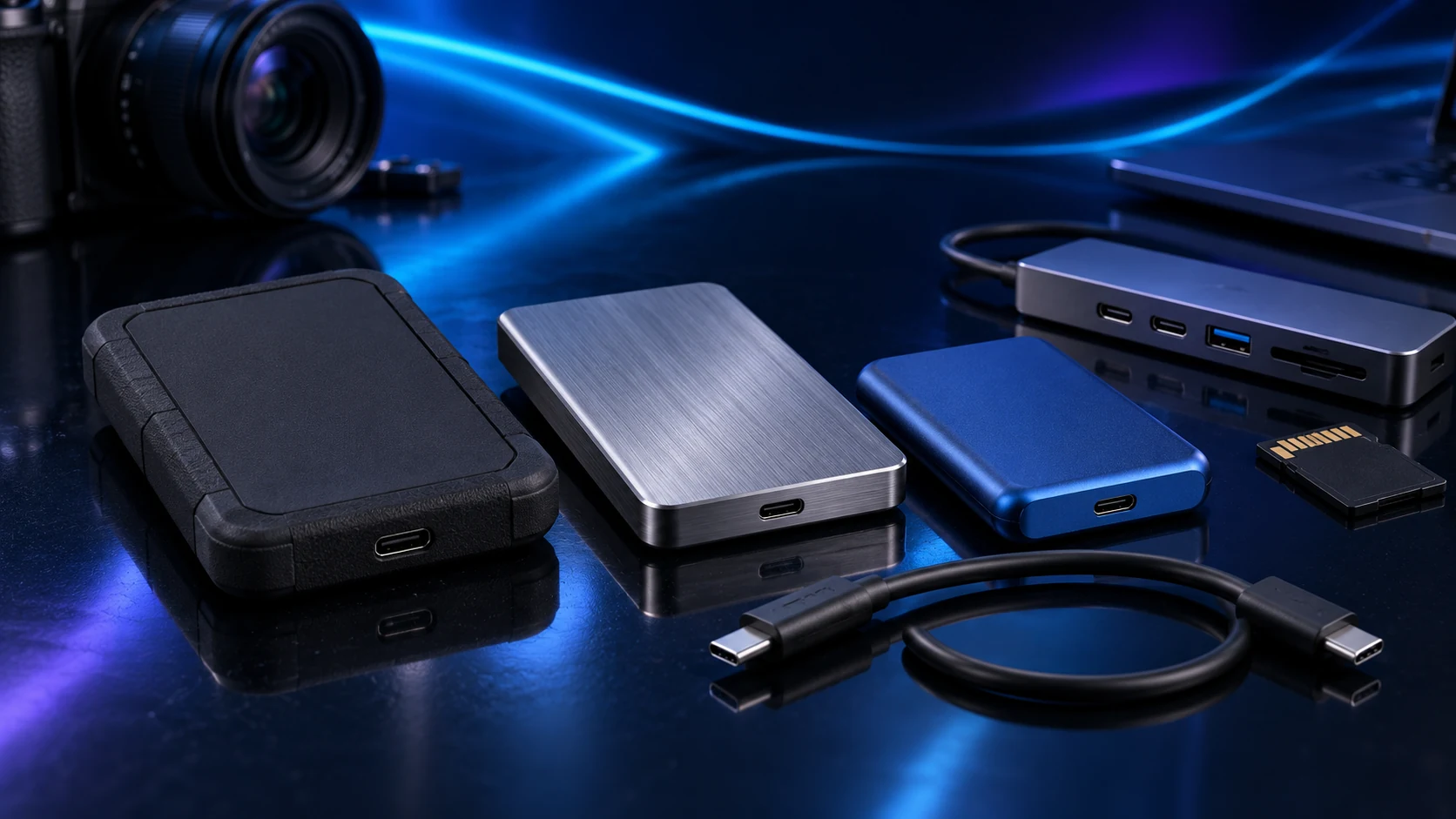
Match the drive, computer port, cable and any hub between them. The slowest supported part of that chain sets the interface ceiling; the actual transfer also depends on the source, files and storage behaviour.
Read the data rate, not just the connector
| Mode | Signalling rate | What to identify |
|---|---|---|
| USB 3.2 Gen1 | 5Gb/s | Often also named USB3.0 or USB3.1 Gen1 |
| USB 3.2 Gen2 | 10Gb/s | Exact host, cable and drive support |
| USB 3.2 Gen2x2 | 20Gb/s | Explicit two-lane Gen2x2 host support |
| USB4/Thunderbolt | Depends on the specific link/device | The supported USB fallback modes too |
USB-C describes the socket shape. A port can support a fast USB4 or Thunderbolt path without supporting the particular 20Gb/s Gen2x2 mode a portable USB SSD uses. Read the host’s documented USB modes before paying for the drive interface.
For the Samsung comparison, T7/T7 Shield use 10Gb/s USB and T9 uses 20Gb/s Gen2x2. That makes the buying choice clearer when the PC’s port is known.
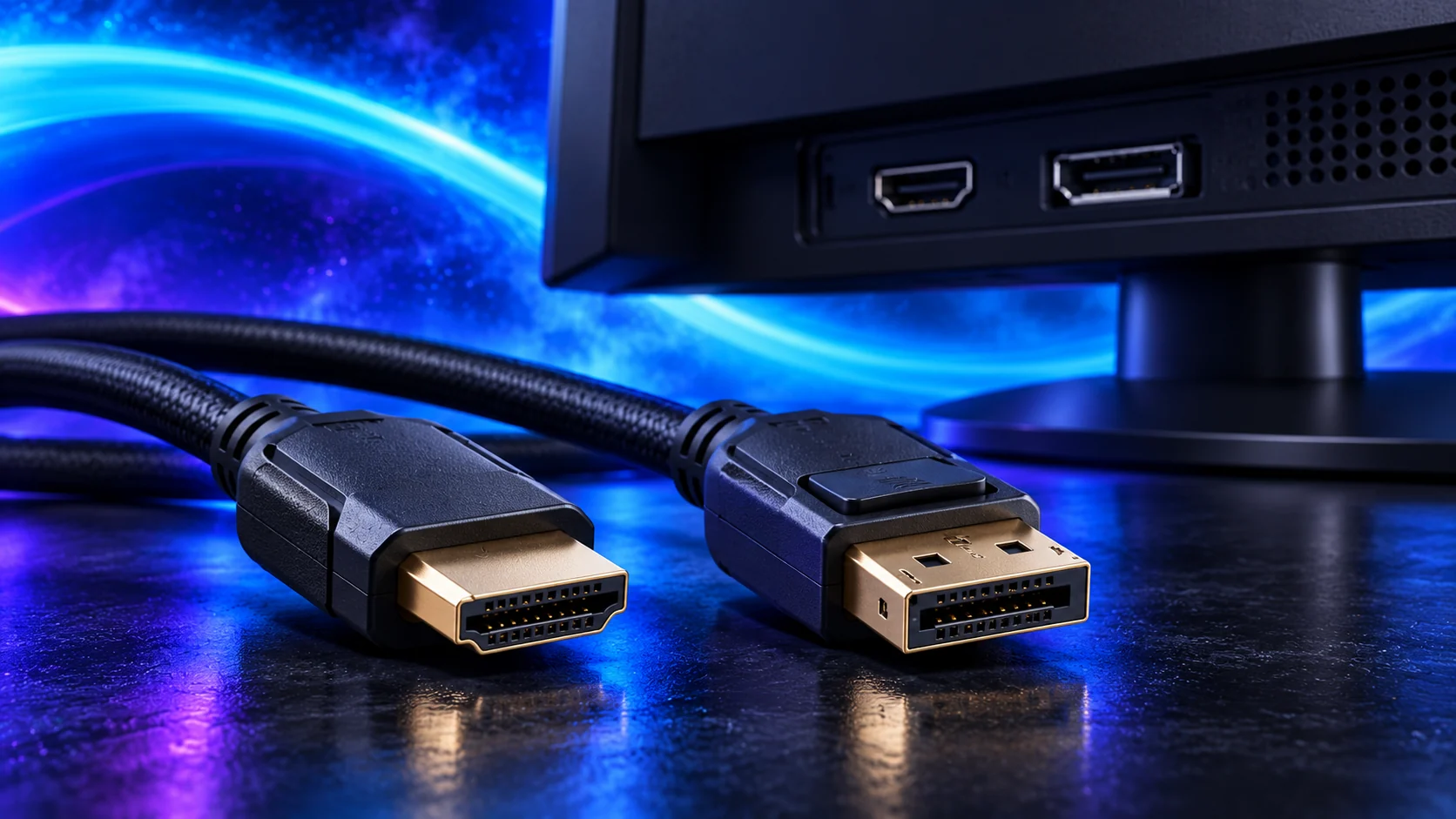
The theoretical conversion is not a transfer result
Dividing a signalling rate by eight converts bits to bytes: 10Gb/s corresponds to 1.25 GB/s before encoding/protocol overhead and storage limitations. It is a theoretical ceiling calculation, not a claim that a file copy will reach that speed.
A folder containing thousands of small files behaves differently from one large sequential file. The source card, internal drive or network can also be the limiting part. Measure the job you repeat rather than using one headline speed to describe every task.
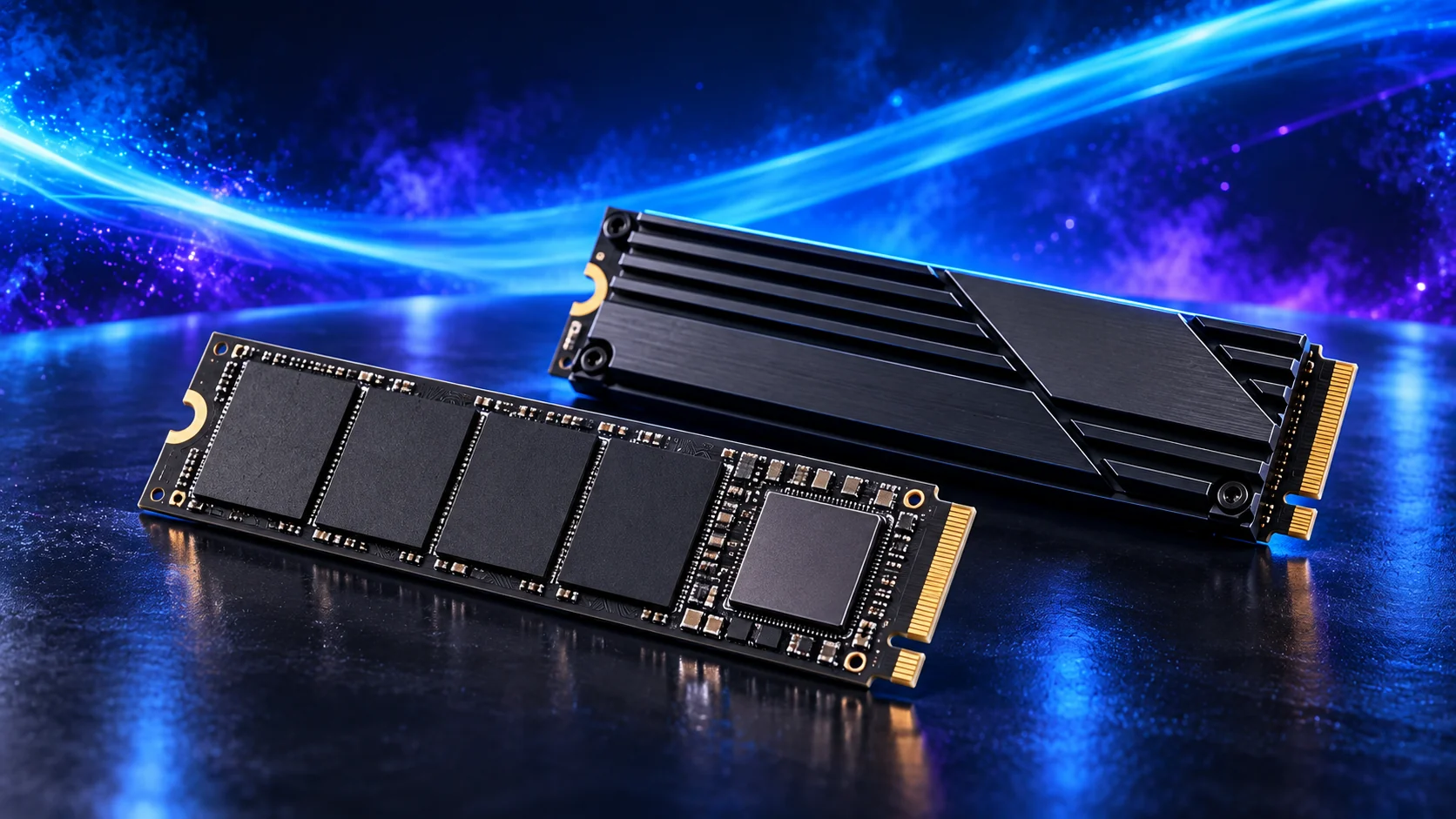
Keep the cable and hub in the plan
Card, network or internal drive
Exact port and controller path
Cable and shared hub/dock link
SSD behaviour, capacity and files
Use a correctly rated data cable. A charging cable can be the wrong choice even when its plug fits. Several drives on a hub share its host link, and a display dock adds its own resource arrangement.
Try a direct supported port when diagnosing a unexpectedly slow or unstable route. Change one connection at a time so the improvement identifies the cause. The hub guide and dock guide separate those buying jobs.

Buy the useful capacity and interface
Choose enough space for the active files and decide whether the drive travels. Pay for 20Gb/s when both the host and repeated transfer job support it. For a backup that runs overnight, larger HDD capacity may be the useful difference instead.
Keep a separate backup of important material on an active portable SSD. A faster copy does not remove the need for a recoverable second version.
Specifications and setup: Samsung interface chart · T9 host mode · Shared hub connection · SOHO interface modes.