
Best Monitors for a Photography PC in 2027
By James Thompson · Updated:
Some links in my articles are affiliate links. I may earn a commission when you buy through them.
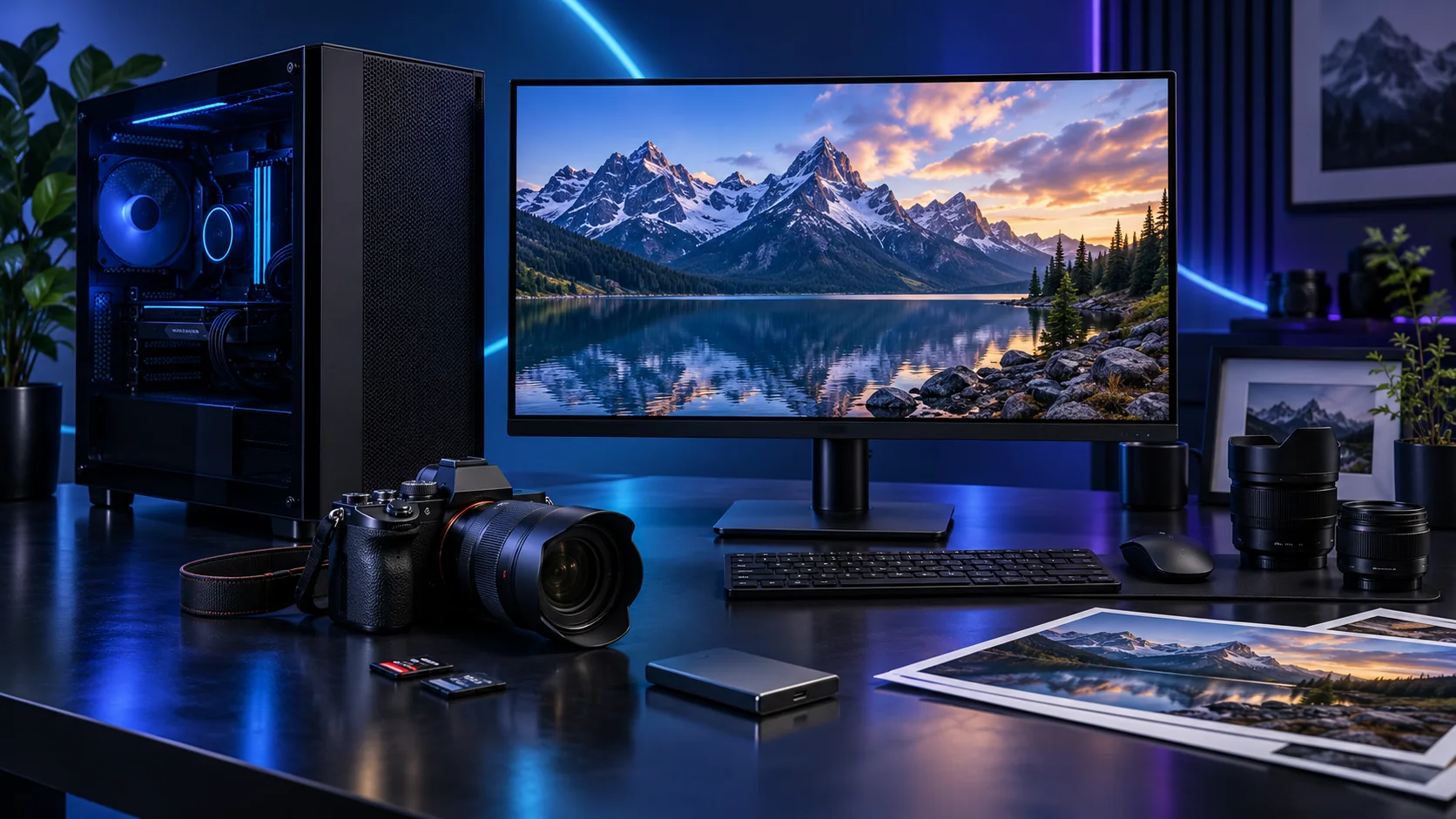
Choose the display according to the output and desk. These choices separate a 4K creative editing route from a less expensive mixed-use monitor, while keeping colour management in the setup rather than treating a factory label as the entire workflow. Here is the shortlist I would use, with the lower-cost and more capable routes kept alongside the complete photography and lightroom setup.
Table of Contents
ToggleChoose the right option for your build
| Best for | My choice | Why it fits |
|---|---|---|
| Best sRGB-oriented 4K starting point | ASUS ProArt PA279CV | A 27-inch 4K creative display for detailed editing and ordinary web-delivery work. |
| Best alternative creative workflow | BenQ PD2705U 27-inch 4K monitor | Compare the BenQ’s desk connections and controls with the ASUS route. |
| Best lower-cost mixed-use desk | MSI G272QPF E2 27-inch | A 1440p gaming-oriented display when mixed use and the complete budget come first. |
Start with the shortlist below, then use the complete build guide to match your choice to the rest of the setup.
Complete the desk with a compatible monitor arm and the keyboard layout. For a recording setup, use the microphone and webcam buying routes.
Best sRGB-oriented 4K starting point: ASUS ProArt PA279CV
A 27-inch 4K creative display for detailed editing and ordinary web-delivery work.
The ASUS ProArt PA279CV is the 27-inch 4K sRGB-oriented creative display route. I would choose it for a desk where detailed editing and a predictable colour-managed workflow matter more than a high gaming refresh rate.
Use an appropriate colour profile and a consistent room brightness. Manufacturer gamut and factory-calibration claims are useful specifications, not measurements of the particular unit on your desk.
Best alternative creative workflow: BenQ PD2705U 27-inch 4K monitor
Compare the BenQ’s desk connections and controls with the ASUS route.
The BenQ PD2705U is the alternative 27-inch 4K creative display. I would compare its connections and desk workflow with the ASUS before buying, particularly if the monitor serves more than one computer.
Choose a monitor according to the output you produce. An sRGB-oriented workflow and a specialist wide-gamut print workflow can lead to different purchases; a 4K label does not answer the colour-space question.

Best lower-cost mixed-use desk: MSI G272QPF E2 27-inch
A 1440p gaming-oriented display when mixed use and the complete budget come first.
The MSI G272QPF E2 is the 27-inch 1440p gaming route. I would choose this kind of display when resolution, desk size and a useful refresh rate need to sit together without turning the entire setup into a premium display purchase.
Connect through a supported input and select the intended refresh rate in the operating system. A faster panel is useful only when the PC, game and connection are set up to use it.

How I would choose between these routes
Choose a useful viewing size and scaling setting before treating more pixels as automatically better. A 27-inch 4K display provides detailed workspace, but menus and controls still need to be comfortable at the viewing distance. For web output, a managed sRGB workflow is a clear starting point; specialist print work can warrant a separate wide-gamut shortlist.
Set consistent room lighting, use the appropriate display profile and keep brightness sensible for the destination. Hardware calibration can be part of a more demanding workflow. Gamut coverage describes a capability, while calibration and colour management determine how that capability is used; neither is a guarantee that every screen makes identical images.
If this desk is also your evening gaming setup, compare OLED and IPS for mixed use before replacing a useful work monitor. Keep the colour-managed photography workflow central to the choice.
Include the rest of the setup
List the camera files, Lightroom workflow and the applications open alongside it. A modest catalogue, large panoramas, layered Photoshop work and frequent AI-assisted edits can lead to different parts choices. Start with the active workflow rather than a blanket claim that every photographer needs a flagship graphics card.
Install the current supported Lightroom version and graphics driver, then configure the catalogue and original-file locations deliberately. Set the monitor profile and comfortable desktop scaling before judging edited images. Keep the first workflow simple enough that every file location is clear.
The supporting parts I would put beside it
Put the catalogue, previews and active work on a fast drive, with the original-image archive organised separately as needed. Back up catalogue information and original files; one does not replace the other. Keep a second copy outside the editing tower and practise restoring a small set.
| Role | Suggested route | Why I include it |
|---|---|---|
| Memory | Crucial Pro 64GB DDR5-5600 | Choose capacity for the active work and surrounding desktop. |
| Working drive | WD_BLACK SN850X 2TB | Keep active files and useful free space on the NVMe drive. |
| Case | NZXT H5 Flow (2024) | Use the complete layout rather than an isolated component maximum. |
Complete the purchase plan
Import a representative shoot, cull it, edit it and export a small set to establish the actual routine. Back up the catalogue and originals to an independent destination. Use the GPU settings appropriate to the supported application and investigate a recurring slow stage before assuming every delay needs a larger card.
Compare the complete basket for the chosen route and keep the exact variant in the order. Use the wider monitors guide for the underlying choice, or return to the complete photography and lightroom build for the supporting purchases.
Build a photography and lightroom PC
Technical references: Lightroom Classic requirements · ProArt PA279CV specification.