
How to Set Up an OLED Monitor for PC Gaming
By James Thompson · Updated:
Some links in my articles are affiliate links. I may earn a commission when you buy through them.
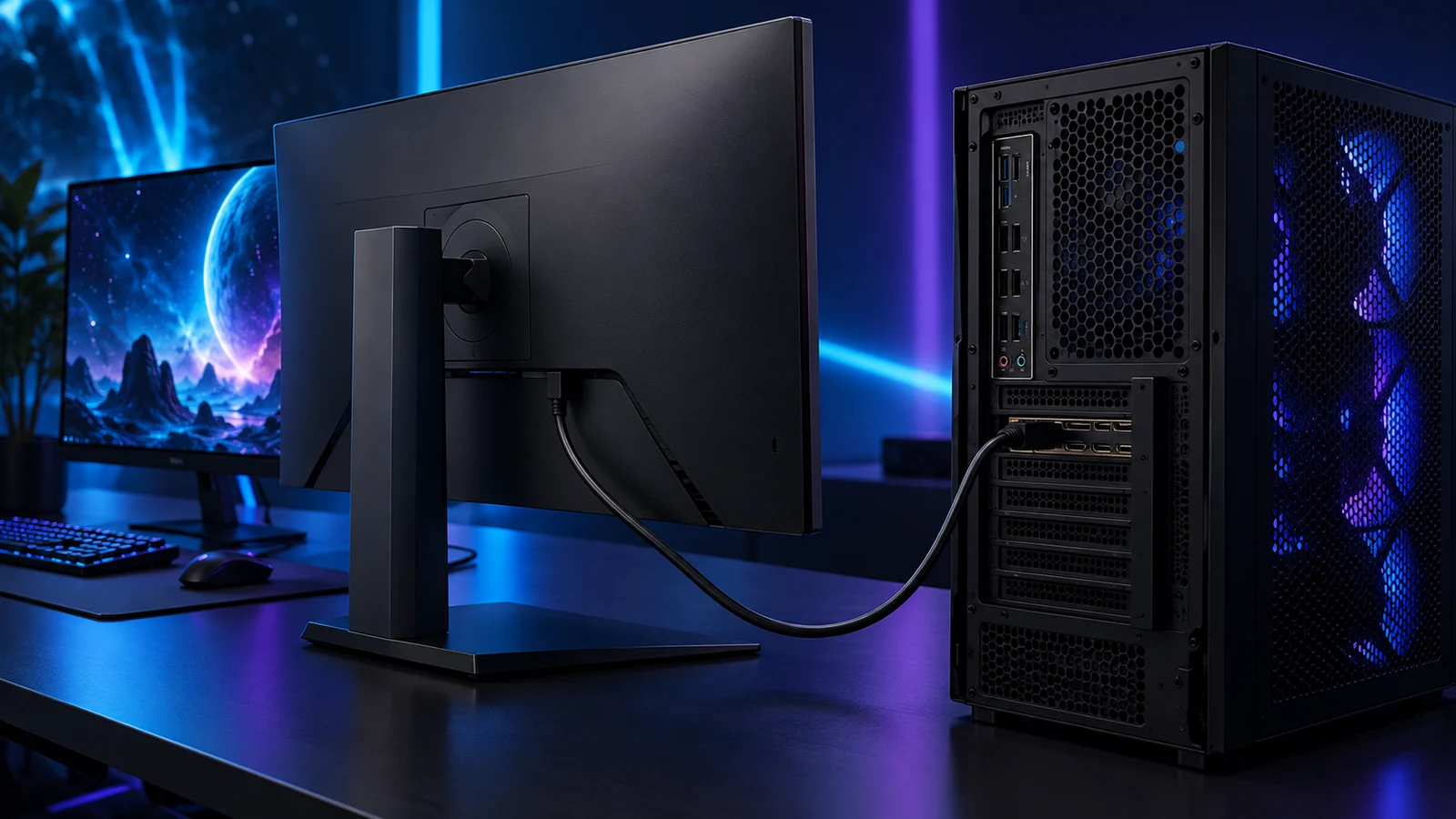
Connect the monitor to the graphics card, set its native resolution and supported refresh rate in Windows, then configure adaptive sync and HDR. Finish with a comfortable desktop brightness and the monitor’s automatic care options.
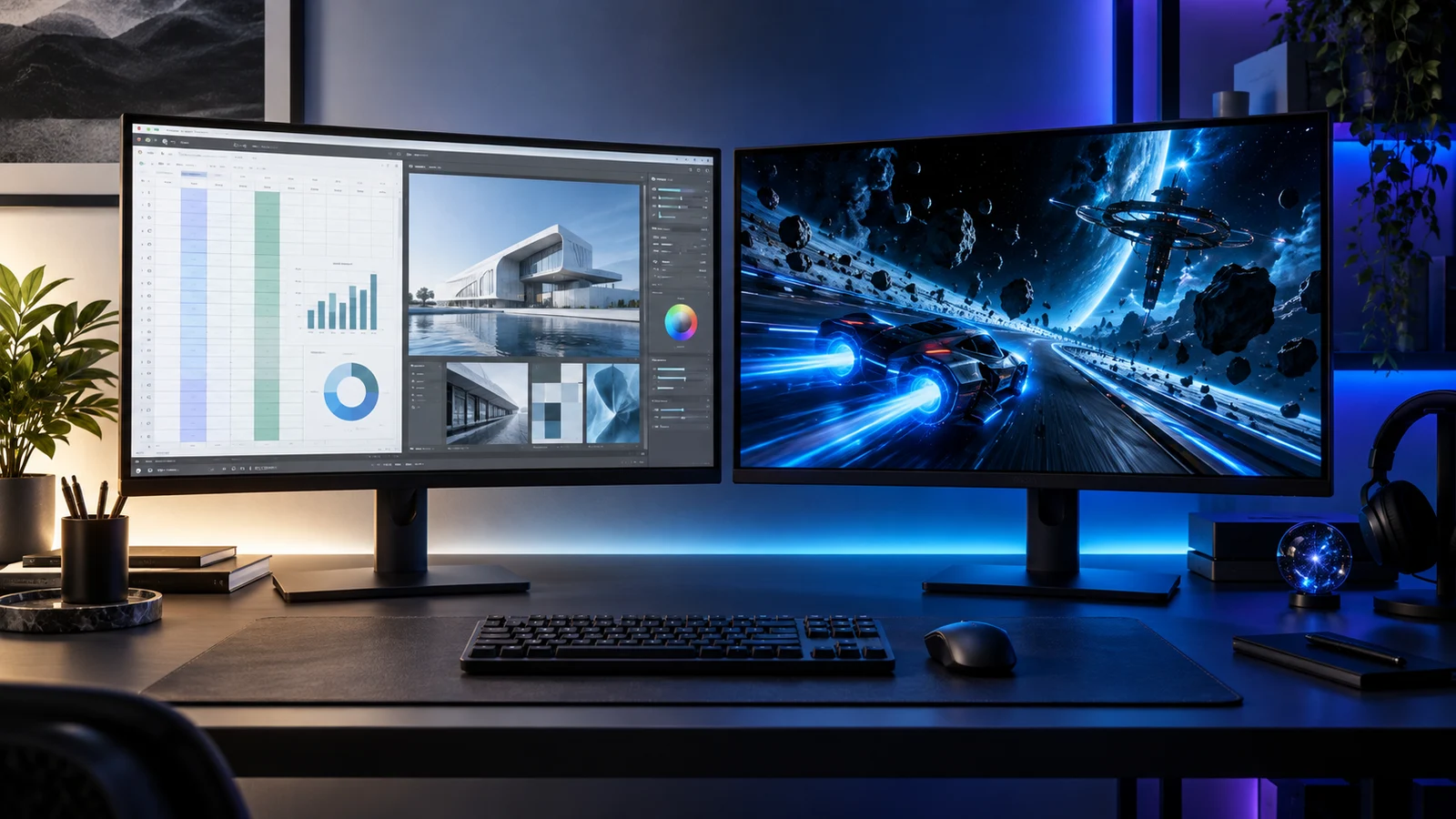
Work through one display first if you are setting up several screens. Once the main OLED is behaving correctly, reconnect the secondary displays and set each one independently.
Table of Contents
Toggle1. Connect to the output that will render your games
On a gaming tower with a separate graphics card, connect the display to the outputs on that card. Motherboard video outputs serve a different graphics path and require the appropriate processor and platform support.
Start with the supplied display cable when it supports the mode you want. Check the monitor’s timing table for the selected input and the graphics card’s output capabilities. A dock or adapter adds another link that can limit the available modes.
The display-cable guide covers the whole path. For a laptop using USB-C, check DisplayPort Alt Mode or the relevant supported display connection before assuming the Type-C socket carries video.
2. Set native resolution, scaling and refresh
- Open Windows Settings → System → Display and select the OLED if more than one screen is connected.
- Set the recommended native display resolution.
- Choose a comfortable Scale setting so text and application controls are readable.
- Open Advanced display, select the correct display and choose the supported refresh rate you intend to use.
Microsoft’s refresh-rate instructions explain that the available choices depend on the display and its current mode. Check the selected resolution after changing refresh, especially if Windows marks a choice that requires a resolution change.
The OLED resolution guide explains why a dense 4K desktop can use scaling without giving up native panel detail. You do not have to work with tiny icons to enjoy a high-density screen.
3. Enable the supported adaptive-sync route
Turn on the monitor’s adaptive-sync option if the model provides one, then enable the appropriate compatible setting in the graphics-driver controls. NVIDIA and AMD use different names and menus; the monitor and connection need to support the chosen route.
Adaptive sync follows changes in the game’s frame delivery. It is separate from Windows Dynamic Refresh Rate, which is a desktop power-management feature on supported hardware. Enabling one does not establish that the other is working.
If dark scenes flicker with highly uneven frame rates, compare the same scene with adaptive sync off, then examine frame pacing, game settings and the monitor’s supported anti-flicker options. Change one item at a time so you can see what helped.
4. Set up HDR in Windows 11
Open Settings → System → Display → HDR for the OLED and enable Use HDR when supported. Use Windows HDR Calibration on that display in full-screen mode, following its dark-detail, bright-detail and maximum-brightness patterns.
Run the calibration in the room lighting and monitor mode you intend to use. If you later change a setting that substantially changes HDR output, revisit the profile rather than keeping a calibration for the old mode.
Adjust SDR content brightness if the Windows desktop is uncomfortable while HDR is enabled. Microsoft’s HDR settings guide covers this control. A bright desktop is not a reason to force every game into SDR, and an HDR-capable monitor does not make every application HDR content.
5. Match the game and desktop picture modes
Enable native HDR inside a game that supports it and use its own calibration where provided. Avoid treating an in-game HDR slider, Windows calibration and a monitor picture preset as interchangeable settings.
For ordinary browsing and SDR work, use the appropriate colour mode and brightness. Wide-gamut settings can oversaturate content that is not colour-managed. If the desk also handles photography, keep the application and display profile aligned with your delivery workflow.
Use the monitor-calibration guide for creative work. A friend’s brightness percentage or downloaded display profile is not a measurement of your panel in your room.
6. Keep the care functions available
Set a display-off timeout, retain the monitor’s supported pixel-shift and protection options, and let its maintenance complete when it runs. Follow the OLED care routine for the distinction between standby maintenance and disconnecting power.
Position the screen to keep direct reflections out of the main view. Adjust height and distance before making the picture brighter to compensate for an awkward desk arrangement.
If a mode is missing or the picture looks wrong
| Symptom | Start here |
|---|---|
| Only a low refresh option appears | Correct screen selected in Advanced display; monitor input/timing table; cable, GPU output and any adapter. |
| Desktop text is too small | Native resolution plus Windows scaling; do not immediately lower output resolution. |
| SDR windows look too bright in HDR mode | SDR content brightness and the monitor’s selected HDR mode. |
| Colours look exaggerated in ordinary work | The picture mode, application colour management and display profile. |
| Black screen or no detected display | The no-display troubleshooting guide and the actual graphics output. |
If you are still deciding on a screen, the OLED buying guide compares the formats and connections before purchase.
Specifications and guidance: Windows refresh settings · Windows HDR settings · Windows HDR Calibration · PG27UCDM · MPG 321URX.