
New PC has no power: checks before replacing parts
By James Thompson · Published 7 October 2026
Some links in my articles are affiliate links. I may earn a commission when you buy through them.
Check the PSU connection map and the exact PSU-side cables with mains disconnected. The tool/handling guide keeps the inspection organised.
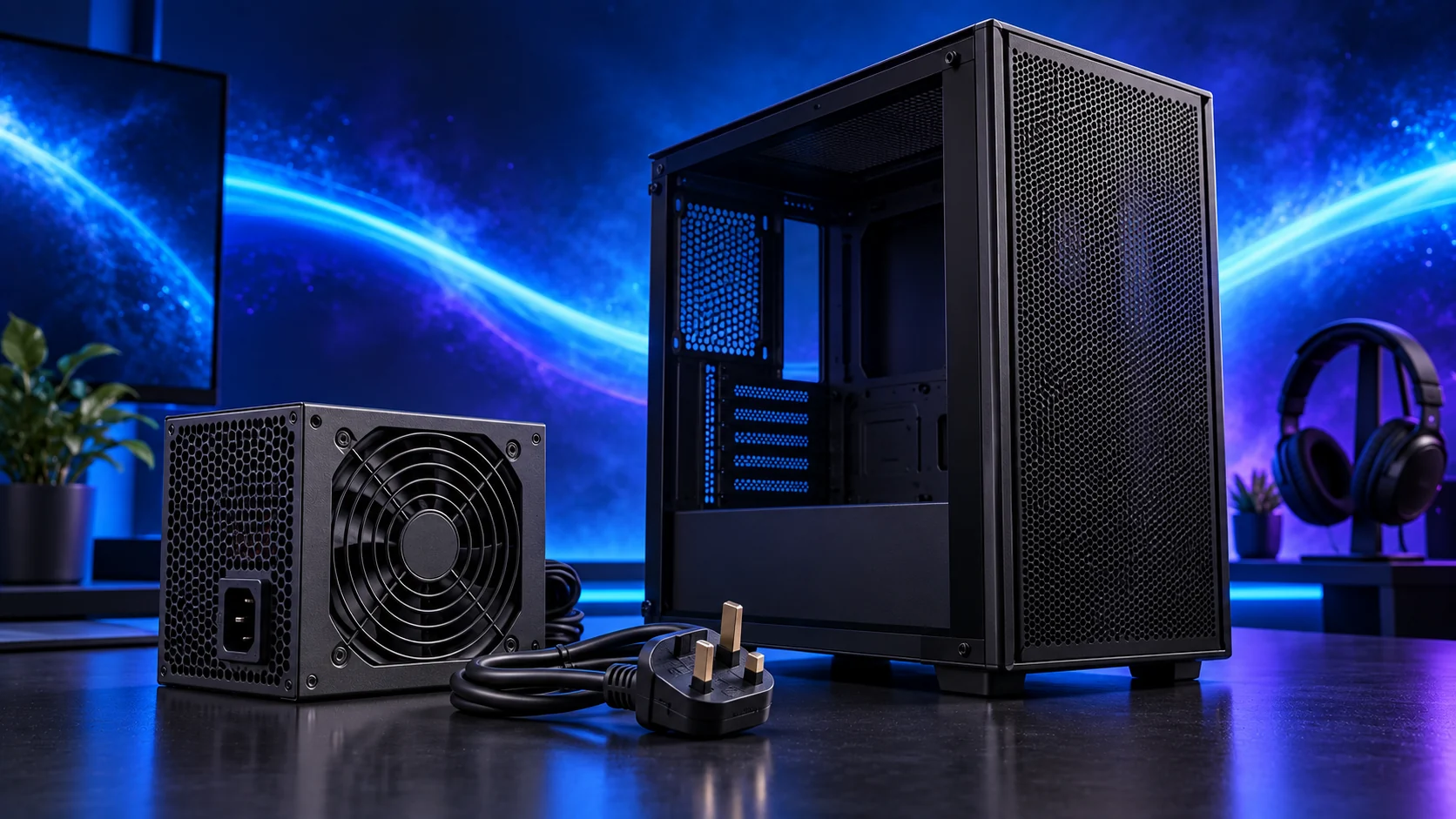
If pressing the power button does nothing, start with the supply path and the case switch connection. A missed connector is much easier to fix than a guessed faulty part. Work through these checks with mains power disconnected whenever you’re inside the case.
If the diagnosis establishes a PSU replacement, choose it in the power-supply buying guide with the existing connector and case requirements. Complete the checks above before replacing a working part.
Table of Contents
ToggleConfirm the external power path
- Check the wall socket and any extension using a known-working device.
- Check the mains lead is properly connected and the PSU switch is in its operating position.
- Check you are pressing the intended case power button.
- Stop using equipment with visible damage, a burning smell or loose conductive parts.
Check the case switch header
With mains disconnected, locate the front-panel power-switch pins in the exact motherboard manual. Confirm the case switch plug is on the right pins. Do not short unidentified pins as a generic test.
Small headers can be hard to read once a large card is fitted. Photograph labels or consult the board diagram rather than forcing a plug by feel.

Check the main power connections
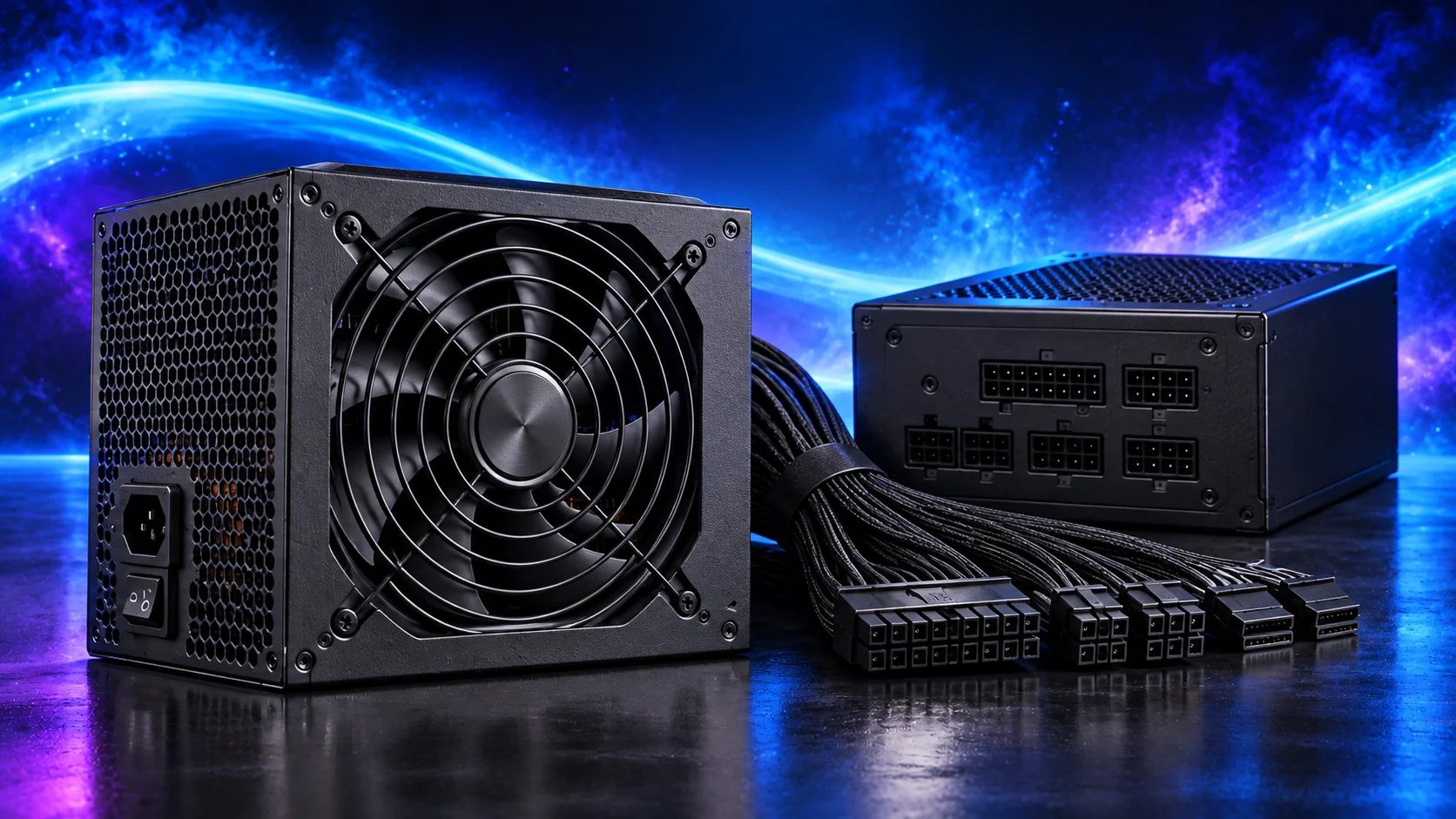
Verify the board’s main connector and required CPU power connector are fully seated, using the correct PSU leads. Inspect the PSU end of modular leads too.
Do not confuse CPU EPS and graphics PCIe leads, and do not borrow modular cables from another unit. Check the supplied documentation if a connection is uncertain.
Inspect the installation
Check for unwanted standoffs, loose screws, pinched cables or an incorrectly installed component. Make one correction at a time and record the result.
Do not open the PSU or perform improvised electrical tests. A competent repair service or manufacturer support is preferable when the next step needs specialist equipment.
Distinguish no power from no picture
If fans or lights now operate but the screen remains blank, move to the no-display route. If firmware appears, follow first-boot setup.
A response from fans does not prove the entire system has completed startup, but it changes which checks are useful next.