
Will an eGPU Work with Your Mini PC or Laptop?
By James Thompson · Updated:
Some links in my articles are affiliate links. I may earn a commission when you buy through them.
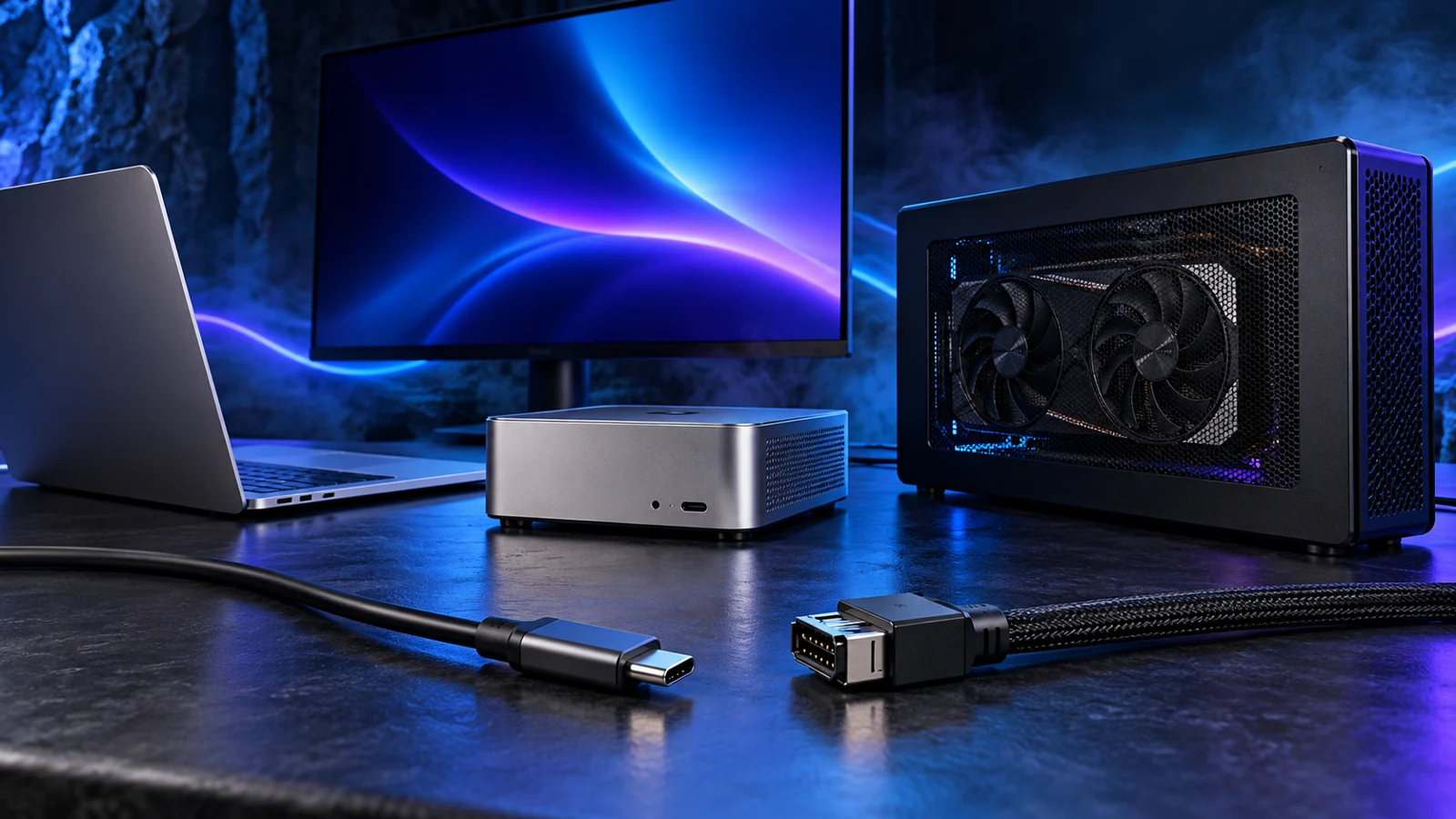
An eGPU works when the computer provides a supported external PCIe graphics connection and the enclosure, card and operating system all match it. Start with the exact computer model and its documented eGPU support. USB-C shape, charging and monitor output do not establish that support.
If your route is already confirmed, the eGPU enclosure and dock buying guide compares an enclosed Razer Core X V2 setup with the OCuLink-only MINISFORUM DEG1. Use the checks below to work out which route your existing hardware can use.
Table of Contents
ToggleIdentify the exact host and the right port
Record the full laptop or mini-PC model, revision, operating system and firmware version. Find its manufacturer’s port specification and eGPU instructions. Two machines in the same range can have different connections, and two USB-C sockets on one computer can support different jobs.
Look for explicit external-graphics support, not just “USB-C”, a charging symbol or a display-resolution claim. DisplayPort Alt Mode sends display output from the computer; external graphics needs a route that carries the GPU’s PCIe traffic. The USB-C display and dock guide explains those separate functions.
For a USB4 host, confirmation from the computer manufacturer is particularly useful. Sonnet’s current eGPU requirements explicitly tell USB4 owners to check that their computer supports an eGPU. Save the exact host’s instructions beside the enclosure requirements so you can compare them directly.
Match the connection before buying a dock
| Your host route | What to match | Next useful check |
|---|---|---|
| Thunderbolt 4 or 5 with documented external-graphics support | An enclosure supporting that host generation and OS, with its specified cable | Match the exact host and its supported operating system. |
| USB4 with manufacturer-confirmed eGPU support | The enclosure’s USB4 host requirements and firmware/OS guidance | Get explicit eGPU confirmation for the exact computer model. |
| A documented OCuLink graphics connection | An OCuLink dock, matching cable and supported power sequence | Read the host and dock manuals for link capability and startup sequence. |
| Ordinary USB-C data/video only | Use the existing integrated graphics, or choose a different computer route | Compare a supported host or desktop graphics route. |
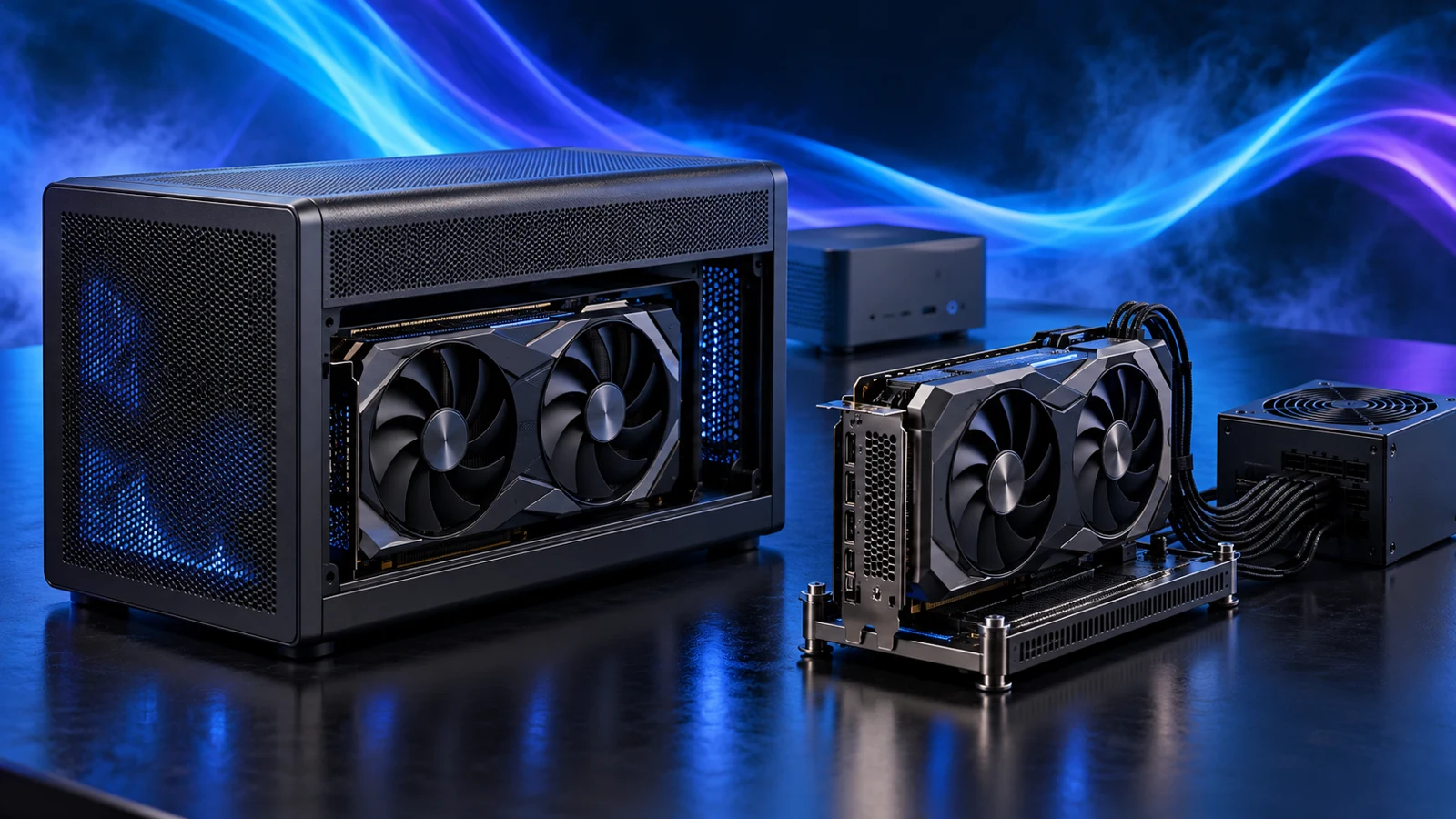
OCuLink and Thunderbolt/USB4 are different purchase routes. Choose the connection first, then the enclosure or dock. Internal M.2 adapter conversions can consume a storage slot and require physical access to the computer; treat them as a specific hardware modification rather than a universal plug-in upgrade.
For the DEG1, the supplied manufacturer manual requires care with OCuLink connection and power changes: no hot-plugging or forcible power-off. Connect with the host shut down and follow the dock and host instructions.
Exact model and documented external-graphics port
Correct protocol and manufacturer-approved route
Matching enclosure, power and software support
Check the operating system and intended application
Read the current enclosure requirements for the operating system you will actually run. Razer’s Core X V2 buying information targets supported Windows hosts. Sonnet’s current 850 T5 specifications list Windows 11 25H2 or later. Requirements are model-specific; another enclosure’s supported Windows version does not transfer automatically.
For Macs, Apple’s conventional eGPU support requires an Intel processor, Thunderbolt 3 and a supported card/enclosure configuration. Do not apply an Intel-Mac guide to an Apple-silicon model because both have USB-C-shaped ports.
Match the GPU to the application too. A rendering package may require a particular GPU family, driver or amount of VRAM. For games, use results that match the host and connection where available. The benchmark-reading guide helps separate average frame rate from frame-time behaviour; a desktop-card result alone does not describe an external setup.
Match the exact card, power supply and cables
- Identify the full card model, including the board partner’s cooler version. Cards using the same GPU can differ in length, height and thickness.
- Use the enclosure’s supported GPU list, then compare physical clearance and power connectors for the actual card. Leave space for the power cable bend required by its instructions.
- Check whether the purchase includes a PSU. Both Core X V2 and DEG1 require you to supply one; the DEG1 manual also lists separate mains and PSU cables.
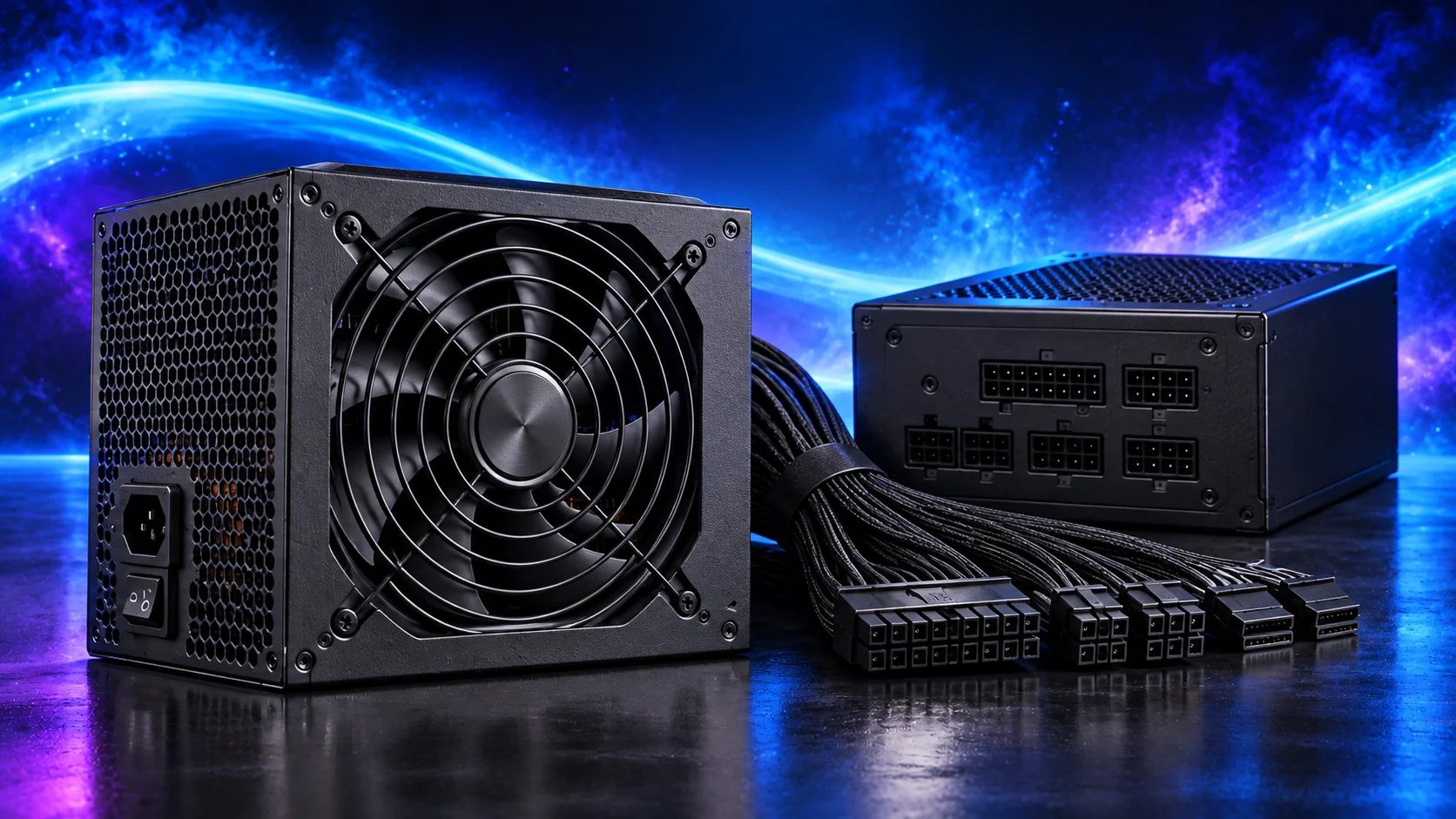
- Use the PSU’s own compatible cable set. Confirm the connector type at the graphics card as well as the modular PSU end.
For Core X V2, Razer’s current guidance calls for a standard ATX PSU with capacity for the GPU plus an additional 230W for the enclosure. DEG1 accepts an ATX or SFX PSU, with its manual showing the dock and graphics-card power connections. Choose the final rating and cable arrangement from the actual card and dock requirements.
The PC power-supply guide explains why wattage, connectors and cable compatibility need separate checks. A PSU that can supply enough total power can still be the wrong purchase if it cannot provide the correct connections.
Plan the monitor connection and first startup
- Place the dock or enclosure on a stable surface with ventilation and access to the mains switch. Fit the card and PSU following the exact product manual.
- Attach the specified host cable to the documented eGPU port. For an OCuLink setup, make connection changes only in the powered-down state required by its instructions.
- For an external monitor, connect its display cable directly to the graphics card, then select that input on the monitor.
- Follow the manufacturer’s startup and driver-installation sequence. Keep access to the computer’s original display route while setting up.
- Confirm that the operating system detects the GPU and that the intended application uses it. Try the actual game, render or project before buying further accessories.
If the computer can see the card but an application still uses integrated graphics, check that application’s GPU selection and the operating system’s graphics settings. If it cannot detect the enclosure at all, return to the exact port, specified cable, firmware and OS requirements.
Turn the checks into a buying decision
When you have a supported Thunderbolt/USB4 Windows route, compare the enclosed option in the eGPU buying guide. With a documented OCuLink host, compare the open-dock option and its separate power setup. The same guide includes a complete-cost worksheet for keeping your current computer.
If the host cannot provide the connection you need, the mini PC versus desktop comparison and gaming PC build guide give you an alternative route. For other mini-PC changes, the RAM and SSD upgrade guide covers accessible internal parts.
Requirements checked on 17 October 2026: Razer Core X V2, Razer GPU list, MINISFORUM DEG1 manual, Sonnet USB4/Windows requirements and Apple eGPU guidance.