
Mini PC Dual-Monitor Setup: Choose the Ports Before the Cables
By James Thompson · Updated:
Some links in my articles are affiliate links. I may earn a commission when you buy through them.
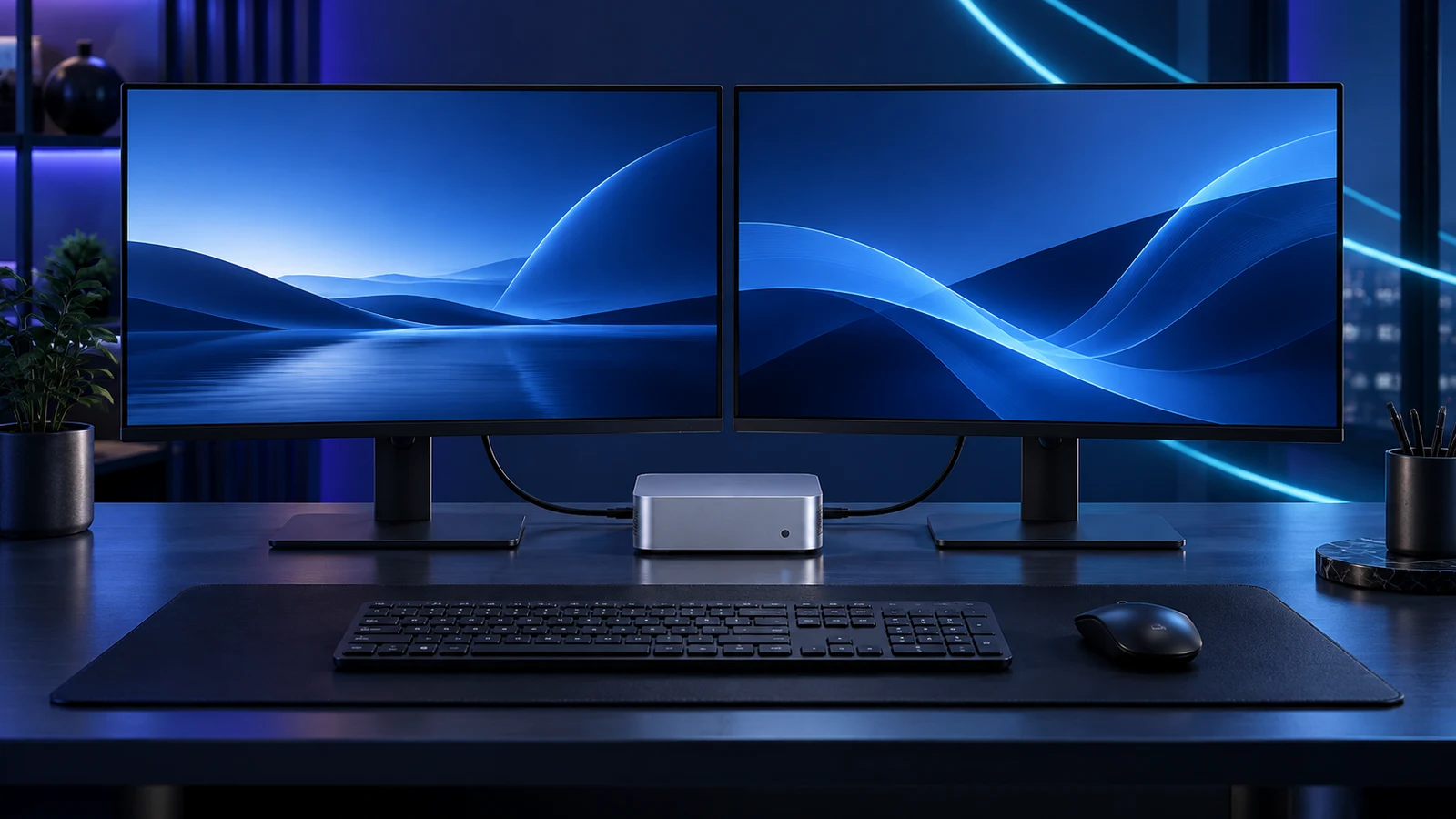
For two office monitors, I would use two direct display connections where possible. The GEEKOM A6 has two HDMI outputs; the Beelink SER8 8745HS offers HDMI and DisplayPort as well as a USB4 display route. Match those outputs to the actual monitor inputs before buying an adapter.
A USB-C socket can be data-only, and a basic HDMI splitter normally mirrors the same picture. Two independent workspaces need two supported display paths, followed by Windows’ Extend setting. Here is how I would lay out the desk.
Table of Contents
ToggleMake a connection map for both screens
| Monitor inputs | Simple route | What to establish |
|---|---|---|
| Both screens have HDMI | Two native HDMI outputs; A6 is a candidate | Each monitor’s resolution/refresh and both outputs’ supported operation. |
| One HDMI, one DisplayPort | Native HDMI plus DP; SER8 is a candidate | Use the correct input on each screen and cables for the selected modes. |
| One HDMI, one USB-C video input | HDMI plus a documented USB-C display output | Both ends must support the intended video connection; data-only USB-C will not work. |
| Only one usable display output | Change PC or use a specifically supported display-adapter solution | A splitter alone does not create a separate Windows workspace. |
Write “PC HDMI → left monitor HDMI” and “PC DP → right monitor DP”, or the equivalent for your own inputs. That small plan reveals missing ports more quickly than buying a collection of adapters.
Two useful mini-PC examples
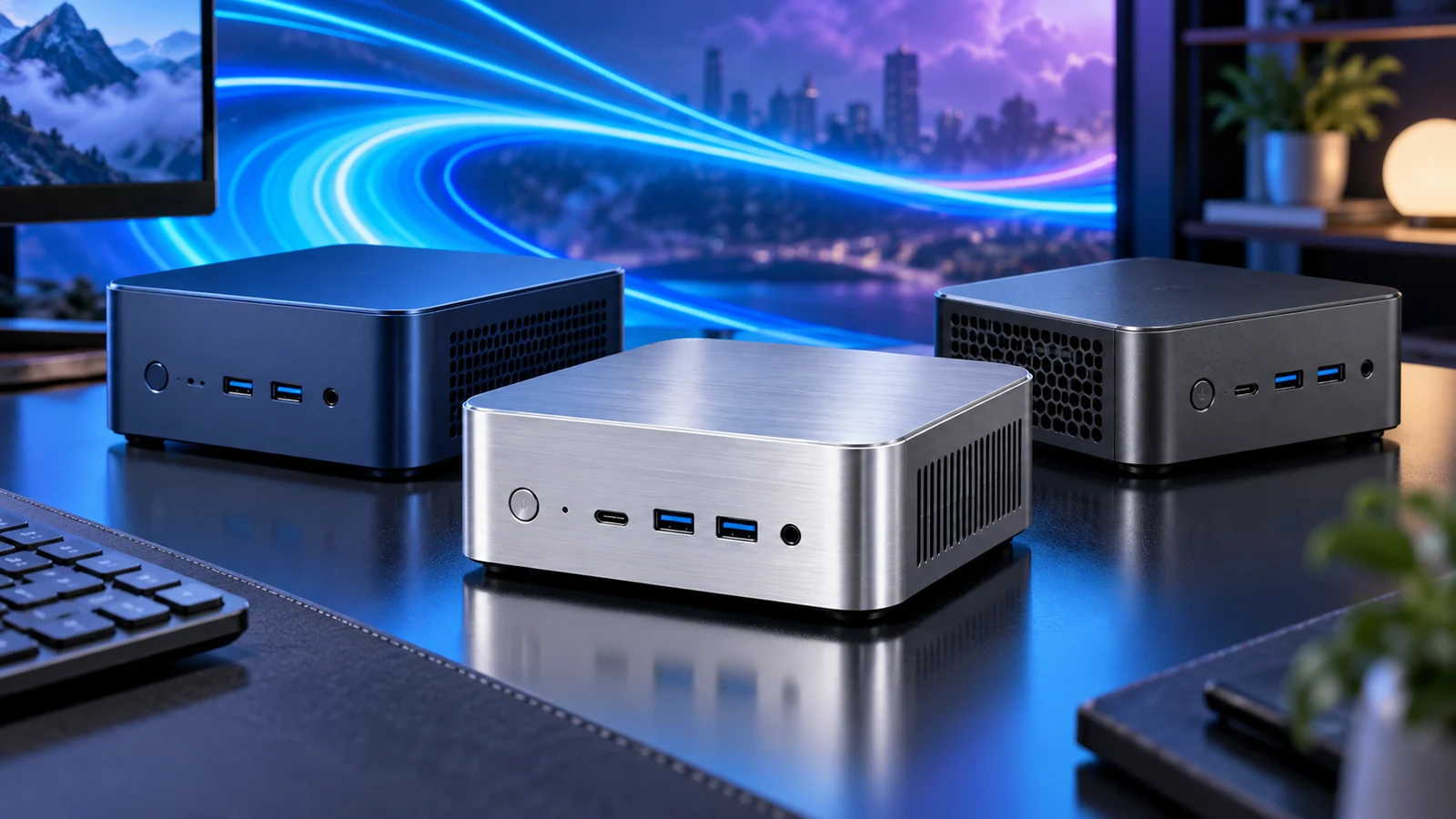
GEEKOM A6 is the straightforward two-HDMI option from the home-office shortlist. GEEKOM’s current specifications list two HDMI 2.0 connections. I would use a separate lead to each screen and keep the desktop refresh target within the supported mode for each connection.
The Beelink SER8 8745HS 8745HS model documents HDMI, DisplayPort and USB4 with a display function. It is useful when one existing monitor has DP and another HDMI. Its front data USB-C connection should not be confused with the documented USB4 display route.
The budget S13 listing in the buying guide currently describes one HDMI output. I would not treat pictures of another S13 revision as proof that the linked machine supplies two. For a confirmed dual-screen plan, choose the machine around the ports rather than its family name.
USB-C and docks: establish the video route
USB-C describes the connector shape. The port needs a documented video function, such as the relevant DisplayPort path or supported USB4/Thunderbolt display connection. The monitor or dock must accept that route too. The USB-C and dock guide covers the compatibility questions in more detail.
A data-only USB-C port does not acquire video output because an HDMI adapter fits it. Likewise, a charging cable is not automatically a suitable display cable. Use the display cable guide for the resolution and refresh you intend to select.
For a fixed desk, I would prefer direct display leads if the PC already has the required outputs. A dock is useful when it consolidates a real set of peripherals or switching needs; it need not be an extra purchase for every mini PC.
Extend the desktop in Windows
- Connect each screen and select its matching input in the monitor menu.
- Open Settings → System → Display. Use Identify to see which numbered display is which.
- Select Extend these displays for separate workspaces. Arrange the numbered screens to match their physical positions.
- Choose the resolution and comfortable scaling for each screen. Use Advanced display to select a supported refresh rate.
- Try moving the pointer between screens and opening an application on each before deciding the arrangement is finished.
Different screen sizes often need different scaling. Match readable text and usable working space rather than insisting that both display percentages be identical. Put the screen you use most directly in front of you.
Microsoft’s multiple-monitor instructions show the current Windows controls.
If the second screen stays blank
Start with the simplest direct connection. Confirm the monitor input, then test the screen and cable on a known working output. Swap one item at a time so that a faulty lead, wrong input or unsupported adapter is not confused with a computer problem.
If both screens work separately but not together, review the PC’s supported simultaneous display configuration and any dock limitations. Lower the requested mode while diagnosing, then choose supported resolution and refresh for each complete path.
For a PC that produces no picture at all, the no-display troubleshooting guide is the separate starting point. For screen choices, the monitor buying guide helps match size, resolution and inputs to the desk.
Finish the desk without hiding the computer
Leave service and airflow space around the mini PC. Keep cables relaxed at the sockets; a tight bend or a strained adapter can make a neat desk less reliable. A mounting bracket is useful only when it matches both the computer and mounting position and leaves the vents clear.
Decide the two supported paths, then choose the mini PC and monitor stands or arms that fit them.
Model port references: GEEKOM A6 · Beelink SER8 8745HS.