
CPU Power and Cooling Explained: TDP, Boost and Cooler Choice
By James Thompson · Updated:
Some links in my articles are affiliate links. I may earn a commission when you buy through them.
Match the complete PC power supply and configure fan control around the actual cooler and workload.
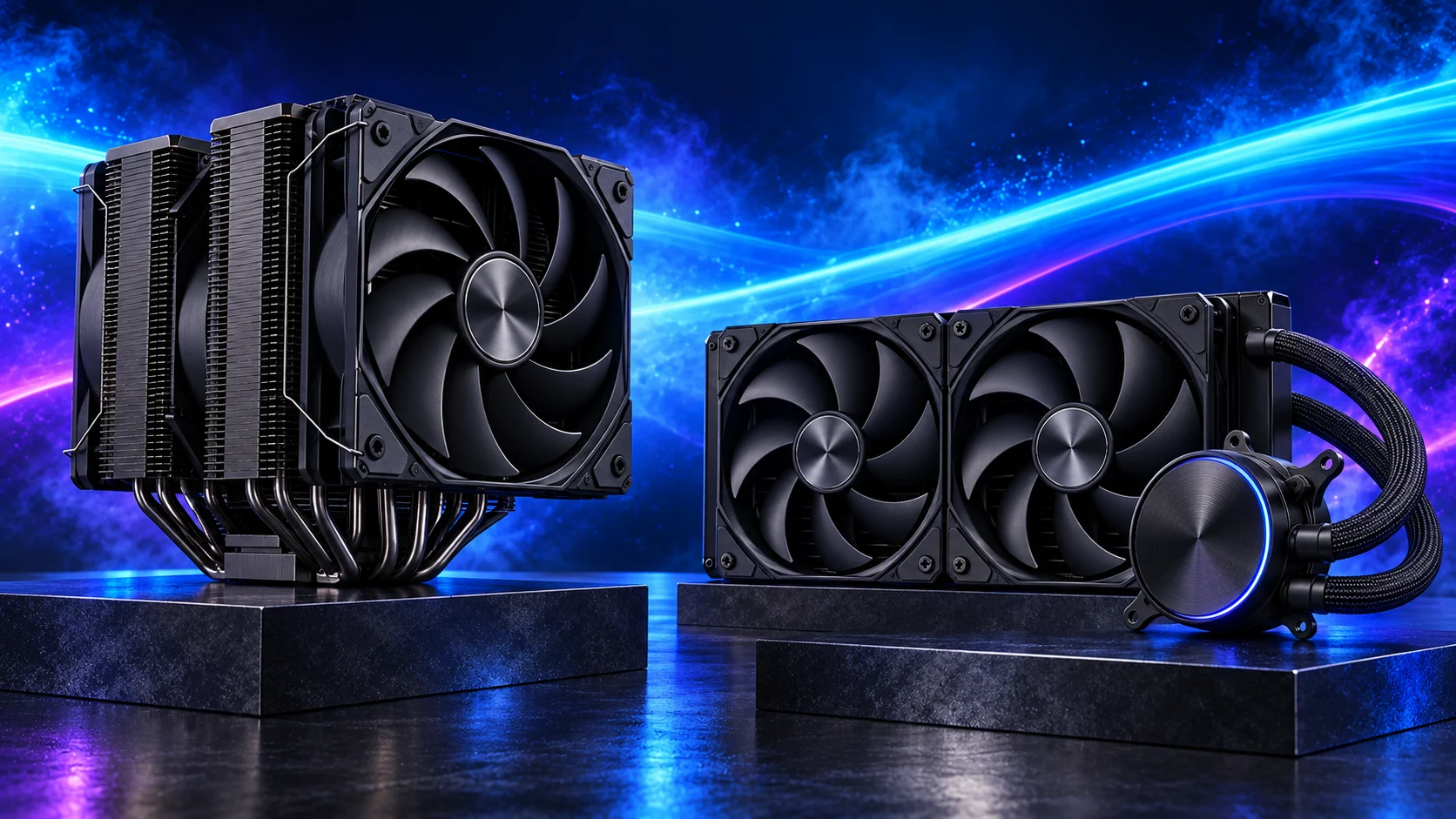
Choose cooling for the exact CPU, its power settings and the work it will sustain. TDP is a thermal specification, not your whole PC’s electricity use. A quiet gaming build and a workstation rendering for an hour can need different cooling choices.
Table of Contents
ToggleTDP, package power and wall power
| Term | What it describes | How to use it |
|---|---|---|
| TDP / thermal specification | A manufacturer’s thermal design reference for the processor. | Start here, then check the model’s operating power limits. |
| Processor base / turbo power | Intel specifications describing power at defined operating conditions. | Read both where provided; boost operation can need more cooling than the base figure suggests. |
| PPT / package power limits | AMD monitoring/settings terminology for socket/package power limits. | Observe the configured limit and load rather than equating it with TDP. |
| Power at the wall | The electricity used by the complete system, including conversion losses. | Measure this for whole-PC energy comparisons. |
Manufacturers do not all define or label their figures identically. A 65W thermal class does not establish a 65W maximum wall draw, and the CPU figure leaves out the graphics card, drives, fans and the rest of the system. Intel’s TDP explanation and AMD’s Ryzen Master gauges define the relevant terms.
Why boost changes clocks and power
A processor adjusts its operating speed within temperature, power and current limits. Light work on a few cores and sustained work across many cores are different conditions, so you should expect different clocks and power readings.
The advertised maximum boost is not the speed every core must hold during a long render. A larger cooler can help keep the CPU within its thermal conditions, but the workload and configured limits remain part of the result. Clock speed, core count and cache explains how to compare the specifications.
Start a new build at the board’s appropriate default settings. Performance-enhancing motherboard settings can change power behaviour; avoid choosing cooling from a stock specification while silently running an expanded limit.
How many cores work and what they execute.
Power/current settings and the CPU’s control.
Cooler mounting, fan curve and case airflow.
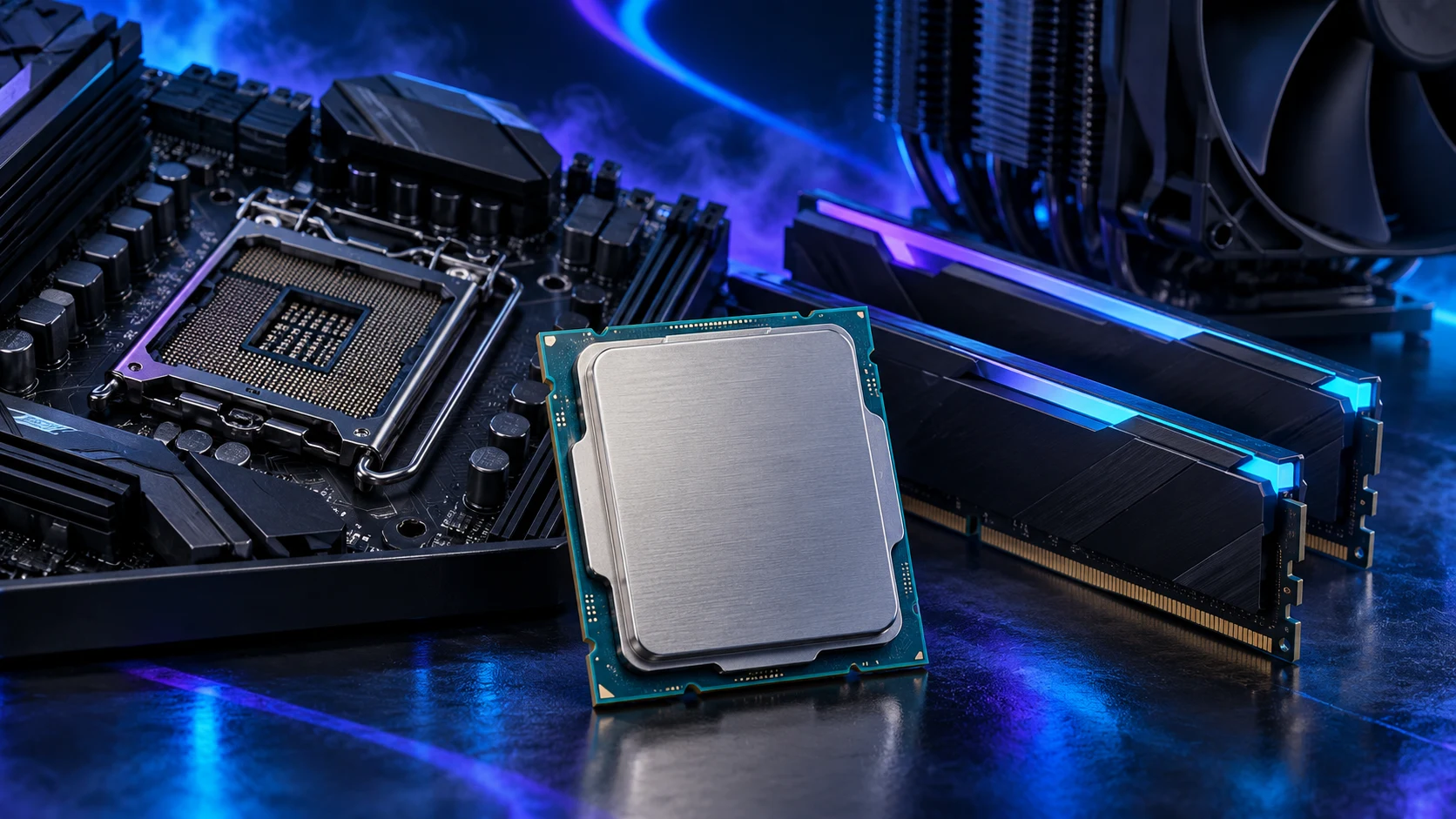
Choose cooling around the task and the case
For a modest mainstream CPU in a roomy case, I would price a suitable air cooler first. It is a straightforward route with no pump and can be a good fit for a quiet everyday or gaming PC. A high-power processor running long parallel jobs can justify a larger cooling system.
Compare cooler testing at an appropriate heat load and noise level. A claimed watt rating from a cooler listing is not a universal cross-brand measurement. Socket support, mount quality, case clearance and noise are as useful to the purchase as the headline size.
A liquid cooler moves heat to a radiator, which needs room for its fans and tubes. An air cooler needs height clearance and space over the memory. Neither type makes a poorly ventilated case irrelevant. Air or liquid cooling? and the compact-case checklist cover those layout decisions.
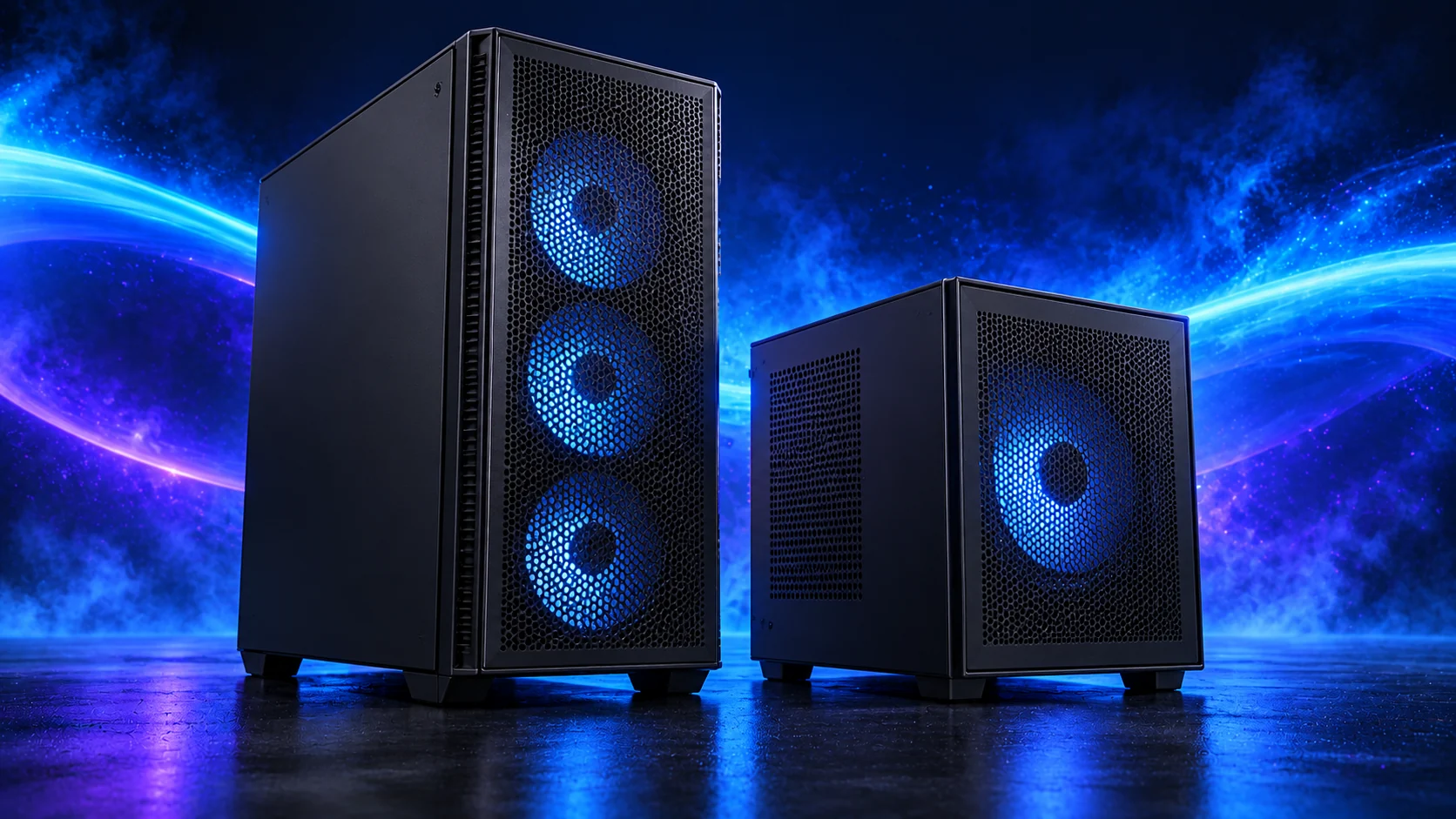
Check mounting and airflow before changing parts
Use the correct mounting hardware and the cooler maker’s installation instructions. Confirm that any protective film is removed from the contact surface, the cooler is evenly secured and the fan or pump is connected to the documented header. Apply thermal compound as instructed rather than adding more to fix an unrelated problem.
Give the case a clear airflow path. A cooler fan facing the intended direction, clean filters and a sensible intake/exhaust arrangement can matter more than an unnecessary processor change. The high-temperature diagnosis guide covers the practical sequence.
If a radiator competes with a long graphics card, check their combined dimensions. The case’s maximum GPU figure may assume no front radiator. The complete parts-fit checklist keeps those measurements together.
Interpret the temperature while the CPU is working
An idle temperature does not tell you how the cooler copes with a long job. Record the CPU’s temperature, clock behaviour and power during the workload that matters, together with fan noise and room conditions. Compare them with that exact model’s published operating limits.
There is no one temperature threshold that establishes a fault across every desktop CPU. Some processors deliberately use available thermal headroom while boosting. A low clock under sustained load needs the power and thermal readings beside it before you decide why it happened.
If performance declines as the job continues, check mounting, fan/pump operation, airflow and the configured limits. Our performance diagnosis guide helps separate a cooling problem from an upgrade need.
Price the CPU and cooler together
Check whether the CPU includes a cooler and whether that cooler suits your workload and noise goal. Include a required mounting kit or replacement in the platform total. A cheap high-power CPU can become a less attractive buy once the cooling and case changes are added.
For a small or quiet PC, begin with quiet/compact processors and matching coolers. For a wider shortlist, use the CPU cooler buying guide. Choose the cooling system that fits the build and keeps its intended workload comfortable to live with.