
Plan your first gaming PC
By James Thompson · Published 7 October 2026
Some links in my articles are affiliate links. I may earn a commission when you buy through them.

Start with the games you want to play and the screen you’ll use. I’d work out the cost of the whole setup next, then choose the parts around that budget. It keeps the graphics card, monitor and processor working towards the same goal.
Table of Contents
ToggleWrite a brief you can actually build to
List three games you expect to play most, the resolution of your current or planned monitor, and whether you care more about competitive responsiveness or visual detail. Include other demanding tasks, such as video editing, that the same PC must handle.
Set a maximum spend for the whole setup. If you own no display, controls or Windows licence, a tower advertised within that limit is already too expensive. List the missing essentials before choosing components.
Choose a complete configuration
Use one of the build routes as a shopping plan: entry 1080p, balanced 1440p or a larger graphics budget for 4K. Choose the route around your screen and the games you enjoy.
For a new platform, compare CPU, motherboard and memory together. A discounted processor can sit beside an expensive RAM kit. If the complete AM5 platform leaves too little for the GPU, compare an AM4 configuration or postpone the purchase rather than forcing the original list into the budget.
Plan an AM5 tower in PC Builder. Start with a gaming preset, swap the parts and see the estimated tower cost as you go.
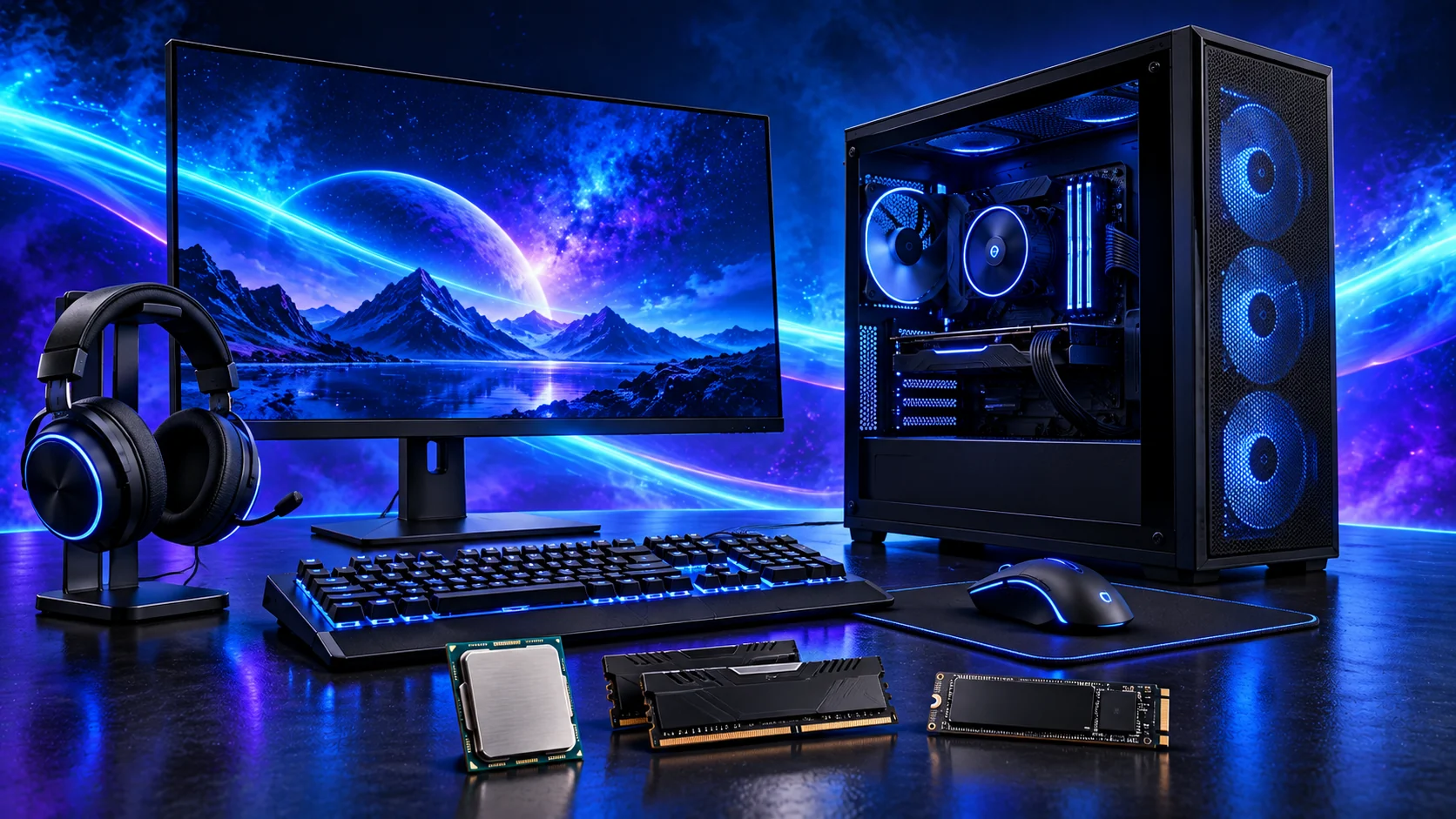
Keep the exact model names
Save a table with the CPU, board and revision, RAM kit code, GPU model, SSD capacity and format, cooler, case version and PSU version. “A B650 board” and “a 16GB graphics card” leave too many compatibility details unresolved.
Check the motherboard support list for the Ryzen 5 9600X and confirm the chip’s actual graphics provision. A motherboard HDMI socket is useful only if the installed CPU can supply a picture. Check the selected processor rather than assuming every similarly named chip behaves the same way.
Check the list before it becomes a basket
- CPU appears on the exact board’s support list, with a workable route to any required BIOS update.
- Memory generation, kit capacity and recommended slots match the board.
- Cooler includes the right mounting hardware and fits above the RAM inside the case.
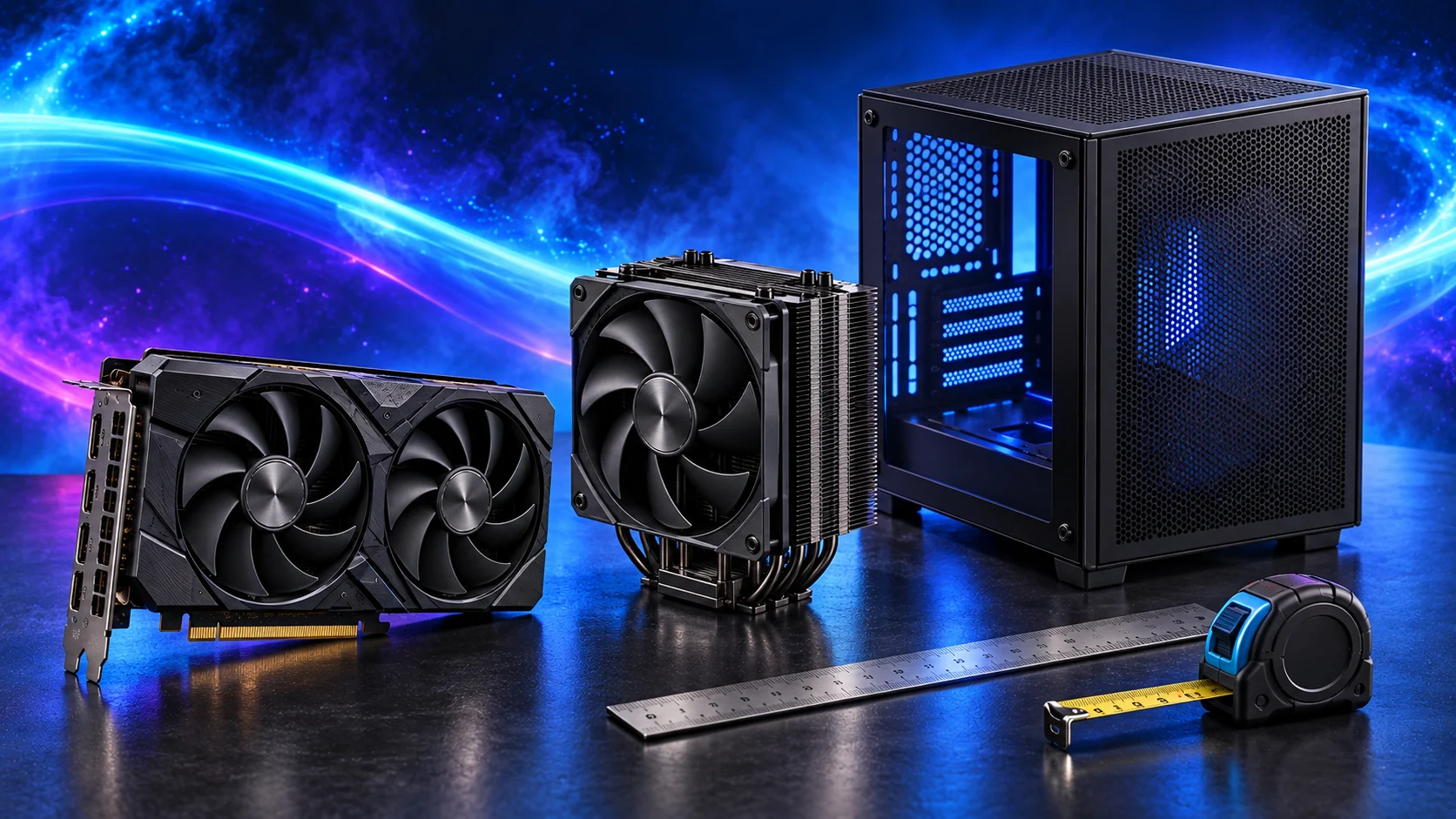
- GPU fits with fans or a radiator installed and room for the power lead.
- PSU has the required connectors and a suitable recommendation for the whole system.
- Case front sockets have matching board headers; Wi-Fi or Bluetooth is included if you need it.
Use the compatibility checklist to keep the parts together on one list. Recheck it when a seller offers an alternative.
Buy for a build you can finish
Add up the delivered cost of the complete setup. Keep invoices, packaging and the final component list until the system is working. Allow time for assembly and software setup; a box of compatible parts still needs careful wiring and configuration.
Download the manuals before the parts arrive. Follow the assembly sequence, then establish a stable first boot and driver setup. If it powers on without a picture, follow the display checks before buying another component.
Explore Build Guides → · Choose your next step · How we choose parts
Ready to choose the complete basket? Use How to Build a PC for Gaming for the three build routes, or the beginner’s complete guide for the full parts and assembly sequence.