USB-C display and dock compatibility: choose the right connection
By James Thompson · Updated:
Some links in my articles are affiliate links. I may earn a commission when you buy through them.
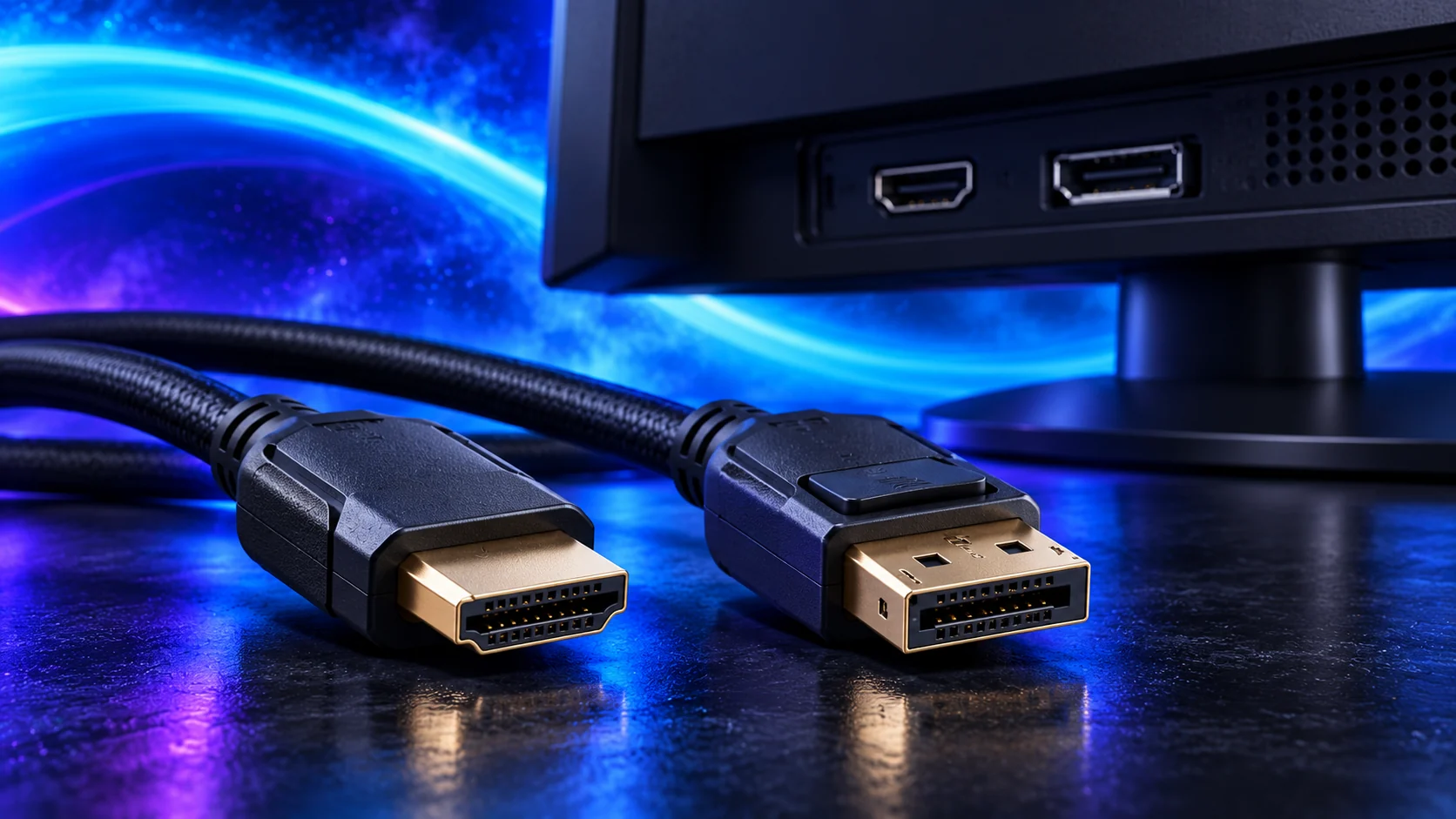
USB-C names the connector shape. For a display or dock, you also need the host’s video capability, data support, cable and charging arrangement. Start with the computer’s exact port specification, then choose the dock and screens around it.
Separate video, data and power
A USB-C data port does not automatically provide DisplayPort Alt Mode video. Likewise, a charge-capable cable is not necessarily the data/video cable required for a dock. Identify the particular port in the computer manual rather than treating all USB-C sockets alike.
For a desktop with a separate graphics card, the normal monitor route is directly from that card’s HDMI or DisplayPort output. A motherboard USB-C socket may be a data-only connection or use a different display source. The board’s exact specification settles that choice.
Adding a desktop graphics card outside the computer needs a different check from connecting a USB-C display dock. The eGPU compatibility checklist explains the documented Thunderbolt, USB4 and OCuLink routes, plus the card, power supply and operating-system requirements.
Choose one of the display routes
| Route | What it needs | Useful for |
|---|---|---|
| DisplayPort Alt Mode dock | Host video support, suitable cable and supported display combination | A native USB-C screen/dock |
| Thunderbolt dock | Compatible host, cable and documented host/display limits | A broader laptop workstation |
| DisplayLink dock | Supported USB connection and DisplayLink software | Office display expansion |
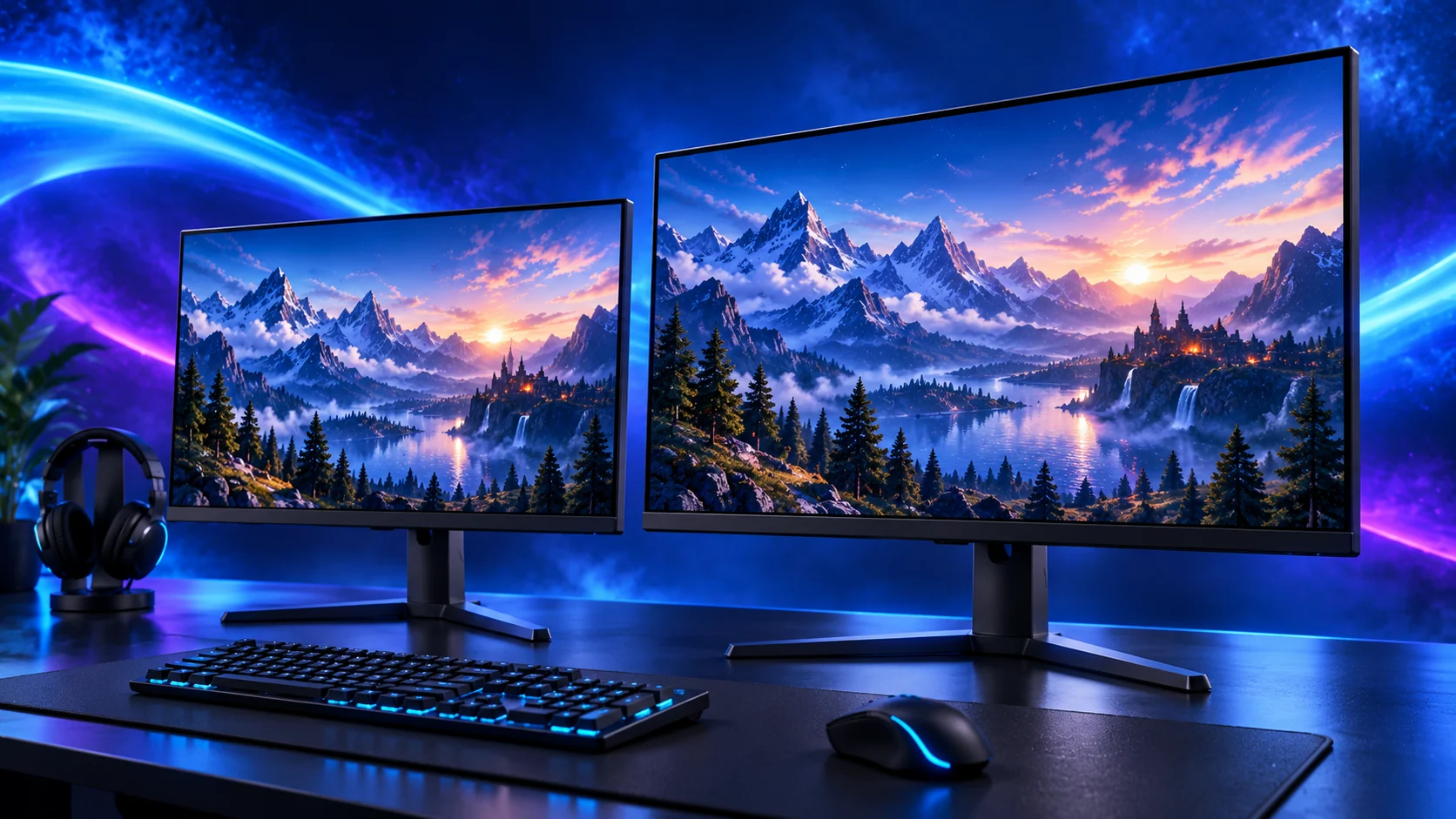
| Direct GPU HDMI/DisplayPort | Suitable GPU output, screen input and cable | Desktop gaming and creative display |
A dock with two sockets does not promise two independent displays at their maximum modes. Look for the documented combination, including operating-system and host limitations. A Mac mirroring two outputs is a different result from extending two independent screens.
Match charging and bandwidth to the job
1. Computer
Exact host port and native display support
2. Cable
Video/data capability and required power rating
3. Dock
Supported display combination and host charging
4. Screens
Resolution, refresh rate and input
A dock’s power-adapter input rating can differ from the power delivered to the laptop. Allow for the dock and attached peripherals. If a mobile workstation needs more power than the dock provides, keep its normal charger in the arrangement.
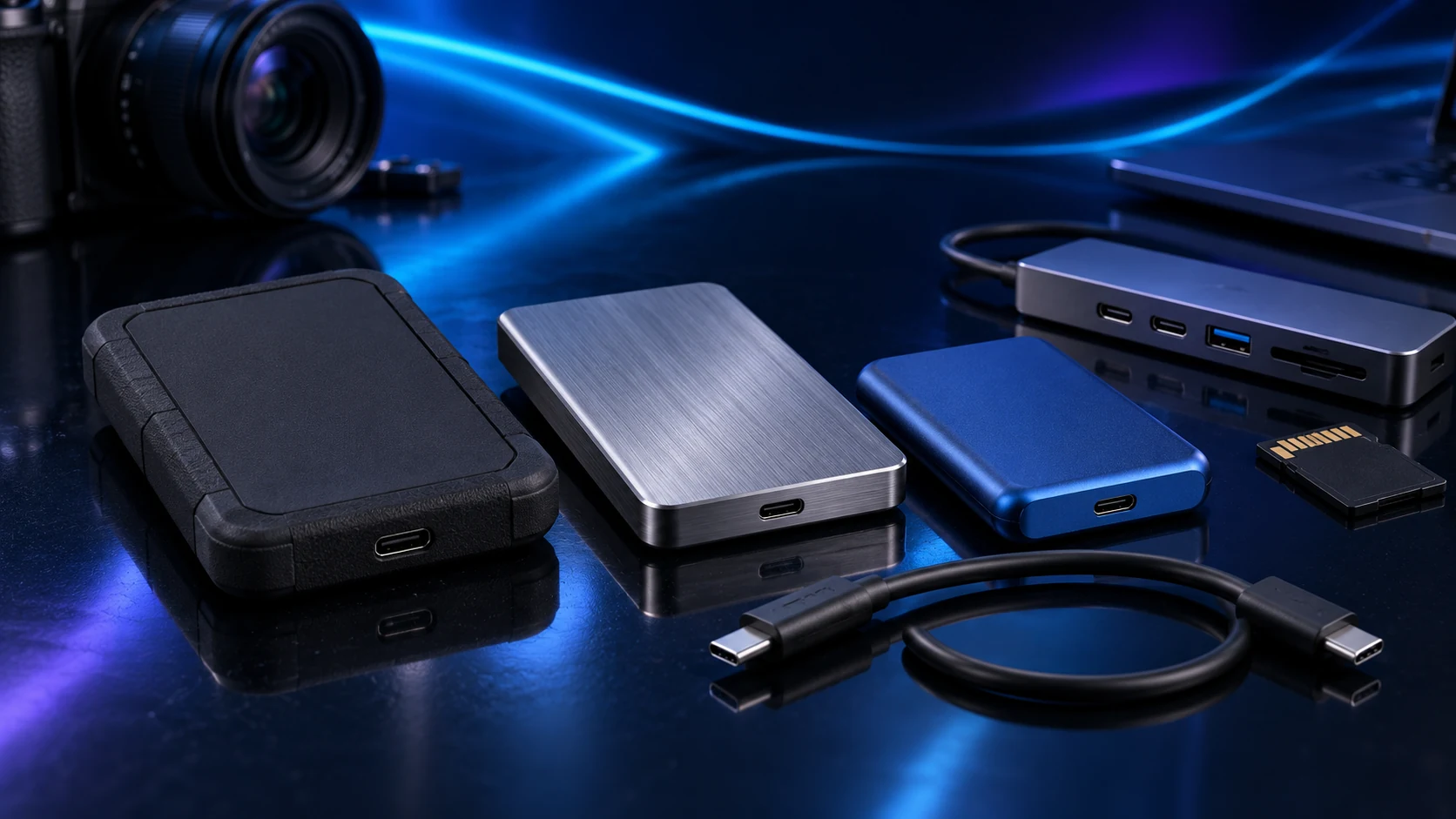
Storage and other devices share resources through the dock. An external SSD’s interface should be considered alongside displays and the host link, rather than assuming every device can sustain its individual maximum simultaneously.
For a small office computer, the mini-PC dual-monitor connection map shows how to match two screens to direct HDMI, DisplayPort or a supported USB-C video route.

Set up and diagnose in a simple order
Test one screen directly with the supported cable before adding the dock and second display. Select the intended input, then check Windows display settings. Add other devices after the native video route is established.
For DisplayLink, use the maker’s supported software and restrictions. A locked-down work laptop may require its administrator’s supported installation process. Choose a dock that fits this route; a basic USB hub is enough when you only need peripheral data ports.
Specifications and setup: VESA USB-C display help · SOHO display combinations · TS4 host support · DisplayLink route.
Once an OLED screen is receiving the intended video mode, use the OLED refresh and HDR setup guide to configure Windows, adaptive sync and panel care.