Reduce PC microphone background noise: position, gain and processing
By James Thompson · Updated:
Some links in my articles are affiliate links. I may earn a commission when you buy through them.
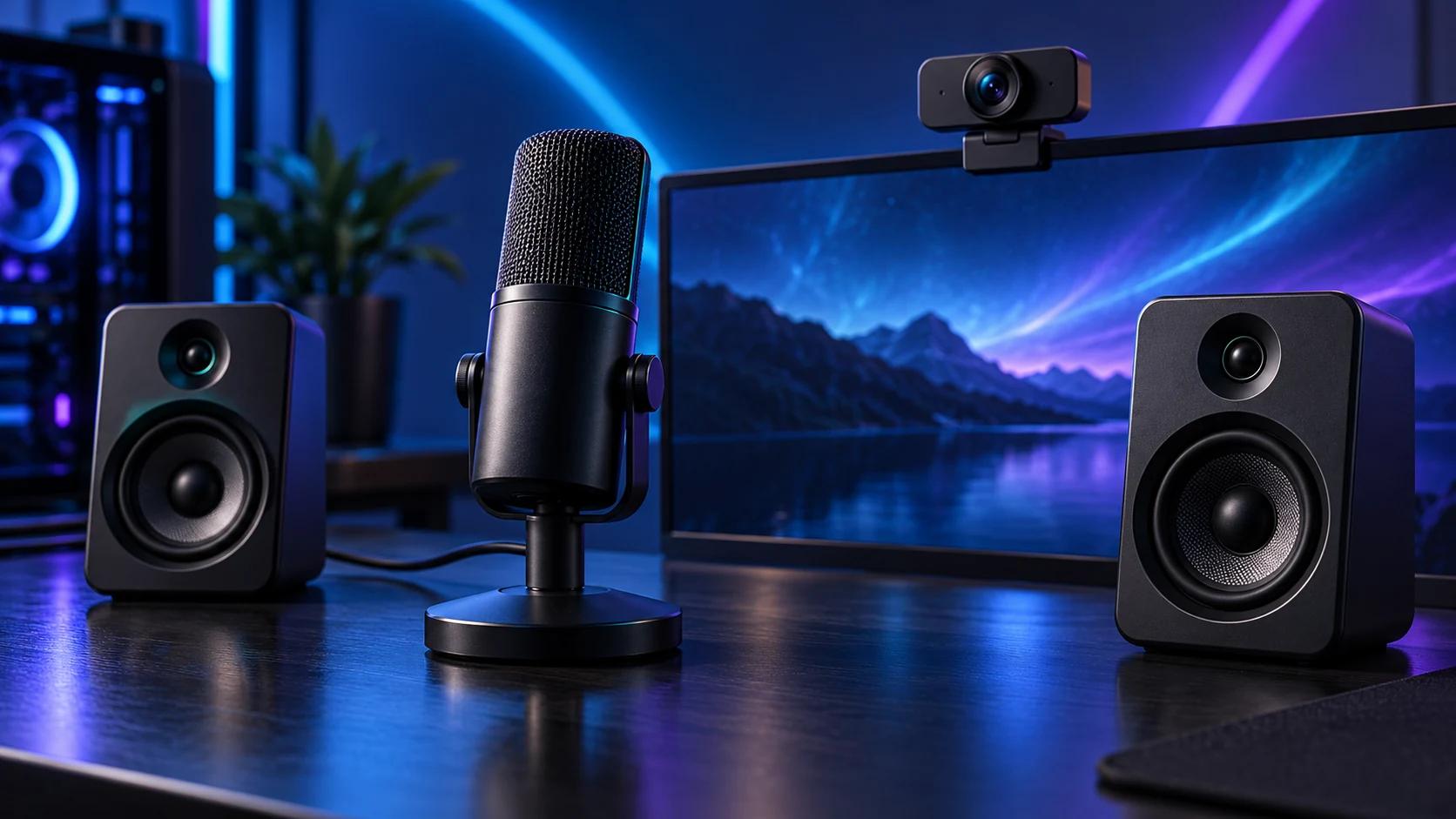
Bring the microphone closer to the voice and reduce the noise reaching it before adding filters. Then set the input level and use one processing chain. This order preserves clearer speech and makes any remaining problem easier to identify.
Record the noise before changing anything
Make a short sample with normal speech, a few seconds of silence and the usual keyboard/fan activity. Listen to the saved file through headphones. This distinguishes what the listener receives from what your live-monitor setting happens to play.
Identify whether the noise is steady fan/room sound, desk knocks, keyboard transients, electrical hum or speaker echo. A gate may hide silence between words but does not remove noise mixed with speech. A speaker echo needs a different first action from a vibrating desk stand.
Improve the physical arrangement
Position the microphone at the intended speaking distance and orientation. Follow the mic’s pickup-side instructions: a side-address and an end-address model are held differently. Turn the least-sensitive direction towards the keyboard or fan where the documented pickup pattern makes that useful.
Move a distant tabletop microphone nearer with a suitable mount if the desk layout allows it. Lower gain as the voice becomes stronger at the mic. Keep speakers from feeding directly into the recording; use headphones for monitoring. A quieter PC fan curve can help when cooling allows it.
Correct side/end and consistent distance
Reduce nearby fans and reflections where practical
Avoid impacts through the stand or cable
Headphones prevent speaker bleed
Set level, then one filter at a time
Set gain with the loudest normal speech so the signal does not clip. Select the correct device and check that another application is not repeatedly changing its input level. Record again under the same conditions before adding processing.
If steady noise remains, try the supported suppression setting in one place. Compare speech as well as silence. If words become watery or the start/end disappears, back off the suppression/gate rather than adding another layer. Keep a saved unprocessed baseline to judge the result.

When a purchase solves the problem
| Problem | Potential solution | Confirm first |
|---|---|---|
| Mic remains too far away | Compatible boom arm or stand | Mount thread, desk fit and mic weight |
| Shared loud room for calls | Headset with close boom mic | Connection and wearing fit |
| Several local speakers | Interface/microphone system | Simultaneous inputs and monitoring |
| Intermittent USB connection | Suitable cable/direct port | Device and cable fault isolation |
Use the USB mic choices or the headset route for a specific improvement. USB vs XLR is the next guide when the signal chain, rather than the room, needs to change.
Specifications and setup: MV7+ placement and levels · Wave Neo setup.