
Best SSDs for a Proxmox Home Lab in 2027
By James Thompson · Updated:
Some links in my articles are affiliate links. I may earn a commission when you buy through them.
Compare write cache, NAND and endurance for the active workload, then use the capacity plan. The PCIe-generation guide separates transfer bandwidth from the complete workflow.
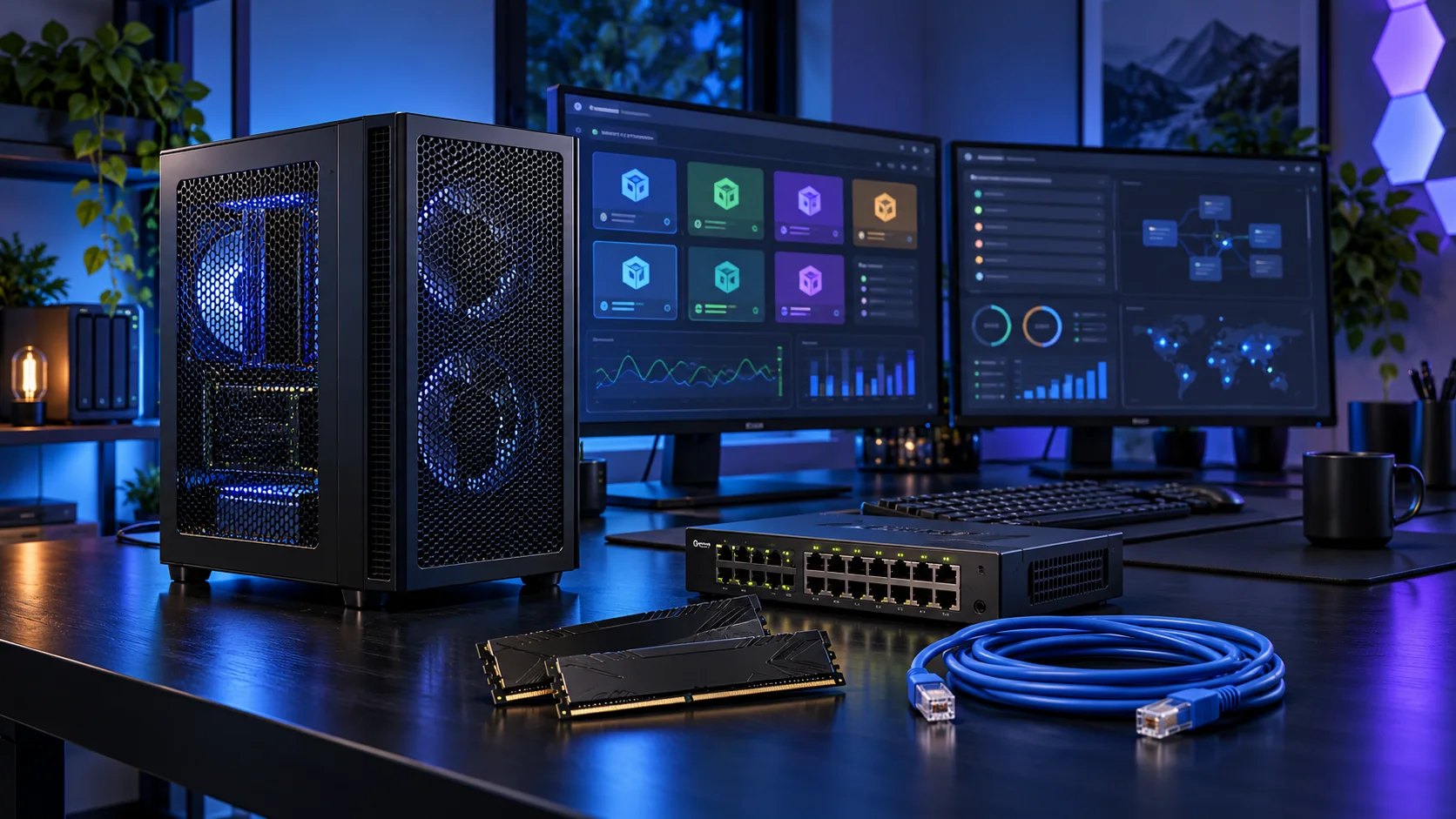
Guest disks create a working-storage workload, not merely a boot drive. I would choose capacity for the guests and snapshots, keep backups elsewhere and distinguish a convenient learning lab from an enterprise storage design. Here is the shortlist I would use, with the lower-cost and more capable routes kept alongside the complete proxmox home labs setup.
Table of Contents
ToggleChoose the right option for your build
| Best for | My choice | Why it fits |
|---|---|---|
| Best active guest-storage start | WD_BLACK SN850X 2TB | A 2TB active NVMe drive suits a planned set of guests and sensible working headroom. |
| Best lower-cost lab capacity | Crucial P310 2TB M.2 2280 | A 2TB capacity-first route keeps the first host’s budget manageable. |
| Best larger guest footprint | WD_BLACK SN850X 4TB | A 4TB drive fits a defined larger VM and snapshot plan. |
Start with the shortlist below, then use the complete build guide to match your choice to the rest of the setup.
Best active guest-storage start: WD_BLACK SN850X 2TB
A 2TB active NVMe drive suits a planned set of guests and sensible working headroom.
The WD Black SN850X 2TB is my active-project drive choice. Its role is to hold the files the PC reads and writes during work, rather than use an expensive SSD as the only home for every finished project.
A motherboard heatsink helps the drive manage sustained work. Check the slot arrangement before installing several M.2 drives, since lane sharing and disabled ports vary by board.
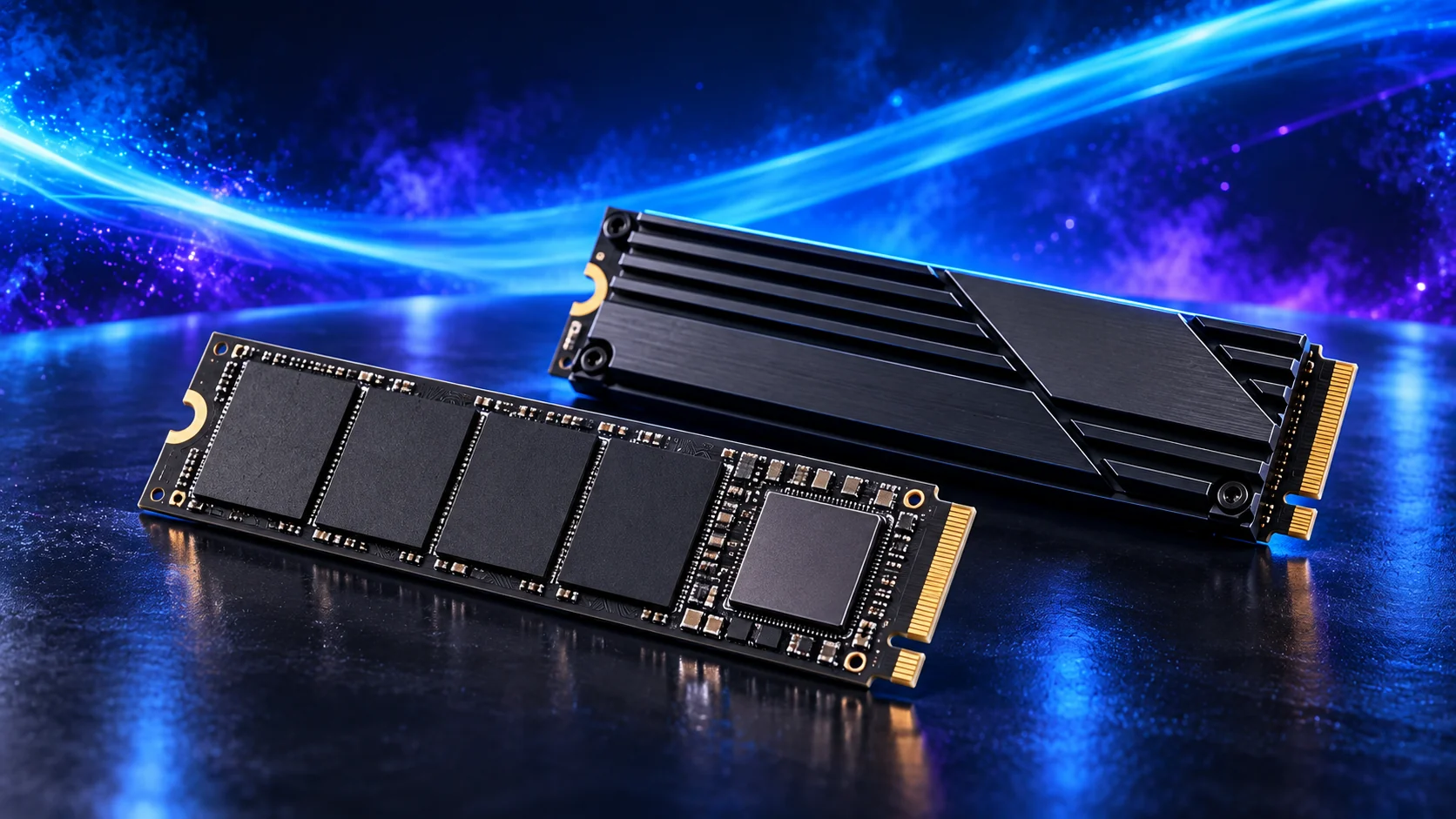
Best lower-cost lab capacity: Crucial P310 2TB M.2 2280
A 2TB capacity-first route keeps the first host’s budget manageable.
The Crucial P310 2TB 2280 is the capacity-first NVMe choice. I would use it for an operating system, applications and a sensible working library when the budget should remain available for the main processor or graphics decision.
Keep some free space and a separate backup. A single fast drive is convenient, but a partition on that same drive is not a second copy if the device fails.
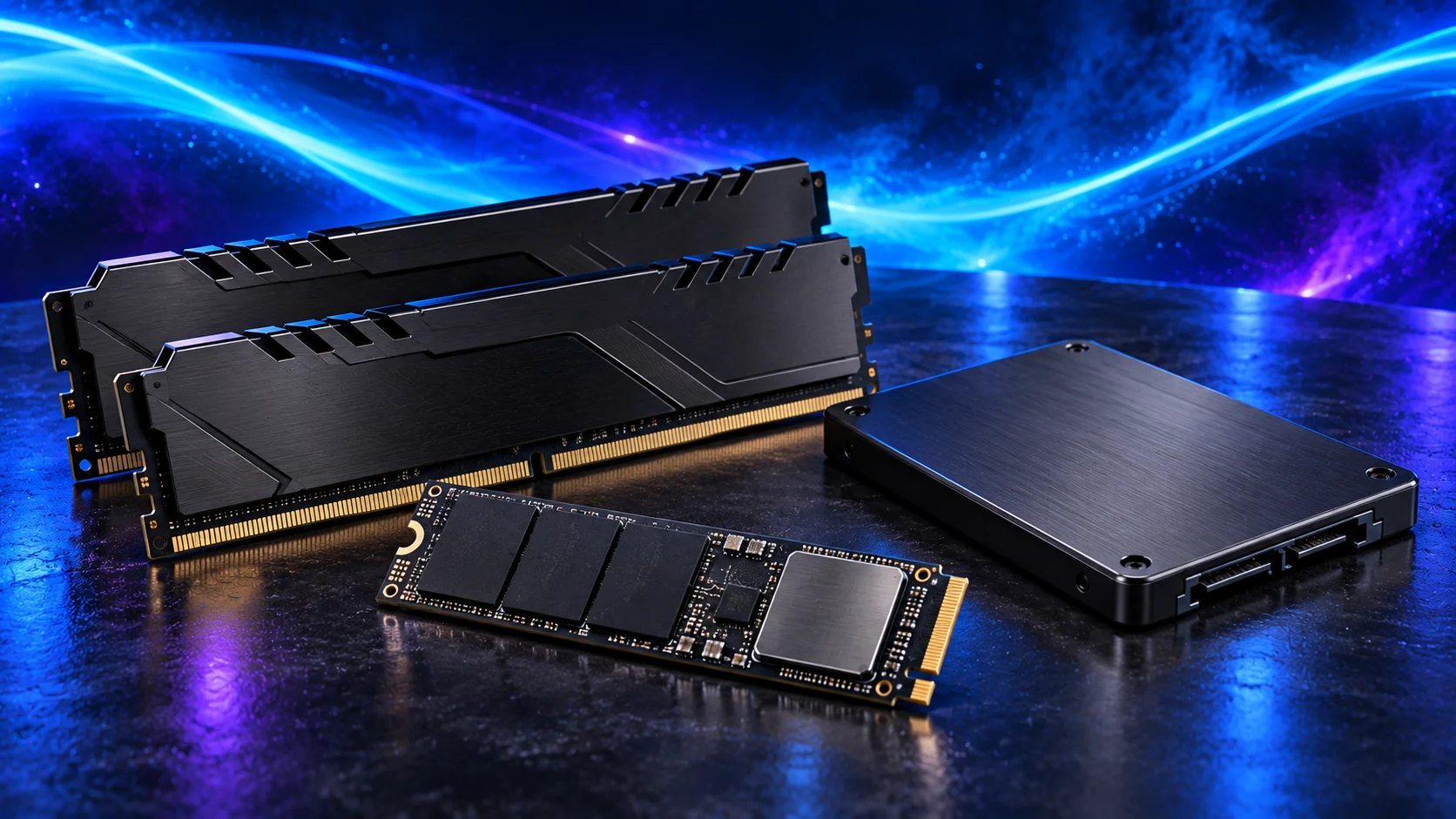
Best larger guest footprint: WD_BLACK SN850X 4TB
A 4TB drive fits a defined larger VM and snapshot plan.
The WD Black SN850X 4TB is the larger active-storage route. I would buy it when a 2TB drive leaves too little working room for the library, projects or multiple guests that need quick access.
More capacity is useful only if it stays organised. Keep source files, scratch work and backup destinations distinguishable; buying one large drive does not remove the need to recover deleted or damaged data.

How I would choose between these routes
A snapshot is useful for rolling a guest back, but it remains dependent on the storage holding it. Keep a proper independent backup and test restoring a guest. Allow space for snapshots and temporary copies before a migration or upgrade; a host that runs out of storage can affect several guests at once.
Consumer SSDs can suit a learning lab, but they are not a claim of enterprise write endurance or power-loss protection. If the services become important, revisit redundancy, supported storage hardware and backup. Mirror layouts also change usable capacity; two drives do not automatically provide both full combined capacity and redundancy.
Match the purchase to the actual workload
Consumer hardware can make a good lab, but server-like requirements need to be chosen explicitly. ECC, remote management, additional NICs and passthrough isolation are platform questions. A motherboard slot does not establish the IOMMU layout, and a second network port does not automatically separate services safely. I would start with a simple supported host and add complexity after the first guests are stable.
The supporting parts I would put beside it
Put active guests on a suitable NVMe drive and keep a separate backup destination. Plan snapshots, templates and ISO storage in the capacity. Add network or controller cards only after confirming the board layout and the actual passthrough requirement.
| Role | Suggested route | Why I include it |
|---|---|---|
| Memory | Crucial Pro 64GB DDR5-5600 | Choose capacity for the active work and surrounding desktop. |
| Working drive | WD_BLACK SN850X 2TB | Keep active files and useful free space on the NVMe drive. |
| Case | Lian Li A3-mATX wood-front | Use the complete layout rather than an isolated component maximum. |
Complete the purchase plan
Back up and restore a guest before relying on the host. For passthrough, verify the device’s actual isolation and the supported configuration rather than assume it from a specification sheet. Do not casually place the household’s only router, only archive and every experiment on one untested host.
Compare the complete basket for the chosen route and keep the exact variant in the order. Use the wider ssds guide for the underlying choice, or return to the complete proxmox home labs build for the supporting purchases.
Technical references: Proxmox VE system requirements.