
Mouse DPI and polling rate explained: useful settings for a new PC
By James Thompson · Updated:
Some links in my articles are affiliate links. I may earn a commission when you buy through them.
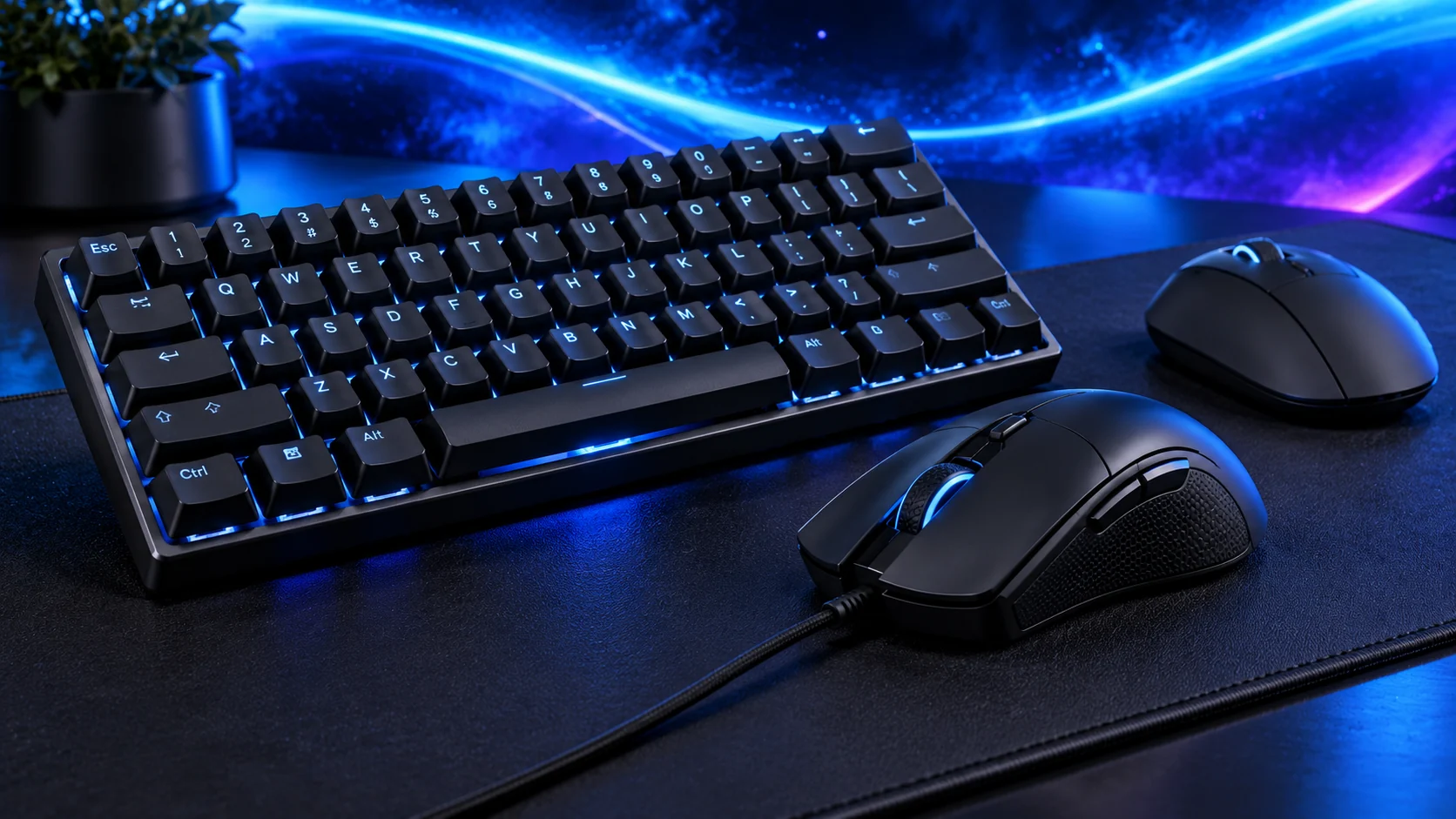
DPI changes how much movement the mouse reports for a physical distance. Polling rate changes how often it can report. Start with a comfortable repeatable sensitivity, then adjust the report rate around the game and PC rather than chasing the largest specification.
DPI, sensitivity and physical movement
A higher DPI setting reports more movement for the same hand travel. The game or operating system then applies its own sensitivity behaviour. Two users with the same DPI can still have very different aiming speeds because their game settings differ.
Within the same game and input mode, DPI multiplied by in-game sensitivity is often called eDPI. It is a useful shorthand for comparing that specific setting, not a universal cross-game measure. Games interpret sensitivity scales differently. For a repeatable physical reference, measure the distance your mouse travels for a full 360-degree turn in the same game.
Start with a single saved DPI step and a sensitivity that fits the available mat space. Multiple accidentally selected DPI stages make an otherwise familiar setup feel inconsistent.
What the report interval tells you
| Rate | Interval calculation |
|---|---|
| 125 Hz | 1000 ÷125 =8 ms |
| 500 Hz | 1000 ÷500 =2 ms |
| 1000 Hz | 1000 ÷1000 =1 ms |
| 8000 Hz | 1000 ÷8000 =0.125 ms |
These are the nominal intervals between reports, not complete click-to-display latency figures. The game, CPU workload, USB/input handling and display all sit later in the chain. A higher report rate cannot make a slow game simulation or low frame rate disappear.
Use a stable 1000 Hz setting as a practical baseline when supported. If a higher mode creates stutter or increased CPU load in a particular game, step back and compare the same movement. The highest supported rate is an option to test, not an obligation.
Make a controlled adjustment
Note DPI, game sensitivity and report rate
Use the same in-game movement and screen settings
Change one setting and repeat
Save the comfortable stable configuration
For desktop work, pointer acceleration can be a preference. For a game using raw mouse input, the game may bypass parts of the desktop pointer behaviour. Check the actual input mode before assuming a Windows slider explains every change.
Place a wireless receiver where its connection can work cleanly and keep the supplied cable/extension arrangement in mind. For a wired mouse, cable tension at the edge of a mat can feel like inconsistent resistance even when the sensor is tracking correctly.
Buy for the useful difference
A new mouse is useful when shape, weight, buttons or the connection improves the way you work or play. Maximum DPI alone is a weak reason to replace a comfortable working model. The gaming-mouse shortlist separates those physical/control priorities; the work-mouse shortlist concentrates on scrolling and applications.
Pair the mouse with a consistent surface and a sensible screen target. Keeping that complete setup familiar makes further changes easier to judge.
Specifications and setup: G203 controls · Superlight 2 SE settings · G203 setup guide.
