
Best Graphics Cards for Flight Simulation in 2027
By James Thompson · Updated:
Some links in my articles are affiliate links. I may earn a commission when you buy through them.
Use the FPS/frame-time comparison guide to judge the results at your intended settings. The rendering-feature guide keeps native, reconstructed and generated frames separate. For the broader choice, start with the GPU overview.
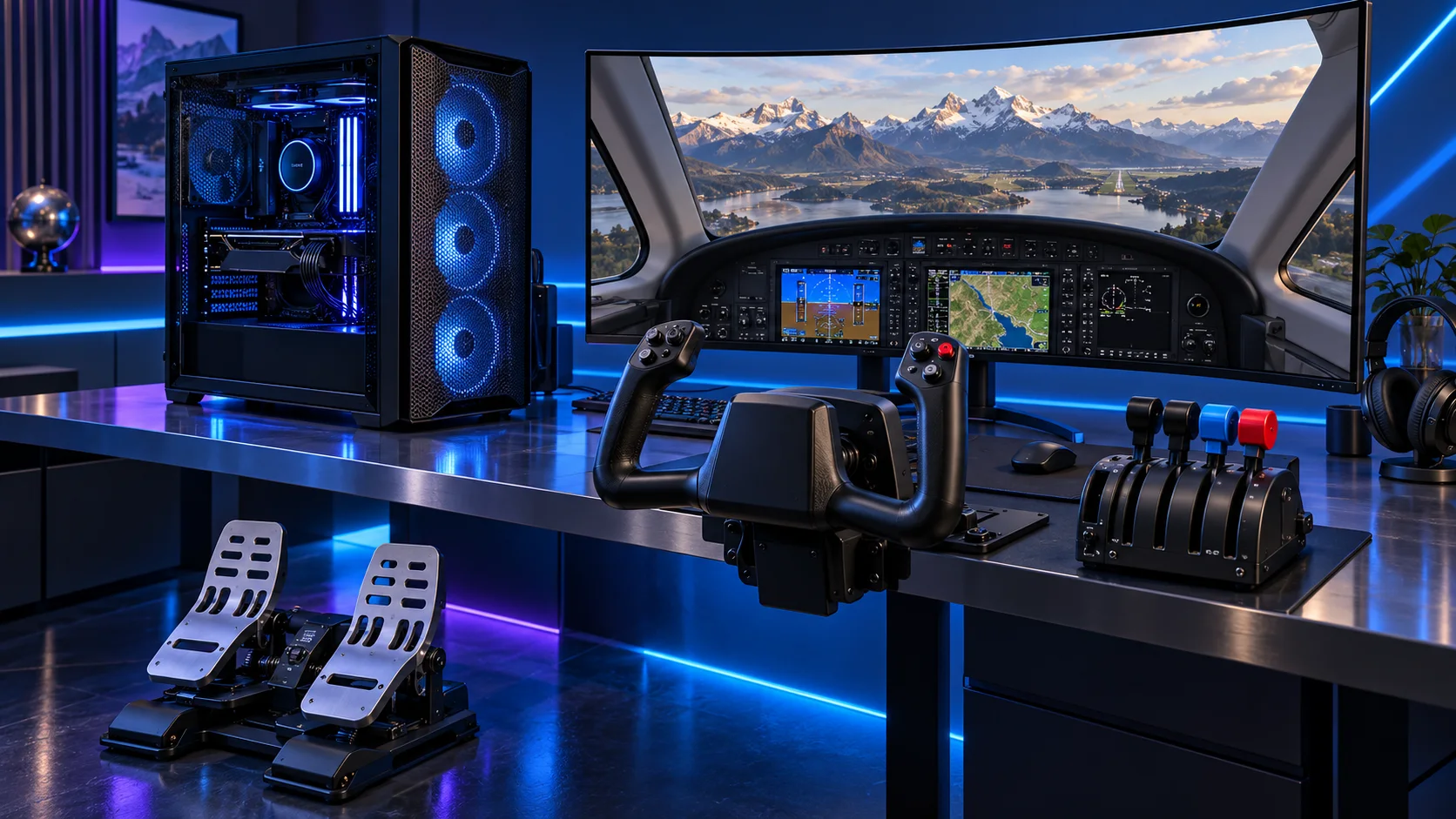
One conventional screen is the easiest place to begin. VR and wider display arrangements deserve their own graphics allocation and a look at the headset runtime or monitor connections. Buy the exact card that fits the case, rather than treat every version of a GPU family as the same size. Here is the shortlist I would use, with the lower-cost and more capable routes kept alongside the complete flight simulation setup.
Table of Contents
ToggleChoose the right option for your build
| Best for | My choice | Why it fits |
|---|---|---|
| Balanced NVIDIA tower | MSI RTX 5070 Ti 16G Ventus 3X OC | A higher-tier 16GB NVIDIA route for a demanding single-screen cockpit and a substantial graphics budget. |
| Lower-cost 16GB start | MSI RTX 5060 Ti 16GB Shadow 2X OC Plus | Start here for a restrained display plan, then put the savings into the rest of the cockpit. |
| Premium display workload | Gigabyte RTX 5080 Gaming OC 16GB | Choose this when the view and display tier justify buying more rendering headroom. |
Start with the shortlist below, then use the complete build guide to match your choice to the rest of the setup.
Try a catalogue graphics card in PC Builder alongside an AM5 processor, case and PSU. See the 3D tower, estimated total and supported power or fit warnings together.
Balanced NVIDIA tower: MSI RTX 5070 Ti 16G Ventus 3X OC
A higher-tier 16GB NVIDIA route for a demanding single-screen cockpit and a substantial graphics budget.
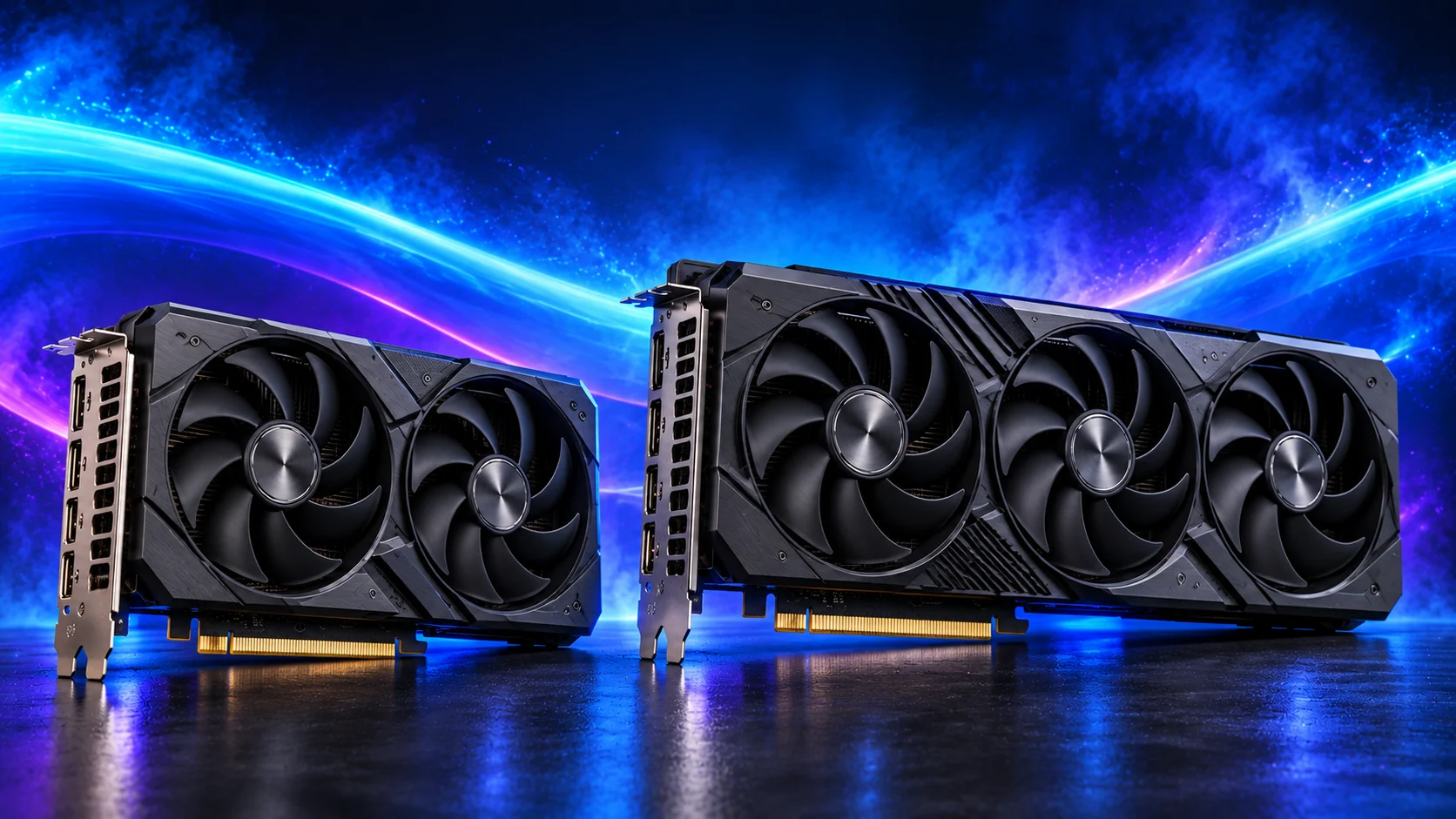
The MSI RTX 5070 Ti 16GB Ventus 3X OC is my higher-performance 16GB NVIDIA route. It is attractive when the software ecosystem stays the same but the graphics workload is becoming more demanding. It keeps the decision focused on usable rendering headroom rather than only the memory number.
This is a substantial card. Include length, slot thickness, power-cable space and the PSU in the purchase plan. A 16GB card remains a 16GB card even when its processing tier is higher.
Lower-cost 16GB start: MSI RTX 5060 Ti 16GB Shadow 2X OC Plus
Start here for a restrained display plan, then put the savings into the rest of the cockpit.
The MSI RTX 5060 Ti 16GB Shadow 2X OC Plus is the accessible 16GB NVIDIA route. I would buy it when graphics-memory capacity and NVIDIA application support matter more than jumping straight to a much more expensive card. It is also a useful place to start a compact parts plan.
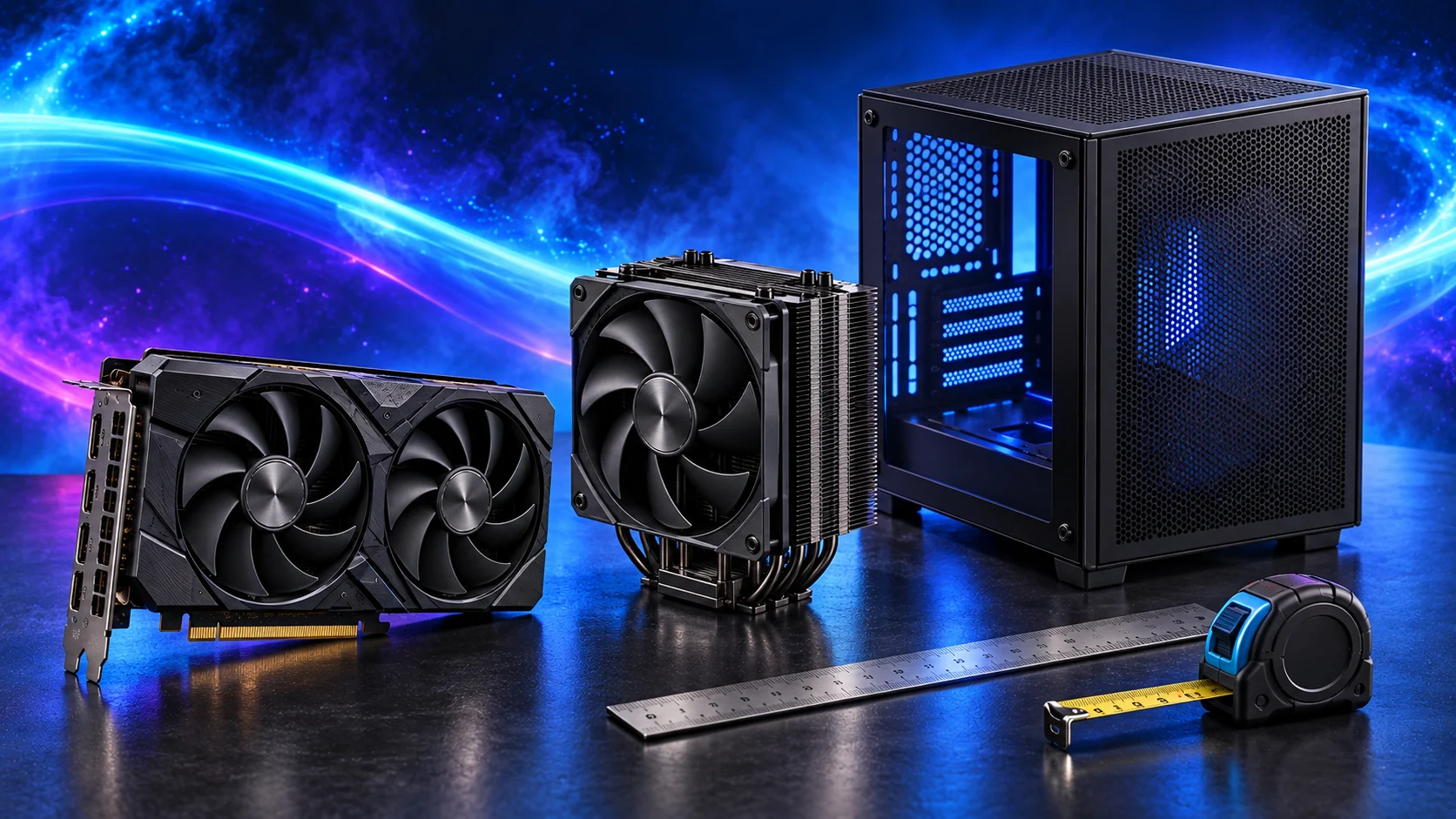
Keep the exact 16GB variant in the basket. The model name, dimensions and power connection belong in the fit check, particularly when a riser cable and a small case are involved.
Premium display workload: Gigabyte RTX 5080 Gaming OC 16GB
Choose this when the view and display tier justify buying more rendering headroom.
The Gigabyte RTX 5080 Gaming OC 16GB is the premium rendering route in the shortlist. I would buy it for a build with a demanding graphics job and the budget to support it with a suitable display, case and power supply.
It is a performance upgrade, not a graphics-memory upgrade over another 16GB card. If capacity is the reason you are replacing a GPU, select a larger-memory model rather than paying for speed that leaves the same project-size limit.
How I would choose between these routes
Start with the required feature or workload, then select memory capacity and processing tier. A larger graphics-memory allocation and a faster card are different upgrades. Two cards can both have 16GB while offering different rendering headroom; neither becomes a larger-memory card because the model number is higher.
The exact board-partner model matters at purchase time. Include length, height, thickness, PSU recommendation, connector type and power-cable space in the layout. A premium graphics purchase may need a larger case and PSU, making the complete upgrade more expensive than the card alone.
Match the purchase to the actual workload
Treat a large airport, a busy cockpit and a headset as separate demands. The processor helps with the simulation side, while the graphics card has to draw the selected view. Start with the screen resolution and your usual flights; increase the GPU allocation when moving to a high-resolution display or VR. Keep scenery storage and internet connectivity in the plan, particularly for a simulator that streams substantial world data.
The supporting parts I would put beside it
Keep the simulator and frequently used scenery on the active NVMe drive. Leave room for updates and add-ons rather than filling it on day one. Archive installers and recordings separately, and keep a copy of controller profiles so rebuilding the PC does not mean remapping the cockpit.
| Role | Suggested route | Why I include it |
|---|---|---|
| Memory | Crucial Pro 64GB DDR5-5600 | Choose capacity for the active work and surrounding desktop. |
| Working drive | WD_BLACK SN850X 2TB | Keep active files and useful free space on the NVMe drive. |
| Case | NZXT H5 Flow (2024) | Use the complete layout rather than an isolated component maximum. |
Complete the purchase plan
Map the controls before adding scenery packs and optional cockpit accessories. Fly a route you know with the same aircraft while adjusting settings; that makes changes easier to judge. For a mixed racing-and-flying machine, the sim-racing guides give a separate plan for the wheel, triples and VR layout.
Compare the complete basket for the chosen route and keep the exact variant in the order. Use the wider graphics cards guide for the underlying choice, or return to the complete flight simulation build for the supporting purchases.
Technical references: Microsoft Flight Simulator FAQ · T16000M Flight Pack specification.