
Clone or Clean Install Windows When Upgrading Your SSD?
By James Thompson · Published:
Some links in my articles are affiliate links. I may earn a commission when you buy through them.
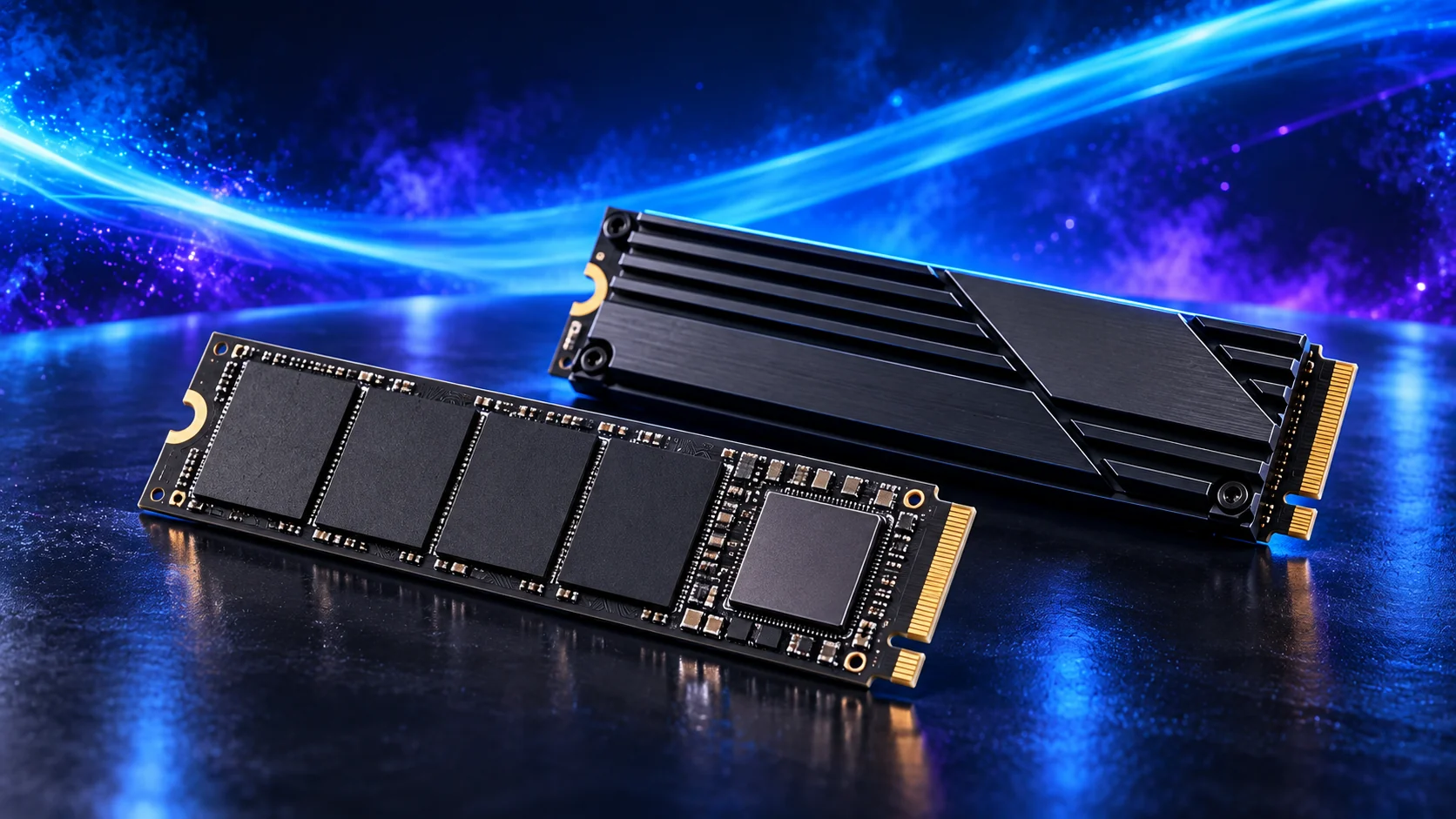
Clone your Windows drive when the PC works properly and you want the same applications, settings and files on a replacement SSD. Choose a clean installation when you want to rebuild the software setup and can reinstall what you need. If you only need room for games or projects, adding a second SSD may avoid moving Windows altogether.
For a replacement, choose the migration route before buying the drive or an adapter. A single-slot PC needs a different copying arrangement from a desktop with two supported storage connections.
Table of Contents
ToggleChoose the job before moving Windows
| Your situation | Sensible route | Work to allow for |
|---|---|---|
| Healthy Windows setup; replacing its drive | Clone the system using a tool that supports the source, target and Windows version. | Connect both drives, check the copied layout and prove the new drive boots independently. |
| You want a fresh software setup | Install Windows cleanly on the replacement SSD. | Restore files and reinstall applications, drivers and their settings. |
| Windows is fine; the games or project drive is full | Add a supported data SSD. | Set up the new blank drive and move libraries through their applications. |
| The old drive is failing or files cannot be read | Protect recoverable data first. | Investigate recovery before repeated copying attempts or writing to the original. |
Cloning is attractive when rebuilding a carefully configured PC would take more work than copying it. It also carries the existing software setup across, so do not choose it expecting a fresh start from persistent software problems. Diagnose the fault first; a recoverable file backup is useful whichever route follows.
A Windows repair reinstall is another distinct operation. Microsoft offers in-place options that preserve files or applications, but repairing the existing installation does not by itself move it to another physical drive.
Check the replacement drive and copying connection
Match the SSD to the exact PC or motherboard manual: supported SATA or NVMe interface, M.2 length, available slot and heatsink clearance. M.2, SATA and NVMe explains why a drive fitting the socket is only part of the check.
Then compare the SSD buying guide by workload and useful capacity. The existing gaming and everyday-work routes prioritise room for applications and files; the creative-work routes consider larger active projects. Migration convenience should not push you into an incompatible drive.
With two supported internal connections, the replacement can be connected beside the original for copying. With only one usable socket, a compatible USB enclosure or adapter can provide the temporary second connection, if the migration tool supports that arrangement. Match it to the drive protocol and length: an enclosure specified only for SATA M.2 drives will not serve an NVMe drive. Check whether an attached heatsink prevents the drive fitting inside it.
Read the cloning tool’s current capacity and partition-resizing rules. For example, 430GB of used space on a 500GB drive may leave useful room on a 1TB replacement, but that hypothetical file total does not prove that every partition layout can be copied. Include all required system partitions and let the tool show the proposed destination layout before starting.
Prepare a recovery route while the old PC still starts
- Back up irreplaceable files independently. Restore a sample to a separate folder and open it. Keep this backup separate from the SSD that will be overwritten.
- Record the original and replacement. Note their models, capacities and connections so the source and destination remain identifiable inside the migration tool.
- Check encryption. If BitLocker or Device Encryption is enabled, make sure the recovery key is accessible from another device. Keep it private and outside the only PC being changed.
- Record Windows and application access. Check the installed Home/Pro edition and activation state, application licences and the files or settings needed to reinstall specialist software.
- Prepare the fallback. Have the appropriate Windows installation media and the PC maker’s driver/support instructions available before removing the working drive.
Microsoft says a hardware change can trigger a BitLocker recovery prompt, and it cannot recreate a lost key. Follow its recovery-key guidance before changing hardware. The cloning tool’s encryption requirements also matter; do not assume that every tool handles an encrypted source in the same way.
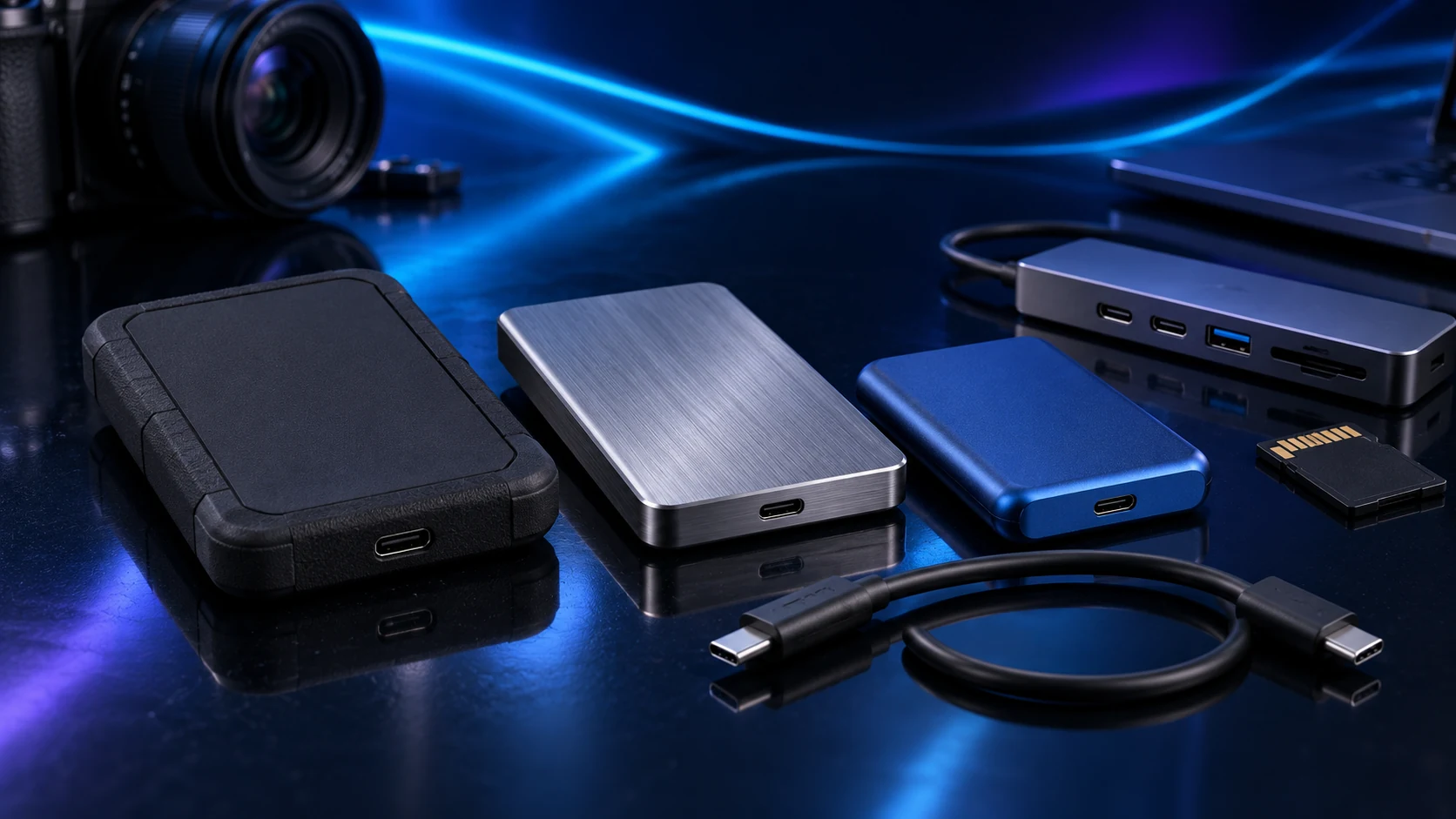
If you clone, copy a bootable system
Use the drive maker’s supported migration route or a disk-cloning tool whose current documentation covers your setup. Samsung, for example, integrates Data Migration into Magician, while warning that supported features vary with other manufacturers’ drives and Samsung OEM models. Check the supported destination list before choosing the software.
Identify the source as the current Windows drive and the destination as the replacement. The destination will be overwritten. Review the whole system-copy plan, including the boot and recovery partitions the tool requires; dragging the Windows folder or copying visible files in File Explorer does not create the equivalent migration.
Close applications and follow the tool’s instructions for the copy and shutdown. Do not initialise or format the original when Windows or another utility offers to prepare a disk you have not positively identified.
Keep the original until recovery is proved
- Independent backup
- Identify source → replacement
- Copy the supported system layout
- Boot with the original disconnected
- Open files and test the new backup
For the first boot check, power down fully and follow the PC manual to install the replacement in its intended position. Where the hardware allows, leave the original disconnected. This makes it much clearer whether Windows is actually starting from the replacement rather than quietly relying on the old drive.
If you install cleanly, plan the rebuild
A clean installation removes the files, applications and settings on the installation target. Keep the original drive and independent backup intact while you set up the replacement. On a desktop where it is practical, disconnecting the old drive during installation reduces the chance of choosing it by mistake; follow the hardware manual with power disconnected.
Use Microsoft’s installation-media instructions for the current Windows setup screens. Confirm the correct replacement disk before deleting partitions or selecting unallocated space. Do not treat a disk number such as “Disk 0” as proof of its identity when several drives are connected.
Install the Windows edition matching your licence. Microsoft says activation usually happens automatically after going online, but the licence and hardware-change conditions still apply. Check the digital-licence arrangements beforehand rather than assuming a replacement SSD includes a new Windows licence.
Once Windows starts, install updates and the supported drivers, reinstall applications from their legitimate sources and restore your files. Use the first-boot and driver guide for the wider setup. Copying an old application folder back is not a reliable substitute for its installer, licence and required settings.
Prove the new drive works before reusing the old one
Check firmware identifies the replacement and selects its Windows boot entry. Once in Windows, confirm the system drive’s model and capacity, open important applications and representative project files, and check that the intended extra capacity is usable. If space is left unallocated after a clone, use the tool’s documented resize procedure rather than deleting unfamiliar partitions.
Restart again with the old drive still disconnected where possible. If the replacement will not boot, preserve both drives and return to the migration tool’s boot-repair guidance and the PC manual. Do not randomly change storage-controller modes or erase the old installation to force the next attempt.
Finally, check the encryption state, keep the correct recovery information available and configure backup for the new arrangement. Restore another sample. Only consider erasing or repurposing the old drive after the new setup and independent recovery copy have passed these checks.
For the hardware purchase, return to SSD choices by workload; for extra storage without a Windows move, follow the second-drive installation guide.
Sources: Microsoft recovery options · Samsung migration support · Samsung’s current tools and documentation.