Do You Need Audio Interface Loopback for PC Streaming?
By James Thompson · Published:
Some links in my articles are affiliate links. I may earn a commission when you buy through them.
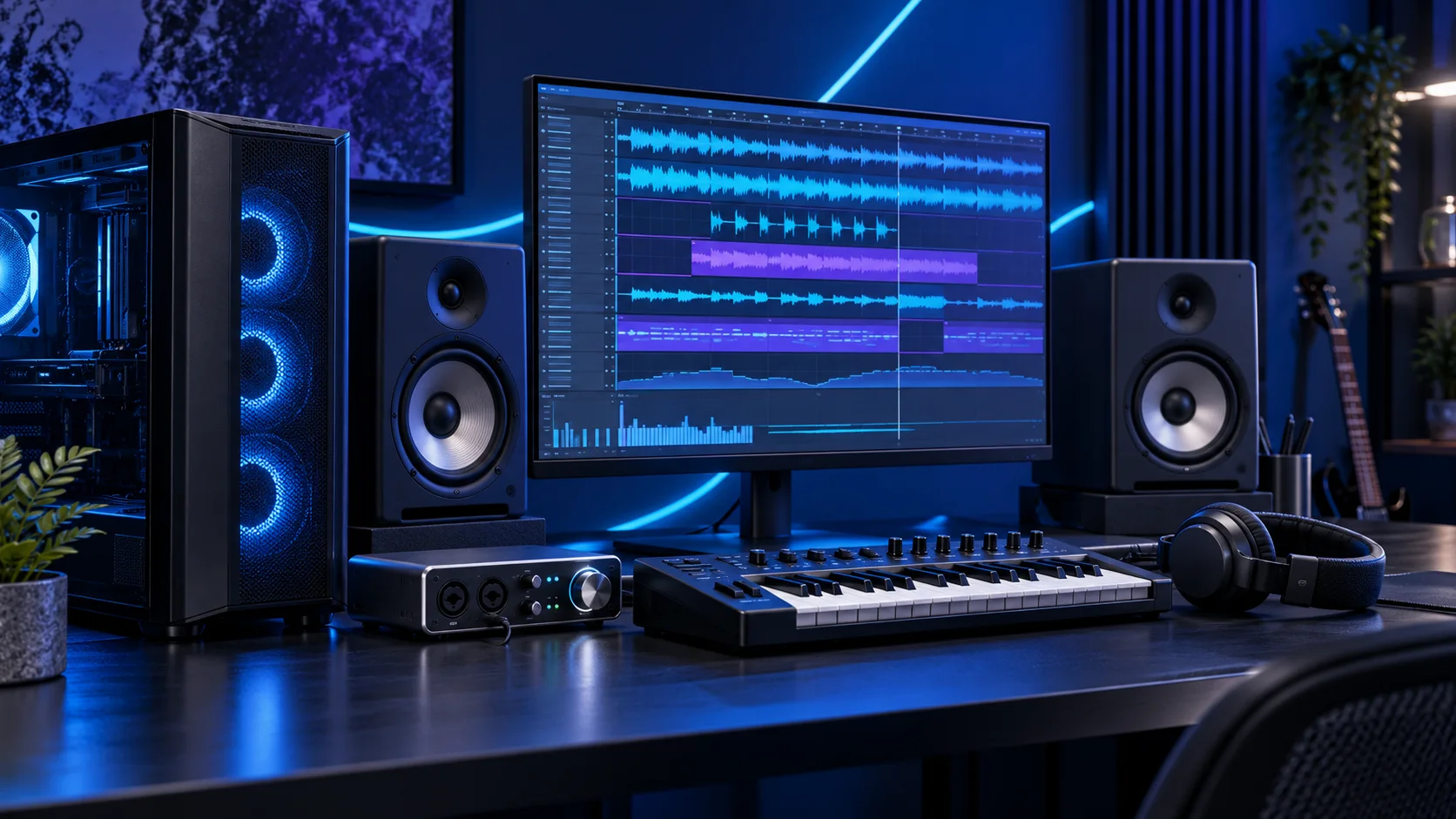
For a game, Discord and one USB microphone, start with OBS audio capture. Buy an audio interface when you need its microphone or instrument connections; choose its loopback facilities around the mix you want to send.
The audio-interface buying guide compares one-microphone, two-microphone and MIDI-equipped routes. If your desk needs only a direct USB voice input, the USB microphone shortlist is the simpler starting point.
Table of Contents
ToggleLoopback sends a mix back into the computer
Interface loopback presents computer playback as a recording input. It is useful when a music stream needs the DAW’s output alongside a microphone or instrument. Direct monitoring has a different job: letting you listen to the input while recording.
Plan what the audience should hear before selecting a device. For a guitar lesson, that might be voice and guitar through the interface, plus a backing track from the PC. For a gaming video you will edit afterwards, separate game, conversation and narration tracks give you more control than one finished stereo mix.
Mix the intended sources for a live feed.
Keep sources separate, then build the final mix in the editor.
Match the purchase to the sources on your desk
| Your setup | Useful route | What you gain |
|---|---|---|
| One USB mic, game and Discord | Keep the USB microphone route | A direct voice input; use software to organise PC audio. |
| One XLR mic and a guitar | Scarlett Solo 4th Gen route | One mic preamp and a dedicated instrument input. |
| Two local XLR microphones | Scarlett 2i2 4th Gen route | Two mic preamps for the two physical sources. |
| A custom mix with independent listening needs | Compare the exact interface mixer and output routing | Routing that serves the intended programme and monitor feeds. |
A second microphone input earns its cost when another person will sit beside you. It adds little to a solo stream that already has its voice input sorted. Leave room in the basket for the XLR lead, mount and headphones; these affect whether the setup is comfortable to use.
The USB versus XLR guide covers the recording chain if you have not chosen the microphone yet. Neither connection decides the quality of the finished programme on its own.
The Scarlett generation changes the loopback answer
Focusrite documents stereo loopback on the Scarlett Solo and 2i2 fourth-generation models. Its third-generation Solo and 2i2 do not have that feature. Keep the generation in the model name when comparing an older unit with the current shortlist.
On the fourth-generation Solo and 2i2, loopback uses the computer playback pair. Focusrite Control 2 can also send the Direct Monitor mix into it. Larger supported interfaces offer a different custom-mix workflow; choose that extra routing only when you need to control a separate programme mix.
If your stream needs a different mix from the one in your headphones, compare the actual output and mixer controls.
The current Focusrite loopback instructions explain the model-specific routes. Keep a loopback return out of the playback mix feeding it, so the signal does not circulate into itself.
Check the Windows recording device before replacing hardware
A loopback input that appears in a DAW may be missing from OBS’s normal device list. Focusrite explains that Windows non-ASIO applications can initially expose only one recording pair; its Expose/Hide Windows Channels instructions show how to make additional supported channels available.
When OBS sees an interface pair containing one microphone, the Mono control in Advanced Audio Properties can centre that voice. A stereo instrument or a deliberately stereo mix needs its left and right channels preserved. Two physical microphone sockets also do not automatically become two independently selectable OBS sources.
If the real problem is a voice heard in only one ear, solve the input/channel arrangement first.
Keep editable game and conversation audio separate
A premixed loopback feed reaches the recording as that mix. If voice chat is buried underneath loud game audio in it, there is no independent Discord fader to turn later. Capture those sources separately when post-production control is the aim.
Use the separate OBS audio-track walkthrough for a complete listening mix plus individual mic, game and Discord tracks. The gaming and streaming PC guide covers the computer and recording-storage side of the setup.
Try the intended session before adding more equipment
Make a short rehearsal using the sources you will actually stream: speak, run the game or DAW, and bring in a second speaker if that is part of the plan. Listen to the recording rather than judging only from the headphones at the desk.
Confirm which sounds reach the programme feed and which remain independently editable. If that works with the existing microphone and software, keep it. If you need another physical input or a separately controlled mix, compare those requirements in the interface buying guide.