
How to Set Up UPS Shutdown for a NAS: USB, Network and Restart
By James Thompson · Updated:
Some links in my articles are affiliate links. I may earn a commission when you buy through them.
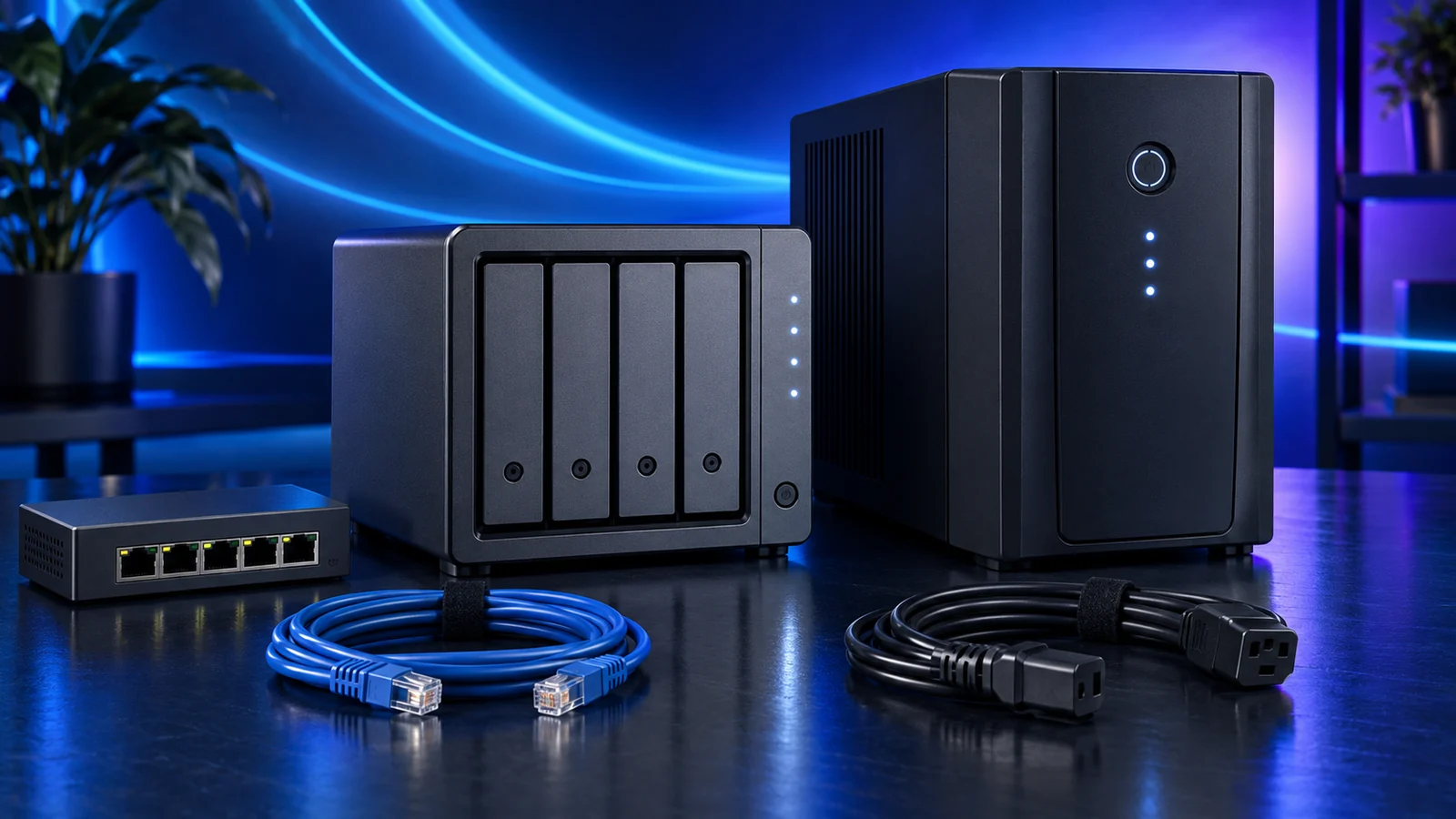
A NAS on a UPS needs two connections: battery-backed power and a supported way to learn that mains power has failed. Plan the shutdown signal before choosing the UPS. A powered NAS with no working status connection can carry on until the battery is empty.
Start with the UPS shortlist for PC and NAS, then match the exact UPS, communication cable and NAS software. This guide separates the power route from the data route and gives you a sequence to verify before leaving the server unattended.
Table of Contents
ToggleDraw the power route and the signal route
Draw two lines on the plan. The power line runs from the UPS’s battery-backed outputs to the NAS and any network equipment needed during shutdown. The signal line runs from the UPS data connection to the machine monitoring it, then to any supported network clients.
A USB cable to one NAS can provide local UPS status without a network switch carrying the message. Once another machine receives status over the LAN, the switch between them needs power too. A UPS-backed NAS and an unprotected switch can leave a second server running without the message it needs.
UPS battery-backed output → NAS power supply; protect the switch if the signal uses the LAN.
UPS communication port → supported cable → NAS USB port.
Monitoring host → powered LAN switch → supported shutdown clients.
Keep a simple label on each protected lead and record which host owns the direct communication connection. If that host is a desktop that is often switched off, another always-on monitoring arrangement may suit the server better.
Choose a supported communication arrangement
| Arrangement | Good fit | What to establish before buying |
|---|---|---|
| USB directly to the NAS | One NAS and a compatible UPS | Exact NAS/UPS compatibility entry, supported USB data cable and available host port. |
| NAS acting as a network UPS server | Several supported devices sharing battery power | Working permitted-client configuration and a powered LAN path. |
| Network-managed UPS using SNMP | An installation needing direct network UPS monitoring | Supported management hardware, protocol and NAS settings. |
| DIY NAS using Network UPS Tools | A supported home-built server platform | Exact UPS/driver support and the version packaged with the NAS OS. |
For a ready-made NAS, begin with its vendor’s compatibility information. For a DIY system, the NUT hardware list records models, connection types and drivers. Match the complete model and interface rather than assuming that every product from the same brand behaves alike.
USB-A or USB-C charging ports on the UPS are not evidence of NAS monitoring support. Likewise, a network-shaped socket may be a proprietary data connection or a surge-protection path. Use the actual communication-port description.
The buying guide’s British-socket and IEC choices are different connection routes. A NAS recommendation still needs the software match; neither a large VA number nor the right mains plug establishes that match.
Configure the NAS software for the exact platform
In Synology DSM7, open Control Panel → Hardware & Power → UPS, enable UPS support and select the appropriate UPS type. With a compatible USB UPS connected, Device Information lets you inspect the reported device. Choose when the NAS enters Standby Mode; DSM stops services and unmounts volumes at that stage. Synology’s DSM7 instructions also cover a permitted-client network UPS server.
Treat a custom delay, low-battery handling and the option to power off the UPS as separate decisions. A command that removes UPS output affects every device still using that battery, including a PC that may be finishing its own shutdown.
On a DIY NAS running TrueNAS, configure its UPS service for the connected model, driver and local or remote monitoring arrangement. The versioned TrueNAS instructions distinguish shutdown on battery from shutdown at low battery. Use the documentation for your installed release rather than copying the labels from another version.
For a Windows PC sharing the UPS, PowerChute’s supported-model and OS list is separate from NAS support. APC’s current list does not support Back-UPS with Linux through PowerChute; a NAS’s native integration or supported NUT driver is a different software route.
Leave enough battery time to stop the whole stack
Choose the shutdown reserve from the work the server must finish. A bare file server, a NAS running virtual machines and a machine hosting applications can have different stop sequences. Stop dependent services and guests through the platform’s supported process before the host loses output.
Write down the expected delay before shutdown starts, the observed time needed to finish and a reserve. Use the UPS runtime estimate at the protected load to see whether that plan fits. Do not copy a five- or fifteen-minute timer from another installation just because the number sounds reasonable.
| Stage | Your record | What it resolves |
|---|---|---|
| Mains failure detected | Status shown by the monitoring host | Confirms that the event reaches software. |
| Short interruption allowed for | Chosen delay, if appropriate | Lets the system ride through a brief interruption. |
| Services and guests stop | Observed completion time during a planned check | Establishes the host’s real shutdown job. |
| Storage becomes safe | Platform’s standby/unmount/shutdown state | Confirms the NAS has finished protecting its data. |
| UPS output may stop | Only after all protected hosts are ready | Avoids cutting off another client mid-shutdown. |
If the UPS also powers a gaming tower, include that tower’s demand while it is still running. The UPS sizing worksheet shows how to count the whole protected load. Keeping the desktop on battery while it renders can shorten the NAS’s remaining time.
Verify the sequence and the return of mains power
Save current work and make sure an independent backup exists before a planned verification. Start with the UPS self-test and the UPS/NAS manufacturers’ supported simulation procedure. Follow their instructions for the mains connection and earthing; leave the NAS power lead in its protected outlet. Do not disconnect the NAS itself to imitate a mains failure.
- Confirm the software sees a healthy UPS, battery status and the expected communication connection.
- During the supported simulation, confirm the NAS reports battery operation. If clients depend on network status, check each client while the switch is on battery.
- Watch the configured delay and the platform’s storage-safe shutdown or standby state. Record the completion time and any missing client event.
- Restore mains as the manufacturer directs. Confirm the UPS, network and NAS recover in the intended order, then inspect storage and application status.
Check restart behaviour deliberately. A NAS waiting safely in standby can behave differently from a host that has fully shut down; a BIOS “restore after AC loss” setting also depends on whether output actually disappeared. Decide whether you want automatic restart or a manual restart after the supply is stable.
Keep an independent NAS backup and restore plan alongside the UPS. The battery addresses an interruption in power; the backup supplies another recoverable copy of your files.

Diagnose a NAS that stays on until the battery empties
| What you see | First useful check |
|---|---|
| NAS never shows battery operation | Communication cable, supported port, device recognition and selected UPS type. |
| NAS sees the event but a second host does not | Client permission/address, monitoring service and switch power. |
| Shutdown begins too late | Actual protected load, battery condition, selected trigger and the time required to stop services. |
| UPS switches off before all clients finish | Which host issues the output-off command and when each client becomes safe. |
| NAS stays off after mains returns | NAS/BIOS restart policy, UPS output restoration and the exact platform’s standby behaviour. |
Keep the load and signalling questions separate while investigating. Use the watts, VA and runtime guide for capacity, then revisit the UPS buying shortlist if the current unit lacks the required output or communication route. The home-server guides cover the wider storage and application build.
Documentation: Synology DSM UPS support · TrueNAS UPS service · NUT configuration and shutdown design · NUT hardware support · APC data cables.