Best drawing tablets for PC: affordable pen input and pen displays in 2027
By James Thompson · Updated:
Some links in my articles are affiliate links. I may earn a commission when you buy through them.
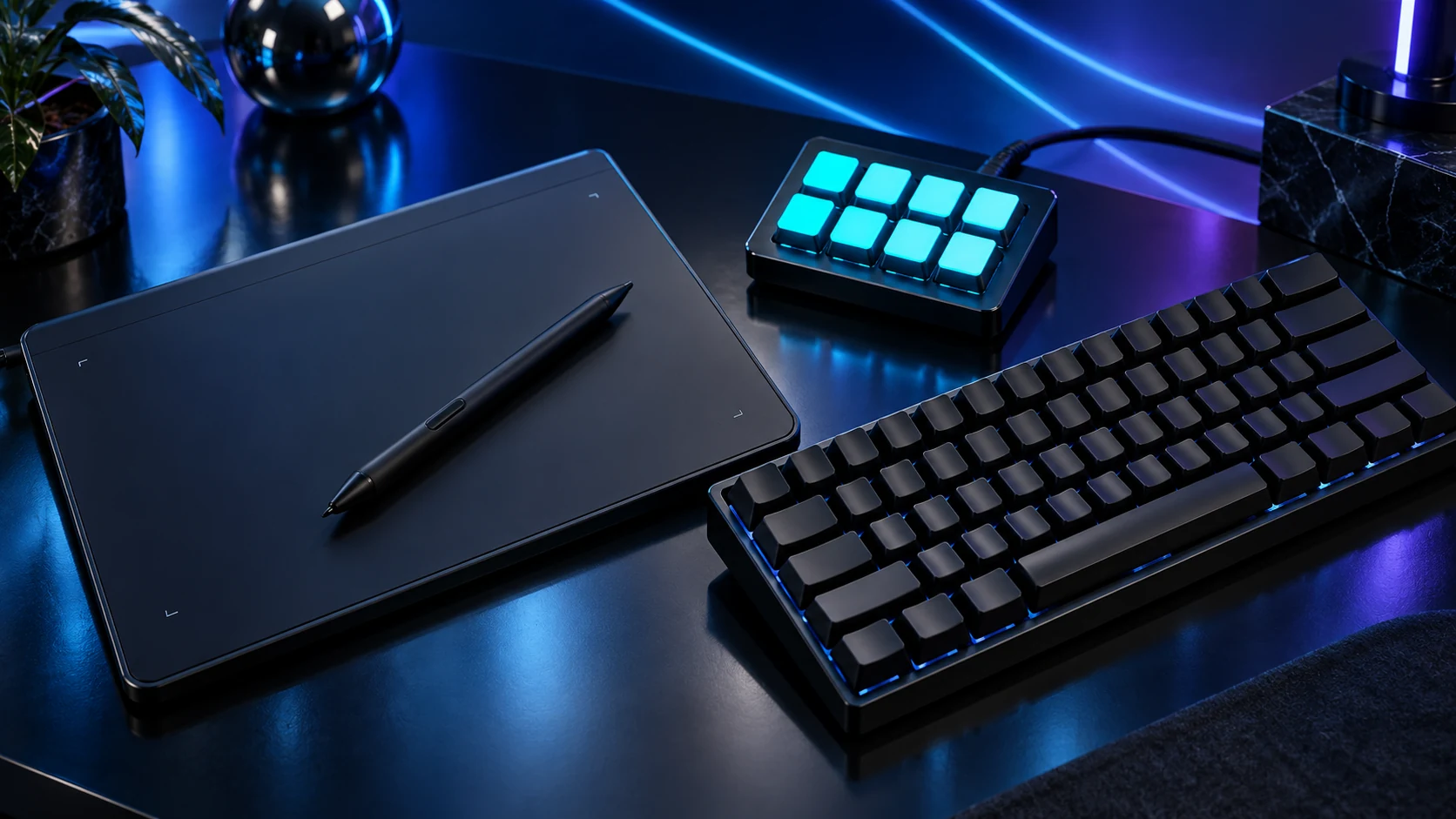
For a first pen-input setup, start with a screenless tablet. Choose a pen display when drawing directly on the image is the workflow you want. My routes are One by Wacom Small for a compact start, Intuos Medium for more working area, and Wacom One 13 touch for direct-on-screen input.
Table of Contents
ToggleThe shortlist: choose for your setup
| Use | My choice | Why choose it | Choose another when |
|---|---|---|---|
| Budget compact pen input | One by Wacom Small CTL-472 | A screenless tablet with a 152×95 mm active area and battery-free pen. | You want a larger hand movement or a screen under the pen. |
| More area and shortcut controls | Wacom Intuos Medium Bluetooth | A larger screenless working area with on-device shortcut controls and a wireless option. | You prefer compact movement or specifically need a pen display. |
| Draw directly on the image | Wacom One 13 touch DTH134 | A pen-and-touch display for a workflow that benefits from drawing on screen. | You want a self-contained tablet computer or have no suitable video/power connection. |
Active drawing area matters more than the device’s outside dimensions. A pen display also adds video, power and positioning requirements; it is not a standalone PC.

Budget compact pen input: One by Wacom Small CTL-472
One by Wacom is the straightforward route into pen input for retouching, notes or learning digital drawing. The Small model’s limited footprint fits a busy desk, but think about the physical movement you prefer before choosing it.
Map the tablet to the intended monitor and practise a few familiar brush or selection movements. This is One by Wacom CTL-472, distinct from the Wacom One display range.
More area and shortcut controls: Wacom Intuos Medium Bluetooth
Choose Intuos Medium when the larger working area suits your drawing movement and the shortcut controls have a place in the application workflow. Keep the exact Medium Bluetooth model in the comparison, rather than mixing Small and Medium specifications.
Set pen pressure and shortcuts in the supported driver and application. Assign commands you repeatedly use, then leave the rest simple. A separate macro pad is useful only when it solves a real repeated control task.
Draw directly on the image: Wacom One 13 touch DTH134
The DTH134 pen display belongs on the shortlist when direct-on-image drawing is the priority. Plan a stand or supported position at the desk; a screen lying awkwardly beside the keyboard can make a good input device less useful.
For a one-cable USB-C connection, Wacom specifies video output support and adequate power. The alternative HDMI/USB route needs the correct DTH134-compatible cable arrangement. Read the USB-C guide before relying on a port’s shape.
Fit the tablet into the creative workflow
Choose a working area around normal brush movement, then place the keyboard where shortcuts remain easy to reach. If using more than one monitor, map the tablet deliberately rather than stretching the pen movement across every screen.
For photo/design work, connect the input choice to the display and colour management. Pen sensitivity does not compensate for an inconsistent viewing setup.
Finish the setup
Install the current supported driver, choose the target screen and save a small set of application shortcuts. Keep the mouse accessible for tasks where it remains the easier control.
Specifications and setup: One by Wacom sizes · Wacom model specifications · DTH134 connections.