
Best RAM for CAD and Engineering PCs in 2027
By James Thompson · Updated:
Some links in my articles are affiliate links. I may earn a commission when you buy through them.
Plan the working-memory capacity before the speed premium. The DIMM/matched-kit guide explains the arrangement, and the XMP/EXPO guide covers setup after a stable baseline.
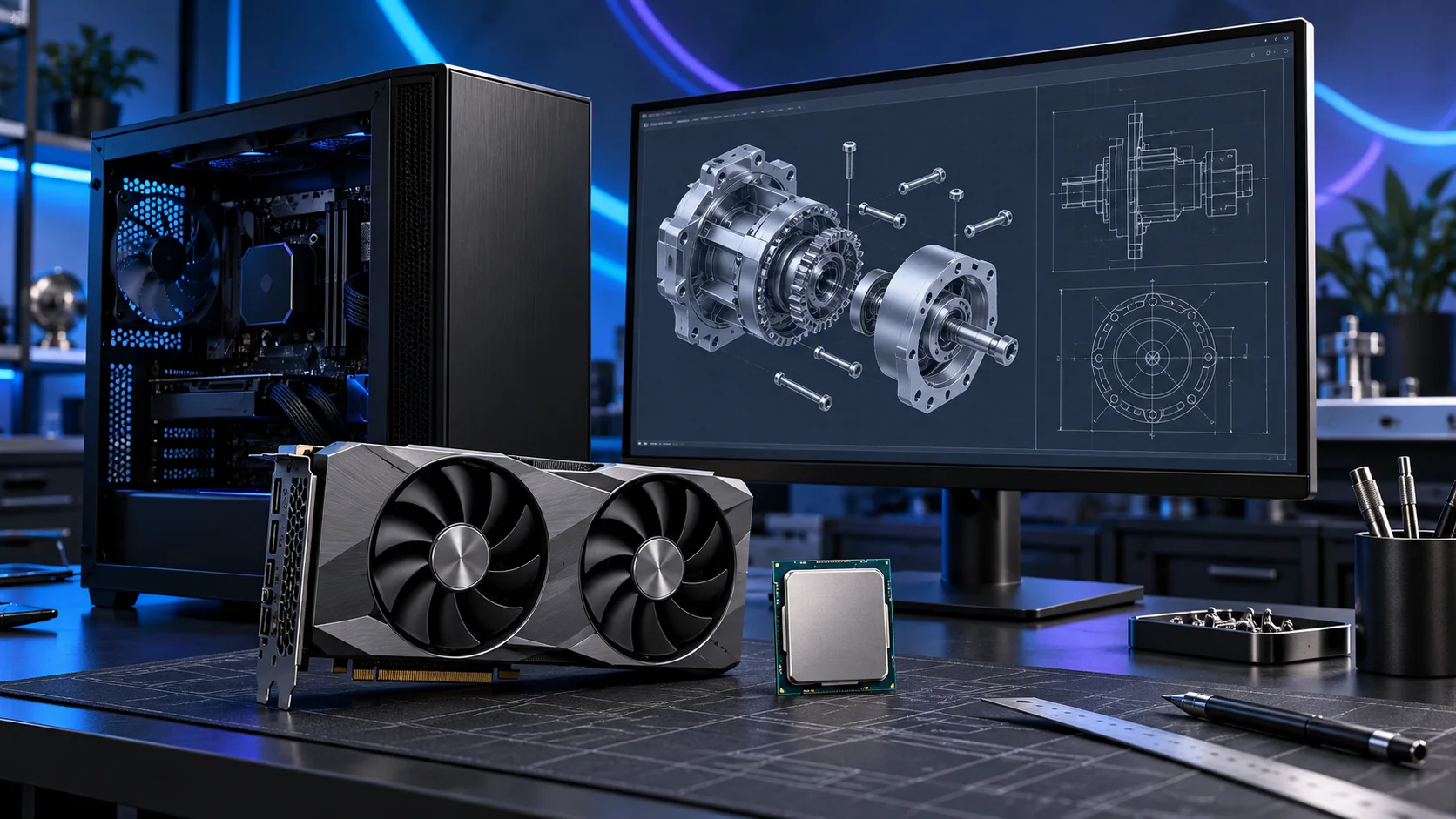
The right CAD memory purchase is the capacity that lets the real project stay in memory while the rest of the working desktop remains open. I would keep the kit matched and leave timing tweaks behind project-size planning. Here is the shortlist I would use, with the lower-cost and more capable routes kept alongside the complete cad and engineering setup.
Table of Contents
ToggleChoose the right option for your build
| Best for | My choice | Why it fits |
|---|---|---|
| Best balanced workstation capacity | Crucial Pro 64GB DDR5-5600 | 64GB is my roomy starting route for larger models and a busy engineering desktop. |
| Best budget drafting capacity | Crucial Pro 32GB DDR5-6000 | 32GB fits a more modest project plan without buying unused workstation capacity. |
| Best high-capacity self-build route | Corsair Vengeance RGB 96GB DDR5-6000 | 96GB is the step up for an identified memory need and a supported board/CPU combination. |
Start with the shortlist below, then use the complete build guide to match your choice to the rest of the setup.
Add a catalogue DDR5 kit to an AM5 tower in PC Builder and compare the estimated complete-build cost alongside the capacity advice here.
Best balanced workstation capacity: Crucial Pro 64GB DDR5-5600
64GB is my roomy starting route for larger models and a busy engineering desktop.
Crucial Pro 64GB DDR5-5600 is the roomy two-stick workstation route. The purchase makes sense when several applications, sizeable projects or virtual machines need space at the same time.
Use the board’s memory support list and the processor’s memory guidance for the exact kit. A lower advertised transfer rate can be a reasonable trade for the capacity needed to keep work in memory.
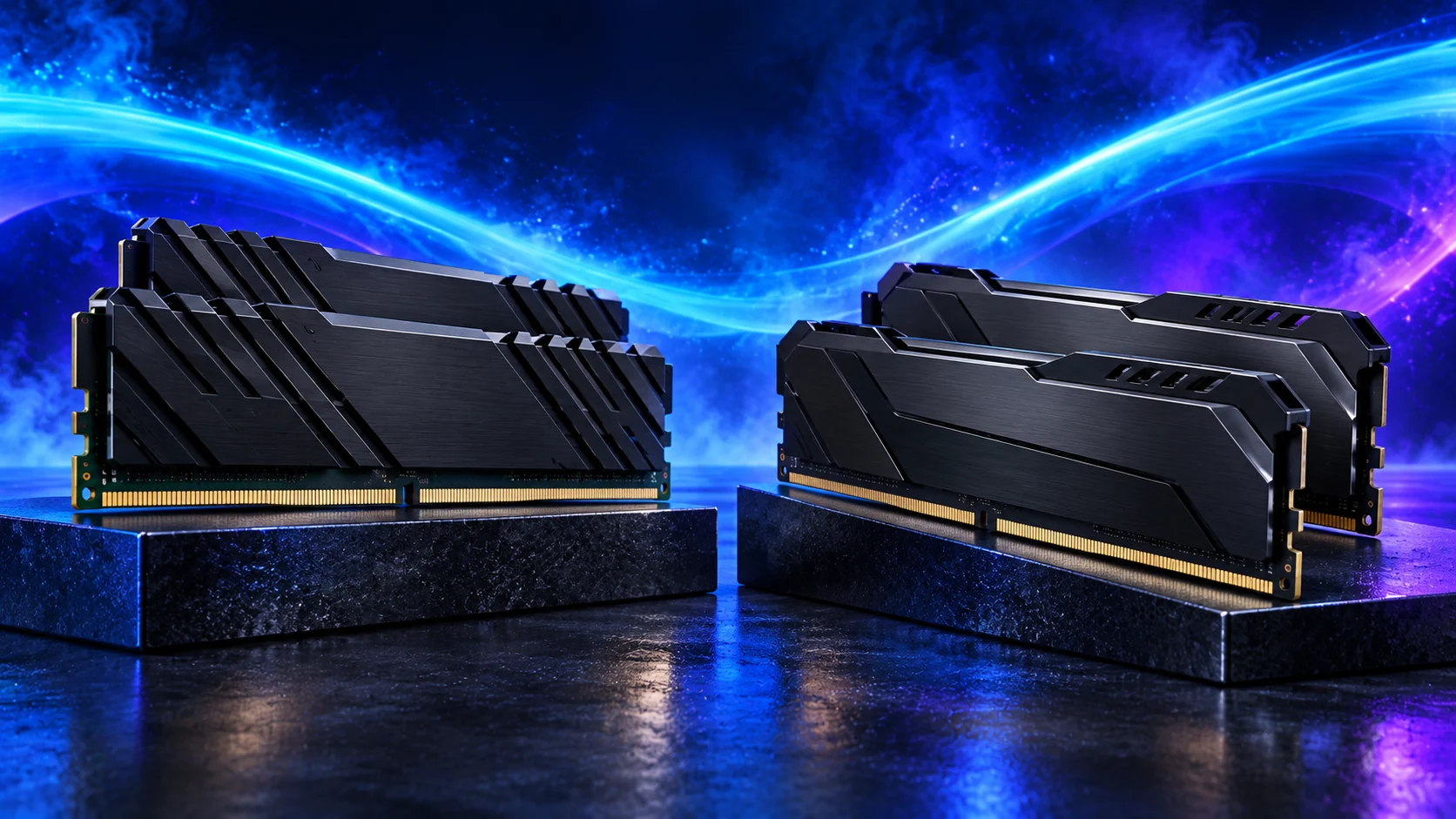
Best budget drafting capacity: Crucial Pro 32GB DDR5-6000
32GB fits a more modest project plan without buying unused workstation capacity.
Crucial Pro 32GB DDR5-6000 is my straightforward two-stick AM5 starting kit. It leaves the PC with useful everyday capacity without buying workstation-sized memory for a project that never fills it.
Choose capacity first, then the profile. Install the kit in the motherboard’s recommended paired slots and establish a stable baseline before enabling its faster memory setting. Keep DDR5 out of a DDR4-only board.

Best high-capacity self-build route: Corsair Vengeance RGB 96GB DDR5-6000
96GB is the step up for an identified memory need and a supported board/CPU combination.
Corsair Vengeance 96GB DDR5-6000 is the high-capacity two-stick option for a defined workload. I would buy it when a measured memory requirement has moved beyond 64GB, rather than treating spare RAM as an automatic speed improvement.
Confirm support for 48GB modules and the exact kit before ordering. Run the system at a stable setting first; the advertised profile is not a universal guarantee across every processor and motherboard combination.

How I would choose between these routes
Use a representative model with the programs you keep open and look at memory use through a working session. The peak can be during an import, regeneration, export or render, rather than while the model sits still. Leave useful headroom for those stages and avoid assuming a file’s size on disk is its memory requirement.
Choose the whole capacity as one supported kit. Filling four slots can change the achievable memory setting and makes later diagnosis harder. If the workstation needs ECC or a vendor-certified configuration, choose a platform that actually supplies it instead of assuming that a consumer board or professional GPU adds that requirement.
Match the purchase to the actual workload
For business-critical SOLIDWORKS work, decide whether a vendor-supported workstation is a requirement before building. The certification list identifies exact combinations rather than declaring every professional graphics card suitable for every version. For a self-build, use that list to choose the card and driver, and understand the support arrangement you need. The dedicated AutoCAD and Revit guides below narrow the parts plan further.
The supporting parts I would put beside it
Fast interactive work is a better reason to buy a modelling CPU than the largest core count printed on a box. I would start with the 9700X and move to the 9950X when CPU rendering or parallel processing earns its place. Solver and rendering choices should be treated as named applications, not assumed extensions of every CAD model.
| Role | Suggested route | Why I include it |
|---|---|---|
| Processor | Ryzen 7 9700X | Match the active workload to the platform. |
| Working drive | WD_BLACK SN850X 2TB | Keep active files and useful free space on the NVMe drive. |
| Case | NZXT H5 Flow (2024) | Use the complete layout rather than an isolated component maximum. |
Complete the purchase plan
Use the AutoCAD guide for drafting-led systems and the Revit guide for building models. For a SOLIDWORKS-led build, keep the certification check with the graphics order and choose memory around the assembly. Rendering can justify a separate CPU or GPU tier without forcing that spend on every designer.
Compare the complete basket for the chosen route and keep the exact variant in the order. Use the wider ram guide for the underlying choice, or return to the complete cad and engineering build for the supporting purchases.
Build a cad and engineering PC
Technical references: SOLIDWORKS requirements · SOLIDWORKS certification database.