
Best Flight-Sim Controls for Beginners in 2027
By James Thompson · Updated:
Some links in my articles are affiliate links. I may earn a commission when you buy through them.
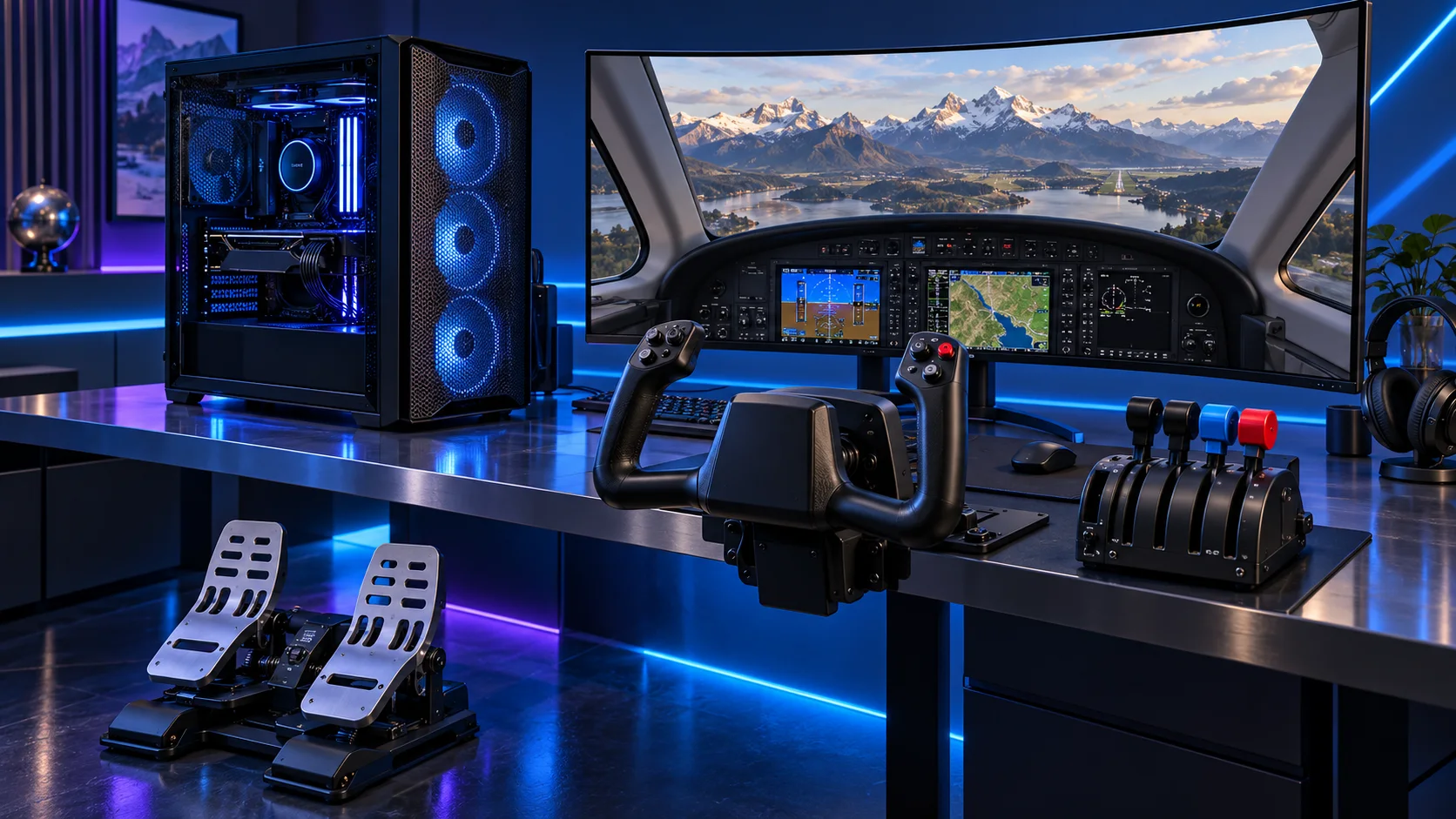
The controls change the experience more than another decorative accessory. Choose the shape that matches the aircraft, then count the complete bundle: stick or yoke, throttle, pedals and the desk or floor space they need. Here is the shortlist I would use, with the lower-cost and more capable routes kept alongside the complete flight simulation setup.
Table of Contents
ToggleChoose the right option for your build
| Best for | My choice | Why it fits |
|---|---|---|
| Best complete stick setup | Thrustmaster T16000M FCS Flight Pack | Joystick, separate throttle and rudder pedals create a coherent first cockpit. |
| Best lower-cost HOTAS | Thrustmaster T.Flight Hotas X | An approachable stick-and-throttle route before committing to a permanent flight setup. |
| Best civilian yoke route | Logitech PRO Flight Yoke System | Choose a yoke and throttle arrangement when that matches the aircraft you want to practise. |
Start with the shortlist below, then use the complete build guide to match your choice to the rest of the setup.
Best complete stick setup: Thrustmaster T16000M FCS Flight Pack
Joystick, separate throttle and rudder pedals create a coherent first cockpit.
The T16000M FCS Flight Pack is the more complete stick route, combining the joystick, TWCS throttle and TFRP rudder pedals. I would choose it when independent rudder control and separate throttle placement are part of the planned setup.
Leave floor space for the pedals and desk room for two controls. The useful upgrade is the arrangement you can actually use, rather than adding hardware that must be packed away after every short flight.
Best lower-cost HOTAS: Thrustmaster T.Flight Hotas X
An approachable stick-and-throttle route before committing to a permanent flight setup.
The T.Flight Hotas X is the lower-cost stick-and-throttle starting point. I would choose it for someone finding out how much time they will spend flying, rather than commit most of the setup budget to controls immediately.
Set the controls where they can stay put and map the axes in the simulator before buying add-ons. A complete flying budget includes the screen and somewhere comfortable to mount or place the controls.
Best civilian yoke route: Logitech PRO Flight Yoke System
Choose a yoke and throttle arrangement when that matches the aircraft you want to practise.
The Logitech PRO Flight Yoke System is the civilian-aircraft route in this shortlist. I would buy a yoke for the type of cockpit I want to practise, rather than assume one control shape is best for every aircraft.
Plan the clamp and desk edge before ordering. A yoke system and a stick-and-throttle pack are different purchases; list the pedals and any additional controls separately so the finished budget is clear.
How I would choose between these routes
For desk use, look at where your elbows and wrists will sit during a long flight. A control that can be clamped or placed securely is easier to live with than one that moves each time you pull back. Leave room for the keyboard and a way to reach the mouse; the aircraft still has menus and switches outside the mapped controls.
For pedals, reserve a stable floor position before placing an order. Start by mapping pitch, roll, yaw and throttle, then add trim and frequently used commands. Tune dead zones and sensitivity after the axes work correctly. This gives a useful baseline and makes a later control upgrade a decision about the flying you enjoy.
Include the rest of the setup
A civilian flight setup and a combat cockpit can lead to different spending decisions. Write down the simulator, the aircraft you actually fly, the display arrangement and the controls before choosing the tower. A useful first setup has enough graphics budget for the view and somewhere comfortable to put the stick or yoke. I would rather have a balanced PC and usable controls than a flagship tower that leaves the pilot steering with a keyboard.
Install the simulator on the active SSD and start with the display connected directly to the graphics card. Set resolution and refresh rate in Windows before tuning the simulator. Use an ordinary single-screen configuration as the baseline, then add a headset or other displays one change at a time.
The supporting parts I would put beside it
Keep the simulator and frequently used scenery on the active NVMe drive. Leave room for updates and add-ons rather than filling it on day one. Archive installers and recordings separately, and keep a copy of controller profiles so rebuilding the PC does not mean remapping the cockpit.
| Role | Suggested route | Why I include it |
|---|---|---|
| Memory | Crucial Pro 64GB DDR5-5600 | Choose capacity for the active work and surrounding desktop. |
| Working drive | WD_BLACK SN850X 2TB | Keep active files and useful free space on the NVMe drive. |
| Case | NZXT H5 Flow (2024) | Use the complete layout rather than an isolated component maximum. |
Complete the purchase plan
Map the controls before adding scenery packs and optional cockpit accessories. Fly a route you know with the same aircraft while adjusting settings; that makes changes easier to judge. For a mixed racing-and-flying machine, the sim-racing guides give a separate plan for the wheel, triples and VR layout.
Compare the complete basket for the chosen route and keep the exact variant in the order. Use the wider flight controls guide for the underlying choice, or return to the complete flight simulation build for the supporting purchases.
Technical references: Microsoft Flight Simulator FAQ · T16000M Flight Pack specification.